Drag and Drop Event Handling
Drag and Drop Event Handling:
In this tutorial, we will learn how to handle the drag and drop event in selenium WebDriver using the action class.
Before going further in this tutorial first, we will understand what drag and drop is?
Drag and Drop:
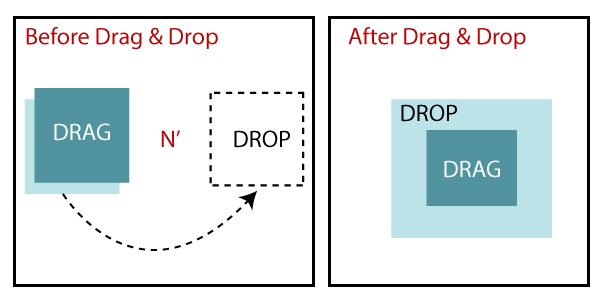
This method is used to drag the element from the source and drop it to the target.
Or
Drag and drop are used to move (drag) the web element, text and, an image to another part /section of the web page (drop) with the help of the mouse.
In selenium WebDriver, we will use the drag and drop event with the help of action class.
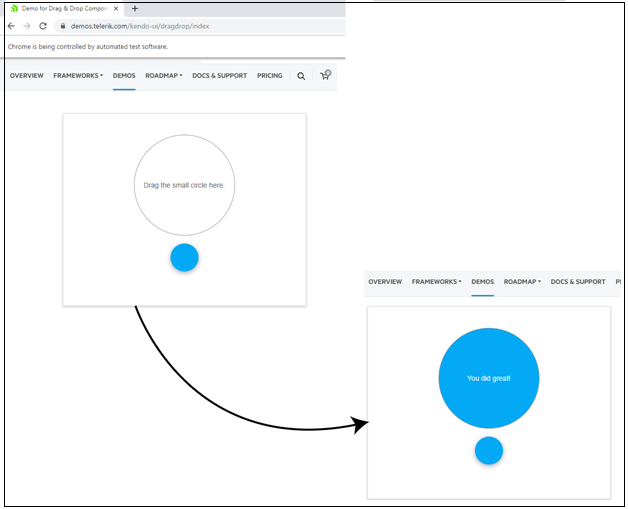
Let us take one example to give you a better understanding of drag and drop handling, and we created a sample test script which is as follows;
For our testing purpose, we are using the demo.telrik.com website to perform all the actions for drop and drag handling in selenium WebDriver.
In this test case, we will automate the following test scenarios:
| Steps | Action | Method Used | Input | Excepted Result |
| 1. | Open the Google Chrome Browser. | System.setProperty() | The Google Chrome browser must be opened. | |
| 2. | Navigate to the demo.telrik.com. | get() | https://demos.telerik.com/kendo-ui/dragdrop/index | The home page window must be displayed. |
| 3. | Identify the drag and drop frame window to perform all the actions. | The frame window should be identified. | ||
| 3. | Identify the source element (drag) using the id locator. | The source element should be identified for dragging. | ||
| 4. | Identify the target element (drop) using the id locator. | The target element should be identified for dropping. | ||
| 5. | Create an action class object. | The action class object should be created. | ||
| 6. | Click and hold the element and release it. | clickAndHold(),moveToelement(),release() | Using these methods, the element should be drag from the source and drop it to the target element. | |
| 7. | Quit the Browser. | quit() | The browser should beterminated. |
Open the Eclipse IDE and the existing test suite new_test, which we have created in WebDriver Installation section of the WebDriver tutorial.
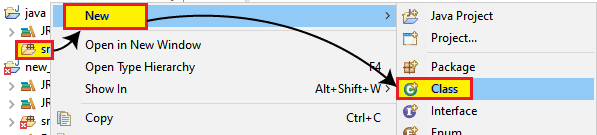
Then, right-click on the src folder and create a new Class File from New → Class.
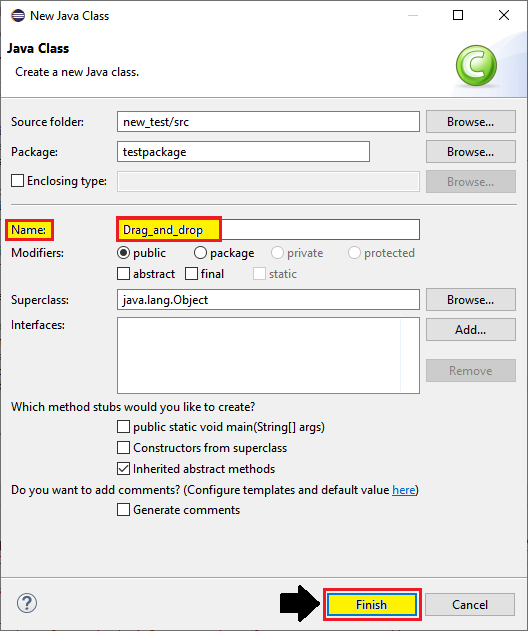
- Give the Class name as Drag_and_drop and click on the Finish button.
Step1:
To launch the Google Chrome browser, we need to download the ChromeDriver.exe file and set the system property to the path of ChromeDriver.exe file.
Here is the code for setting the system property for the google chrome:
//set the system property of Google Chrome
 System.setProperty("webdriver.chrome.driver","C:\Users\JTP\Downloads\chromedriver_win32\chromedriver.exe");
To initialize the Chrome driver using ChromeDriver class:
// create driver object for CHROME browser
WebDriver driver=new ChromeDriver();
Step2:
Now, we will get to the desired URL:
//navigate to the home page of telrik.com.
driver.get("https://demos.telerik.com/kendo-ui/dragdrop/index");
Step3:
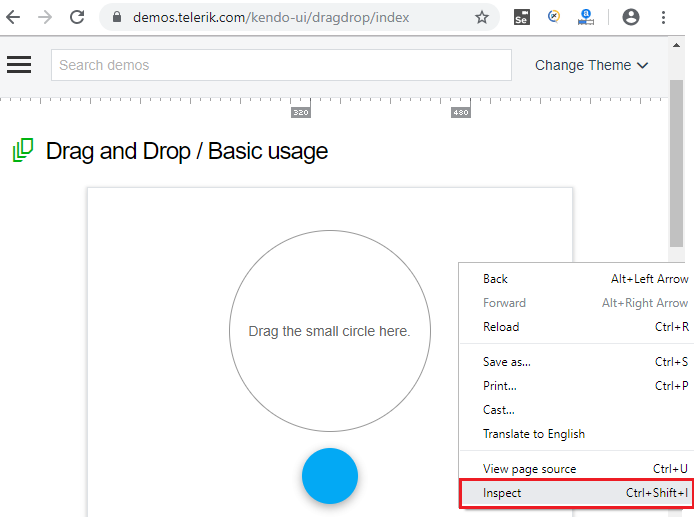
First, we have to find the drag-drop frame window, and then right-click on the inspect Element (Q).
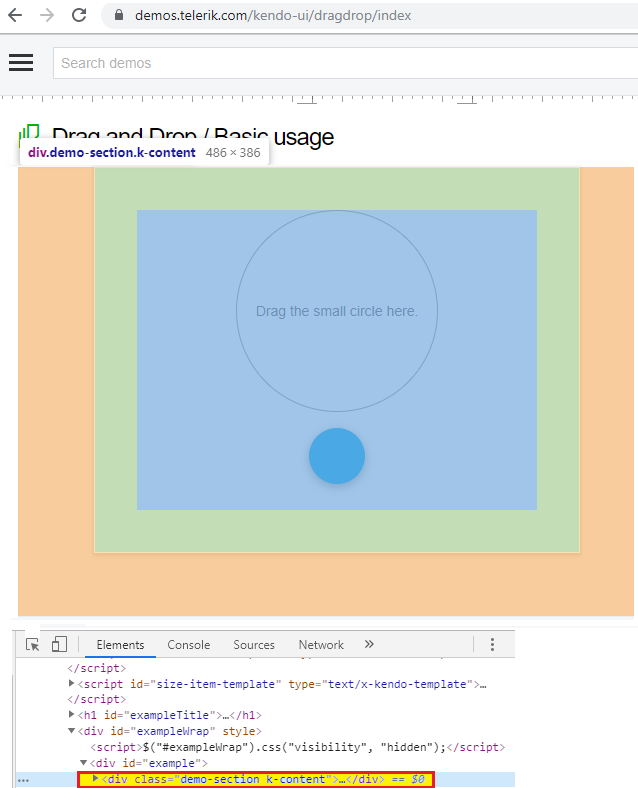
The developer tool window will be launched, with all the specific codes used in the development of the given link.
Step4:
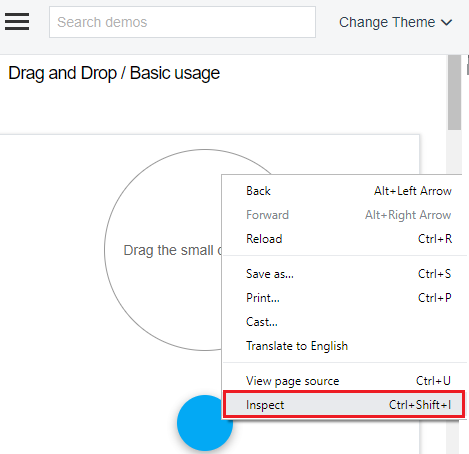
And after that, right-click on the source (drag) element and select inspect Element (Q).
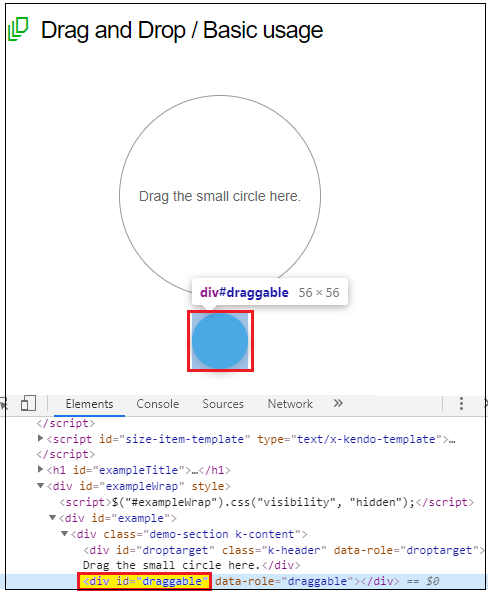
After that, the developer tool window is opened, then copy the value of its id attribute, i.e.,” draggable.”
Here the sample code,
// //identify the drag and drop frame window to perform all the action
driver.findElement(By.xpath("//div[@class='demo-section k-content']"));
 //to get source locator
WebElement srcwb=driver.findElement(By.id("draggable"));
System.out.println("the source element is ready to drag");
Step5:
Now, we are moving our next steps, where we will click on the target (drop) element, and select the Inspect element field.
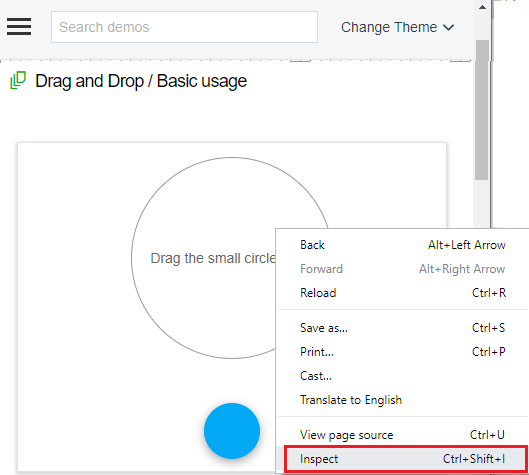
The developer tool window will be launched, with all the specific codes used in the development of thegiven link.
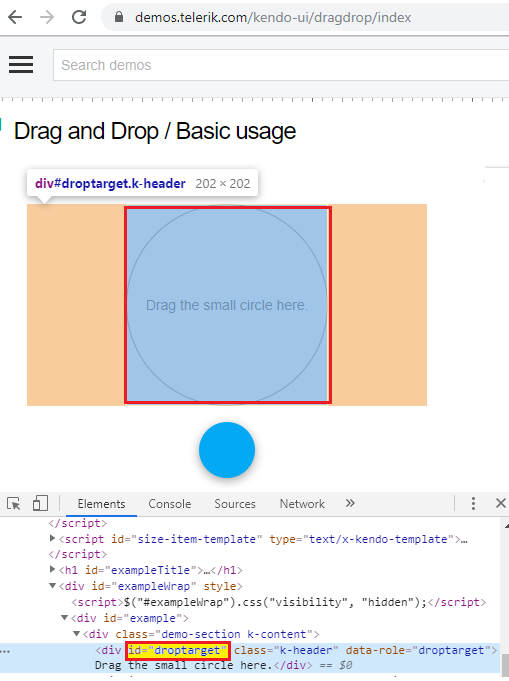
Copy the value of its id attribute, i.e.,”droptarget.”
Here the sample code,
//to get target locator
WebElement dstwb=driver.findElement(By.id("droptarget"));
System.out.println("the traget element is ready to drop");
Step6:
In the next step of our sample test script, where we are creating the action class object.
//create an object to the action class
 Actions act= new Actions(driver);
Step7:
After that, we will use the action class method to drag the source element and drop it the target element.
//click and hold, and release operation
act.clickAndHold(srcwb).moveToElement(dstwb).release().build().perform();
Thread.sleep(3000);
//or we can use this below method
act.dragAndDrop(srcwb, dstwb).build().perform();
 Thread.sleep(3000);
Step8:
Finally, we terminate the process and quit the browser.
//quit the browser
driver.quit();
After completing all the steps, our final test script will look like this:
package testpackage;
import java.util.List;
import java.util.concurrent.TimeUnit;
import org.openqa.selenium.By;
import org.openqa.selenium.Keys;
import org.openqa.selenium.WebDriver;
import org.openqa.selenium.WebElement;
import org.openqa.selenium.chrome.ChromeDriver;
import org.openqa.selenium.interactions.Actions;
import org.openqa.selenium.support.ui.WebDriverWait;
public class Drag_and_drop {
public static void main(String[] args) throws InterruptedException {
System.setProperty("webdriver.chrome.driver", C:\Users\JTP\Downloads\chromedriver_win32\chromedriver.exe");
//create driver class object
WebDriver driver = new ChromeDriver();
//maximize the browser window
driver.manage().window().maximize();
//to delete the all cookies
driver.manage().deleteAllCookies();
driver.manage().timeouts().implicitlyWait(20,TimeUnit.SECONDS);
//navigate to the url
driver.get("https://demos.telerik.com/kendo-ui/dragdrop/index");
//using explicitly wait
WebDriverWait wait = new WebDriverWait(driver, 5);
//identify the drag and drop frame window to perform all the action
driver.findElement(By.xpath("//div[@class='demo-section k-content']"));
//to get source locator
WebElement srcwb=driver.findElement(By.id("draggable"));
System.out.println("the source element is ready to drag");
//to get target locator
 WebElement dstwb=driver.findElement(By.id("droptarget"));
System.out.println("the target element is ready to drop");
//create an object to the action class
Actions act=new Actions(driver);
//click and hold, and release operation
act.clickAndHold(srcwb).moveToElement(dstwb).release().build().perform();
Thread.sleep(3000);
System.out.print("the source element is dropped to the target successfully");
//or we can use this below method
//act.dragAndDrop(srcwb, dstwb).build().perform();
//Thread.sleep(3000);
//quit the browser
driver.quit();
}
}
- To run the test script in Eclipse, right-click on the window and then click Run as drag and drop event handling Java application and the test script will be launched in the chrome browser and automate all the test scenarios.