
React Native indicator
React native activity indicator :
React native activity indicator is one of the react-native components. We all have seen it several times. It's the loader.
Look at the picture below -

So now you must have understood what we are talking about. There are many types of activity indicators, and we will be discussing some of them.
Let's create one simple activity indicator, and then we will understand the code part by part for more clarity.
App.js code:
import React, { Component } from 'react'
import {
    ActivityIndicator,
    StyleSheet,
    Text,
    View,
} from 'react-native'

export default class ActivityIndicatorDemo extends Component {
    state = { animating: true }
    closeActivityIndicator = () => setTimeout(() => this.setState({
        animating: false }), 6000)
    componentDidMount = () => this.closeActivityIndicator()
    render() {
        const animating = this.state.animating
        return (
            <View style={[styles.container]} >
                <ActivityIndicator  animating = {animating} size="large" color="#990000" />

            </View>
        )
    }
}

const styles = StyleSheet.create({
    container: {
        backgroundColor: "#ffb3b3",
        flex: 1,
        justifyContent: 'center'
    },
    hz: {
        flexDirection: 'row',
        justifyContent: 'space-around',
        padding: 20
    }
})
Output :

Explanation of code :
import {
    ActivityIndicator,
    StyleSheet,
    Text,
    View,
} from 'react-native'
In this part, we have imported activity indicators along with other components.
If you want to import only the activity indicator, then the code will be -
import {ActivityIndicator} from 'react-native'
We will be discussing animation more deeply in the animation part of this tutorial.
closeActivityIndicator = () => setTimeout(() => this.setState({
        animating: false }), 6000)
The closing of the latter is done using a close activity indicator after a specific time. It's one of the necessities. Otherwise, it will be running without stopping. Here 6000 means that it will stop after 6 seconds. You can give time as per your requirement.
<ActivityIndicator animating = {animating} size="large" color="#990000" />
In this part, we have declared the activity indicator component. Here though {animating} we are enabling the animation, as we have given true value to it.
At last, we have declared the stylesheet and defined our desirable styling.
What if we give false to animation?
Let's see the output -
[note - here we will only be changing this part-> state = { animating: false }
The rest of the code is the same ]

There is no activity indicator if we declare animation as false.
This was the simplest example of an activity indicator. Let's see some different activity indicators.
In the example below, we will use both activity indicator and grid.
App.js code :
import React, { Component } from 'react'
import {
    ActivityIndicator,
    StyleSheet,
    Text,
    View,
} from 'react-native'
import { Col, Row, Grid } from "react-native-easy-grid";


export default class ActivityIndicatorDemo extends Component {
    state = { animating: true }
    closeActivityIndicator = () => setTimeout(() => this.setState({
        animating: false }), 8000)
    componentDidMount = () => this.closeActivityIndicator()
    render() {
        const animating = this.state.animating
        return (
            <View style={[styles.container, styles.horizontal]} >
            <Grid style={{backgroundColor:'pink',borderColor :'black'}}>
    <Col >
    <Row style={{backgroundColor:'#ecc6d9',justifyContent:"center"}}> <ActivityIndicator  animating = {animating} size="large" color="#990000" />   </Row>
      <Row style={{backgroundColor:'#ffff99',justifyContent:"center"}}> <ActivityIndicator  animating = {animating} size="large" color="#99ff66" /> </Row>
      <Row style={{backgroundColor:' #b3ffff',justifyContent:"center"}}> <ActivityIndicator  animating = {animating} size="large" color="#ff66b3" />  </Row>
      <Row style={{backgroundColor:'#fa32ed',justifyContent:"center"}}> <ActivityIndicator  animating = {animating} size="large" color=" #944dff" /> </Row>
      <Row style={{backgroundColor:'#ccffcc',justifyContent:"center"}}> <ActivityIndicator  animating = {animating} size="large" color="#ff4d4d" /> </Row>
    </Col>
    <Col  >
    <Row style={{backgroundColor:'#ccfff5',justifyContent:"center"}}><ActivityIndicator  animating = {animating} size="large" color="#ffff00" /> </Row>
      <Row style={{backgroundColor:'#d11aff',justifyContent:"center"}}> <ActivityIndicator  animating = {animating} size="large" color="#1affff" /> </Row>
      <Row style={{backgroundColor:'#f3ccff',justifyContent:"center"}}>  <ActivityIndicator  animating = {animating} size="large" color="#ffff00" /> </Row>
      <Row style={{backgroundColor:' #ffcc99',justifyContent:"center"}}><ActivityIndicator  animating = {animating} size="large" color="#800080" /></Row>
      <Row style={{backgroundColor:'#b3e0ff',justifyContent:"center"}}><ActivityIndicator  animating = {animating} size="large" color="#800080" /></Row>


    </Col>
</Grid>
  </View>
);

    }
}

const styles = StyleSheet.create({
    container: {
        backgroundColor: "black",
        flex: 1,
        justifyContent: 'center'
    },
    horizontal: {
        flexDirection: 'row',
        justifyContent: 'space-around',
        padding: 20
    }
})
Output :
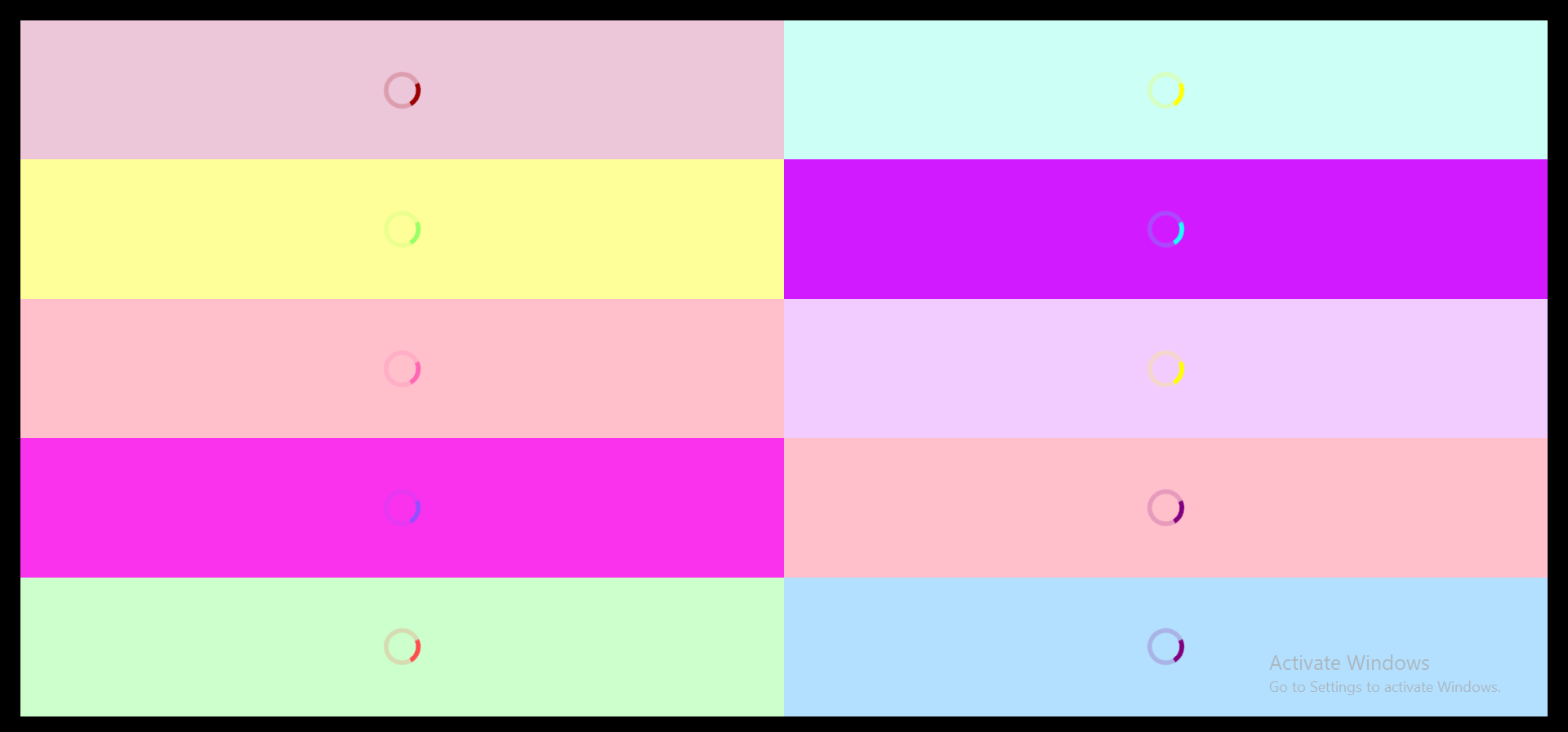
Explanation: Here, we have used the activity indicator and grid together. We have discussed this same grid in one example. The only difference is that there was a number inside the grid, and here we are using an activity indicator inside every row. If you are finding any difficulty in the grid, kindly check the react-native grid tutorial. From there, you can understand this concept very clearly.
Different props of react-native activity indicator :
Animation: Its name is enough to make us understand what it does. It takes a boolean value that is true or false. If it is true, then the indicator will be visible, else indicator will not be visible.
Color: It defines the color of the indicator.
Hidewhenstopped: If the indicator is not animating so, whether it should be hidden, Hidewhenstopped decides it.
Size: It defines the size of the indicator.