
Div Tag in HTML
In HTML, ‘div’ is a tag that specifies division or section in HTML document. But before going in detail of it, let’s first understand about tags in HTML. The tag in HTML can be imagined as a keyword which basically defines how our browser(web-browser) will interpret, format and display the content. The tags act as a line of difference between our HTML content and non-HTML content, this helps the browser to distinguish both efficiently.
HTML tags can be classified into 3 main parts:
- Opening tag,
- Content and
- Closing tag.
Eg: <tag> content </tag>Note: There are some tags in HTML which do not require the closing tag, i.e., they are referred to as unclosed tags.
Semantic Tags vs Non-semantic tags in HTML
A semantic tag in HTML is a tag whose name clearly describes its purpose and its content.
Eg: <h1> —> Used to show important text (generally the heading of the document)
<h6> —> Used to show less important text
<Nav> —> Used to show navigation information of webpage
<nav>
  <a href="/html/">HTML</a> |
  <a href="/css/">CSS</a> |
  <a href="/js/">JavaScript</a> |


</nav>
Non-semantic tags in HTML
The non-semantic tags can be referred to as the tags in HTML which tells nothing about their content.
Eg: <div> –> creates a generic container that groups other elements.
<span> –> creates an inline text fragment.
<div> Tag in HTML
The div tag in HTML is a block level element which is used to create a generic container which is generally not visible and is used to group other elements.
When a div tag is declared, all the tags inside it are assigned as a whole separate block. This means if we declare a paragraph (<p> ‘ ‘ ‘ </p>) tag inside a div tag. The paragraph will have a whole block assigned to it.
Eg:
<!DOCTYPE html>
<html>
  <head>
    <title>HTML div Tag</title>
  </head>


  <body>
    <div id="contentinfo">
      <p>Welcome to our website.</p>
      <p>Checkout our huge collection of technical content</p>
<p> Enjoy! your session</p>


    </div>
  </body>
</html>
Output:
Welcome to our website.
Checkout our huge collection of technical content
Enjoy! your session
Code 1: Example of div tag in HTML
<!DOCTYPE html>
<html>
  <head>
    <title>HTML div Tag</title>
  </head>
  <style>
    .contentinfo {
      border: 6px outset maroon;
      background-color: rgb(142, 224, 252);
      text-align: center;
    }
    </style>
    </head>
  <body>
      <h3>This text is outside the div tag</h3>
    <div class="contentinfo">
      <p>Welcome to our website.</p>
      <p>Checkout our huge collection of technical content</p>
      <p>Enjoy! your session</p>
    </div>
  </body>
</html>
Output:

<div> vs <span> | Difference between div and span tags
| <div> | <span> |
| It is a block level element | It is an inline element |
| It creates a generic container that groups other elements. | It creates an inline text fragment. |
| Whole block is assigned to each individual entity inside this tag. | Only required space is assigned. |
| It adds a line break after its closing tag. | It doesn’t add a line break after its closing tag. |
| Eg: <p>This is first paragraph</p> <p>This is second paragraph</p> <p>This is third paragraph</p> | Eg: <em> This is em tag </em> <em>em is used to </em> <em> emphasize text</em> |
| Output: This is first paragraph This is second paragraph This is third paragraph | Output: This is em tag em is used to emphasize text |
Styling the content of <div>
The main reason to inherit the feature of div tag which allocates a separate block to each individual entity, is to enjoy the benefit of styling each entity on the webpage according to user choice/theme. This not only helps in scaling but also helps in designing beautiful web pages.
Code 2: Styling the content
Html file: index.html
<!DOCTYPE html>
<html>
  <head>
    <title>HTML div Tag</title>
  </head>
  <link rel=stylesheet href="style.css">
    </head>
  <body>

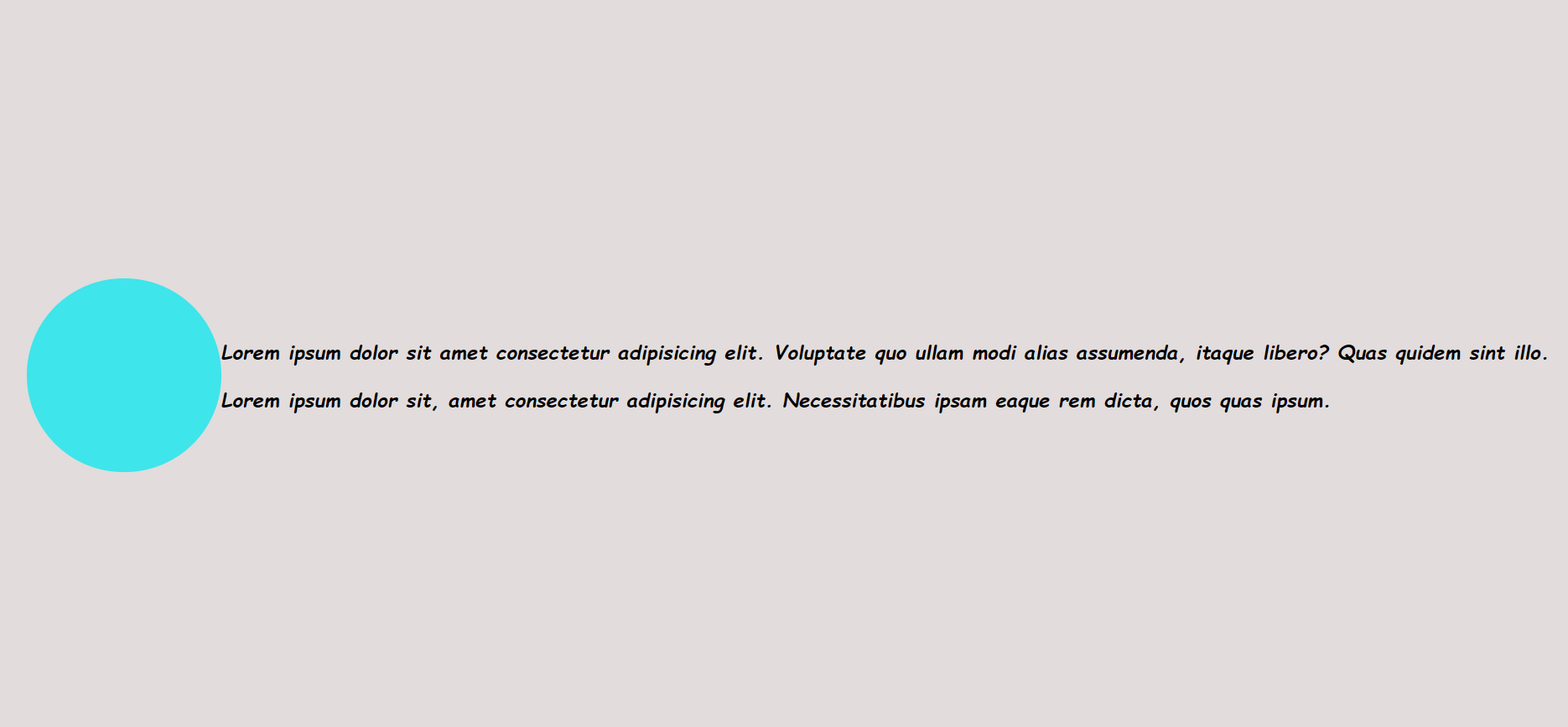
        <div class="div_styling">
    </div>
    <div class="text_styling">
        <p>
          Lorem ipsum dolor sit amet consectetur adipisicing elit. Voluptate quo
          ullam modi alias assumenda, itaque libero? Quas quidem sint illo.
        </p>
        <p>
          Lorem ipsum dolor sit, amet consectetur adipisicing elit. Necessitatibus
          ipsam eaque rem dicta, quos quas ipsum.
        </p>
  </div>
  </body>
</html>
CSS file: style.css
body {
  margin: 0 auto;
  height: 100vh;
  display: flex;
  align-items: center;
  justify-content: center;
  background-color: #e2dcdc;
}


.div_styling {
  background-color: #3ee5eb;
  width: 185px;
  height: 185px;
  border-radius: 50%;
}


.text_styling {
  font-family: cursive, sans-serif;
  font-size: 1.2rem;
  font-weight: bolder;
  font-style: italic;
}
Output:
Code 3: Basic HTML web page layout using div tag
<!DOCTYPE html>
<html>
  <head>
    <title>Basic HTML Layout using Div</title>
  </head>
  <body
  style="background-color: blanchedalmond;">
    <div style="width: 100%">
      <div style="background-color: rgb(71, 207, 207); text-align: center">
        <h1>Example of page layout using div tag</h1>
      </div>
      <div
        style="
          background-color: rgb(230, 82, 82);
          height: 350px;
          width: 30%;
          float: left;
        "
      >
        <h2>Main Menu</h2><br />
        <p><a href="Link L1 ">sample link L1</href><br /> </p>
        <p><a href="Link L2 ">sample link L2</href><br /> </p>
        <p><a href="Link L3 ">sample link L3</href> <br /><hr><hr>
      </div>
      <br>
      <br>
      <div
        style="background-color: orange;
        color: black;
        height: 400px;
        width: 70%;
        float: left"
        >
       <h3> This is a sample content. </h3>
        <p>
          Lorem ipsum dolor sit amet consectetur adipisicing elit. Error
          excepturi corporis accusamus quas consectetur ab modi voluptatibus
          quaerat reprehenderit, sint dignissimos quibusdam quae reiciendis
          temporibus.
        </p>
      </div>
  </body>
</html>
Output:

Code 4: Example of span tag in HTML
File 1: index.html
<!DOCTYPE html>
<html lang="en">
  <head>
    <meta charset="UTF-8" />
    <meta http-equiv="X-UA-Compatible" content="IE=edge" />
    <meta name="viewport" content="width=device-width, initial-scale=1.0" />
    <title>Example of span tag</title>
    <link rel="stylesheet" href="style.css" />
  </head>
  <body>
    <p>
      We can use span tags to target text with CSS styling, like with
      <span id="blue-text">this blue text</span> and
      <span id="orange-text">this orange text</span>.
    </p>


    <p>
      Lorem ipsum dolor sit amet, consectetur adipisicing elit. Aspernatur,
      necessitatibus.
      <span id="new-font"
        >Lorem ipsum dolor sit amet consectetur, adipisicing elit.
      </span>
      or <span id="new-font-size">font size</span>.
    </p>
  </body>
</html>
File 2: style.css
#blue-text {
  color: blue;
}
#orange-text {
  color: orange;
}


#new-font {
  font-family: Helvetica;
}


#new-font-size {
  font-size: 28px;
}
Output:
We can use span tags to target text with CSS styling, like with this blue text and this orange text.
Lorem ipsum dolor sit amet, consectetur adipisicing elit. Aspernatur, necessitatibus. Lorem ipsum dolor sit amet consectetur, adipisicing elit. or font size.
Conclusion:
The div tag in HTML is a block level element which is used to create a generic container which is generally not visible and is used to group other elements. Some key points of div tag are:
| It is a block level element Creates a generic container that groups other elements. Whole block is assigned to each individual entity inside this tag. It adds a line break after its closing tag. |