
×

Copy Command in AutoCAD

Using Two Points to Copy an Object

  1. Select the Home tab > Modify panel > Copy option.
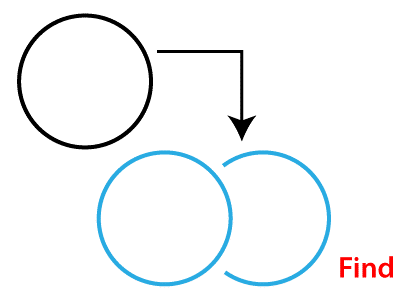
  2. Copy Command in AutoCAD
  3. Press Enter after selecting the items to copy.
  4. Set a starting point for the copy.
  5. Make a second point. The cloned items are moved to a new position based on the distance and direction between the first and second locations.

Using a Displacement to Copy an Object

  1. Select the Home tab > Modify panel > Copy option.
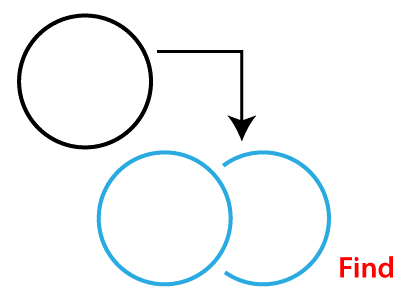
  2. Copy Command in AutoCAD
  3. Press Enter after selecting the items to copy.
  4. Enter a Cartesian, polar, cylindrical, or spherical coordinate value for the displacement. The @ sign is removed because a relative coordinate is expected.
  5. For the second point, enter at the prompt. Rather than the position of a base point, the coordinate values are employed as a relative displacement. The duplicated items are moved to a new position based on the relative coordinate values you provide.

Copying and pasting

  • To copy a clip, use Ctrl+C or go to the home tab > Clipboard panel > Copy Clip.
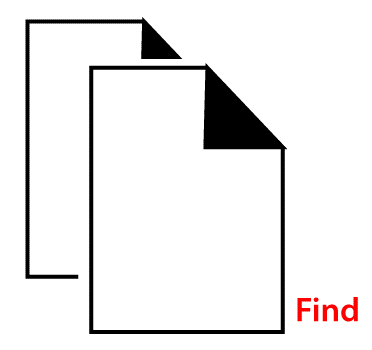
Copy Command in AutoCAD
  • Press Enter after selecting the items to copy. The items can now be pasted into another drawing or into the same drawing.
  • If necessary, switch to the drawing where you want to paste the elements.
  • Use one of the following commands to paste the objects:
    • Ctrl+V or Home tab > Clipboard panel > Paste (Home tab > Clipboard panel > Paste or Ctrl+V or Home tab > Clipboard panel > Paste).
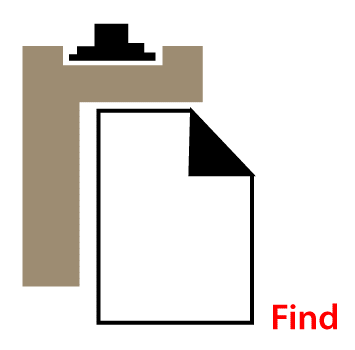
Copy Command in AutoCAD
  • Home tab > Clipboard panel > Ctrl+Shift+V or Ctrl+Shift+V Copy and paste as a block.Find
Copy Command in AutoCAD
  • Clipboard panel > Paste to Original Coordinates (Home tab > Clipboard panel > Paste to Original Coordinates).

Copy Command in AutoCAD
  • Any prompts should be followed.

Important: While Windows' Copy-Paste tool can be used to transfer objects across programmes, it does not preserve the utmost level of precision within AutoCAD. Use COPYBASE instead of COPYCLIP (Ctrl+C) to retain accuracy.

Copy and paste using Base Point.

  1. Press Ctrl+Shift+C or enter COPYBASE at the command prompt.
  2. Select a starting point.
  3. After selecting the items to copy, press Enter. The items can now be pasted into another drawing or into the same drawing.
  4. If necessary, switch to the drawing where you want to paste the elements.
  5. Use one of the preceding instructions to paste the items.

Displacement

  • Using coordinates, specifies a relative distance and direction.
  • The two points you select form a vector that specifies how far and in which direction the duplicated items should be positioned from the original.
  • The first point is read as a relative X, Y, Z displacement if you press Enter at the Specify Second Point window. If you type 2,3 for the base point and then hit Enter at the following prompt, the objects will be copied 2 units in the X direction and 3 units in the Y direction from their present location.

Mode

Controls whether or whether the command is automatically repeated (COPYMODE system variable).

Single

Ends the command by making a single duplicate of the chosen items.

Multiple

The Single mode setting is overridden. For the length of the command, the COPY command is configured to repeat automatically.

Array

In a linear array, arranges a given number of copies.

The number of elements to be arranged in an array.

This is where you provide the number of entries in the array, including the initial selection set.

The second point

The array's distance and direction from the base point are determined by the second point. The array's initial copy is positioned at the provided displacement by default. Beyond that point, the remaining copies are positioned in a linear array using the same incremental displacement.

Fit

The final copy in the array is moved to the given position. Between the initial selection set and the final copy, the other copies are arranged in a linear array.

Copies and Pastes in Other Drawings

To copy and paste to another drawing, use the following commands:

  • COPYBASE - Copies chosen items and a specified base point to the Clipboard.
Copy Command in AutoCAD
  • COPYCLIP - Copies the contents of a selection to the Clipboard.
Copy Command in AutoCAD
  • PASTEBLOCK - Pastes items from the Clipboard as a block into the current drawing.
Copy Command in AutoCAD
  • PASTECLIP - Pastes items from the Clipboard into the active drawing.
Copy Command in AutoCAD
  • PASTEORIG - Pastes elements from the Clipboard into the current drawing using the original coordinates.

Copy Command in AutoCAD
  • PASTESPEC - Controls the data format while pasting things from the Clipboard into the current drawing.
Copy Command in AutoCAD

Related Topics

Snap Command in AutoCAD

The Object Snap feature allows you to designate a specific place on the objects. It depicts the objects' midpoints, center points, quadrant points, insertion points, endpoints, and other locations that aid...

9 minutes read.

Revolve Command in AutoCAD

The Revolve command in AutoCAD 3D is employed to form a 3D solid or surface by sweeping the thing through its axis at a predefined angle. The paths and objects that...

7 minutes read.

Command list of AutoCAD

Fundamental AutoCAD Commands Here is a summary of some of the most fundamental AutoCAD commands that every user should be familiar with. These Draw and Modify instructions make up part of...

12 minutes read.

Hatch command in AutoCAD

In AutoCAD, the Hatch command is used to fill patterns inside an enclosed region. Hatched, gradient, and solid fill designs are available. A gradient pattern is a seamless transition between two...

5 minutes read.

tcount command in AutoCAD

You can now automatically keep track of the number of blocks and other objects you have in your AutoCAD drawing file thanks to a new feature in AutoCAD 2022 and...

3 minutes read.

AutoCAD Tutorial

In 1982, a group of programmers led by John Walker constructed the initial version of AutoCAD, which Michael Riddle, another member of the team, had previously designed. The popularity of...

5 minutes read.

Trim command in AutoCAD

TRIM (Command) You have two options for trimming objects: Quick mode and Standard mode. Quick Mode is the fastest mode. To trim items, individually select them, push and drag to start a...

6 minutes read.

Point Command in AutoCAD

Points in AutoCAD 2D may provide excellent reference points for additional drawings. In this post, we'll demonstrate how to construct single and multiple points in AutoCAD 2D, along with the...

1 minute read.

Lisp command in AutoCAD

Can have AutoCAD automatically load LISP routines Issue: how to have AutoCAD automatically load AutoLISP functions. The program's files must be manually reloaded each time it is run. Solution: You may either utilize the...

4 minutes read.

Explode command in AutoCAD

When you need to deconstruct a component into its sub-components, AutoCAD's EXPLODE tool comes in helpful. This allows you to alter each of the sub-components independently. One of the first examples...

4 minutes read.

Polygon Command in AutoCAD

POLYGON (Command) To make an equilateral closed polyline, use the Polygon Command. The Polygon command is not shown. The Polygon command may be found by entering it into the information center...

4 minutes read.

Offset Command in AutoCAD

The offset command is employed to form parallel lines, concentric circles, and parallel curves in AUTOCAD. We can offset any object through a point or at a specified distance. We can...

7 minutes read.

Ellipse command in AutoCAD

Two focal points are encircled by a curve, which is known as the Ellipse. Two of the ellipse's axes, which specify its length and breadth, determine its form. The Ellipse command on...

4 minutes read.

Text Command in AutoCAD

It creates a text object with a single line. You may use single-line text to make one or more lines of text, each of which is a separate object that you...

3 minutes read.

AutoCAD Electrical software

AutoCAD Electrical report may be a powerful tool however, most CAD users square measure unaware of the way to modify the method of generating reports victimization it AutoCAD Electrical style package...

8 minutes read.

Zoom Command in AutoCAD

You may also use the keyboard to access the Zoom command by typing its alias, Z. The Zoom command has numerous possibilities, but the most frequent are Extents, which was...

4 minutes read.

Donut Command in AutoCAD

A donut is formed by joining two arc polylines end to end to form a circular shape. The selected interior and outer diameters define the width of the polylines. When...

4 minutes read.

Stretch command in AutoCAD

How to use Stretch command in AutoCAD 1) This command in AutoCAD is excellent and helpful. Use the Stretch command to quickly move or alter any items, such as a door...

4 minutes read.

Script Command in AutoCAD

What exactly is AutoCAD scripting? Scripting is another means of automating processes in AutoCAD that does not need the use of programming languages such as VBA or Auto LISP. Script files...

3 minutes read.

Copy Command in AutoCAD

Using Two Points to Copy an Object Select the Home tab > Modify panel > Copy option.Press Enter after selecting the items to copy.Set a starting point for the copy.Make a...

3 minutes read.