
×

Polygon Command in AutoCAD

POLYGON (Command)

To make an equilateral closed polyline, use the Polygon Command. The Polygon command is not shown. The Polygon command may be found by entering it into the information center and hitting enter. Simply click the locate symbol on the Help page, and a brown arrow will appear beside the rectangle tool, pointing to the Polygon command in the drop-down menu.

When you choose the Polygon command, you'll be prompted to enter the number of sides, the polygon's center, and whether the polygon is inscribed or circumscribed around a circle.

Creates a closed equilateral polyline.  polygon-command-in-autocad

Polygon Command in AutoCAD

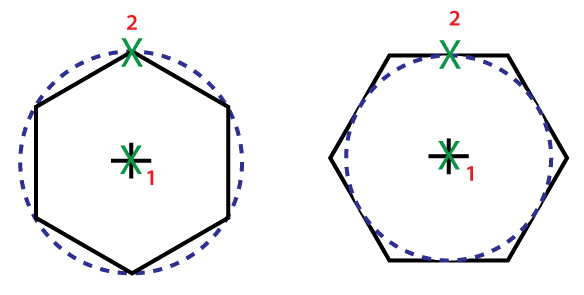
You choose the number of sides and whether the polygon is inscribed or circumscribed.
Polygon Command in AutoCAD

The following prompts will appear.

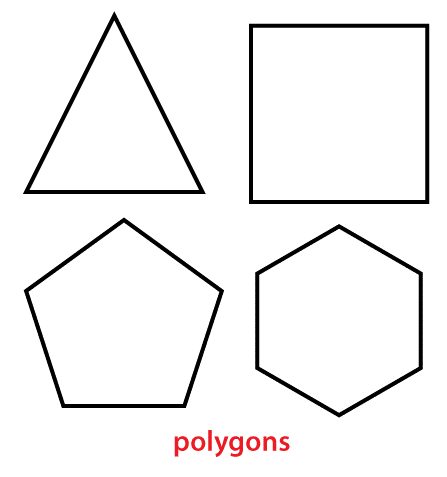
Amount of sides

The number of sides in the polygon is specified (3-1024).
Polygon Command in AutoCAD

Polygon's center

The center of the polygon is specified, as well as whether the new item is inscribed or circumscribed.

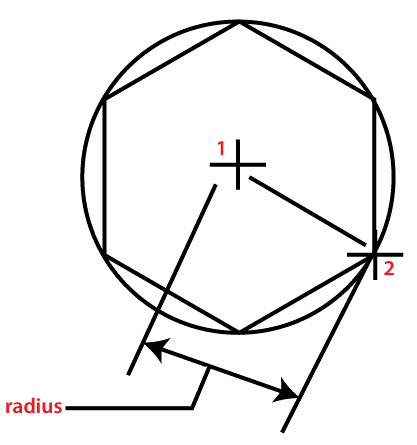
Circle inscription

The radius of a circle on which all of the polygon's vertices are located.
Polygon Command in AutoCAD

The spin and size of the polygon are determined by the radius specified using your pointing device. The bottom edge of the polygon is drawn at the current snap rotation angle when the radius is specified with a value.

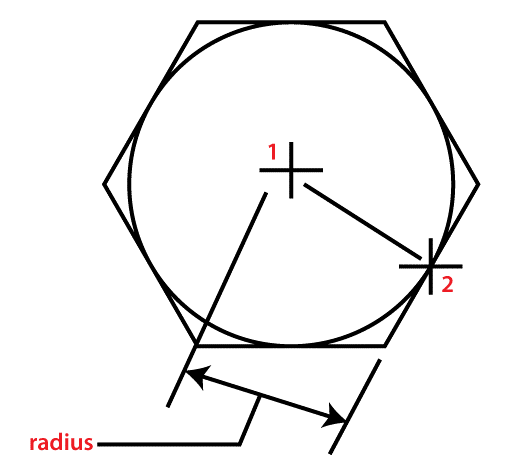
The circle is circumscribed.

The distance between the polygon's center and the midpoints of its edges is specified.
Polygon Command in AutoCAD

The spin and size of the polygon are determined by the radius specified using your pointing device. The bottom edge of the polygon is drawn at the current snap rotation angle when the radius is specified with a value.

Edge

The ends of the first edge are used to define a polygon.
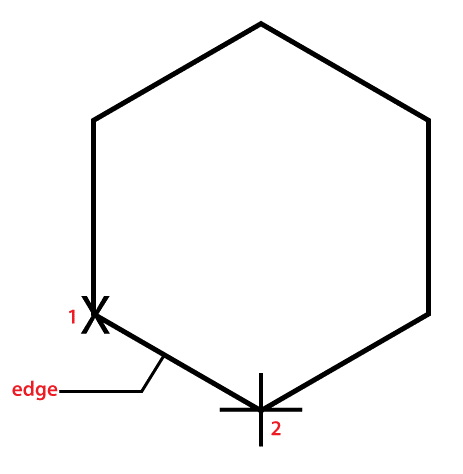
Polygon Command in AutoCAD

AutoCAD polygon drawing

  1. Select Draw panel Polygon from the Home menu. Find.
  2. Determine how many sides there are.
  3. Determine the polygon's center.
  4. Select one of the following options: To indicate a polygon encircled by a circle, type i. To indicate a polygon circumscribed around a circle, type c.
  5. Enter the radius measurement.

AutoCAD polygon drawing methods

A POLYGON command can be created in one of three ways. inscription (the polygon is inside a circle of the radius) The polygon is circumscribed (it lies outside a radius circle).

With AutoCAD, create a pentagon

1. On the command line, type POL and click Enter.

2. Determine the total number of sides. We will specify 5 for the pentagon.

3. Enter the code.

4. On the viewport or workspace, specify the polygon's centre.

5. For Inscribe and Circumscribe, type I or C.

6. Enter the code.

7. Determine the polygon's radius.

In AutoCAD, Nurbs

Nonuniform rational B-spline curves are abbreviated as NURBS. A NURBS surface may be treated as a 3D spline with fit points in AutoCAD. … They also allow for improved surface control, and you can regulate the degree of precision of the surface by employing varying densities of fit points on AutoCAD 3D surfaces.

AutoCAD inscribed polygon

polygon's center

The center of the polygon is specified, as well as whether the new item is inscribed or circumscribed. Circle inscription. The radius of a circle on which all of the polygon's vertices are located. The spin and size of the polygon are determined by the radius specified using your pointing device.

Use the command polygon

On the Home tab's Draw panel, select Polygon from the Rectangle drop-down box, or enter POL and hit Enter. AutoCAD launches the Polygon programme and invites you to input the polygon's number of sides. Enter 4 as the number of sides: Press Enter after entering the number of sides for the polygon you wish to draw.

To draw a hexagon, use the command.

Using the polygon tool and setting six as the number of sides is the easiest way to design a hexagon in AutoCAD. You can opt to size the polygon from the center if you know the radius you want to utilize. You may then pick whether the hexagon should be circumscribed or inscribed inside the radius.

AutoCAD shortcut key for polygon

Keyboard shortcuts

  • Saves the current drawing with the command QQSAVE.
  • Stretches items that have been intersected by a selection window or polygon.
  • XEXPLODE / Splits a composite object into its individual components.
  • Removes items from a drawing with EERASE.
  • Dimension styles are created and modified with DDIMSTYLE.

A tool for drawing polygons

The new Polystar tool, which works similarly to the Oval and Rectangle tools, allows you to quickly build complicated vector forms. This tool may be used to make polygons and stars with up to 32 sides. 10 nov. 2020

 Chiliagon is the name of a 1000-sided polygon.

Construct a polygon

1. Select the Polygon tool from the toolbox.

2. To position the polygon's center point, click in the drawing area.

3. (Optional) Polygons have five sides by default.

4. To size the polygon, move the mouse in or out from the center point, then click to complete the design.


Related Topics

AutoCAD 2d Drawing

What is AutoCAD 2D drawing? The act of making and altering technical drawings, as well as annotating designs, is known as 2D drafting and drawing. Drafters create floor plans, construction permit...

3 minutes read.

3D command in AutoCAD

Below is a list of commonly used AutoCAD commands that are used when working with 3D solids. POLYLINE (PL) – You may generate a 2D polyline with the POLYLINE (PL)...

11 minutes read.

Inquiry command in AutoCAD

Pick an inquiry type, then choose the data by following the on-screen directions. Once the investigation is complete, you may copy the data to another file, such a Microsoft Excel...

3 minutes read.

Hatch command in AutoCAD

In AutoCAD, the Hatch command is used to fill patterns inside an enclosed region. Hatched, gradient, and solid fill designs are available. A gradient pattern is a seamless transition between two...

5 minutes read.

Overkill Command in AutoCAD

Getting rid of overlapping objects in AutoCAD In the command bar, enter the word OVERKILL.Choose every item you wish to be eliminated of duplicates. To accept the drawing chosen, press enter. Review...

4 minutes read.

Rectangle command in AutoCAD

The rectangle command is used to create rectangles in our drawing. We can create rectangles randomly by specifying the points and also by specifying the values of length and width. METHOD 1:-...

3 minutes read.

Chamfer Command in AutoCAD

Introduction AutoCAD is a computer-aided 2D and 3D design programme that is used by many designers. This application has a number of commands that will assist us in completing our objective.The...

4 minutes read.

AutoCAD Command

How to enter a command using the command line. Type a command on the command line. Choose one of the following options to run the command: Type the complete command name in...

9 minutes read.

Calculate Area in AutoCAD

AutoCAD has various tools for measuring distances, areas, lengths, angles, and other geometric computations quickly and accurately. When it comes to constructing and translating your ideas into real-world items or...

7 minutes read.

Subtract command in AutoCAD

In AutoCAD, use the subtract command. Use the subtract command in AutoCAD. By subtracting one set of existing 3D solids from a second, overlapping set, SUBTRACT may be used to...

3 minutes read.

Attedit command in AutoCAD

At the Command prompt, modify a block's attribute data. You may filter the properties that need to be changed based on the attribute tag, the current value, or the selected...

4 minutes read.

Sweep Command in AutoCAD

We'll utilize the SWEEP command here, which, like the EXTRUDE function we used when we produced our first figure in AutoCAD, helps us get cylinders out of circles and can...

4 minutes read.

Polygon Command in AutoCAD

POLYGON (Command) To make an equilateral closed polyline, use the Polygon Command. The Polygon command is not shown. The Polygon command may be found by entering it into the information center...

4 minutes read.

Point Command in AutoCAD

Points in AutoCAD 2D may provide excellent reference points for additional drawings. In this post, we'll demonstrate how to construct single and multiple points in AutoCAD 2D, along with the...

1 minute read.

AutoCAD Draw commands

We may use the Draw commands to make new objects like lines and circles. The majority of AutoCAD drawings are made up of only these fundamental elements. To get the...

6 minutes read.

Isoplane command in AutoCAD

It's possible that you'll need to create isometric drawings if you operate in the plant business. If you use AutoCAD, you might wish it was simple. You may. By merely changing...

3 minutes read.

AutoCAD Blocks

cad-blocks.net is a well-organized, contemporary, and easy-to-navigate website where you can download over 5,000 CAD blocks files (dwg files) for use in architectural projects or designs using AutoCAD and other...

6 minutes read.

Dimension command in AutoCAD

To dimension an item, you can choose one or more of its points, and then click to set the dimension line. When you hover over an item, the DIM command...

8 minutes read.

Dim command in AutoCAD

A single command may be used to create many dimensions and dimension kinds. Find You can choose one or more of an item's points to dimension it, and then click to establish...

4 minutes read.

Array Command in AutoCAD

AutoCAD's Array Command From the command line, creates duplicates of anything in a pattern. Creates nonassociative, 2D rectangular or polar arrays using historical command line behavior. The copies may take a long...

3 minutes read.