
Explode command in AutoCAD
When you need to deconstruct a component into its sub-components, AutoCAD's EXPLODE tool comes in helpful. This allows you to alter each of the sub-components independently.
One of the first examples that comes to mind is when you use the RECTANG technique to build a rectangle and then need to use the EXPLODE command to alter each line that makes up the rectangle you just made.
Breaks down a composite thing into its individual parts.
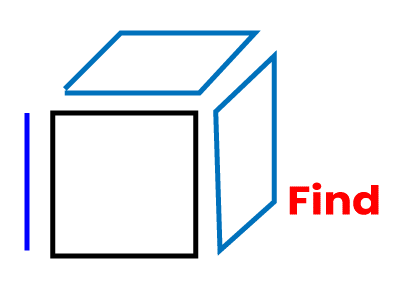
When you wish to change the components of a composite object independently, you can explode it. Blocks, polylines, and regions are among the objects that can be exploded.
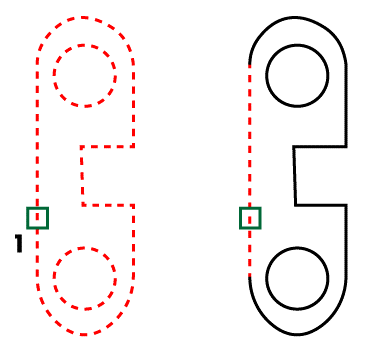
Any exploding object's color, linetype, and lineweight may change. The other results are influenced by the sort of compound object you're exploding. The list of things that may be detonated, as well as the outcomes for each, can be seen below.
XPLODE allows you to explode objects while also updating their properties.
You can only explode one object at a time when using a script or an ObjectARX function. (This does not apply to AutoCAD LT.)
The list of things that may be detonated, as well as the outcomes for each, can be seen below.
1. Polyline in two dimensions
Any linked width or tangent information is discarded. The resultant lines and arcs are positioned along the polyline's center for wide polylines.
2. Polyline in three dimensions
Line segments are created as a result of the explosion. Each line segment is given the linetype that was allocated to the 3D polyline.
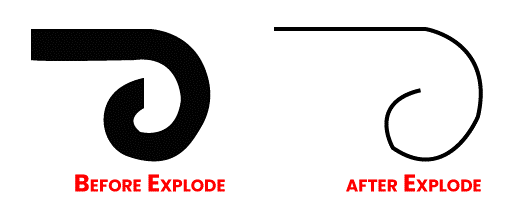
Planar faces are broken up into regions by a 3D solid.
Nonplanar faces explode into surfaces. (AutoCAD LT is exempt from this.)
3. Objects with annotations
The existing scale representation is deconstructed into its component elements, which are no longer annotative. The depictions of other scales have been deleted.
4. Arc
Explodes into elliptical arcs if within a nonuniformly sized block.
An associative array's initial objects are duplicated by Array.
Block removes one level of grouping at a time. When a block with a polyline or nested block is exploded, the polyline or nested block object is revealed, which must then be exploded to reveal its component objects.
Blockswith the same X, Y, and Z scales disintegrate into their constituent items. Nonuniformly sized blocks (blocks with uneven X, Y, and Z scales) may burst into unexpected things.
Nonuniformly scaled blocks that include objects that can't be exploded are combined in an anonymous block (designated with a "*E" prefix) and referred by the nonuniform scaling.
When you expand a block with attributes, the attribute values are removed and the attribute definitions are re-displayed.
Externally referenced (xref) blocks and their dependant blocks cannot be detonated.
MINSERT-inserted blocks cannot be detonated. (In AutoCAD LT, the MINSERT command is not available.)
Body fragments into a single-surface body, regions, or curves (nonplanar surfaces).
Circle
If a nonuniformly sized block is present, it bursts into ellipses.
Leaders
Explodes into lines, splines, solids (arrow heads), block inserts (arrow heads, annotation blocks), multiline text, or tolerance objects, depending on the leader
Objects with Meshes
Each face is turned into a distinct 3D face object. The color and material allocations have been preserved. (AutoCAD LT does not have this feature.)
2Text objects are created when multiline text is used.
Multiline
Becomes a series of lines and arcs.
Mesh Polyface
A point object is created by exploding one-vertex meshes. A line is formed when two-vertex meshes collide. Three-vertex meshes erupt into three-dimensional faces.
Region
Lines, arcs, and splines are created as a result of the explosion.
When you need to deconstruct a component into its sub-components, AutoCAD's EXPLODE tool comes in helpful. This allows you to alter each of the sub-components independently.
One of the first examples that comes to mind is when you use the RECTANG technique to build a rectangle and then need to use the EXPLODE command to alter each line that makes up the rectangle you just made.
Explode command
The Explode command lets you to deconstruct an object into its constituent parts. In AutoCAD, you may encounter a set of objects that are all locked into a single object. Using the same logic, we may say that four lines will make a rectangle.
If you use the RECTANG command line to create a rectangle, you'll see that you can't choose a line without choosing the entire rectangle. We'll call the rectangle created by the four lines in this example.
You'll need to use the EXPLODE command to separate the rectangle into four lines, allowing you to utilize each line independently.
This command can also be used after creating an ARRAY with Associative elements. The EXPLODE command can be used to get rid of the array's associative functionality.
In AutoCAD, use the Explode command.
- Use the tool displayed in the image below to activate the EXPLODE command.
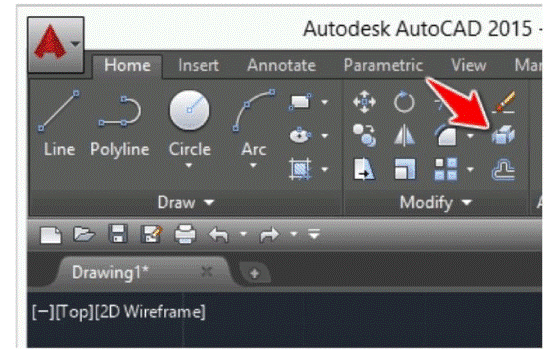
- choose the item you want to explode