×

How to Install Node.js on Windows?

Environment Setup for Node.js

Since Node.js is a mandatory section of the program that runs JavaScript, similar to all other required section of programs that run a programming language, it is usually straightforward to introduce. Node.js provides a rich library of several JavaScript modules to make things easier for developing web applications.

Node JS has been delivered in more than 15 significant versions, with some versions speaking to Long Term Support (LTS) discharges - which means they are used for a longer timeframe, roughly 30 months. Whereas other versions have speedier shorter time frames - which implies when another version is delivered, roughly every six months, the earlier version is no longer refreshed.

For setting up a local environment for Node.js, we need the following two software – The Node.js binary installable and Text Editor.

The Node.js Runtime

In this tutorial, we will be using the latest version (14.13.1 current) that is available at the website link given below:
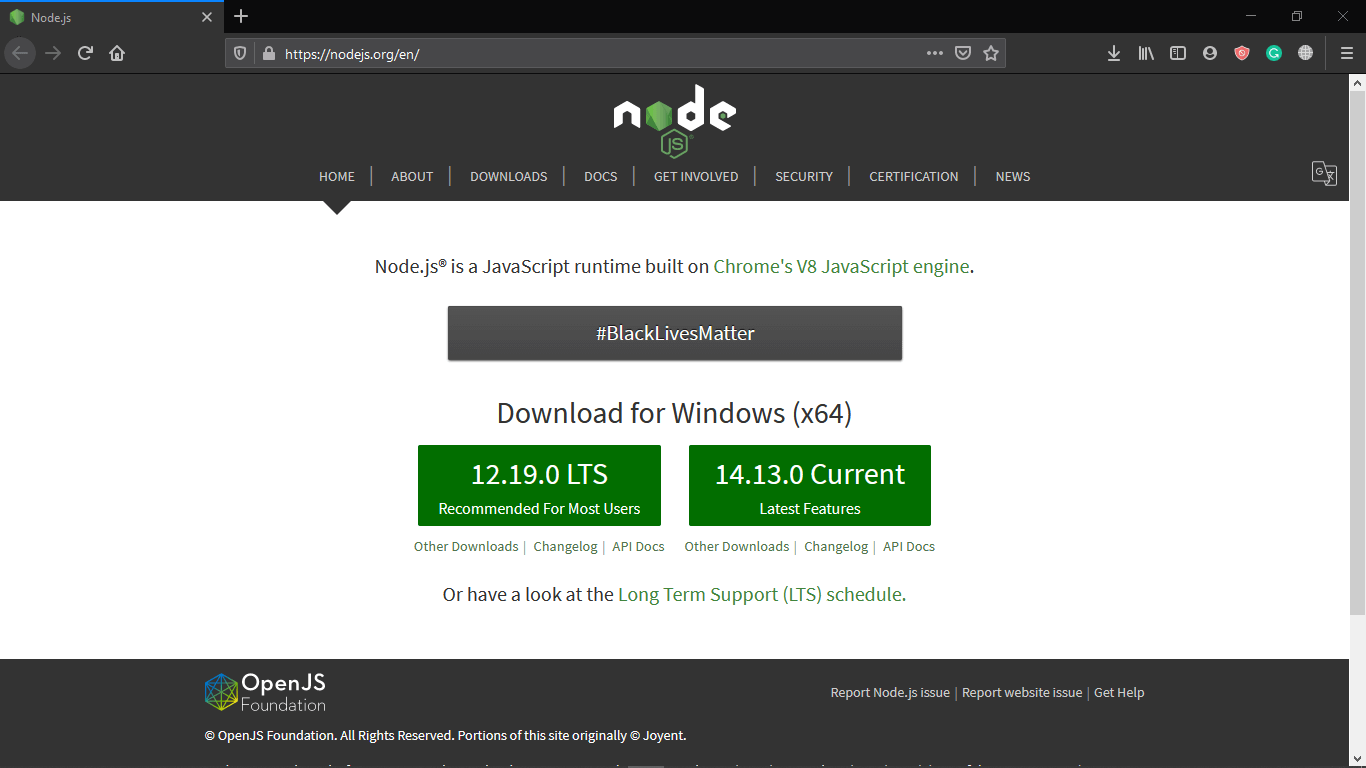
https://nodejs.org/en/

How to Install Node.js on Windows

Here, you can download the recommended version for your device.

Note: For this tutorial, we will be using Windows (x64), but the process may vary as per your operating system. However, the result would be the same.

Steps to Install Node.js in Windows

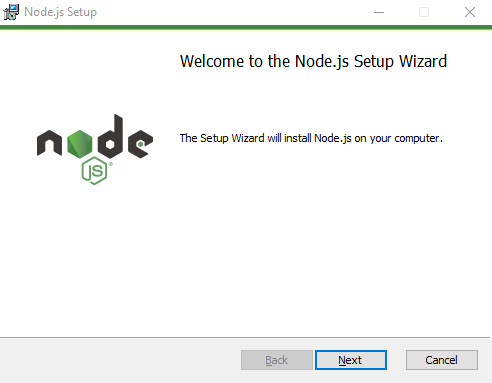
Step1: Once the download is completed, you can Run the Setup.
How to Install Node.js on Windows

Step 2: Click on Next to Continue.

How to Install Node.js on Windows

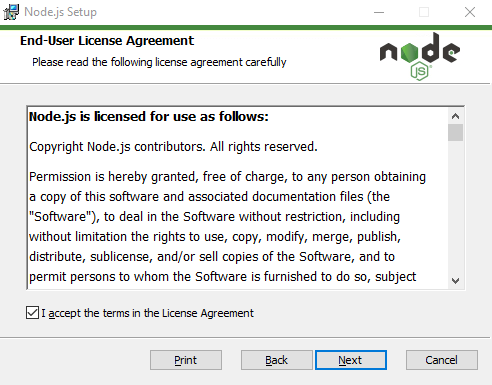
Step 3: Accept the Terms & Conditions, & Click on Next.
How to Install Node.js on Windows

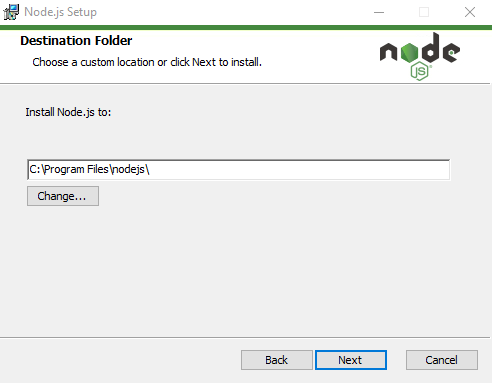
Step 4: Select the destination folder for installation & Click on Next.
How to Install Node.js on Windows

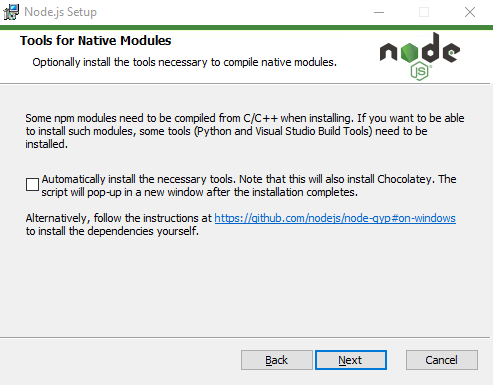
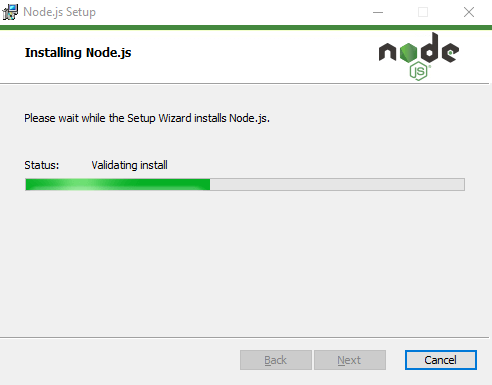
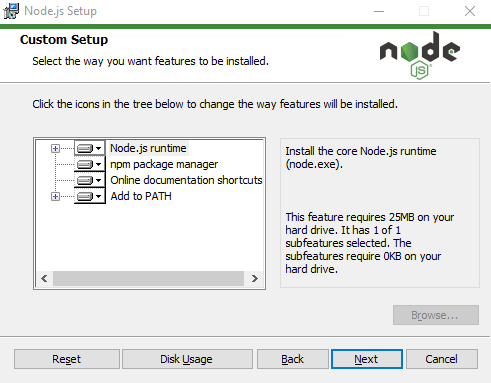
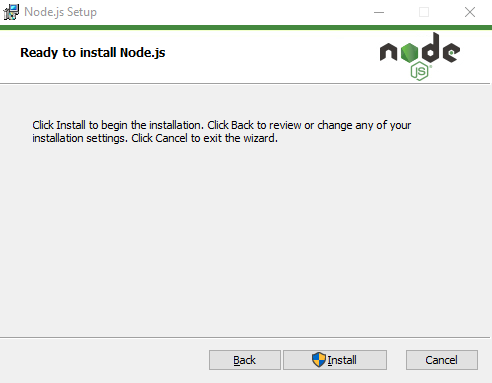
Step 5: Choose the recommended settings, and Get ready to Install.
How to Install Node.js on Windows

Step 6: Once Node.js is installed, Click on Finish to complete the setup.

Once you effectively install Node.js, the bin folder will contain the executables as follows:

  • node – node is a JavaScript interactive shell. It is also known as read–eval–print loop (REPL). It is created to instantly access JavaScript statements and to perform the same as other programming language REPLs.
  • npm – npm is a JavaScript package manager, which is created to manage JavaScript packages in Node.js. It is used to download package directly from remote repositories.
  • npx – npx is a complementary tool to npm created to perform JavaScript packages installed on Node.js.

Text Editor for Node.js

The Text Editor is a software that is used to type the program. Some examples include Notepad, Notepad++, Brief, OS Edit command, Visual Studio Code and many more. Apart from Text Editor, there are Integrated Development Environment (IDE) for typing the codes. An integrated development environment is a product application that gives complete services to developers for program development. An IDE ordinarily comprises at least a source code editor, build automation tool and a debugger.

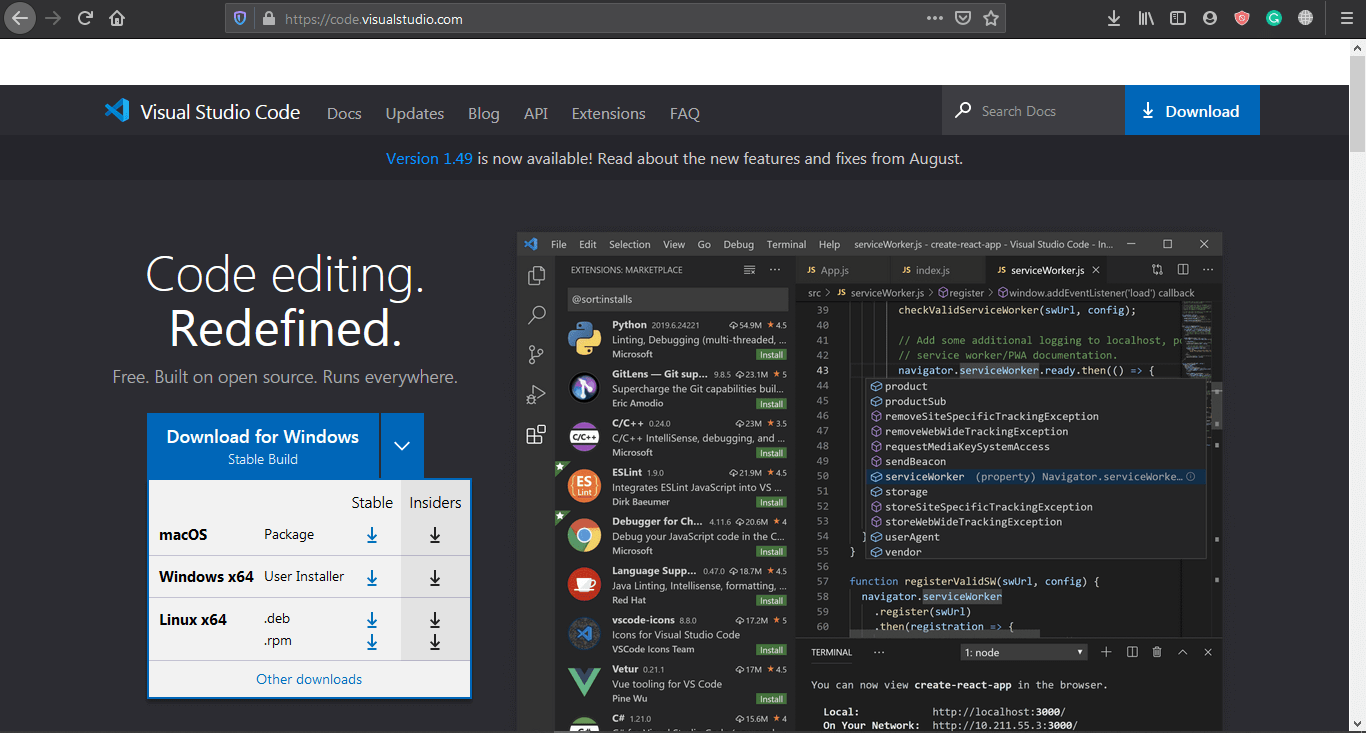
Here, we will be using the Visual Studio Code that is available for Windows as well as MacOS and Linux. You can also download and install the stable version from the official website: https://code.visualstudio.com.
How to Install Node.js on Windows

Verify the installation: Executing Files

To check whether the node.js is installed correctly and entirely on our computer, we will follow a set of procedures.

Step 1: Open Command Prompt (or Terminal in MacOS or Linux).

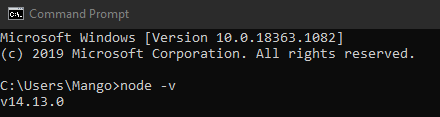
Step 2: Type the following command: node -v, and Enter.

Executing the above syntax will give an output as follows:
How to Install Node.js on Windows

Here, as you can see, the node command is the primary Node.js executable. It is one of 3 significant binaries comprised with Node.js. The node executable can be understood as identical to a JavaScript executable on the off chance that you have experienced with another programming language.

Similar to all other fundamental executables in programming language run-time environments, the Node.js node command has an abundance of alternatives and environmental factors, you can use to adjust its default performance, which incorporates practices for examining safety, reporting and test highlights, in addition to other things.

 If we execute node with the -v flag, which stands for version, will provide an output in terms of version (e.g., v14.13.0).

We can also execute --help flag after node command to see a list of more than 50 Node.js options and more than 15 node.js environment variables.

Node.js First Example

As we've talked a lot about Node.js, let us use it for executing a simple program.

Create a js file named hello.js in any text editor having the following code:

/* Printing' Hello World!' in node.js*/
console.log("Hello World!")

Now execute hello.js using Node.js interpreter to see the output –

$ node hello.js

It will give you an output as follows:

Hello, World!

How to Install Node.js on Windows

Related Topics

Node.js HTTP Module

An Introduction to HTTP Module The http module is a core module in Node.js that uses the Hypertext Transfer Protocol (HTTP) to transfer data. With the help of the http module,...

7 minutes read.

How to Install Node.js on Windows?

Environment Setup for Node.js Since Node.js is a mandatory section of the program that runs JavaScript, similar to all other required section of programs that run a programming language, it is...

4 minutes read.

Node.js Event Loop

An Introduction to Event Loop As we have already discussed, Node.js is an Asynchronous platform with a non-blocking I/O. Node.js has awesome features that made it this thriving, and the Event...

5 minutes read.

Node.js Buffers

An Introduction to Buffers A Buffer is an area in memory (typically RAM) that is used to store binary data. Binary is a collection or a set of 0 and 1....

4 minutes read.

Node.js Streams

An Introduction to the Streams Streams are one of the elemental concepts that are introduced to power the applications based on Node.js. These are the method used to handle the data...

6 minutes read.

Node.js REPL

Node.js REPL: REPL represents the Read Eval Print Loop. REPL is modest; much more, an interactive software development environment similar to the command line shells used in various Operating Systems....

4 minutes read.

Node.js Console

Node.js Console: Like the JavaScript console mechanism, a console module is designed for Node.js that provides a debugging console for writing or printing messages. Usually, in JavaScript, a console mechanism is...

4 minutes read.

Node.js Parsing Arguments

Understanding Command-Line Arguments The Strings of text used to transfer extra information to a program through the command-line interface (CLI) while execution of the application, is known as Command-Line arguments. These...

9 minutes read.

Node.js Callback Concept

Understanding the Concept of Callback A Callback is an asynchronous equivalent for a function that is called at the completion of a task. The Callback helps to avoid any I/O blocking and allows other code to execute...

2 minutes read.

Node.js Discovering Timers

Node.js Discovering Timers: Timers are multi-lingual, and much functional in countless use cases. The Timers are mostly used in many popular programming languages, including Node.js. However, it's pretty simple to...

4 minutes read.

Node.js Modules

Node.js Modules: At the point when we'll begin composing Node.js applications, we would place all our code into one big node.js file, regardless of how enormous or complex our application...

4 minutes read.

Node.js Error Handling

Node.js – Error Handling: Errors are part of every programming language, and Node.js Environment is not an exception. There are many predefined errors in Node.js, including errors like SyntaxError, RangeError, and...

4 minutes read.

Node.js Events Module

Introduction to the Node.js events Module As we’ve already discussed, Node.js is a JavaScript runtime with an event-driven architecture designed to perform Asynchronous tasks. In order to accomplish the event-driven architecture,...

4 minutes read.

Node.js Path Module

Understanding the path Module in Node.js The path module is a built-in module of Node.js that provides various methods to interact with the files and directory path names on the device’s...

6 minutes read.

Node.js NPM

Node.js – Node Package Manager NPM is an abbreviation for Node Package Manager. It is the default package manager developed by Isaac Z. Schlueter using JavaScript Programming Language, designed for JavaScript Runtime...

7 minutes read.

Differentiation of Web Scraping and Web Crawling

Most of us get confused between the word’s web scraping and web crawling, and even some people think they are synonyms for each other. But there is a considerable difference between...

3 minutes read.

Difference Between Nodejs Angular and React

A Right JavaScript Framework Within a business, it is necessary to pick the right technology. As much as this applies to the web application and software development, it also applies in...

5 minutes read.

Node.js OS Module

Introduction to Node.js OS Module The OS Module in Node.js provides the Operating System-related Utilities. This module delivers the functions to interact with the Operating System. It also delivers the Operating...

5 minutes read.

Difference Between Node.js and Django

Node.js vs Django In Web Application Development, we must have a robust technology to provide strength to our Web application. Node.js and Django both are pretty commanding technologies that help us...

6 minutes read.

Node.js Tutorial

Introduction to Node.js: Node.js is a non-proprietary and platform-independent runtime environment for implementing JavaScript code outside of a browser. However, NodeJS isn't a framework and not a programming language. We...

4 minutes read.