How to change Computer Name?
How to change computer name

Today computers are all around us and have become an indispensable part of our lives. Every computer generally has a name attached to it. There might be default names that are too big and complicated to remember. So you can instead change the name which easies to remember and straightforward to recall. Anyone can change their computer name as changing the name will not harm or affect the computer's functionalities. Nothing within Windows itself cares about the computer's name. The only place where the computer name matters are custom scripting or something down the like. These features may check the name of your computer to render a quick decision.
Knowing your computer name is essential and beneficial in tracing in case your system is lost or stolen. But many of us who are budding computer users don’t know how to change its name. In this tutorial, we will learn the step-by-step method to change the computer's name.
Windows 10
Following are the methods to change your computer name in Windows 10:
METHOD 1: WINDOW SETTINGS
Step 1- Locked to an administrative account
You have to lock into an administrative account to proceed.
Step 2: Head to start button
Click on the start button present at the bottom left of your computer screen. The dialog box will appear.
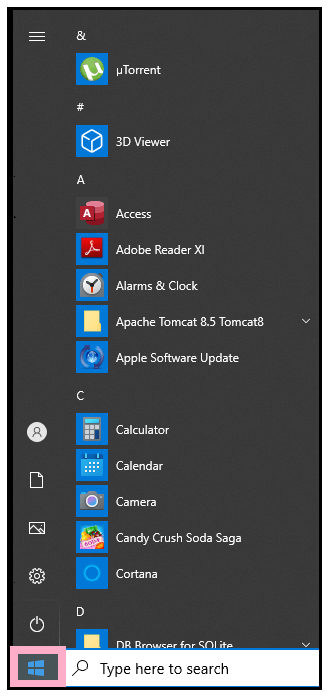
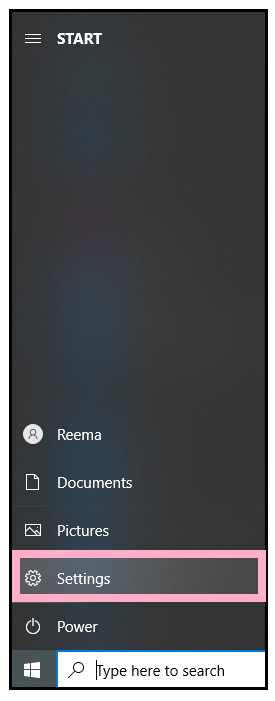
Step 3: Click on settings.
On the right of the pane, you will find the settings icon. Left-click on the settings option.
Step 4: Opt for System
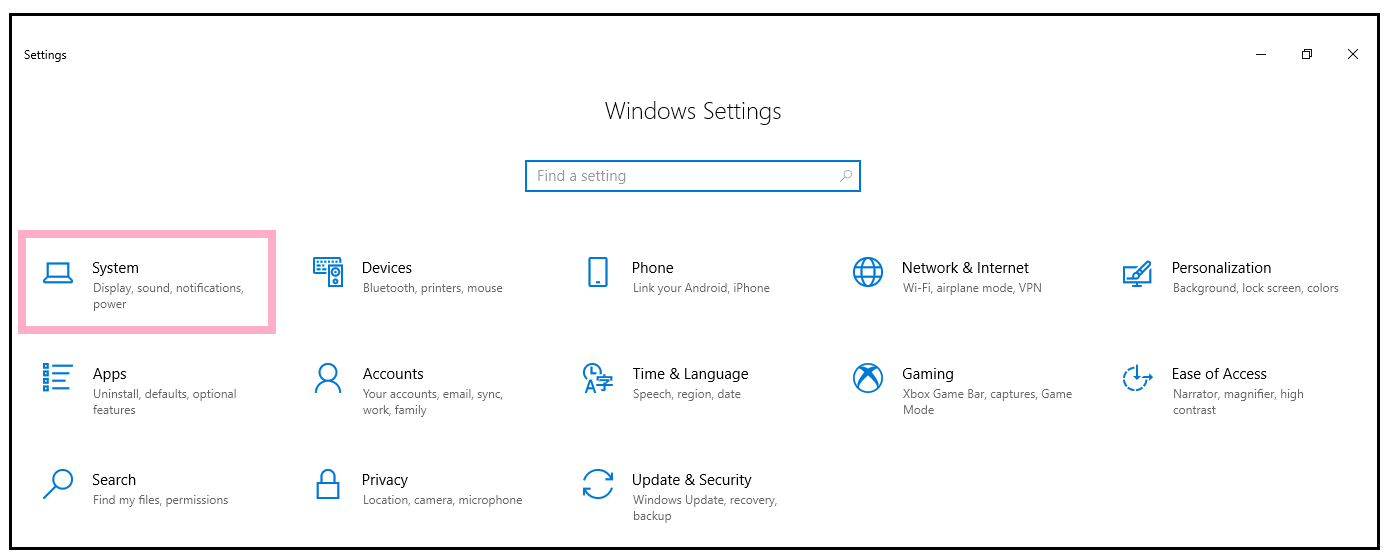
The settings window will be displayed. Click on the system file option present at the topmost row of the window.
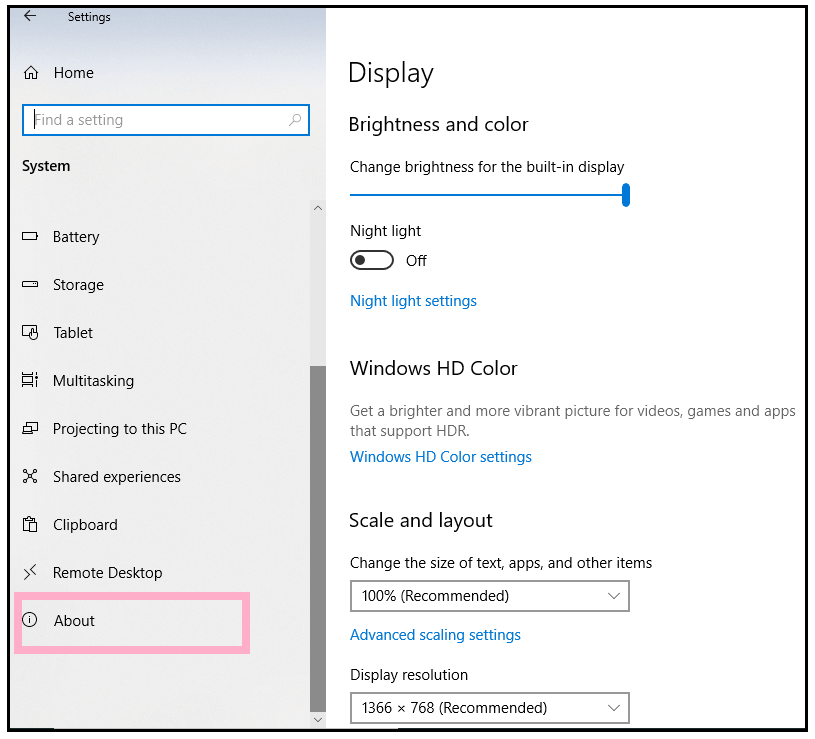
Step 5: Select the About option.
On the bottom of the system display bottom list, click on About option. The right window of the pane will change instantly as soon as you choose the about option.
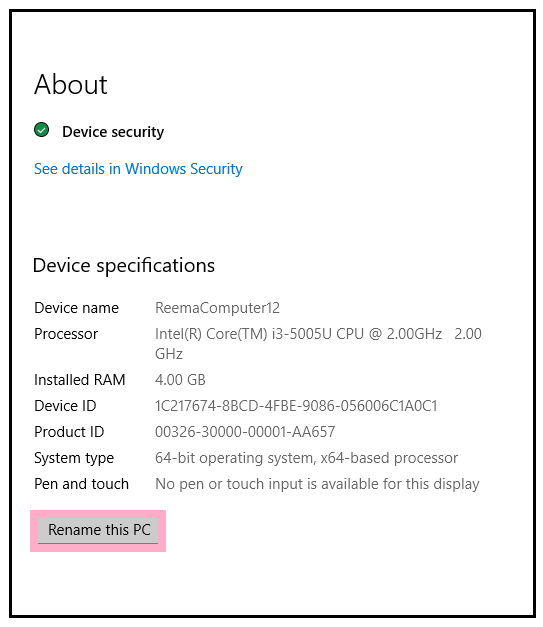
Step 6: Click on Rename PC
Underneath Device specification, you can left-click on Rename this PC or the little rectangle button surrounding the label.
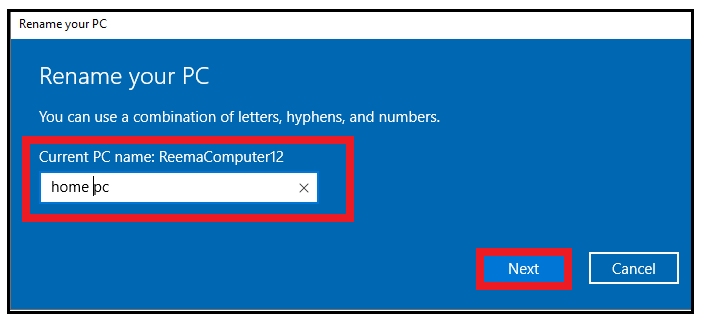
Step 7: Change the Name of your PC
At this point, you can name it whatever you want, so you’d rather not have the name. Make sure it is one word without any space and special characters. Once you changed the name of the PC, click on Next.
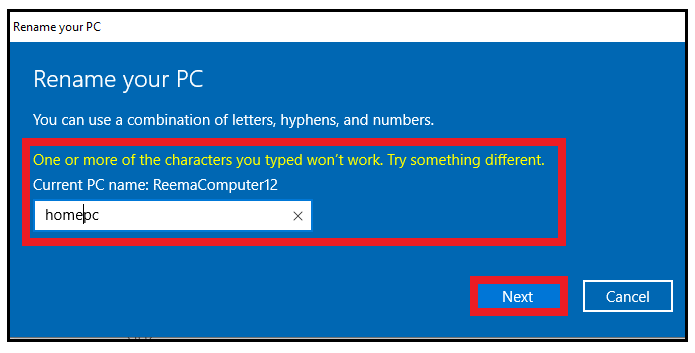
Step 8: Make sure to avoid space and special characters while typing the name
While naming your computer to avoid any use of space and special characters else, it would throw an error message displaying, “One or more character you typed won’t work. Try something different. Type the name again and click on the Next button.
NOTE: The special characters include ~, @, !, #, $, %, ^ , &, *, (, ), -,_,+, =, <, >, ?, /, \, {, }, ], [, ., and ,
Step 9: Restart the computer to activate the changes
Another window will appear, asking you to restart your PC so the system could accept the name changes. Click on the Restart now button.
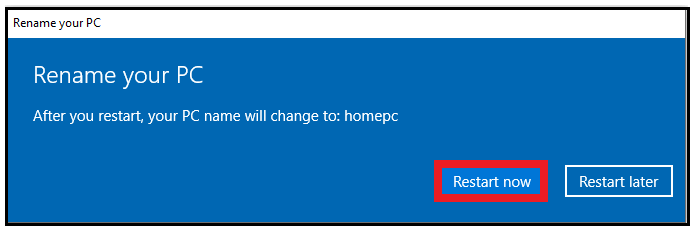
Step 10: Log in to view the name changes
Now, when you log in to your system, your computer or account name would be changed successfully.
METHOD 2: THIS PC PROPERTIES
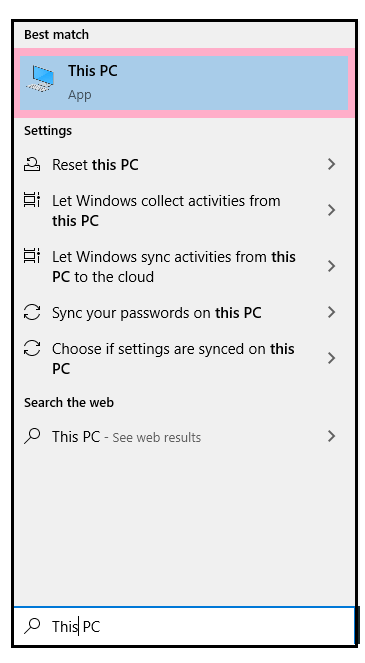
- In the Search bar located at the bottom left corner of the screen, type “This PC.” You will notice This PC match will show up. Right-Click on it.
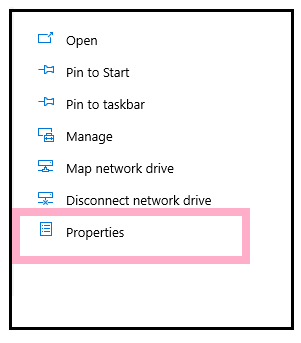
- Another window will pop up. Click on the properties option.
- The window will appear displaying the basic information about your computer. You will find your existing computer name under Computer name, domain, and workgroup settings option.
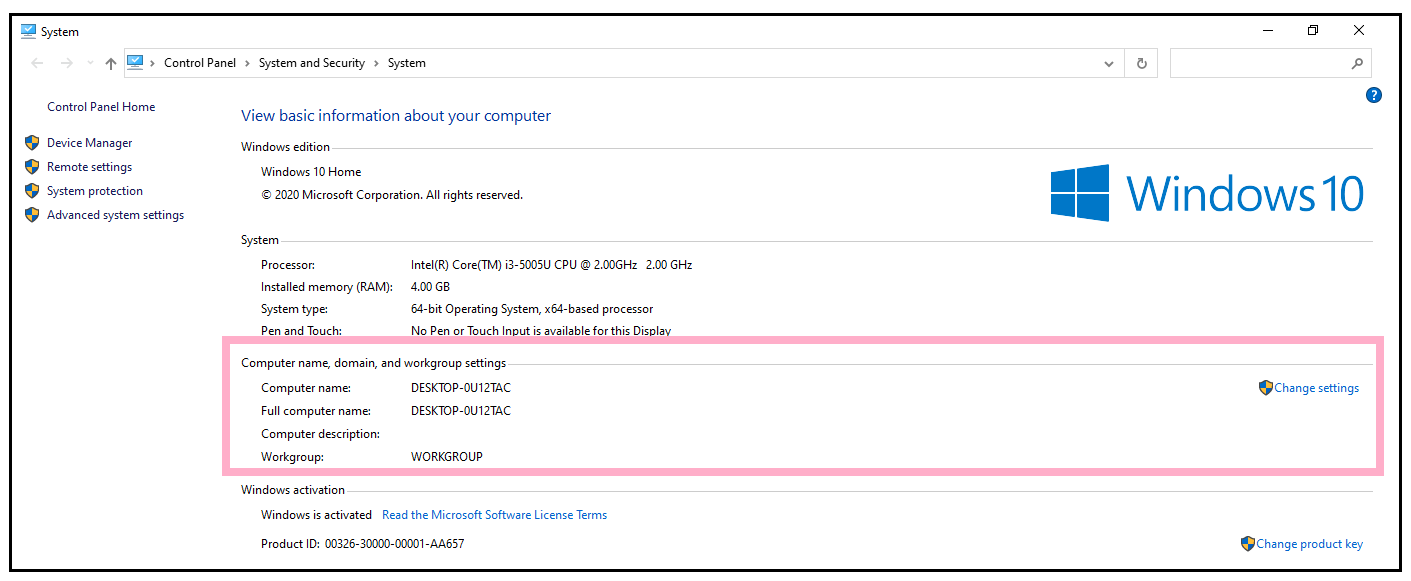
- Under the same header at the right side of the pane, you will notice the ‘Change Settings’ option. This option permits you to change your computer name for your office or home desktop as per your preference.
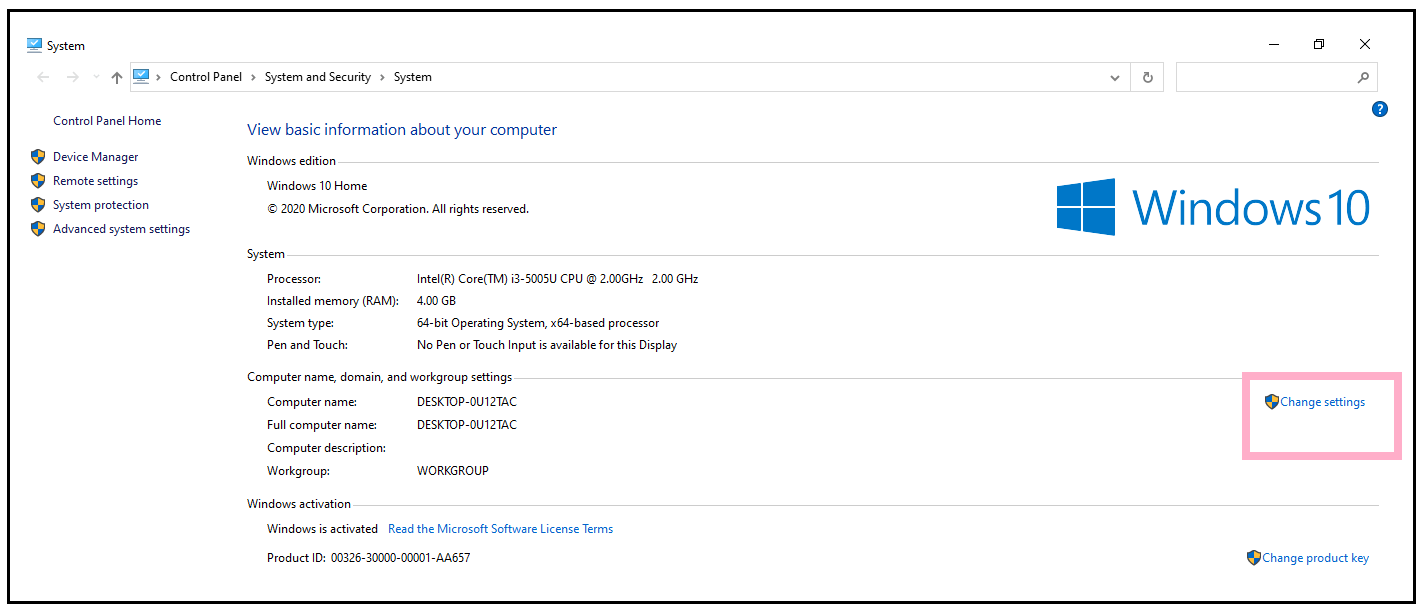
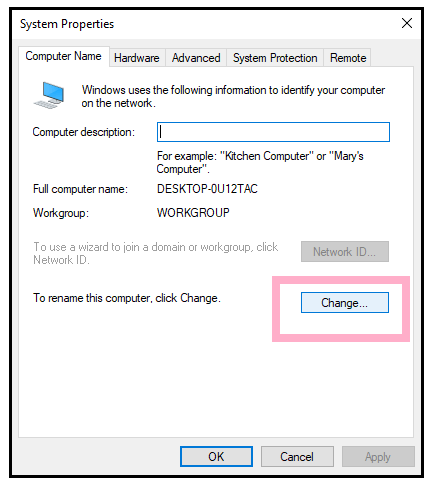
- The System Properties window will appear with five tabs. Under the Computer Name tab, you will notice a label asking to click on the Change option if you want to rename the computer or change its domain. Click on the Change button present on the right side of the label.
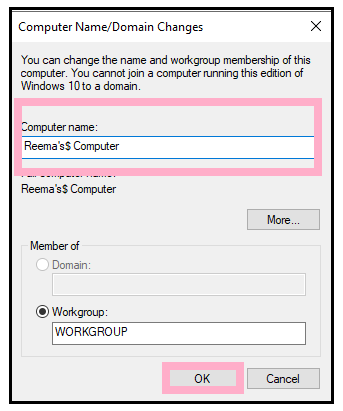
- In the next window, rename your Computer by typing in the textbox under the Computer name. Click on the OK button.
- As soon as you click on OK, an error dialog box will appear stating that the name you have used contains special characters that are not allowed by name. Click on OK.
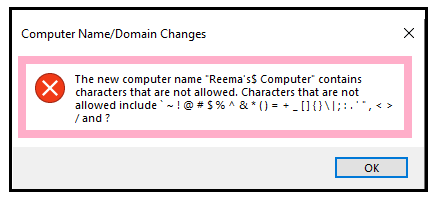
Note: While naming your computer avoid any use of special characters. The special characters include ~, @, !, #, $, %, ^ , &, *, (, ), -,_,+, =, <, >, ?, /, \, {, }, ], [, ., and ,
- Again, rename the computer following the appropriate naming guidelines. Click on OK.
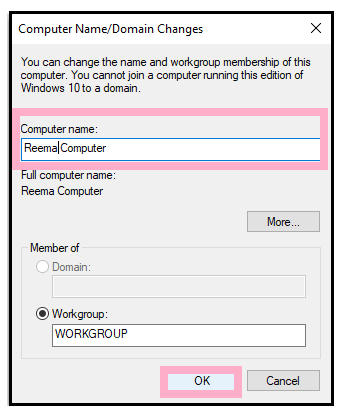
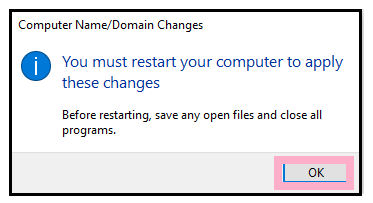
- Another alert dialog box will pop up, as shown below. It will ask you to restart your computer to apply the computer name changes. Also, it would suggest you save your open files and close all the programs before restarting your computer.
Note: In some cases, if you don’t have the privileges or you’re not the admin, it may ask you to put the username and password to continue with the changes.
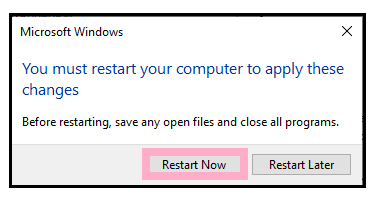
- Restart your PC to apply the changes. Click on Restart now. Your PC will restart.
- Once you finish, log in to your account, and you will notice that your computer’s name has changed successfully.
Windows 8
Following are the methods to change your computer name in Windows 8:
METHOD 1: CONTROL PANEL
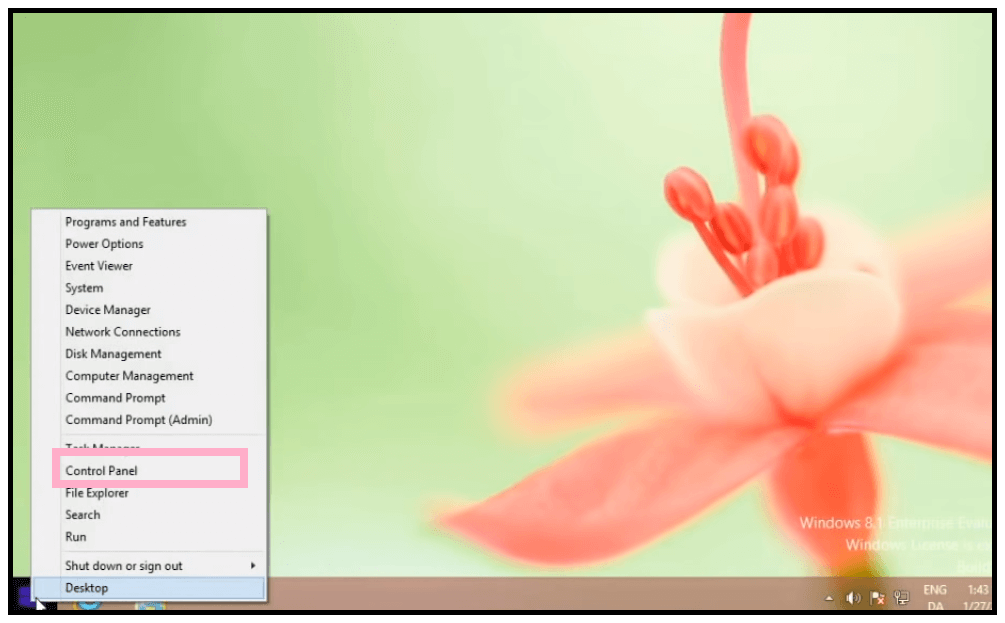
- Right-click in the window start button present at the bottom of the screen. A list of options will be displayed. Choose the control panel option from the given list of programs.
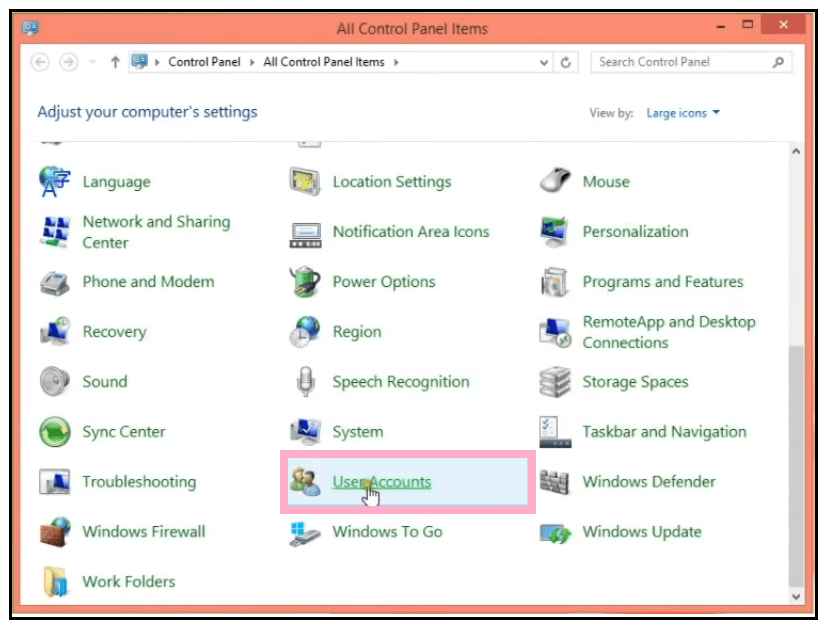
- The control panel window will appear. Scroll down and look for user accounts. Once found, click on User accounts.
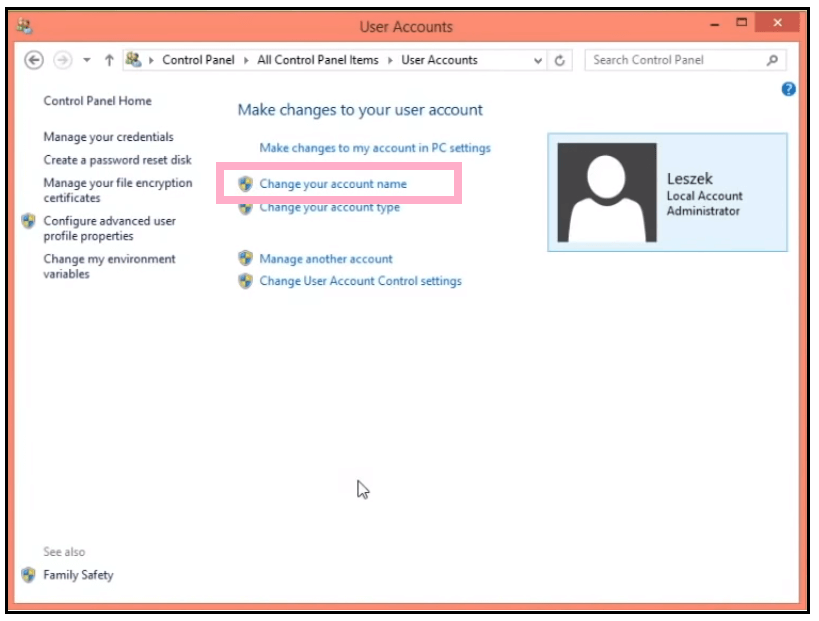
- The user account window will pop up. This window allows us to change the user account settings. At the topmost part of the window, you will find the option to change your account name. Click on it.
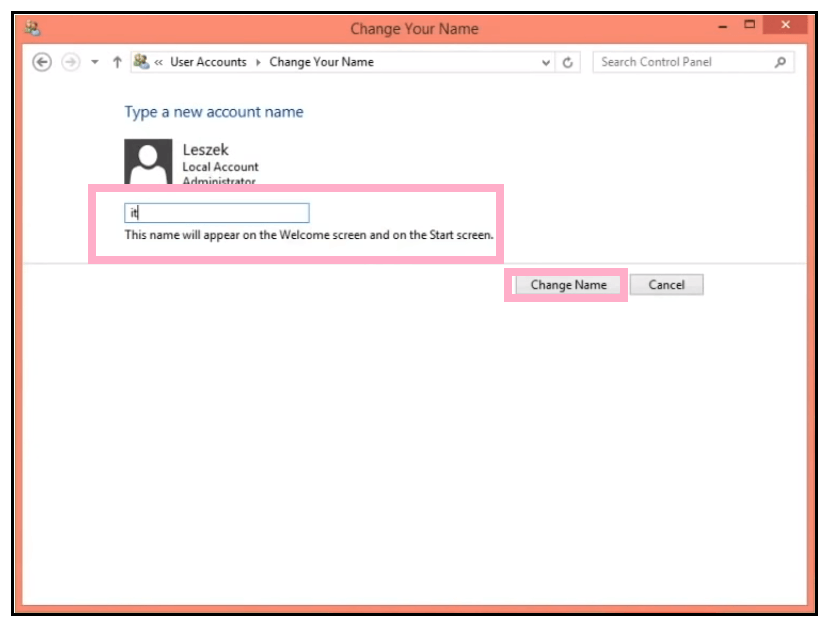
- In the displayed window, type the new account name as per your preference. Once done, click on the Change Name button.
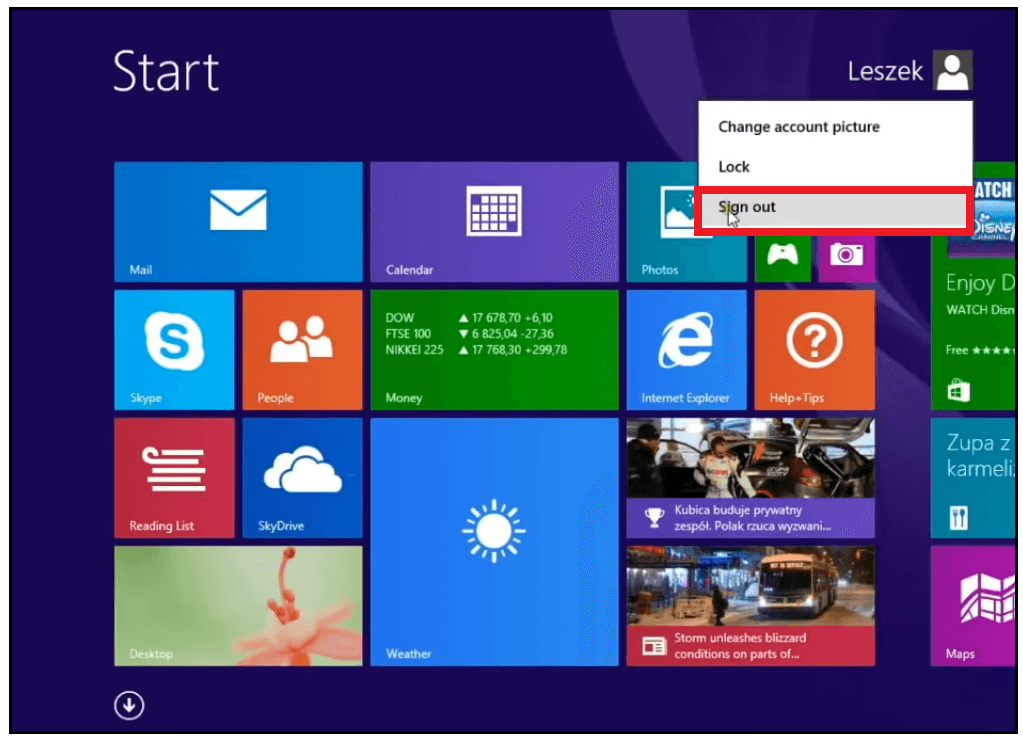
- Next, we are supposed to sign out to make the system accept the changes.
- Now, when you log in to your system, your computer or account name would be changed successfully.
MAC OS
Following are the steps to change your computer name in the Macintosh operating system:
Note: Make sure that you are using an administrative account to change the name of your Computer.
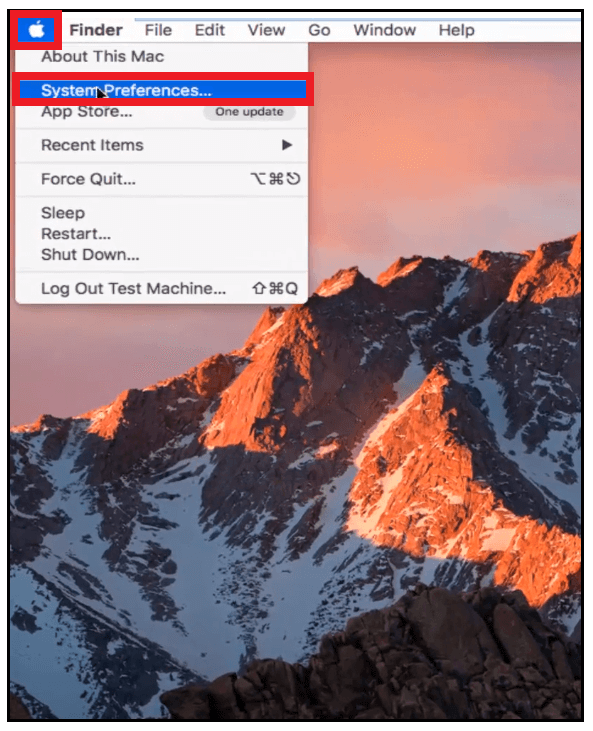
- Left-Click on the Apple icon present at the top left corner of the Apple window. The dialog box will appear. Click on the System Preferences button (located at the second list from the top).
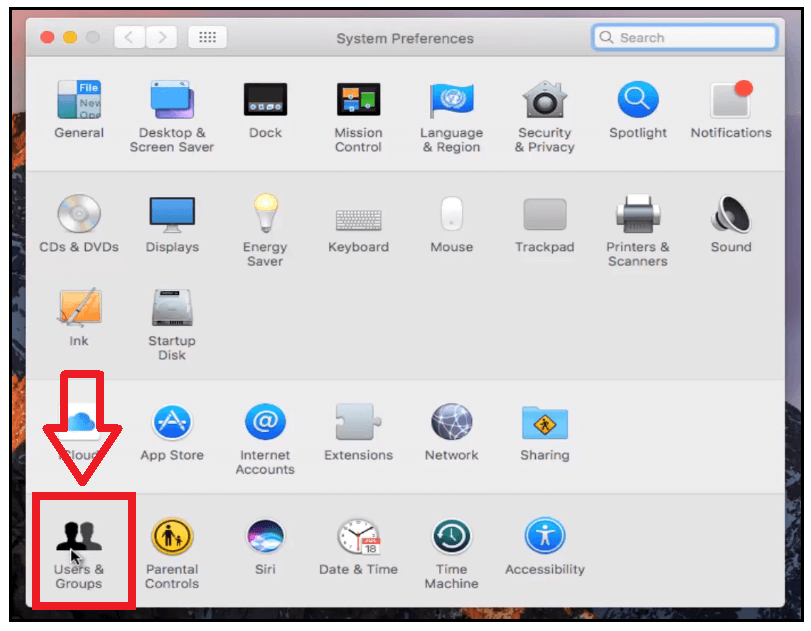
- Now you will be in the System Preferences window. After that, left-click on the users and groups button located at the bottom left corner of the window.
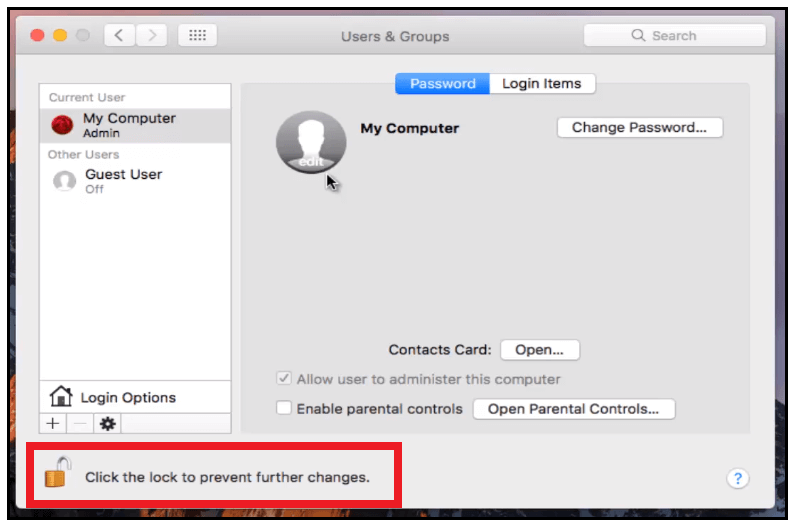
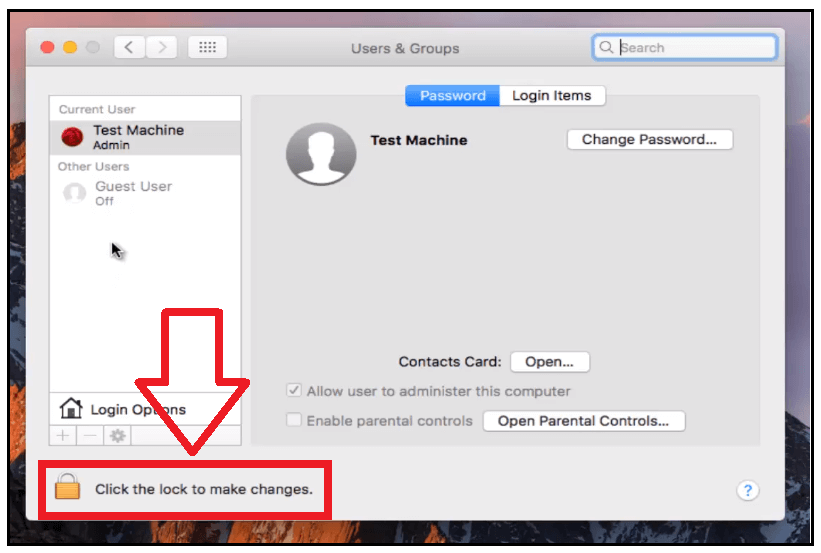
- The User & Groups window will appear. The next step is to left-click on the padlock button located in the bottom left corner of the same window. It will allow you to change your computer name.
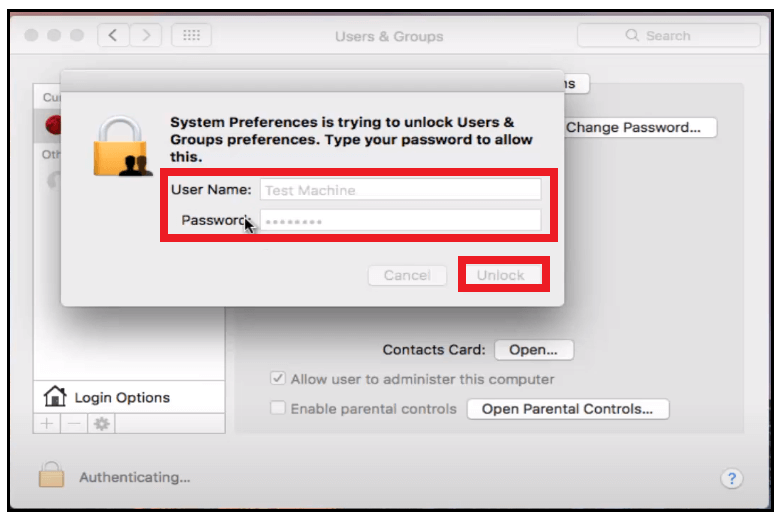
- On the displayed window type in your username and password and click on the unlock button.
- Left-click on the top admin panel and click on Advanced Options.
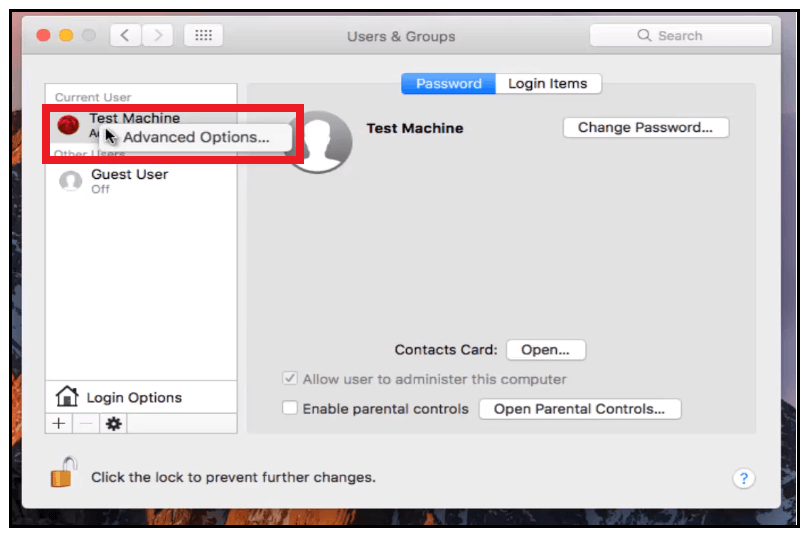
- The advanced options dialog box will be displayed. Underneath the Full Name option, you can change your computer name to whatever you want. In my case, I have changed the name to my computer. Once done, click on, OK.
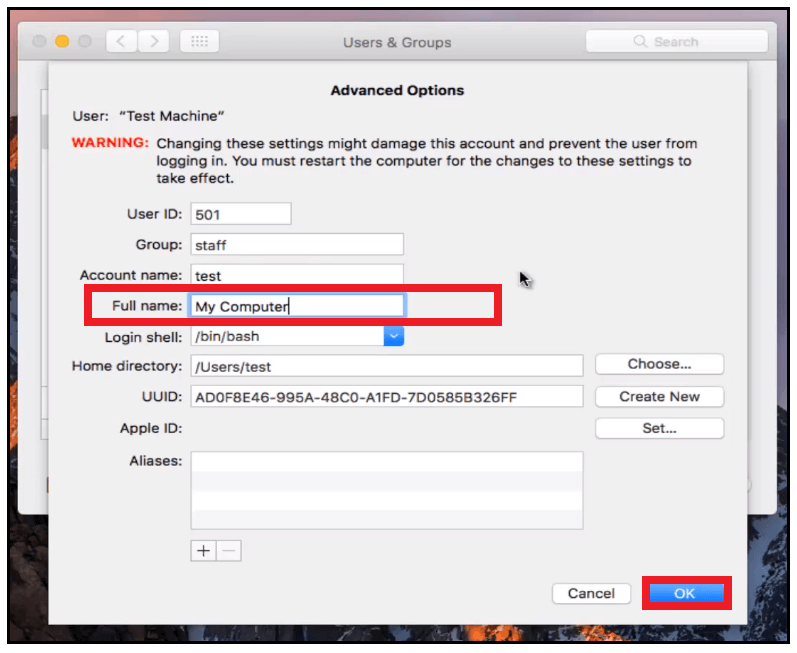
- You will immediately notice that your computer username has changed to My Computer, but the changes have not yet been saved.
- At last, click on the padlock button (located in the bottom left corner) again to save the changes, and you are good to go. Your name will be changed successfully.