
How to take a screenshot on windows
How to take a screenshot on windows
A screenshot is a picture taken on your computer. In this section, we will learn how to take screenshot on windows operating system.
We can take screenshot on any device, and it's no different from taking screenshots in Windows. It is an inbuild option which works great for simple screenshot tasks, but many third-party programs offer more user-friendliness and features for the same job. I'll tell you how to take a screenshot in Windows 10 in a few different ways.
Method One: Take Fast Print Screenshots (PrtScn)
- To transfer screen to clipboard
- On keyboard press, PrtScr button. Saving the image in the drive.
- Press the Windows+PrtScn buttons.
You are using Snipping Tool 4 integrated. You can take a screenshot and save it as a file using the Game Bar option that is inbuild in the windows. The Print Screen button on your keyboard takes a screenshot without saving it as a file, or it takes a screenshot of only one window. It does not take the screenshot of the entire screen. The button on the print screen can be called PrtScn, PrntScrn,Print Scr, or something similar. The button is normally found on most keyboards between F12 and the Scroll Lock. To access the Print Screen functionality, you can need to press the "Function" or "Fn" key on laptop keyboards. It will appear like nothing happened when you click the key, but the screenshot has been saved to your clipboard.
To Save Your Screenshot as a File
Click "Windows + PrtScn" button. If you are using a phone, click the "Windows logo + volume down button." On certain laptops and other computers, click "Windows logo + Ctrl + PrtScn" button or "Windows logo + Fn + PrtScn" button instead. Check out the manual for more details about your laptop.
The screen will dim for a moment, and inside your default "Pictures" folder, you will see the screenshot appear as a file in a folder called "Screenshots" It automatically labels the screenshot with a number.
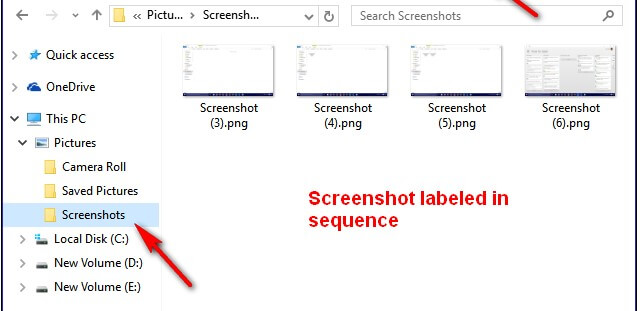
Only if the "Hover windows when minimizing and optimizing" is switched on in your visual effects settings (Device > Advanced system settings > Select the Advanced tab > Select Settings under Output section) can you see your screen dim.
To Take a Screenshot Without Saving it in your system.
Click on the PrtScn button. Now you copy a screenshot of your show to the clipboard. Open any image editor, word processor in which you would like to use the screenshot image for your further use. Choose Edit > Paste the screenshot anywhere you want to. The picture dimensions should be similar to your screen size. Note: You can need to click the "Alt + Fn + PrtScn" buttons on individual laptops and other devices instead. Check out the manual for more details about your computer.
To capture a Screenshot of Only One Window in WINDOWS10
Click the title bar for the window you want to take the screenshot from. Click on the button PrtScn + Alt from the keyboard. The screenshot will be saved in the clipboard. Paste it into the image editor or document editor you want. Note: You can need to click the "Alt + Fn + PrtScn" buttons on certain laptops and other devices instead. Check your handbook for more details
To Take a Screenshot of Part of Your Screen
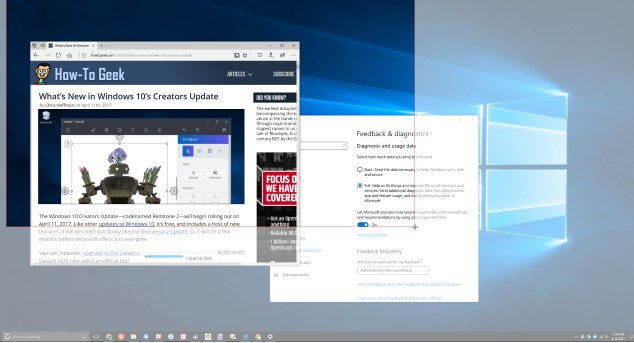
Click "Windows + Shift + S" Your computer will appear grayed out and will reset your mouse cursor. Click and drag to your computer to pick the part you want to catch on your computer. You must copy a screenshot of the screen region you picked on your clipboard. You can paste it into any place by just pressing Ctrl + V.
That only works in the Developers Update for Windows 10. This shortcut is a part of Microsoft's OneNote program on older versions of Windows. Microsoft has incorporated the shortcut into Windows 10 itself with the Creators Update.
Method Two: Take More Flexible Screenshots by the help of Snipping Tool provided by Windows 10
For a long time, the Snipping tool was a part of Screens in the windows, but the people never really looked forward to using it. The application was used in Windows Vista for the first time and has never had any new functionality aside from some bug fixes. This tool has the ability in your windows 10 window to take the open window, rectangular area, screenshots, free-form area, or the entire screen as you wish. You may use various colored pens or a highlighter to edit your screenshots. Then save it as an image and use it anywhere you want to.
The snipping tool has one drawback in Windows Vista, 7, and 8: It cannot catch screenshots involving mouse movements. To capture something that needs mouse movement, including pop-up menus and tooltips, you'll need to use the Print Screen method.
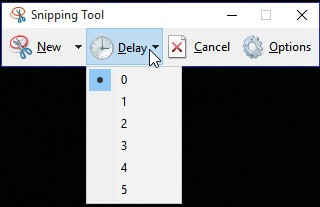
In Windows 10, Snipping Tool has a new "Delay" function that will allow you to capture screenshots of pop-up menus and tooltips. Open the Snipping Device program, and then press Wait. Click on the amount of seconds you want to wait before you take your screenshot from the drop-down list.
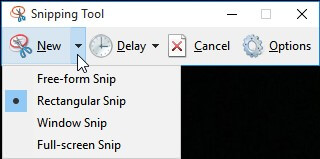
Now select the type of snip you want to create by clicking on the arrow next to "New." The snips are available in four forms, i.e., free-form, rectangular, window, and full-screen.
The screen does not fade out immediately, as compared to a normal snip. Alternatively, depending on the delay you have picked, you'll have to set up your screenshots between 1–5 seconds. Use this time to open the menu or tooltip which you want to grab. After a second, the screen will freeze and fade out; then, you will be able to make your snip. If you prefer a window or full-screen, it only captures the snip immediately.
Method Three: Use Keyboard Shortcuts with Game Bar that is installed in Windows 10.
Windows 10 comes with capabilities to store gameplay footage and take screenshots from games on Windows. The PNG format screenshots are created by the Game Bar and saved in C:\Users\[your]Username]\Videos\Captures.
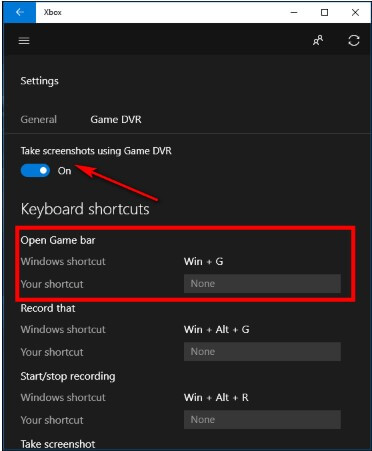
Run the Xbox app. Open its settings before you start using it. Under "Game DVR," toggle "Use Game DVR to take screenshots," and add any keyboard shortcuts that you won't choose the keyboard combination ("Windows key + G" by default) when you want to take a screenshot, and click or tap "Yes, this is a game" if prompted. Now, to take a screenshot, press the "Camera button" or "Win + Alt + PrtScn."
Note: The keyboard shortcut will only work if you have checked the "Yes, this is a game" box for this particular game beforehand. You will see a notification on your screen telling you that your screenshot has been saved. Clicking or tapping on the notification will open "Xbox > Game DVR > On this Device" for viewing.