
How To Connect Air pods To Computer?
How To Connect Air pods To Computer
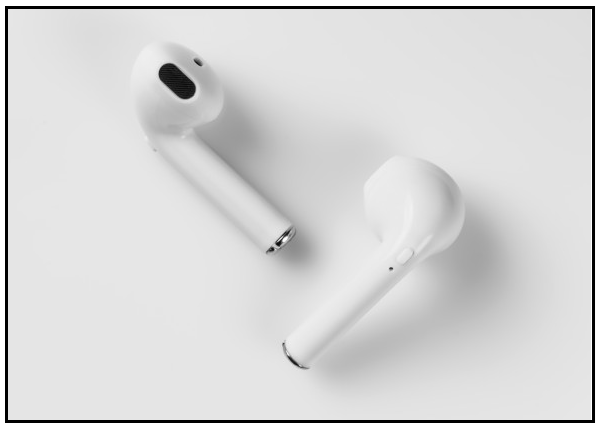
Apple has put light on a statement and said that it believes the future is wireless. This technology is pacing up with the time, and Apple is striving hard to accelerate or speed up the wireless process. One of the commonly used examples of wireless technology is Apple Air pods. These devices are straightforward to use and have broken the traditional wired earplugs, which get entangled or are tough to manage and are a bit uncomfortable. But the Air pods are seamless, and all you have to do is place the air pods in your ear and then play your media on your device in basic functionality. However, another reason for Air Pods' extreme popularity is its inbuilt in-ear detections feature that automatically detects your Air pods when you’ve placed them in your ear.
Apple’s Air pods are serviced in a small case, which also acts as a charging device with two separate Bluetooth headphones (not attached to any wired cord). The headset case acts as a charger as it charges itself via a lighting port. You will notice it comes with a small pairing button located on the back, which you use to initiate pairing, or you can use to pair to non-Apple devices. So if you want to use an android phone, a laptop, desktop, the air pods can act as regular Bluetooth headsets and are paired the usual way. They also have a unique pairing method specialized for iPhone, which is pretty slick and easy.
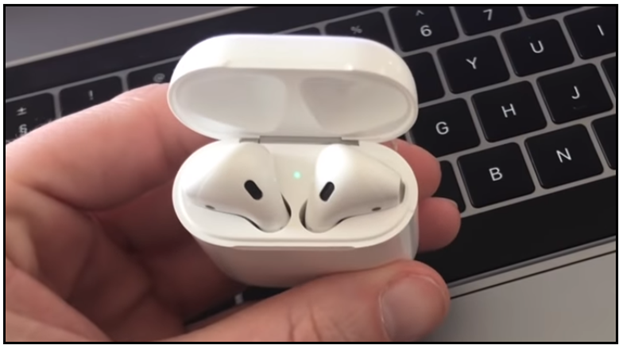
You have to flick open the lid. There are two headphones inside nestled in the case; you will see the small green light (denoting its charging), which allows you to see whether they’re fully charged or not. If you look down inside the casing after removing the air pods, there are small metal contacts. Those contacts come into touch with the headphones' base and enable each headphone to act as an antenna for the case for the initial pairing and procedures. The average battery span of the air pods is 5-6 hours and once they are dead, put them inside the wireless charging case, and they’ll begin to charge. You have four hours’ worth of charge in each charged case.
Steps to connect air pods to your MAC
Connecting your air pods to MAC is pretty simple, and it becomes more comfortable if you have already connected your pods to iPhone, and both your iPhone and MAC are signed in to iCloud with the identical Apple ID. In this case, the only thing you need to do is locate your AirPods in your ears and turn on the Bluetooth device on MAC from the Bluetooth Menu bar. A window will pop up. Select Airpods from the pop-up list, and then you are ready to go.
But what if you have not connected the Airpods before iPhone or you carry different iCloud ID for both the devices, or if you want to connect them to someone else MAC. Follow the below steps to pair your Airpods with MAC. Make sure to upgrade your MacBook has the os version of Mojave 10.14.4 or later if you are using 2nd generation AirPods.
Note: If your iPod is already connected to your phone, disconnect it by going to your Phone’s setting then Bluetooth and then you can go over to your air pod’s name and click on disconnect (don’t click on Forget this device else you have to pair it again).
Step 1: Pair up your AirPods case
Open the air pod case, and you will notice a button on the back of the case. Hold down the circle button until it starts to blink white. Now it’s ready to pair.
Step 2: Enable the Bluetooth option.
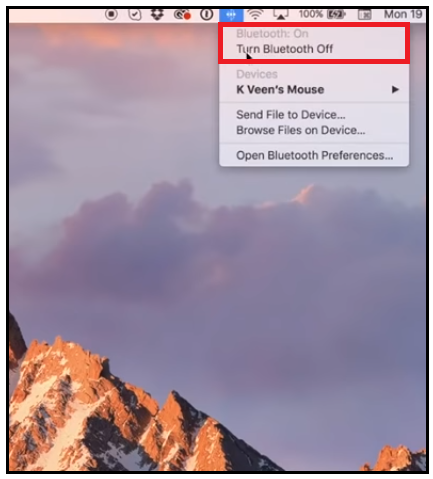
Start your Mac PC, and from the Apple menu on the top, select the System Preferences option. A window will pop up. Click on the Bluetooth option.
Step 3: Connect with your AirPods
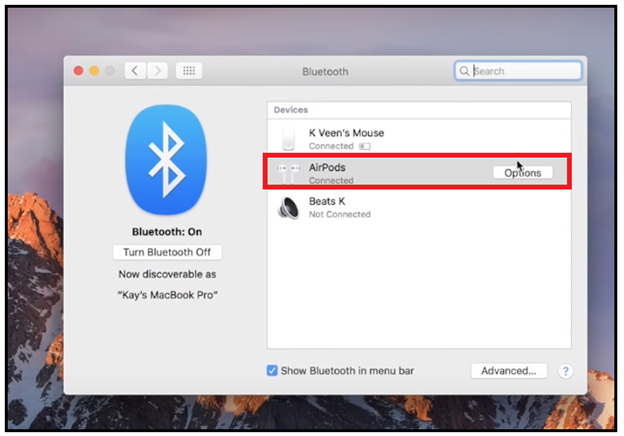
The Bluetooth options will be displayed. Choose the desired AirPods name connection and click on connect.
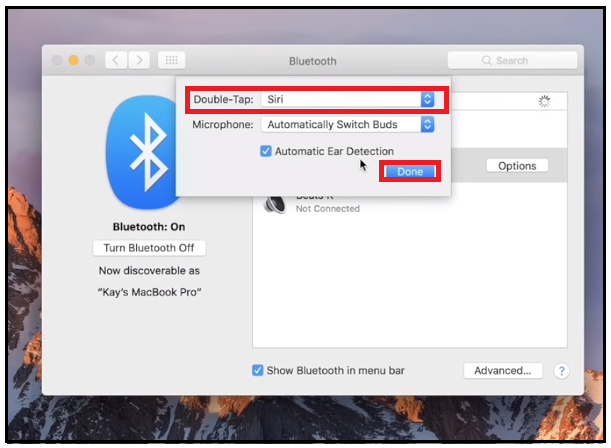
Step 4: Facilitate the Siri Feature
AirPods facilitates the Siri feature for seamless music experience. If the AirPods are supported on your computer, click on the Enable option. After that, you can use the ‘Hey Siri’ audio detection with your AirPods.
Steps to connect air pods to non-apple laptop
Your Apple device is upper easy to connect your air pods but then when you got to your Microsoft devices, such as a laptop or a desktop, you find it significantly more challenging to connect them and pair them with your device.
Following are the step by step procedure to connect your air pods to your computer:
Step 1: Locate Bluetooth in your search bar
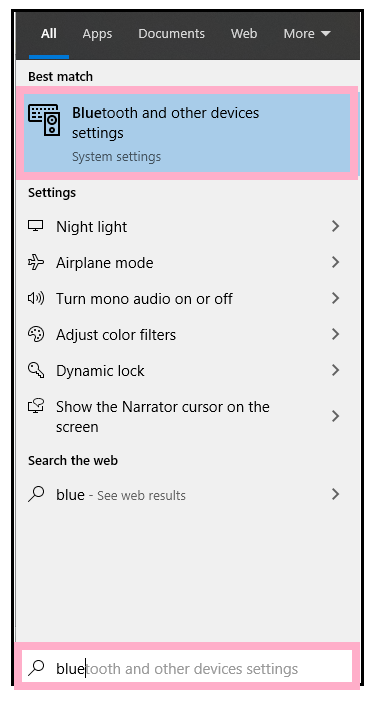
First of all, you’re going down to your Windows 10 search bar, or if you have Windows 8, it would be on the search bar that pulls out here. With Windows 7, you would click on your Start bar and use a search field.
Step 2: Go for Bluetooth and other device settings.
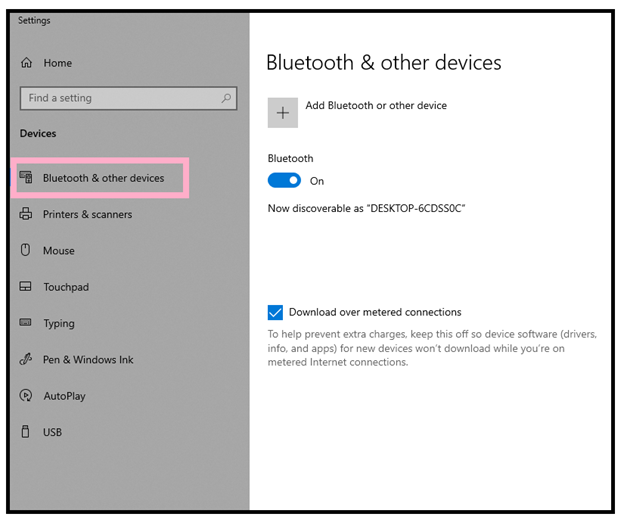
You’re going to type in Bluetooth and see it pops right up there and display Bluetooth and other device settings. Then the setting window will be displayed.
Step 3: Pair in with your air pods
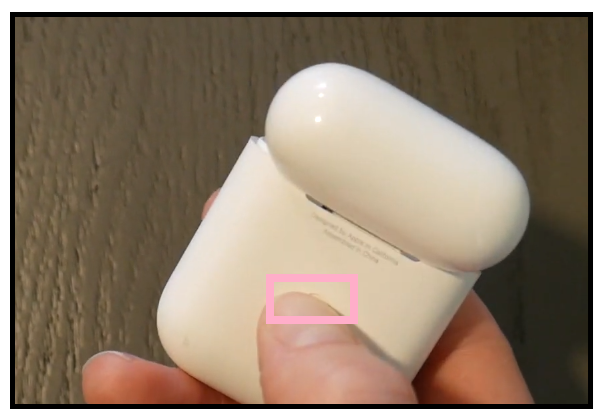
The next step is to prepare your air pods, so open it and take your case and open them up. You will notice the pairing buttons select them to get it ready to pair or connect.
Step 4: Green flashlight would be triggered
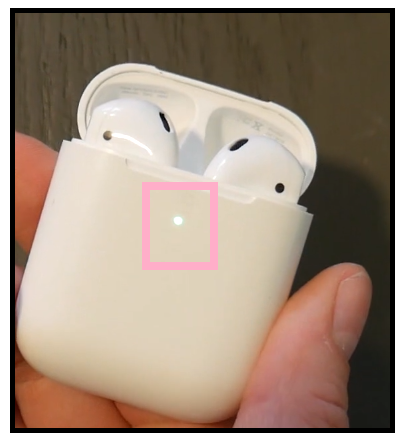
It will flash a white light a couple of times, not a green one but a while one must leave them open. So once you have got them open now, you are ready to go. If you close it again, you’ll have to redo the process because it will no longer work.
Step 5: Go for Bluetooth & other devices.
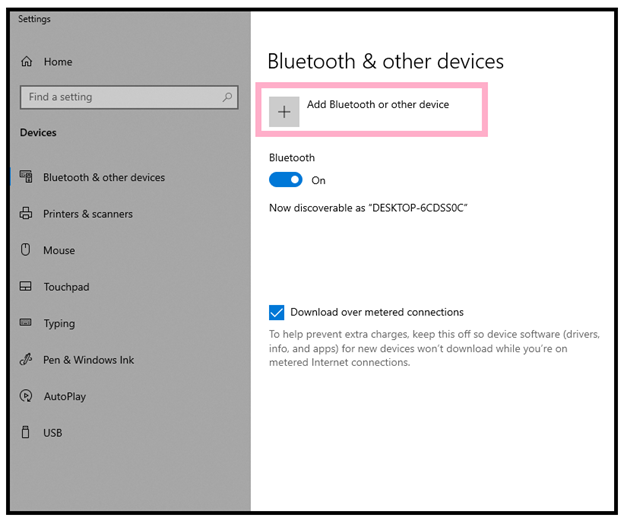
For the next step, we’ve to jump into the computer settings again. Choose the ‘Bluetooth & other devices' option from the left pane. For the right pane, click on the Add Bluetooth or other device button (marked with +).
Step 6: Select the Bluetooth
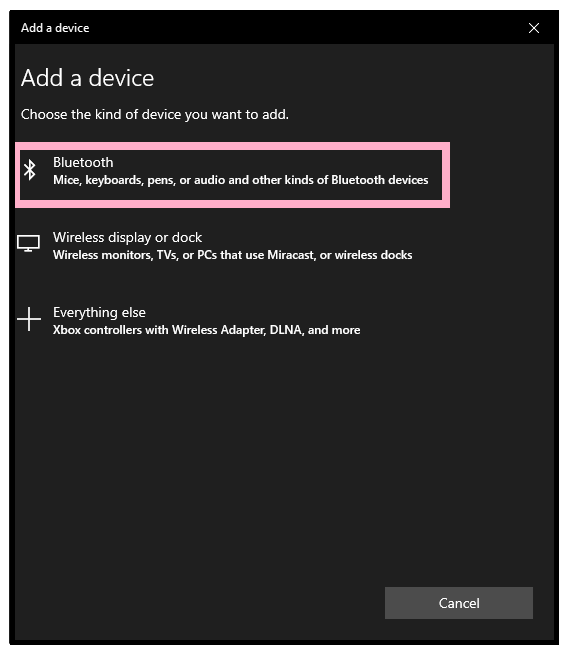
The ‘Add a device’ window will pop up. Select the Bluetooth option and be patient as it is going to take a while. Sometimes it even searches for a long time.
Step 7: Connect with your device.
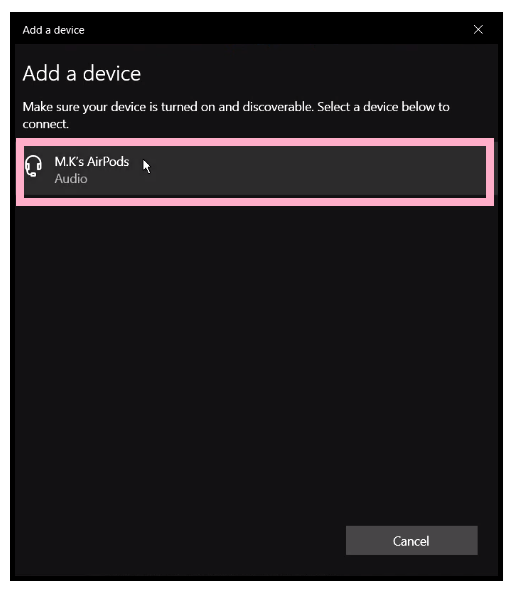
Once done, it will show the available Bluetooth connection. Here, in our case, it is displaying MK’s laptop. Double click on that.
Step 8: Enjoy the stupendous wireless air pods music quality.
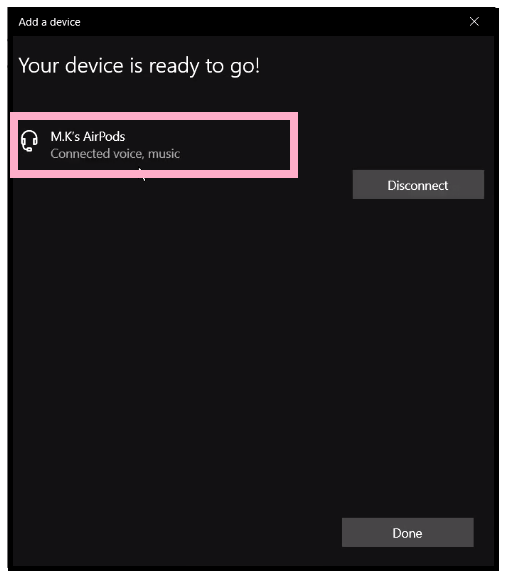
It will start connecting, and after some time, it will get connected. There you go, your device is ready to go, and it’s that simple to collect your ear pods to your laptop or desktop. If needed, you can also disconnect the connection by clicking on the Disconnect button.