
How to find Computer name on Windows?
How to find computer name on Windows
The computer’s name is undoubtedly useful and needed at times to resolve technical issues or downloading any new software or pairing your system with other hardware devices. But, indeed, most of us don’t know the name of our computers. The beginners and some professionals do not even know about the location of finding the computer’s name and finds it challenging to detect the name. And for such an easy task they call for other’s help and are often mocked by their colleagues.

But you won’t be ridiculed anymore because in this tutorial we will learn how to fetch the computer’s name and even see how to change it to some simple name to remember it easily. Let’s look at different methods through which the computer users can easily find the name of the computer on different window versions.
WINDOWS 10
METHOD 1: Through Command Prompt
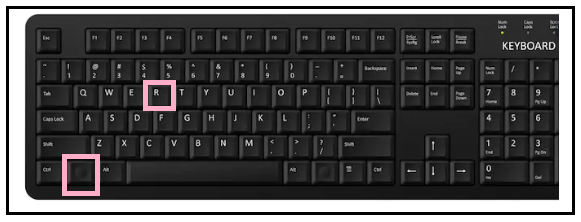
- Open the run dialog, which is done by pressing and holding the Windows key and R key on your keyboard.
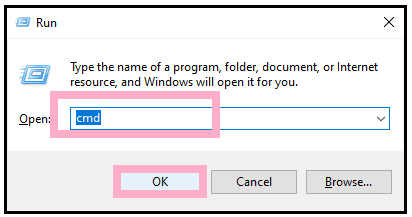
- The command prompt box will pop up, type in CMD (the abbreviation for command prompt). Hit enter or click on the Ok button.
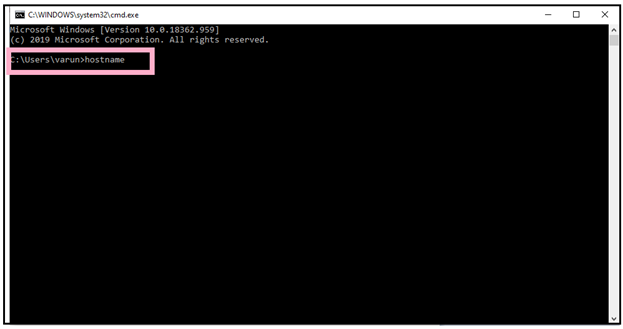
- You will notice that the command prompt window will appear, type in the hostname (ensure that it has no space in between them), and hit enter key one last time.
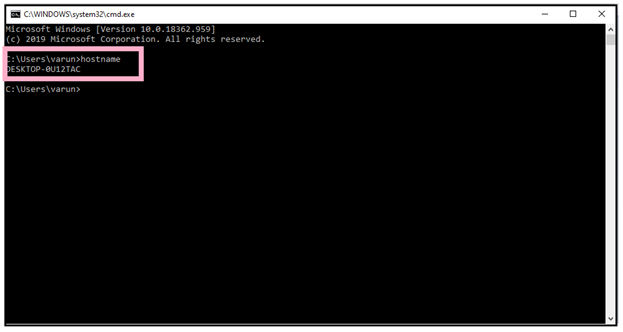
- Windows will display your computer name as shown in the below image.
METHOD 2: Window 10 search bar
- Inside the search bar next to your start button, type in ‘computer name’.
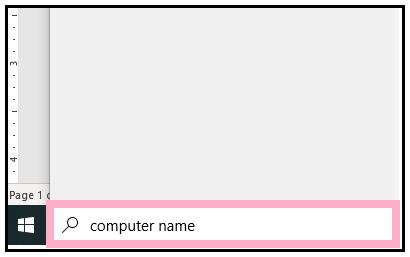
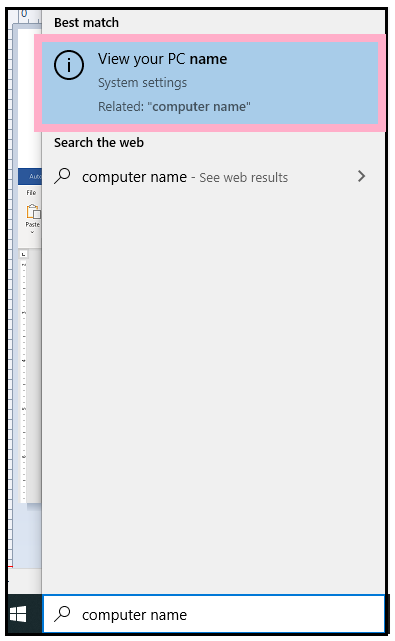
- Windows will match to all the components, and the options will be shown. Click on the first option, naming ‘View Your PC Name’.
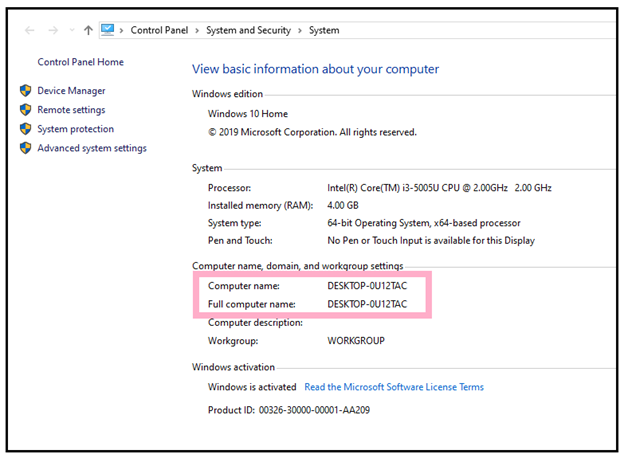
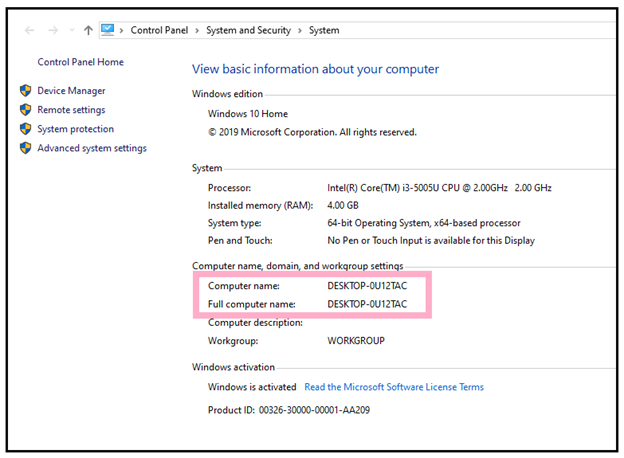
- The system control panel window will pop up. Under the computer name, domain, and workgroup settings, you will find your computer name. Unlike in the below image, the name of my computer is DESKTOP-OU12TAC.
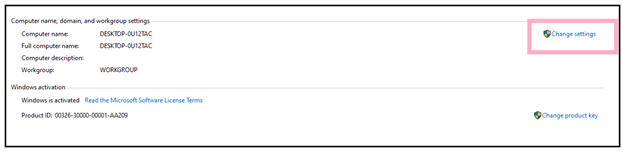
- You can change the computer name as well. Click on the ‘Change settings’ option located on the right side of the window.
- The system properties dialog box will appear. Under the computer name, at the bottom of the window, you will find the label ‘To rename this computer, click Change.’ And in front of that label, click on the ‘Change’ button.
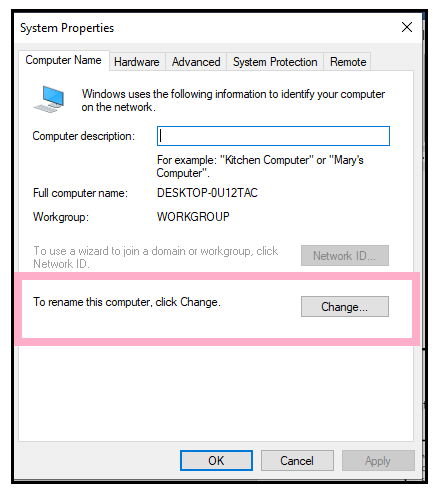
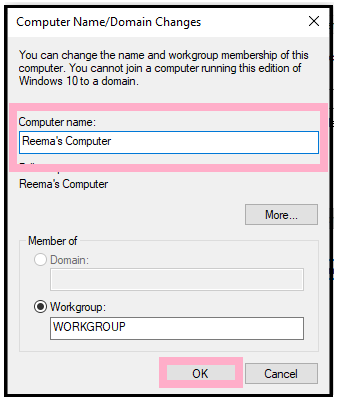
- Another window will open, giving you the accessibility to change the computer name. Under the computer name, type in your specific name and click on ok.
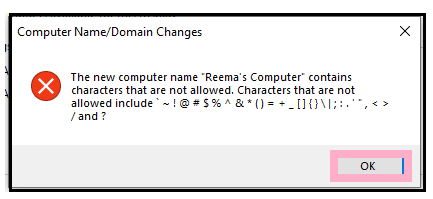
- An alert dialog box will pop up stating , “special characters are not allowed. Characters that are not allowed include, ~, !, @, #, $, %, ^, &, *, (< )< <_, -, {,}, [, ], \, |, ;, :, <, >, ., / and ?. Click on OK.
- Eliminate the special character from your computer’s name. Click on Ok.
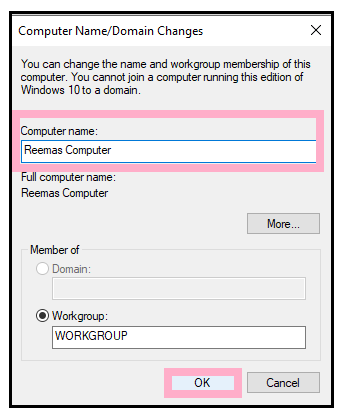
- Your computer name will be changed successfully.
METHOD 3: This PC Method
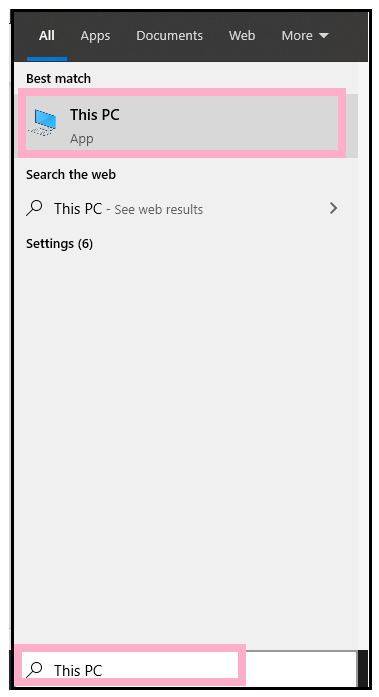
- In the search bar next to start window, type ‘This PC’ and hit the enter button for its first match.
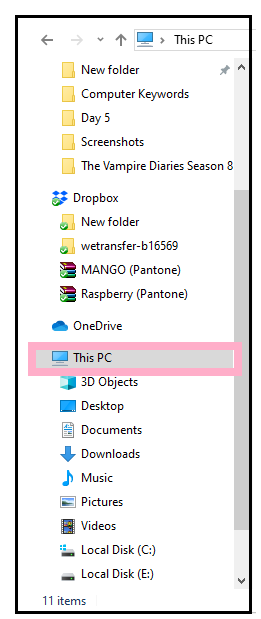
- The window will appear. On the left side on the pane, again look for ‘This PC’ option and right click on it.
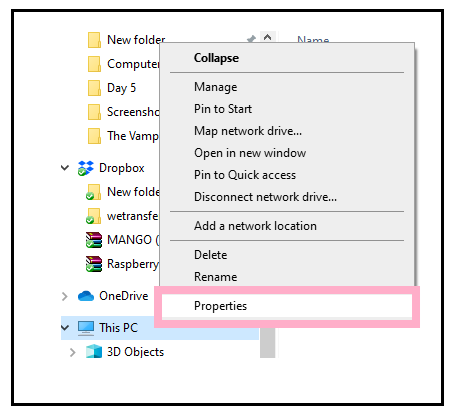
- The dialog box will pop up. Scroll down and select the properties option.
- The system control panel window will appear displaying your computer’s name under the computer name, domain, and workgroup settings section.
WINDOWS 8
To view your computer’s name on Windows 8, follow the given below steps:
- In the windows 8, scroll left to open the start menu.
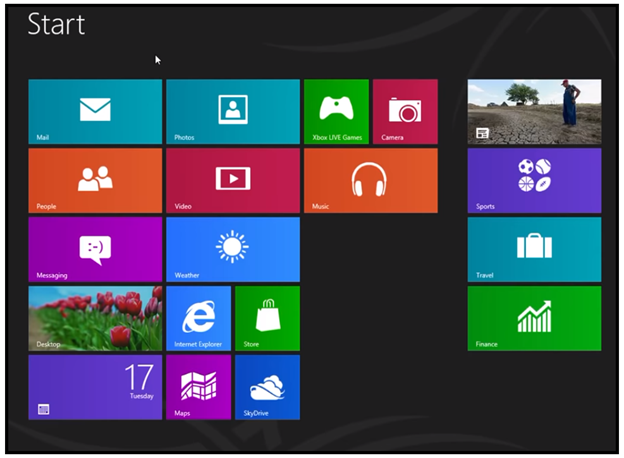
- Open the windows search bar and type Control panel. You will notice that even after typing the first three letters, the control panel option will automatically be displayed under the Apps section. Click on Control Panel.
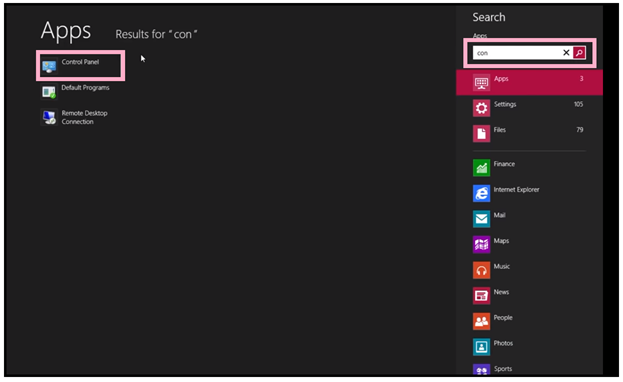
- The control panel dialog box will appear. You will find various setting options. But as we want to check the system’s name. Click on the first option, i.e., System and Security.
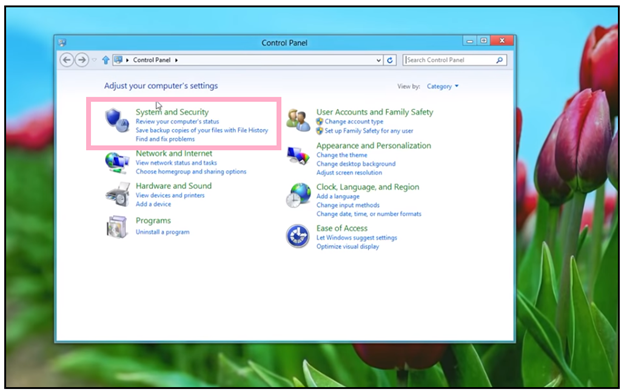
- The system and Security window will pop up. Scroll down to fetch the ‘System’ option and click on it.
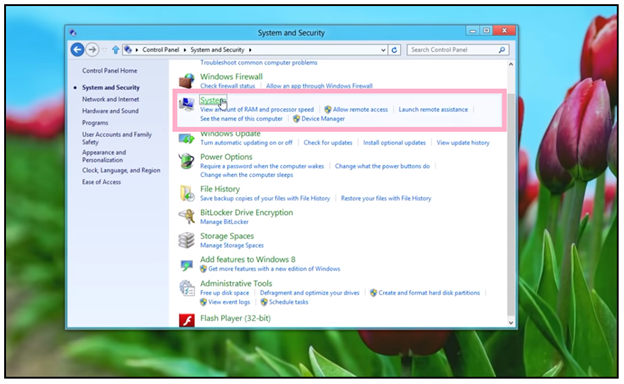
- The system window will appear. This window consists of all the necessary information about your computer, including the computer’s name. Under the Computer name, domain, and workgroup settings, you will find your computer's name. Unlike, in the below-given windows-8 is our computer’s name.
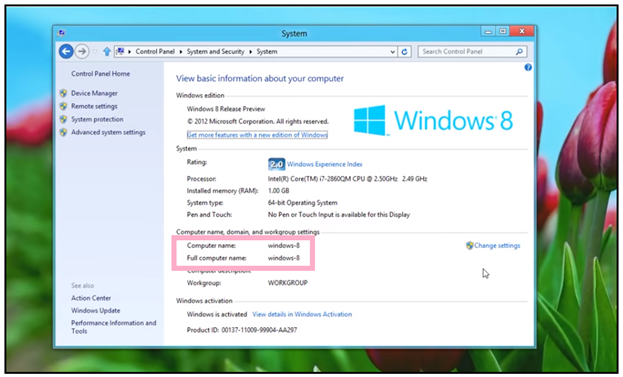
- Windows gives you the freedom to change the name for your computer. For click on ‘Change settings’ present rightmost pane of the same System window under Computer name, domain, and workgroup settings option.
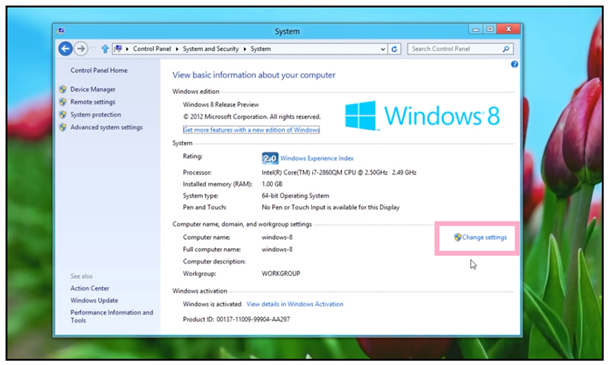
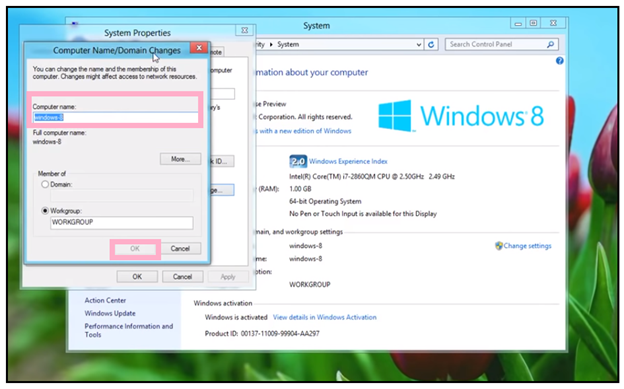
- The System Properties dialog box will appear. At the bottom right pane of the window, you will find the Change button in front of the label, stating, “To rename the computer or change its domain or workgroup, click Change.”. It is clear from the label itself that we need to click on the Change button.
- Another dialog box will pop up asking for your new computer name. Delete the previous name and re-type the new one. Click on Ok.
Note: While typing the name make sure not to use any type of special character including !, @, #,$, %, ^, &, *, (, ), -, +, =, {, },[, ], ;, :, “, ‘, /,?, etc, else it will throw an alert dialog box
WINDOWS- 7
To view your computer’s name on Windows 7, follow the given below steps:
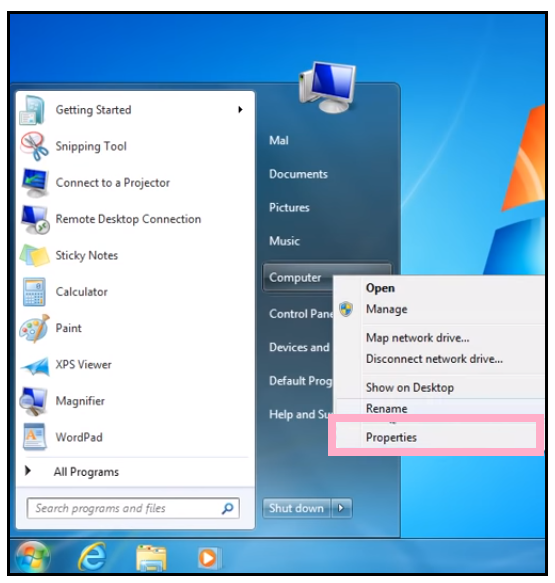
- Click on the window start icon. From the right side of the dialog box options, right-click on ‘Computer’. If you don’t find the ‘Computer’ option in the right pane of the window, you can directly type ‘Computer’ on the search bar, and it will be shown in the supplication section.
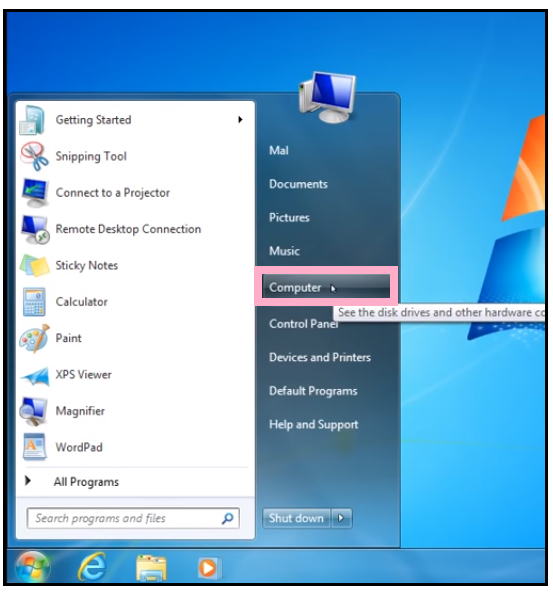
- After right-click, the dialog box will be displayed. Click on the ‘Properties’ options, as shown in the following image.
- Properties will directly redirect your screen to the System window displaying all the necessary information regarding the computers, including Computer name. Scroll down your cursor, and under ‘Computer name, domain, and workgroup settings’ , you will find your computer’s name. Unlike here in the following image, my computer’s name is ‘Mal.’