
How to mark all emails as read in Gmail?

How to mark all emails as read in Gmail

Gmail is extensively used to exchange official documents, expressions, proposals around the world. In the business industry leaving unread mails is considered highly unprofessional as unread mail signifies that you are not thorough and up to date with your inbox. Hence, you may miss out on something important.

Many times, we skip the promotional or some unimportant emails, and they remain unread. Without any doubt, reading those emails will be an absolute waste of time.  Gmail provides a shuttle way to read all the unimportant email without even opening them. In this tutorial, we will briefly learn the steps to mark all emails as read on the desktop and on android phones via the Gmail app.

Topics Covered

  1. What is the significance of marking all mails as read?
  2. Steps to mark all emails as read on Computer.
  3. Steps to mark all emails as read on Android via Gmail app.

What is the significance of marking all mails as read?

Marking all mails as read signifies that you have gone through every mail, and nothing is left pending. And if any new email hops, it could be prioritized and can be given proper attention.

There are different folders in Gmail, unlike Primary, Social, Promotional and Spam. You can select any of the folders and, by following a few steps, can mark all their emails with the read label. 

Steps to mark all emails as read on Computer.

Below are the step-by step demonstrations to mark all the emails as read on desktop:

STEP 1: Login to your Email address

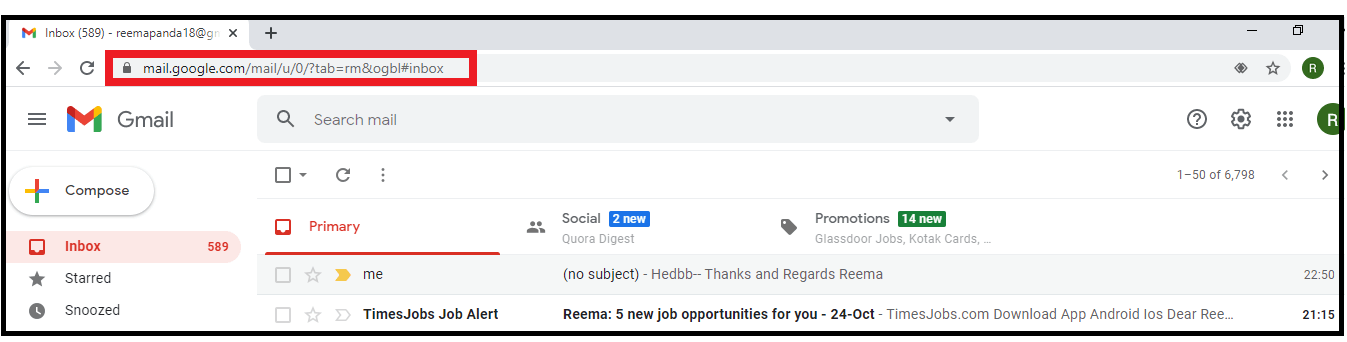
  • Open the Google Gmail application on your computer browser, or you can directly click the URL: https://mail.google.com/. Enter your password and email address to the respective fields.
  • You will be directed to your Gmail Inbox homepage.
How to mark all emails as read in Gmail

STEP 2: Select any Email folder

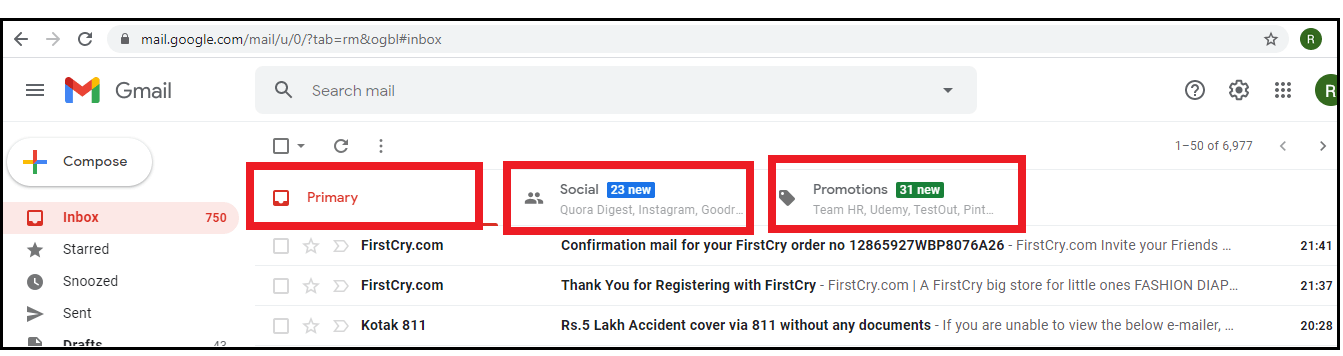
  • You will notice three different headings named Primary, Social, and promotional on the top of your Gmail window.  Select any of the Email folders.
How to mark all emails as read in Gmail
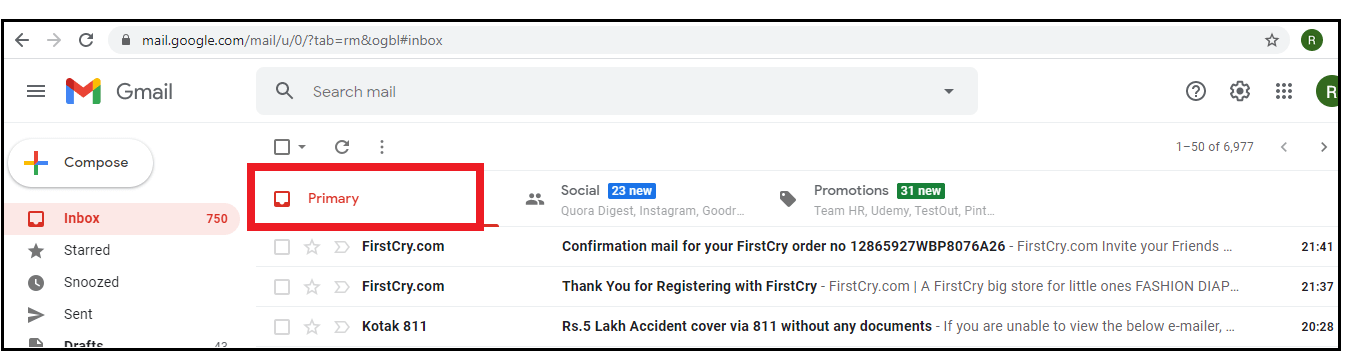
  • In my case, I have selected the Primary because, in this folder, all our important emails reside.
How to mark all emails as read in Gmail

STEP 3: Select all the mails

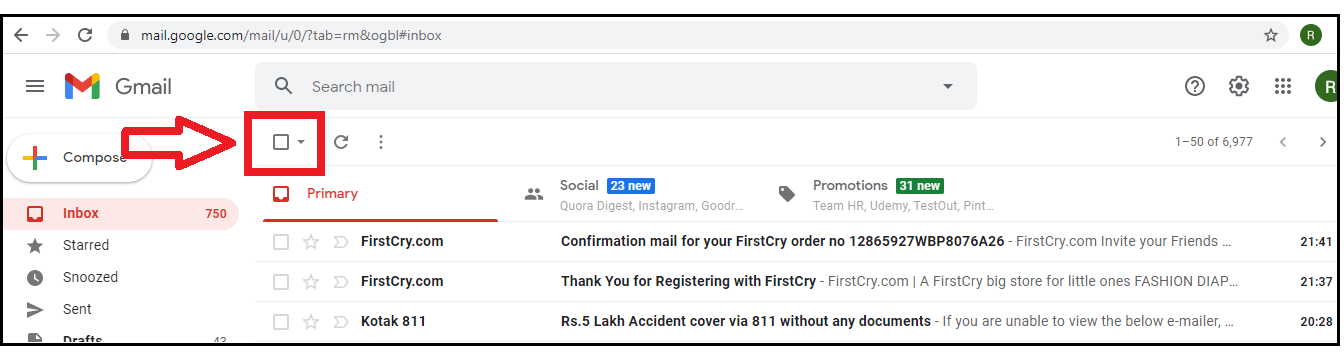
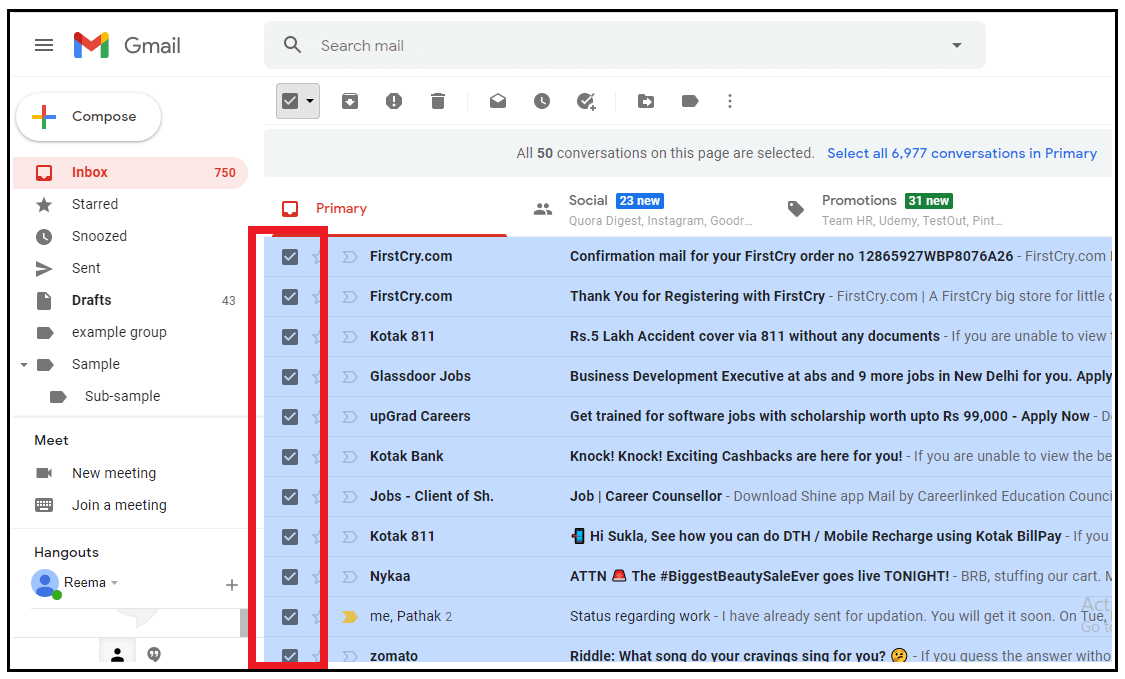
  • Click on the small square box located below the search mailbox.
How to mark all emails as read in Gmail
  • It will only select the emails present on your Gmail Inbox first page (at most 50 mails).
How to mark all emails as read in Gmail
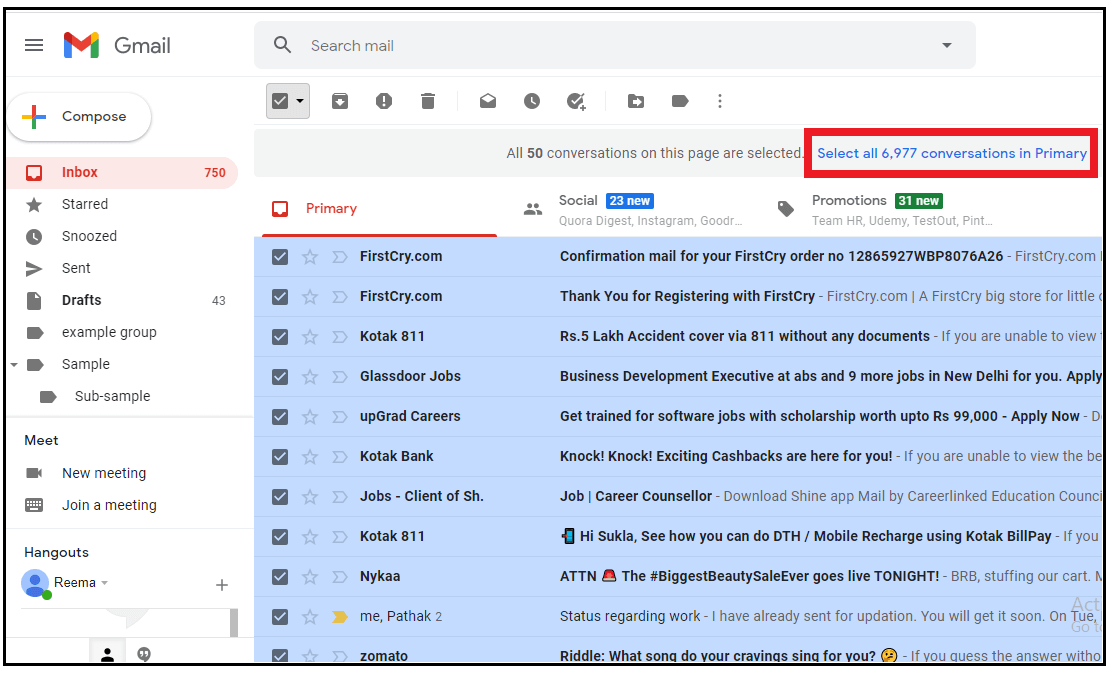
  • To select all the mails, click on the label ‘Select all xxx x conversations in Primary’ as shown in the below screenshot.
How to mark all emails as read in Gmail
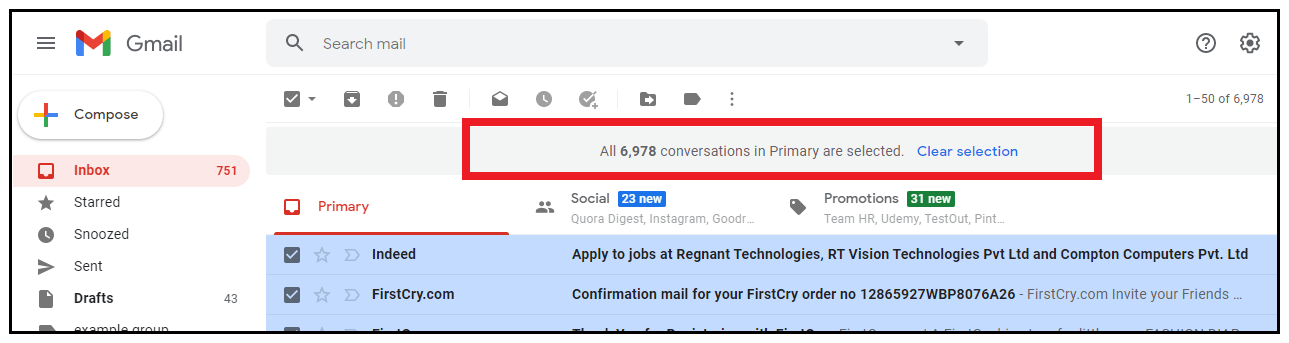
  • All your conversations in the Primary folder will get selected.
How to mark all emails as read in Gmail

STEP 4: Mark all emails as read

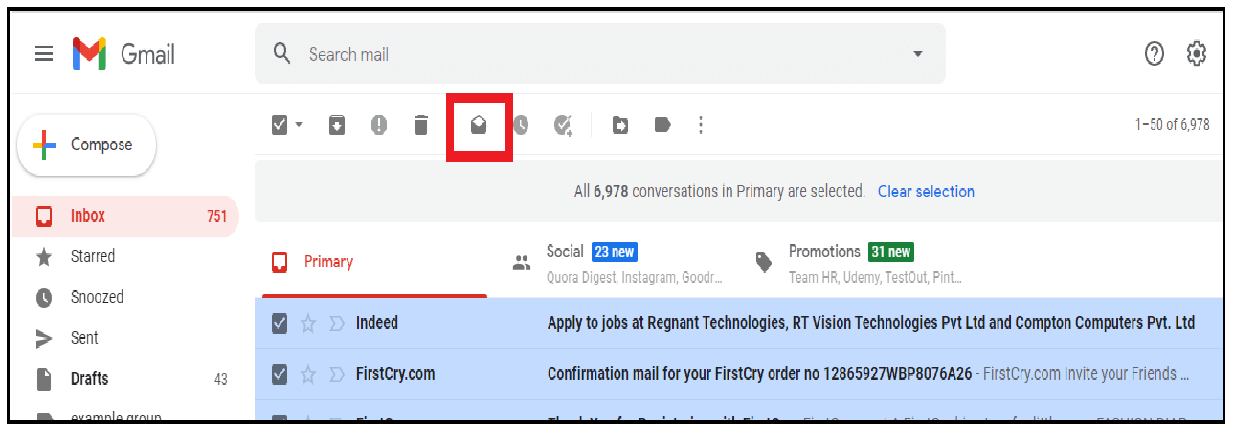
  • The last step is to click on the ‘mark as read’ icon. This icon is located on the top below the search mailbox (refer to the below screenshot).
How to mark all emails as read in Gmail
  • The ‘Confirm Bulk action’ window will be prompted. Click on “Ok” to continue.
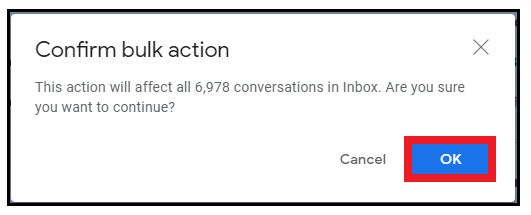
How to mark all emails as read in Gmail
  • It will take a while to affect all conversations in your inbox. After that, Gmail will throw a notification displaying ‘All conversations marked as read.’
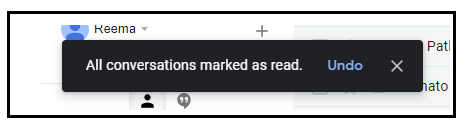
How to mark all emails as read in Gmail

Steps to mark all emails as read on android via Gmail app

Unfortunately, Gmail app does not support any option to mark all the emails as read together at once. However, you can manually select the emails and mark them as read. Below are the step-by-step demonstrations to recall or undo an email on an Android smartphone:

Step 1: Download and Open the Gmail app

Unlock and open your phone. Go to the play store app and in the search box to download Gmail. Once downloaded, double click to open the app.
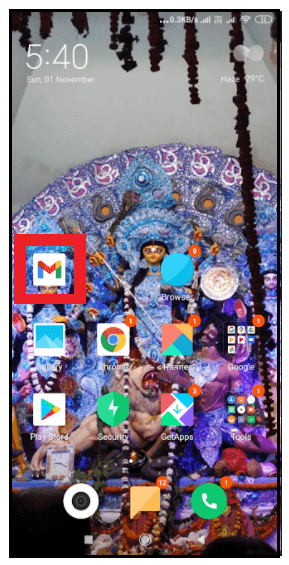
How to mark all emails as read in Gmail

Step 2: Login or Sign up 

The login window will be prompted, asking you to enter your email id and password. It will take you to the Gmail Inbox page.
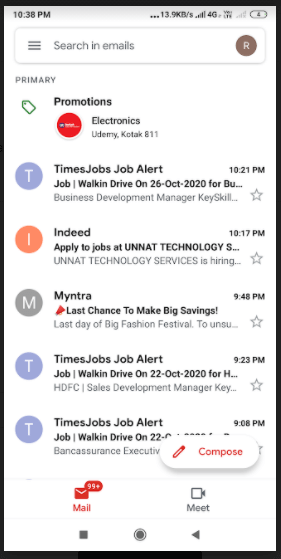
How to mark all emails as read in Gmail

STEP 3: Select the mails

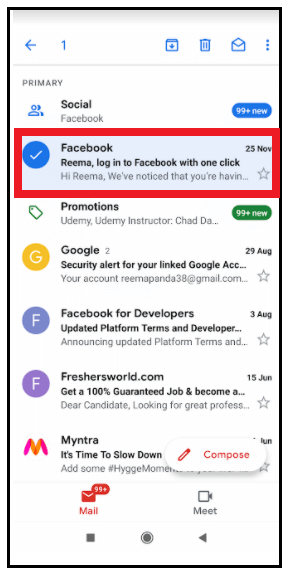
  • To select the mail, click on the Circle icon residing next to your email (refer to the below screenshot).
How to mark all emails as read in Gmail
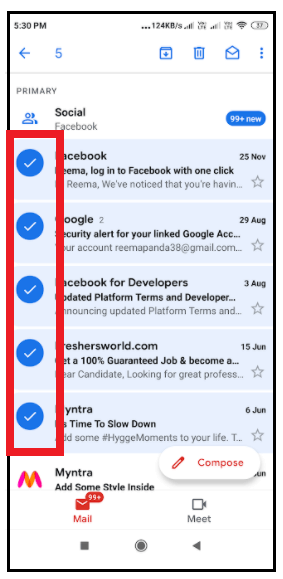
  • Repeat it to select multiple mails in your Gmail.
How to mark all emails as read in Gmail

STEP 4: Mark the selected mails as read

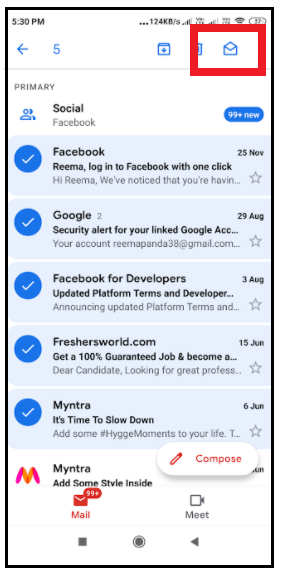
  • Click on the ‘mark as read’ icon. This icon is located on the top below the search mailbox (refer to the below screenshot).
How to mark all emails as read in Gmail
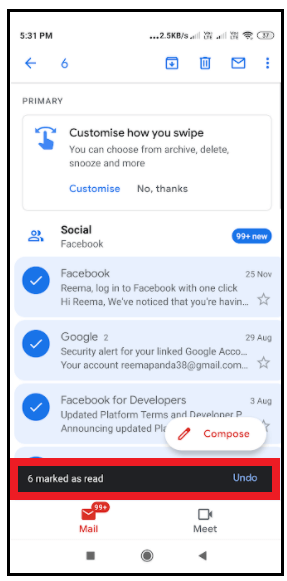
  • All the selected mails will be marked as read.
How to mark all emails as read in Gmail

Related Topics

How to unarchive in Gmail?

How to unarchive in Gmail Earlier, we have learned how to archive an email on a computer or a phone device via the Google app. But archiving is not sufficient; you...

3 minutes read.

How to build a Computer?

How to build a computer Computing technology has evolved a lot in the last decade and has come a long way since then. For many years building computers was as tough...

17 minutes read.

How to Find Connected Components in Graph

In this article, we are going to find connected components in a graph by building a program in C++ language. We are going to use different approaches to build the...

4 minutes read.

How to Find Divisors of a Number?

A number that equally divides a larger integer is referred to as a divisor or factor. By simply listing all the possible methods to multiply two numbers together to obtain...

3 minutes read.

How to mark all emails as read in Gmail?

How to mark all emails as read in Gmail Gmail is extensively used to exchange official documents, expressions, proposals around the world. In the business industry leaving unread mails is considered...

3 minutes read.

How to Make Money Online?

How to make money online? Earning money from the traditional way of working is a way harder and requires a lot of manpower and capital. With the increase in the use of the Internet...

9 minutes read.

How to change the name in Gmail

How to change the name in Gmail Frequently asked questions: How I can change my Gmail nameSteps to change the name of Gmail accountStep to change to the name of Gmail on...

3 minutes read.

How to find your Computer’s specs?

How to find your computer’s specs The computer specs include the details for every single component in your computer, including your CPU, hard drive space, and even the little things like...

7 minutes read.

How to delete Gmail Account?

What is Gmail? Gmail is a free mobile and web-based email service introduced by Google on April 1, 2004. Gmail is used for personal to business purposes. It allows users to...

2 minutes read.

How to take a screenshot on windows

How to take a screenshot on windows A screenshot is a picture taken on your computer. In this section, we will learn how to take screenshot on windows operating system. We can take screenshot...

5 minutes read.

How to add contacts to Gmail?

How to add contacts to Gmail? Managing your inbox is a tiresome task, but one way to make it effortless and easier is to gain an add on the benefit of...

5 minutes read.

How To Connect Air pods To Computer?

How To Connect Air pods To Computer Apple has put light on a statement and said that it believes the future is wireless. This technology is pacing up with the time,...

5 minutes read.

How to cancel amazon prime?

How to cancel amazon prime? Amazon Prime is a subscription that offers variety of services with it. The advantage of amazon prime is that you can expect hassle-free shipping within two days, access to...

3 minutes read.

How to clean a Computer Screen?

How to clean a computer screen Professionalism is a trait to possess attitude, neatness, and maintenance in every trail of business. Imagine, if you are designated as Marketing Manager, and you...

5 minutes read.

Does my computer have Bluetooth?

Does my computer have Bluetooth? With the advancement of IOT (Internet of things) and high-tech electronic gadgets, Bluetooth has become perennial in our digital lives. Most of us are already familiar...

6 minutes read.

How to schedule an email in Gmail?

How to schedule an email in Gmail Imagine scenarios where you send an important message to one of your international clients, and you know the time difference is significant. Earlier, you...

7 minutes read.

How to write a cheque?

How to write a cheque? In today's time, digital payments are consistently gaining more market share, but it's also important to know how to write a cheque. Many companies, employers, workers, and landlords still...

2 minutes read.

How to select all in Gmail

How to select all in Gmail Undoubtedly Gmail is one of the leading email service providers across the world. Teenagers, adults, old ages all rely upon Gmail because of its free...

3 minutes read.

How to Delete Facebook Account?

How to Delete Facebook Account Facebook is a social networking platform that helps you to quickly communicate and share online with your family and friends. Initially developed for college students, Mark Zuckerberg founded Facebook...

3 minutes read.

How to defrag a computer?

How to defrag a computer Topics Covered What is Defragmentation?What is the need of defragmentation?Advantages of DefragmentationWhen to defrag your computerDefragmentation for your SSDDefrag your computer running on windows 10Defrag your computer...

8 minutes read.