
How to select all in Gmail

How to select all in Gmail

Undoubtedly Gmail is one of the leading email service providers across the world. Teenagers, adults, old ages all rely upon Gmail because of its free storage space, easy-to-use and flexible interface which could operate easily on computers as well as on smartphones. Gmail also supports tight assimilation of other Google products which upgrades the entire mailing experience.

Very often you need to select all the mails of a folder either to delete them all or to mark them as read, or to hide them. Thankfully, Gmail offers few simple and easy steps to select all of your emails at once. In this tutorial we will briefly learn all the steps to select all of your emails in Gmail.

Unfortunately, the Gmail app does not support the ‘select all’ feature. However, you can manually select single or multiple emails in your Gmail app.

Steps to select all the Gmail mails in Computer

Follow are the below step-by step demonstrations to send an email on desktop:

STEP 1: Login to your Gmail account

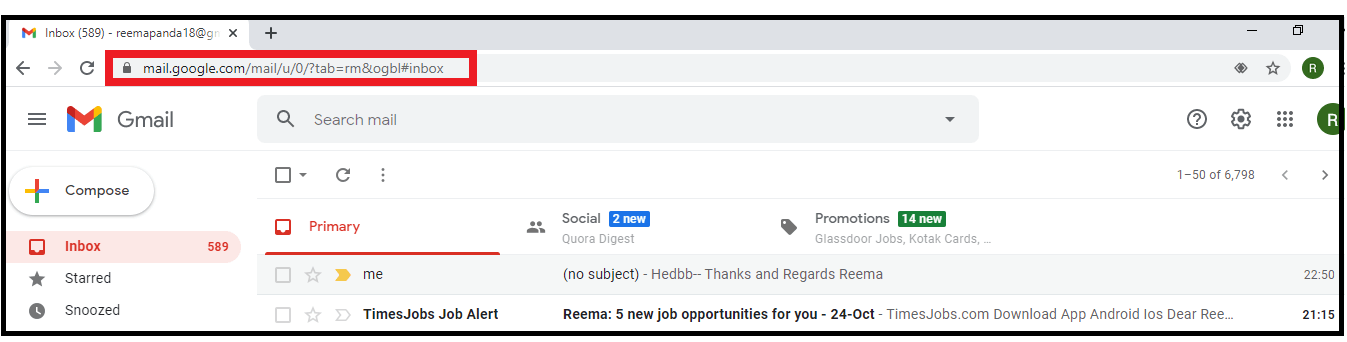
  • Open the Google Gmail application on your computer browser, or you can click the URL: https://mail.google.com/. Enter your password and email address to the respective fields.
  • You will be directed to your Gmail Inbox homepage.
How to select all in Gmail

 STEP 2: Select your Folder

  • Gmail has different folders like Primary, Social and Promotions. Select the folder from where you want your email to be snoozed.
  • In my case, I have selected the Primary as in this folder, most of the important mail resides.

How to select all in Gmail

STEP 3: Select all the mails

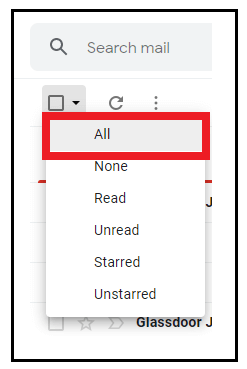
  • Go to the little square icon present below the search mailbox. Click on the master select little down arrow icon located at the square box (refer to the below mail).

How to select all in Gmail
  • The following drop-down window will be displayed. Click on the ‘All’ option as we wish to select all the emails of our Inbox.
How to select all in Gmail
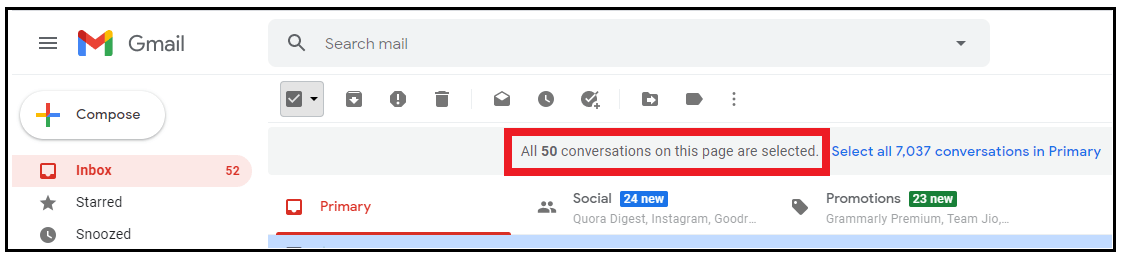
  • It will select all the emails present on the first page of your Inbox, i.e., 50 mails. Gmail will notify you at the top with a message, ‘All 50 conversations on this page are selected’.
How to select all in Gmail
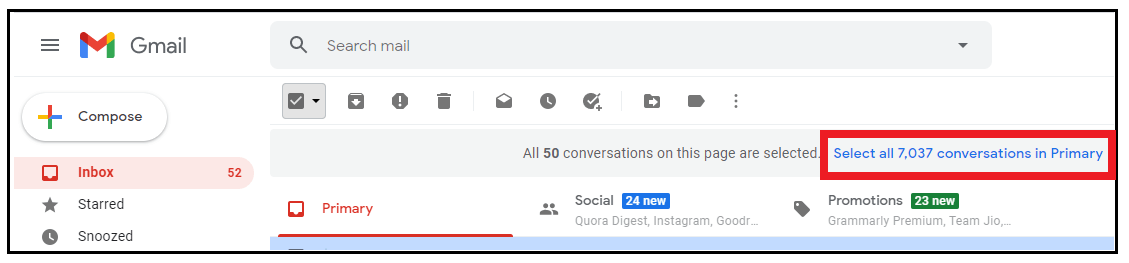
  • Click on the label ‘Select all xxx conversation in primary” to select all the mails.
How to select all in Gmail
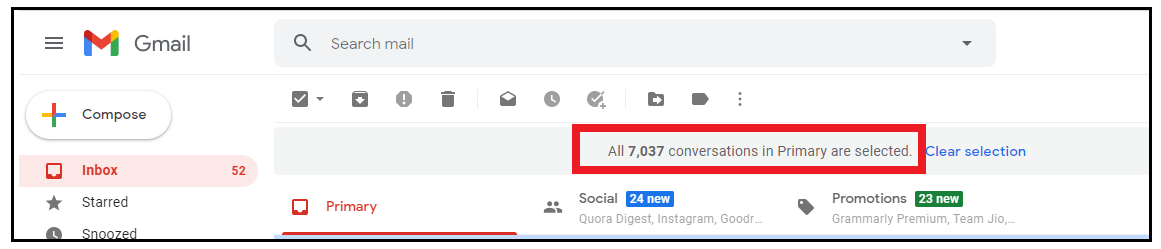
  • It will select all your emails present in your primary folder. It will display a label at the top ‘All xxx conversations in Primary are selected’.
How to select all in Gmail
  • Now you can perform various operations like read all, spam, archive, etc. You can also switch your folder and follow the same steps to select the mails of other folders. 

Frequently Answered Questions/ FAQs

Question 1: Gmail can select how many emails by the ‘Select All’ option?

Answer: The Gmail ‘Select All’ option can select only 50 emails at once. Every page of Gmail contains 50 mails, so it selects all the emails present on a single page.

Question 2: What is the use of the ‘Select All’ option?

The ‘Select All’ option is used to select the emails that can be used later on to perform various operations like read all, spam, archive, etc.

Question 3: Can we select or deselect emails as per our requirements?

Answer: Yes, we can easily select or deselect the emails by clicking on the small square box present in front of any email. By this process, you can select single or multiple mails and later again, by clicking on the square icon, you can deselect the emails.


Related Topics

How to add contacts to Gmail?

How to add contacts to Gmail? Managing your inbox is a tiresome task, but one way to make it effortless and easier is to gain an add on the benefit of...

5 minutes read.

How To Connect Air pods To Computer?

How To Connect Air pods To Computer Apple has put light on a statement and said that it believes the future is wireless. This technology is pacing up with the time,...

5 minutes read.

How to find your Computer’s specs?

How to find your computer’s specs The computer specs include the details for every single component in your computer, including your CPU, hard drive space, and even the little things like...

7 minutes read.

How to clean a Computer Screen?

How to clean a computer screen Professionalism is a trait to possess attitude, neatness, and maintenance in every trail of business. Imagine, if you are designated as Marketing Manager, and you...

5 minutes read.

How to Multiply Fractions?

What is a Fraction? A fraction is a number that divides a whole number into equal parts. A fraction tells us how many parts we have from the whole part. We...

2 minutes read.

How to Cancel Netflix

How to Cancel Netflix Netflix Netflix is a service that lets its members watch a variety of television shows, movies, documentaries, and web series who purchase its subscription. You can enjoy unlimited ad-free...

3 minutes read.

How to add Signature to your Mail

How to add Signature to your Mail Gmail has formed an inevitable aura around the business world. Gmail was launched in the year 2004 as an email service provider with very...

7 minutes read.

How to select all in Gmail

How to select all in Gmail Undoubtedly Gmail is one of the leading email service providers across the world. Teenagers, adults, old ages all rely upon Gmail because of its free...

3 minutes read.

How to create a Gmail account?

How to create a Gmail account? Gmail is a free email service provider widely used worldwide to communicate and exchange personal and professional emails. With almost a billion active users, Gmail...

7 minutes read.

How to write a cheque?

How to write a cheque? In today's time, digital payments are consistently gaining more market share, but it's also important to know how to write a cheque. Many companies, employers, workers, and landlords still...

2 minutes read.

How to change the name in Gmail

How to change the name in Gmail Frequently asked questions: How I can change my Gmail nameSteps to change the name of Gmail accountStep to change to the name of Gmail on...

3 minutes read.

How to find Computer name on Windows?

How to find computer name on Windows The computer’s name is undoubtedly useful and needed at times to resolve technical issues or downloading any new software or pairing your system with...

4 minutes read.

How to take a screenshot on windows

How to take a screenshot on windows A screenshot is a picture taken on your computer. In this section, we will learn how to take screenshot on windows operating system. We can take screenshot...

5 minutes read.

How to convert epoch date to time?

How to convert epoch date to time? The concept of the epoch is vital for computation purposes. Epoch is nothing but the total milliseconds passed from 1st January 1970. This concept...

3 minutes read.

How to schedule an email in Gmail?

How to schedule an email in Gmail Imagine scenarios where you send an important message to one of your international clients, and you know the time difference is significant. Earlier, you...

7 minutes read.

How to Delete Facebook Account?

How to Delete Facebook Account Facebook is a social networking platform that helps you to quickly communicate and share online with your family and friends. Initially developed for college students, Mark Zuckerberg founded Facebook...

3 minutes read.

How to defrag a computer?

How to defrag a computer Topics Covered What is Defragmentation?What is the need of defragmentation?Advantages of DefragmentationWhen to defrag your computerDefragmentation for your SSDDefrag your computer running on windows 10Defrag your computer...

8 minutes read.

How to delete Snapchat Account?

What is Snapchat? Snapchat is a social networking app, which is developed by Snap Inc. It is created by Even Spiegel, Bobby Murphy, and Reggie Brown. Snapchat was launched in September 2011. It is...

3 minutes read.

Does my computer have Bluetooth?

Does my computer have Bluetooth? With the advancement of IOT (Internet of things) and high-tech electronic gadgets, Bluetooth has become perennial in our digital lives. Most of us are already familiar...

6 minutes read.

How to Find Element in Rotated Sorted Array?

In this article, we are going to find the element in a rotated sorted array using the programs in different computer languages like Java and C++. We are going to...

3 minutes read.