
How to snooze an email in Gmail

How to snooze an email in Gmail

With the popularity of Gmail, today every deal is likely to be discussed in emails. And with so many things rushing in the Inbox, it becomes tough for the Gmail users to give proper attention and keep up with all emails from meetings, business deals, ongoing projects delivery, family functions invitations, bank statements, etc. Hence, it is very likely to skip an email or forget to revert to the few, you opened in haste.

For the Gmail users who receive the bulk of mails in their day to day lives, Google introduced the Snooze feature to untangle the complications. This feature helps Gmail users deal with the overloaded Inbox by permitting them to save an important mail later. Snooze feature also allows the user to select a customized time as per their schedule for the email to reflect again and remind you to revert.

What does Snooze mean?

In English, ‘Snooze’ means to have a short sleep. As per it meaning this feature does the same task. The Snooze tool in Gmail is used to temporarily remove an email from our Inbox and save it later. The Snoozed mail pop-ups to the top of your Inbox at the specified date and time.

Gmail has a separate Snooze Folder that stores all the emails marked as Snoozed. You can easily find a message if you wish to revert any email sooner than the scheduled time. 

Steps to Snooze an email in Computer

Follow are the below step-by step demonstrations to snooze an email on desktop:

STEP 1: Login to your Gmail account

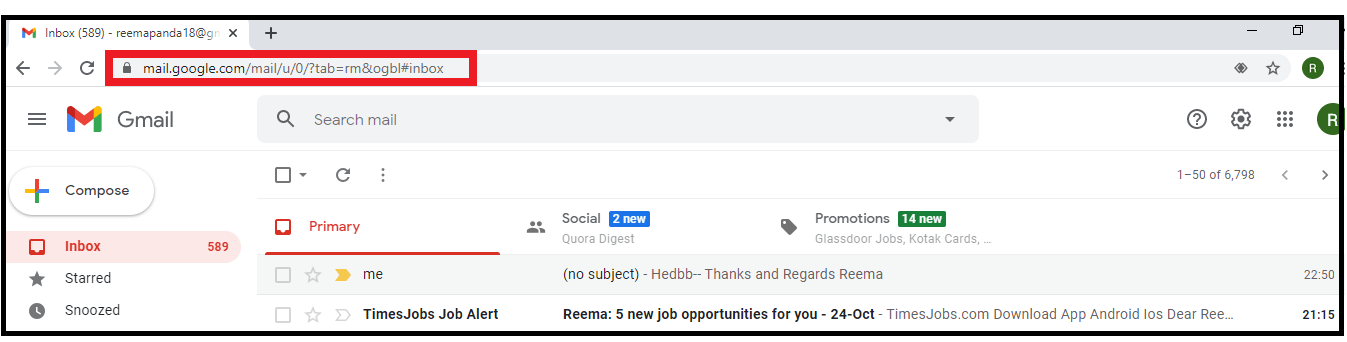
  • Open the Google Gmail application on your computer browser, or you can click the URL: https://mail.google.com/. Enter your password and email address to the respective fields.
  • You will be directed to your Gmail Inbox homepage.
How to snooze an email in Gmail

STEP 2: Select your Folder

  • Gmail has different folders like Primary, Social and Promotions. Select the folder from where you want your email to be snoozed.
  • In my case, I have selected the Primary as in this folder, most of the important mail resides.

How to snooze an email in Gmail

STEP 3: Select the email

  • Choose your email. To select the mail, click on the “square box” placed at the front of the email.

How to snooze an email in Gmail

STEP 4: Snooze your mail

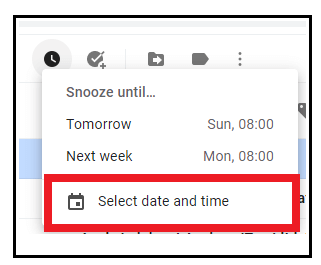
  • Select the snooze icon located at the top (refer to the below screenshot).

How to snooze an email in Gmail
  • The following drop-down window will be prompted, showing you a few date and time options. Either select any of them, or if you want to have a customized date click on ‘Select date & time.’
How to snooze an email in Gmail
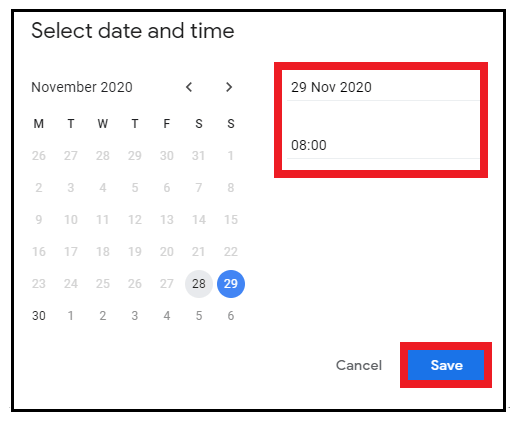
  • The Select date & time window will be displayed. Select the date and time as per your requirement. Click on the “Save” button.
How to snooze an email in Gmail
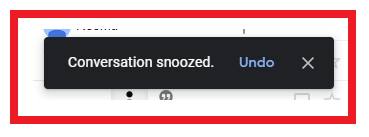
  • The selected mail will be removed temporarily for your Inbox and pop up will appear at the top of your Inbox at its scheduled data and time.
How to snooze an email in Gmail

Steps to Snooze a mail on Android phone

Below are the step-by step demonstrations to snooze an email in Android smartphone via Gmail app:

Step 1: Download and Open the Gmail app

  • Unlock your android phone. Go to your play store, download the Gmail app. In some smartphones, it comes by default. Once downloaded, double click to open the app.
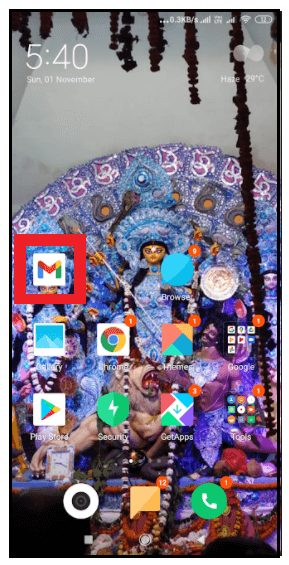
How to snooze an email in Gmail

Step 2: Login or Sign up 

Login into your email account by entering your email id and password, and you will be landed on your Inbox page.
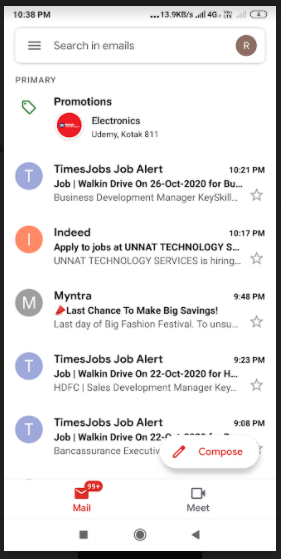
How to snooze an email in Gmail

STEP 3: Select the mail and click on Snooze

  • To select the mail, click on the “Circle” icon residing next to your email (refer to the below screenshot).
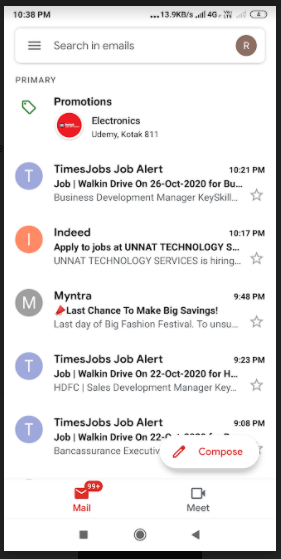
How to snooze an email in Gmail
  • Click on the three dots located at the top-right position of your screen.
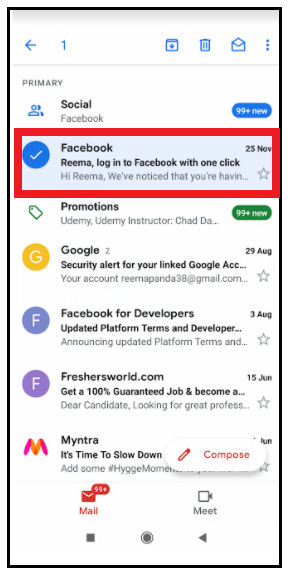
How to snooze an email in Gmail
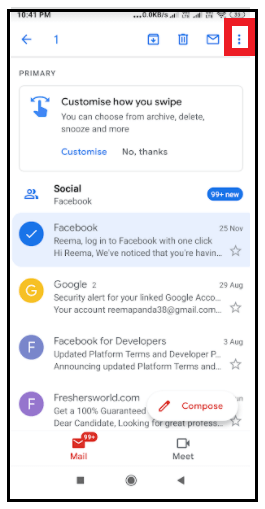
  • The following window will be prompted. Click on the “Snooze” option.
How to snooze an email in Gmail

STEP 4: Set the date and time to snooze

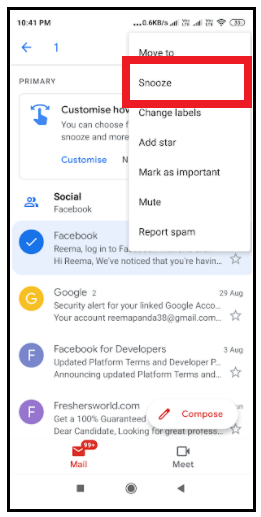
  • The following drop-down window will be prompted, showing you a few date and time options. Either select any of them or if you want to have a customized date click on ‘Select date & time.’
How to snooze an email in Gmail
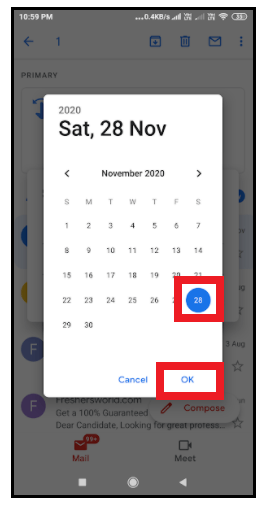
  • The select date & time window will be displayed. Select the date and click on the “Ok” button.
How to snooze an email in Gmail
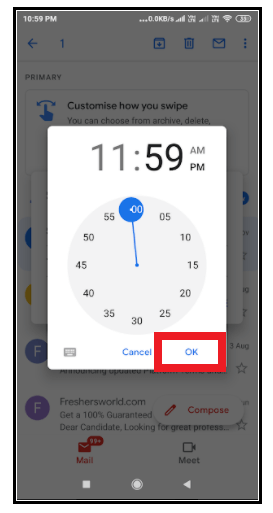
  • Select your specified time with the help of the clock, as shown below. Click on “Ok”.
How to snooze an email in Gmail
  • At last, confirm your date and time by clicking on the “Save” button.
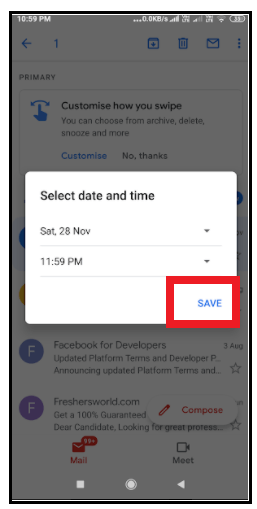
How to snooze an email in Gmail
  • Your email will immediately be removed from the Inbox, and Gmail will throw a window at the bottom of the screen displaying “1 snoozed until date, time’.
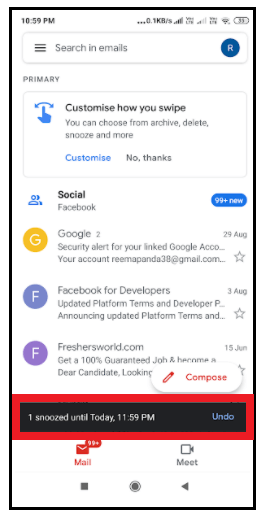
How to snooze an email in Gmail

That’s it, your snooze will pop up at the top of your Inbox its scheduled data and time. 


Related Topics

How to Find Connected Components in Graph

In this article, we are going to find connected components in a graph by building a program in C++ language. We are going to use different approaches to build the...

4 minutes read.

How to Find Divisors of a Number?

A number that equally divides a larger integer is referred to as a divisor or factor. By simply listing all the possible methods to multiply two numbers together to obtain...

3 minutes read.

How to Find Element in Rotated Sorted Array?

In this article, we are going to find the element in a rotated sorted array using the programs in different computer languages like Java and C++. We are going to...

3 minutes read.

How to find your Computer’s specs?

How to find your computer’s specs The computer specs include the details for every single component in your computer, including your CPU, hard drive space, and even the little things like...

7 minutes read.

How to backup iPhone to Computer?

How to backup iPhone to computer iPhone or iPad is an electronic gadget useful to store all preferences, memories, personal or official data, unlike essential documents, emails, messages, photos, running apps,...

6 minutes read.

How to Create a Group Email in Gmail

How to Create a Group Email in Gmail Every now and then, one needs to pass on or share a message to several people at the same time. To make this...

6 minutes read.

How to unarchive in Gmail?

How to unarchive in Gmail Earlier, we have learned how to archive an email on a computer or a phone device via the Google app. But archiving is not sufficient; you...

3 minutes read.

How to delete Gmail Account?

What is Gmail? Gmail is a free mobile and web-based email service introduced by Google on April 1, 2004. Gmail is used for personal to business purposes. It allows users to...

2 minutes read.

How to select all in Gmail

How to select all in Gmail Undoubtedly Gmail is one of the leading email service providers across the world. Teenagers, adults, old ages all rely upon Gmail because of its free...

3 minutes read.

What does RAM do on a computer?

What does RAM do on a computer? Many of us might have heard the word RAM in our daily life but do not know what it does except the fact that...

10 minutes read.

How to mark all emails as read in Gmail?

How to mark all emails as read in Gmail Gmail is extensively used to exchange official documents, expressions, proposals around the world. In the business industry leaving unread mails is considered...

3 minutes read.

How To Connect Air pods To Computer?

How To Connect Air pods To Computer Apple has put light on a statement and said that it believes the future is wireless. This technology is pacing up with the time,...

5 minutes read.

How to clean a Computer Screen?

How to clean a computer screen Professionalism is a trait to possess attitude, neatness, and maintenance in every trail of business. Imagine, if you are designated as Marketing Manager, and you...

5 minutes read.

How to defrag a computer?

How to defrag a computer Topics Covered What is Defragmentation?What is the need of defragmentation?Advantages of DefragmentationWhen to defrag your computerDefragmentation for your SSDDefrag your computer running on windows 10Defrag your computer...

8 minutes read.

How to compress jpeg file to 100kb?

Nowadays, everyone loves to share cool snapshots on social media handles. Before putting the images on any site, editing is an integral part. File compression is one of method by...

3 minutes read.

How to Delete Facebook Account?

How to Delete Facebook Account Facebook is a social networking platform that helps you to quickly communicate and share online with your family and friends. Initially developed for college students, Mark Zuckerberg founded Facebook...

3 minutes read.

How to take a Screenshot on computer?

How to take a Screenshot on computer The ScreenShot feature is widely used to procure the content of the screen as an image. This feature was introduced in the late ’90s,...

8 minutes read.

How to change the name in Gmail

How to change the name in Gmail Frequently asked questions: How I can change my Gmail nameSteps to change the name of Gmail accountStep to change to the name of Gmail on...

3 minutes read.

How to Create Folders in Gmail

How to Create Folders in Gmail Gmail is a leading email service provider and is used by 1.5 billion-plus active users worldwide. All Gmail professional users receive at least dozens of...

6 minutes read.

How to Check String is Alphanumeric or Not Using Regular Expression

If we have a string and want to know whether it is either alphanumeric or not, we can do it using Regular Expression(regex). What is Regular Expression? A Regular Expressionor regexis a...

3 minutes read.