How to find your Computer’s specs?
How to find your computer’s specs
The computer specs include the details for every single component in your computer, including your CPU, hard drive space, and even the little things like what microphone you have. It's essential for every user, especially if you're a gamer, because you know you need to know your system requirements. Having the complete details for your computer specs is highly beneficial. It helps you to influence your computer purchasing, discovering the latest kind of PC hardware, boosting the applications or hardware while selling your existing PC, and listing them correctly.
Whatever computer or operating system (windows) version you have, windows include many approaches to find the several specifications or specs of your computer system. With a few steps, you can easily find all the necessary details, unlike CPU/processor details, Graphic cards, Ram, GPU, motherboard, firmware, I/O System. The approaches might differ depending on the version and method you choose, but for the same computer, the details would remain the same for different approaches.
Topics Covered
How to find computer hardware specs
How to check CPU specifications
How to find GPU specifications
How to check your Motherboard specs
Steps to check your RAM specs
How To Find Computer Hardware Specs
Following are the steps to find the complete details regarding the hardware and software specifications of your PC:
METHOD 1 SETTINGS:
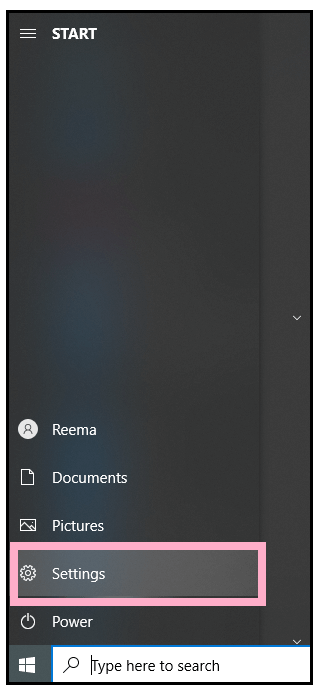
- Click on window explorer and select the settings option.
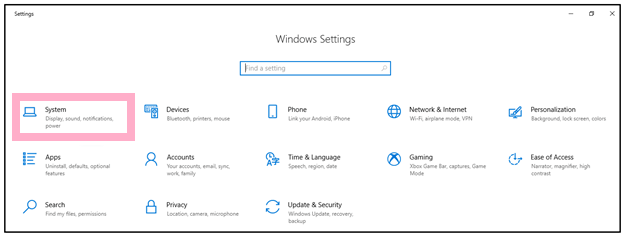
- The Window setting dialog box will appear. Select the System menu option.
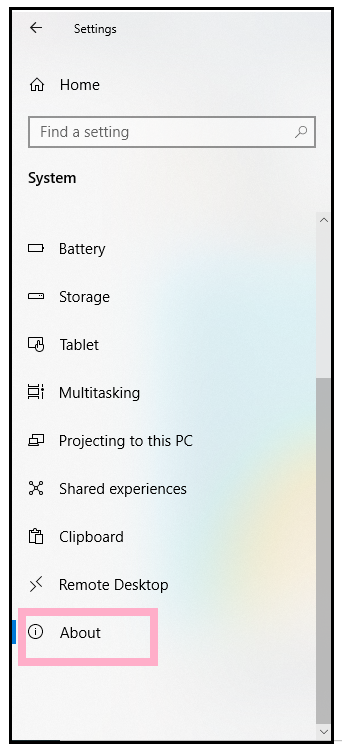
- On the right pane of the Settings window, scroll down and select the about option.
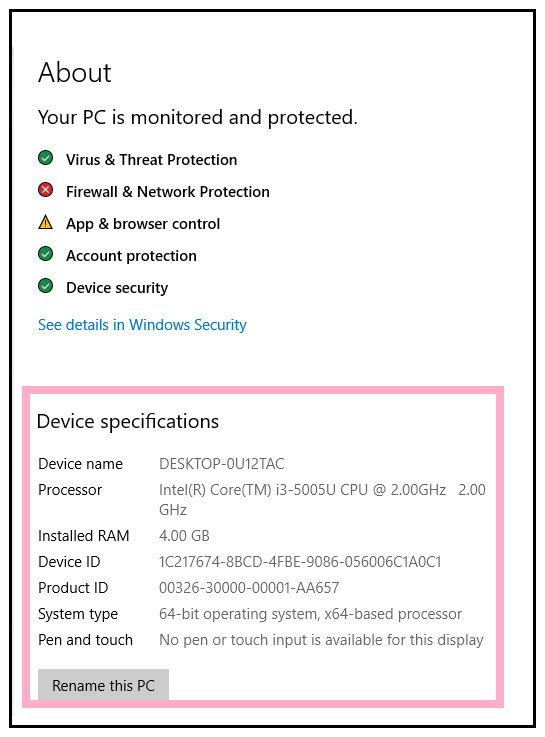
- The window will appear, displaying all the device specifications. It will exhibit your device name, processor as well your processor speed, the Ram capability that you have presently installed your device, your device ID, product ID, system type, pen, and touch support.
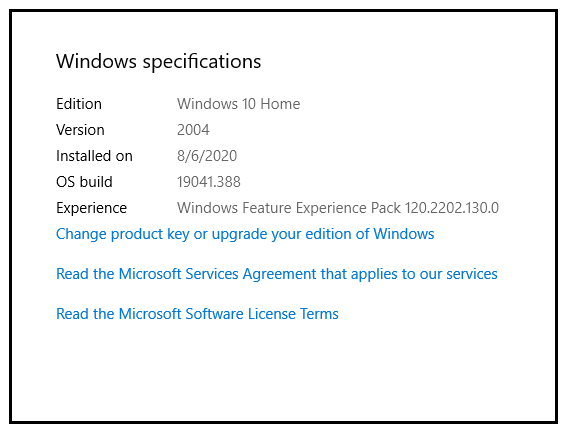
- Scroll down further to check the window's specifications. It will display the windows edition, window version, your OD build, Installation date, Windows feature experience. It also displays the further linked pages to change the product key or upgrade your edition of Windows, the Microsoft Services Agreement that applies to the services, and Microsoft License Terms.
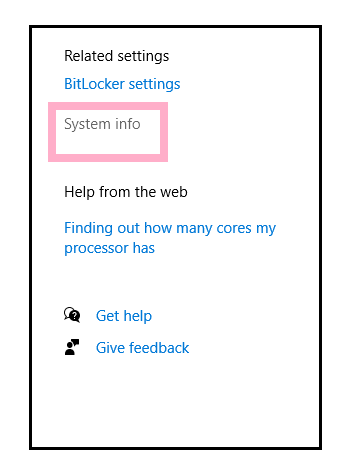
- You can fetch additional information by clicking on the ‘System info’ option present on the pane's right side.
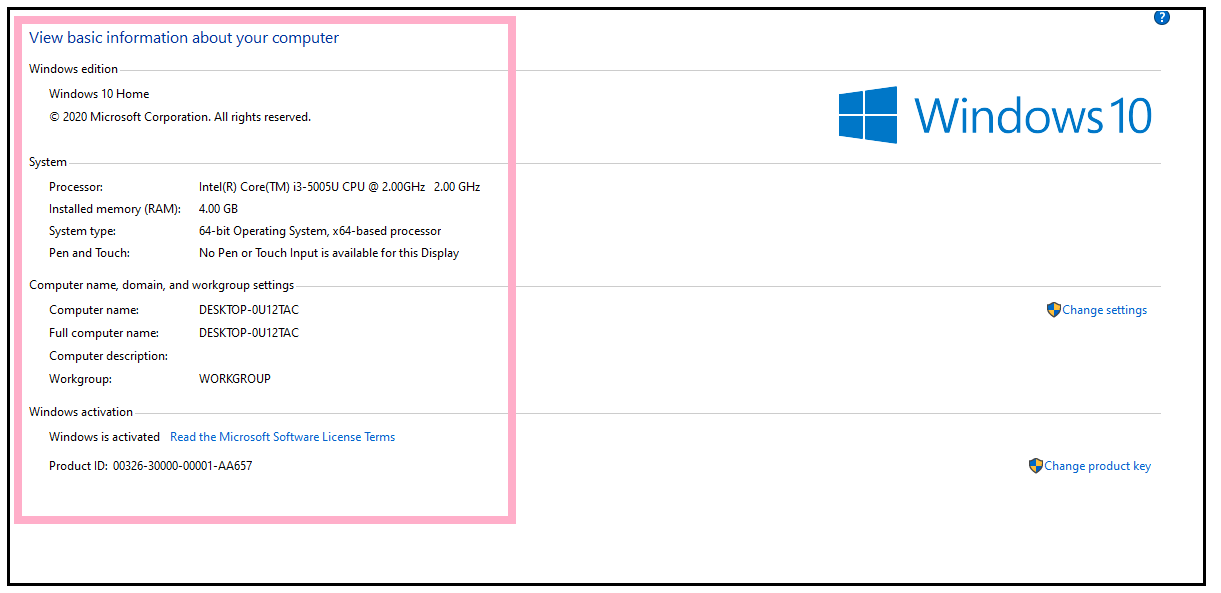
- It will give you some additional information, and you will notice some of it is repetitive from the previous information page that you saw. However, it is still pertinent information, and it will also give the workgroup name. It will also inform you regarding the activation of windows (which is a piece of valuable information that sometimes you want to know where your windows 10 installation is genuine and active).
METHOD 2: DIRECTX DIAGNOSTIC TOOL WINDOW
- There is another way to gain some additional information in Windows 10 that’s free and built into Windows 10. Go to start and click on the run.
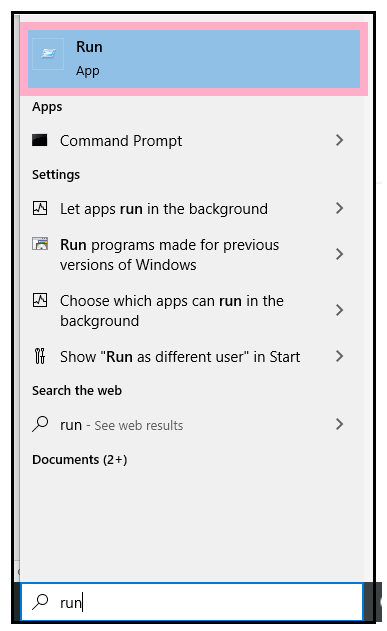
- The Run dialog box will appear. Type ‘dxdiag‘right in the command prompt. You can directly write in the search bar and hit the enter button.
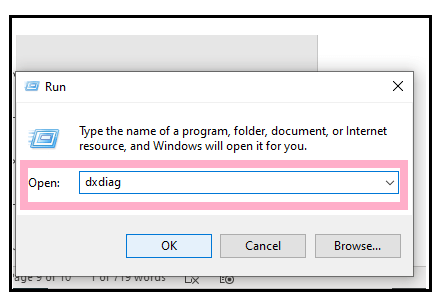
- Once you do, you will get the below DirectX Diagnostic Tool window. You will notice the page will have five tabs. The first tab is labeled as System, and the second one is displayed, followed by Sound1 and at last an Input.
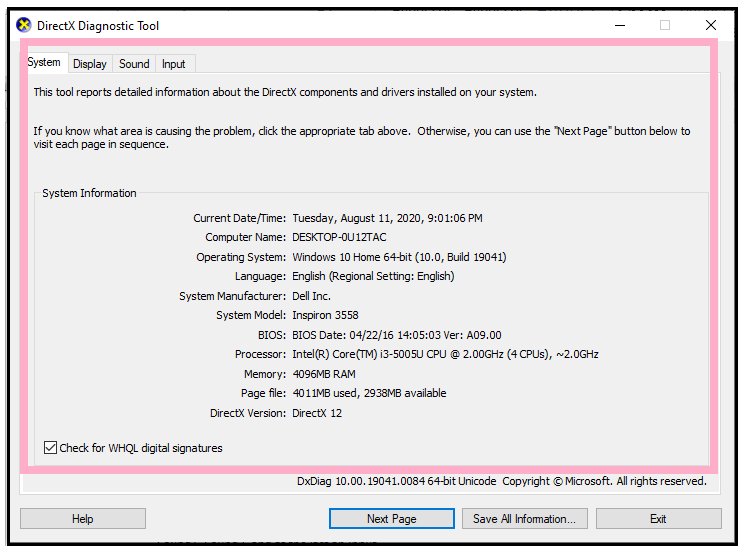
- On the first page, you will find ample right information regarding your computer if will display the system information, unlike computer name, current operating system, system memory, processor type and code, your system model, selected language, etc.
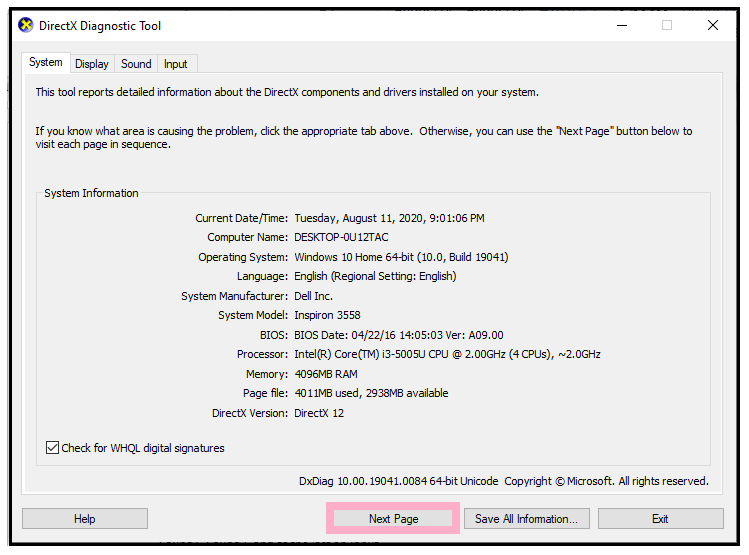
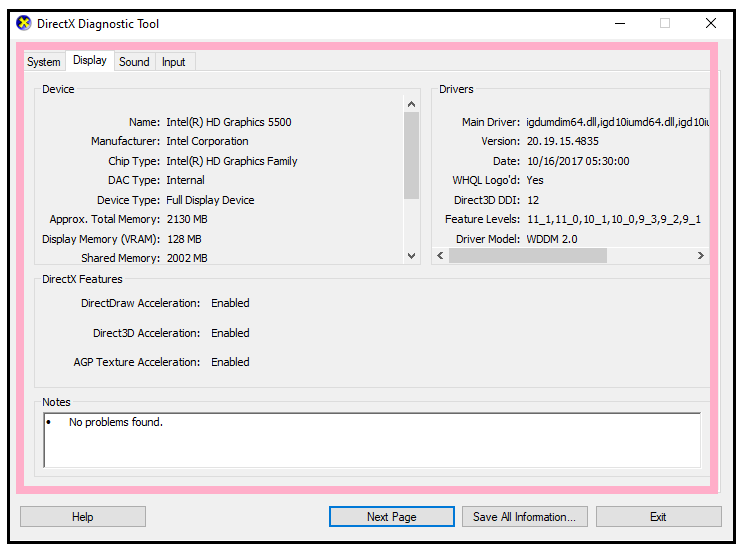
- Click on the ‘Next Page’ to visit the following page. The page will move to the next tab, which is the Display page. It shows various information about the graphic card various device components and drivers’ details. You will be exposed to the device name, system manufacture details, chip type, device type, VRam, shared memory, etch. If you have any errors or problems, it will be displayed in the notes section. It gives you the ability to determine how much memory is using and the current display mode. It also displays the main driver details, the version number, the driver's date, and so forth. You can even scroll down and get the rest of that information.
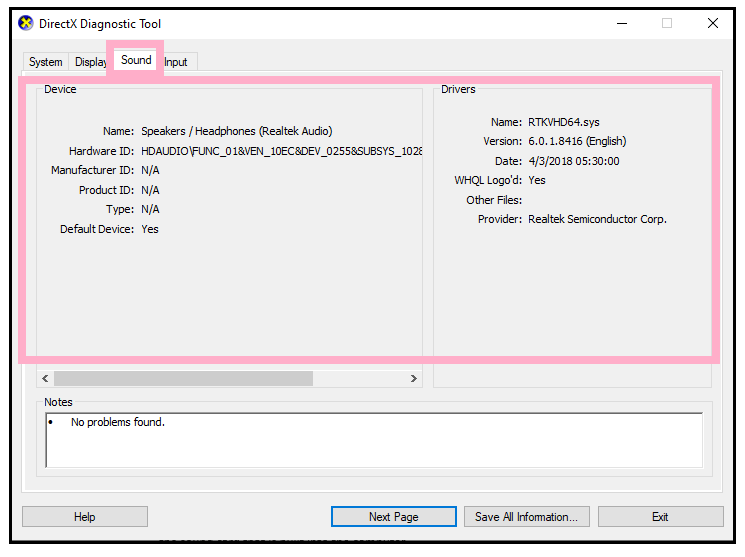
- Again, click on ‘Next Page’ to check the further page. The sound tab provides information about your speakers, USB audio device, which you are presently using. It displays if you have any headset plugged in, the information for the built-in speakers, and the driver’s information for the sound card that is built into the computer.
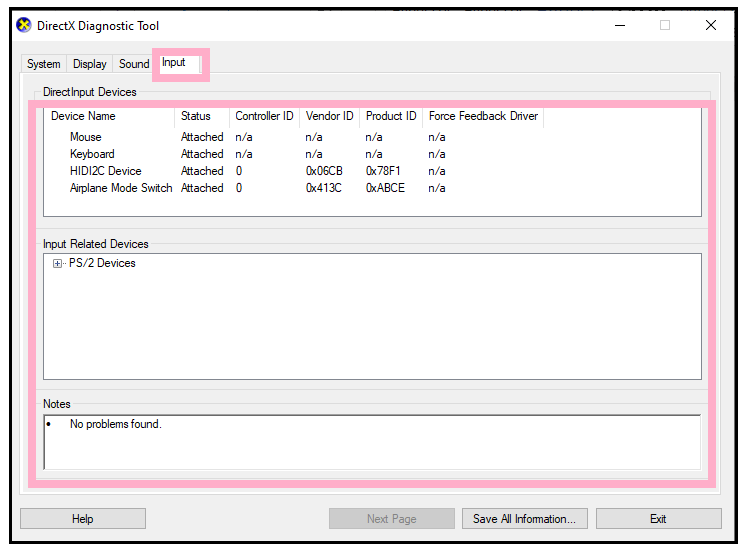
- The last one is input tab. It provides information based on device names such as mouse keyboard. At any given time, you can always click on save all information if you like. The saved information is easily accessible at any given time.
How to check how much Ram you Have
In Windows 10 there are two ways to find the specification and details about your RAM. Following are the various method to check the RAM specs:
METHOD 1: SYSTEM
- The first step is to the right click on the start button present at the bottom left corner of the screen. In the pop-up window, click on system.
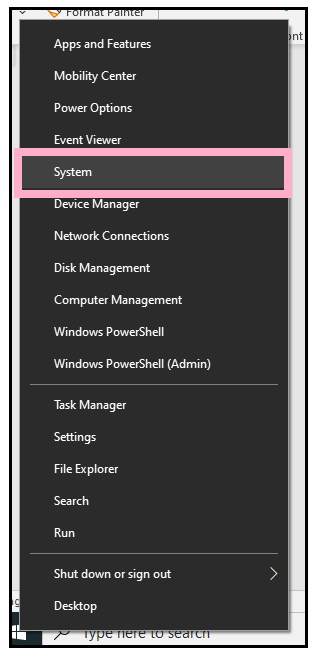
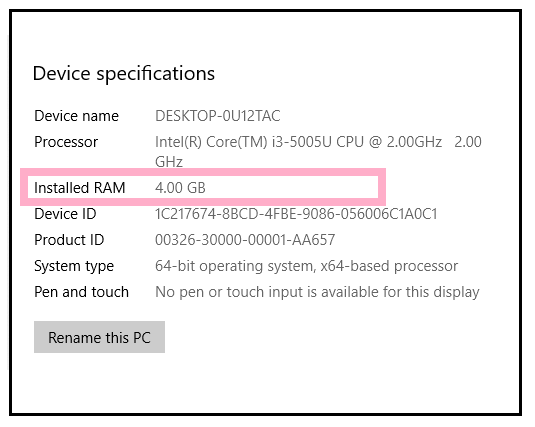
- The following window will open. Scroll down, and under device specifications, you can check the installed memory. For example, in my case, I have 4 gigabytes of ram.
METHOD 2: USING THE RUN TOOL
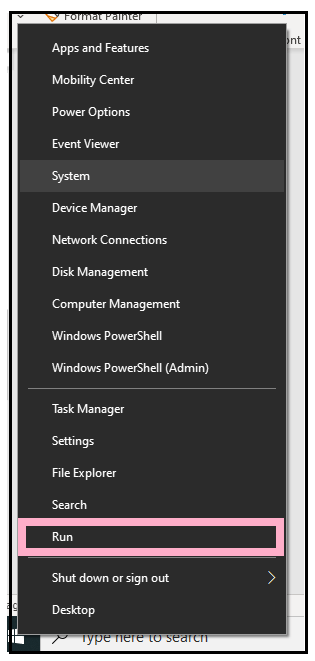
- Right click the start button again and this time you going to select run.
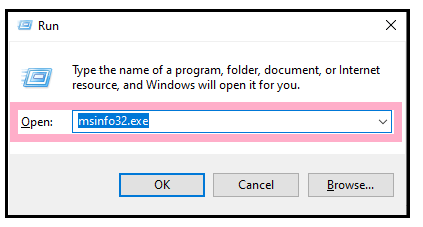
- The run window will pop up. Type ‘msinfo32.exe’ command and hit the enter button.
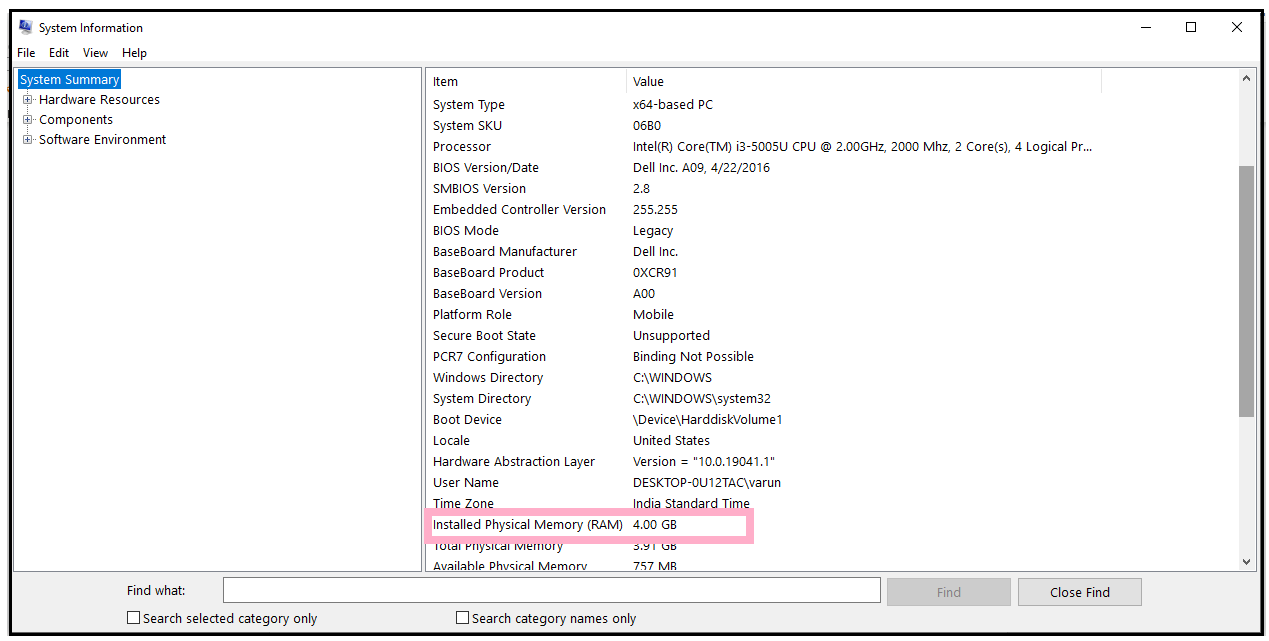
- The system information window will appear. It will provide all the information at once. Scroll down to gain access to your physical memory. It also tells you how much you have left such a useful thing to know and to use also another way you can open this to the system information.
How to Check what CPU you Have
Finding the CPU or the processor details on your computer is very simple and often used to fill in the description when you are about to sell your computer. Following are the various methods to find our your CPU specs:
METHOD 1: TASK MANAGER
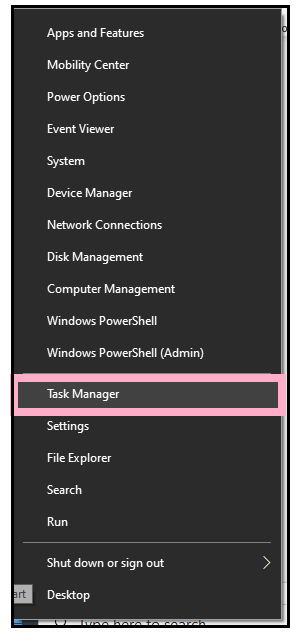
- Right click the taskbar at the bottom of the screen (prefer to click on the black empty space). The dialog box will appear. Click on the Task manager.
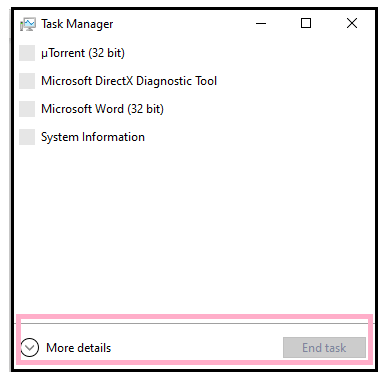
- The task manager will look like this square box as shown in the below image. Click on more details present at the bottom pane of the window.
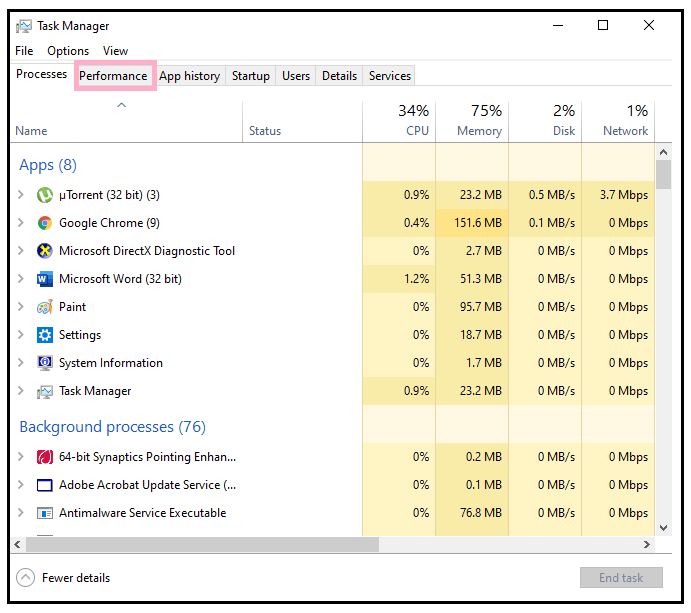
- Another window will pop up with 7 tabs on it. The next step is to click on the performance tab.
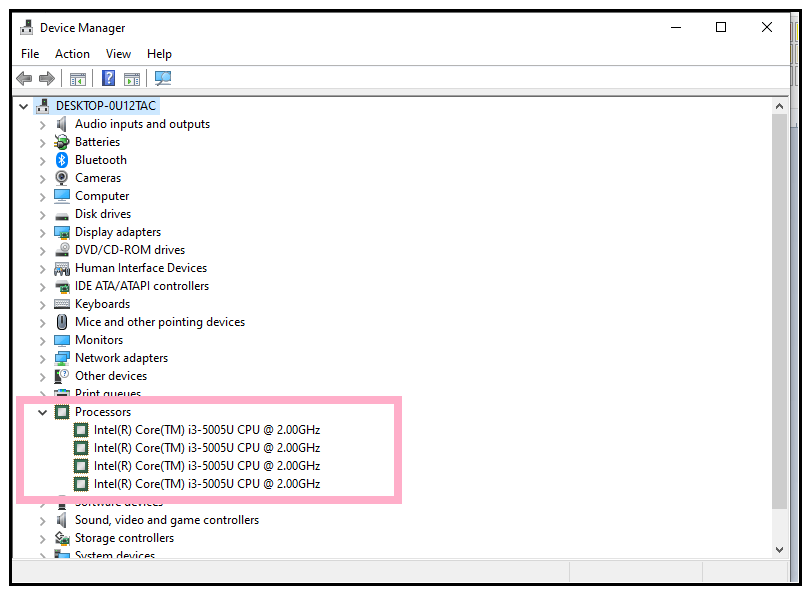
- On the top, you can see the name of your processor. So, in my case here, I have ‘Intel (R) Core (TM) i3-5005U CPU @ 2.00GHz’. It also displays the utilization capacity.
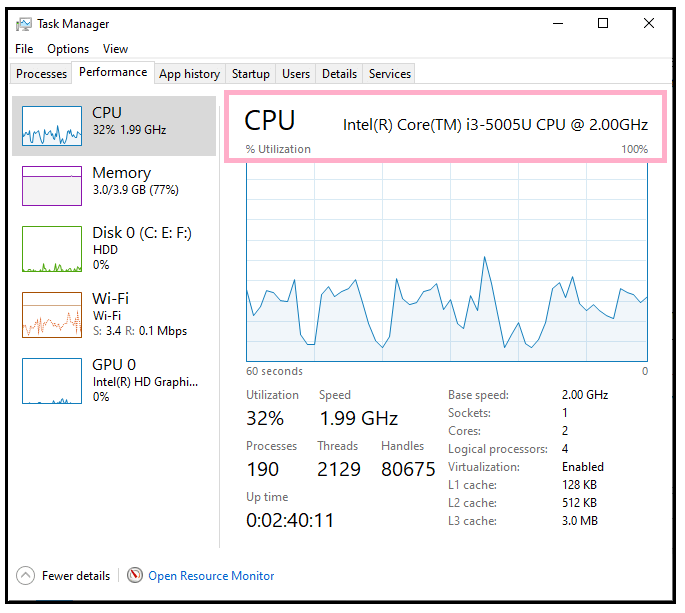
- If your CPU has hyperthreading (The hyperthreading functionality allows your CPU to behave as if it has more cores).For example, we have a dual-core CPU, and your computer has a hyperthreading feature, your dual-core CPU will behave like a quad-core core. Many times, especially with Windows 7, you might see more cores or logical processes than you have if your computer has a hyperthreading feature.
METHOD 2: DEVICE MANAGER
- Right click the start button right at the bottom of curved screen. The window will pop up so click on device manager.
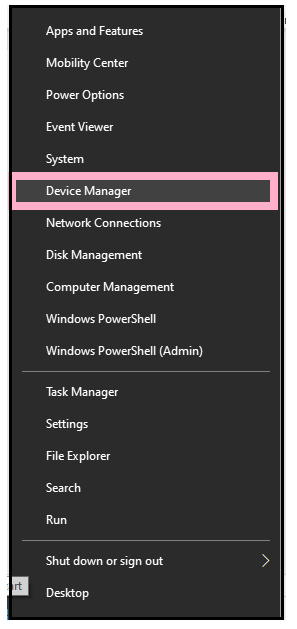
- From the listed option on the window, click on processors. Your processor or CPU details will be displayed below the processor option.
How to check Graphics Card Specs
When it comes to gaming or using graphics-intensive programs, your graphic card is arguably the most crucial component. It is needed, especially if you want to update your graphics card driver or if you want to change some settings. Below given are two ways to find the specification of the graphic card your computer has:
METHOD 1: DISPLAY SETTINGS
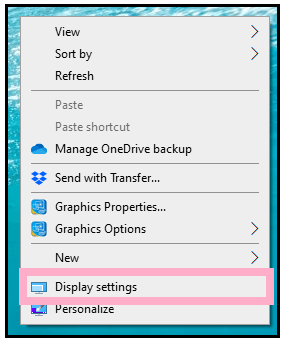
- Right-click on any empty space on the desktop. The dialog box will appear. Click on where it says display settings.
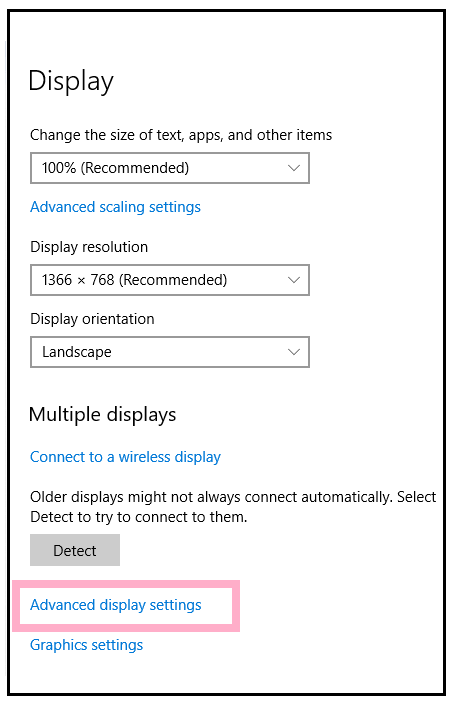
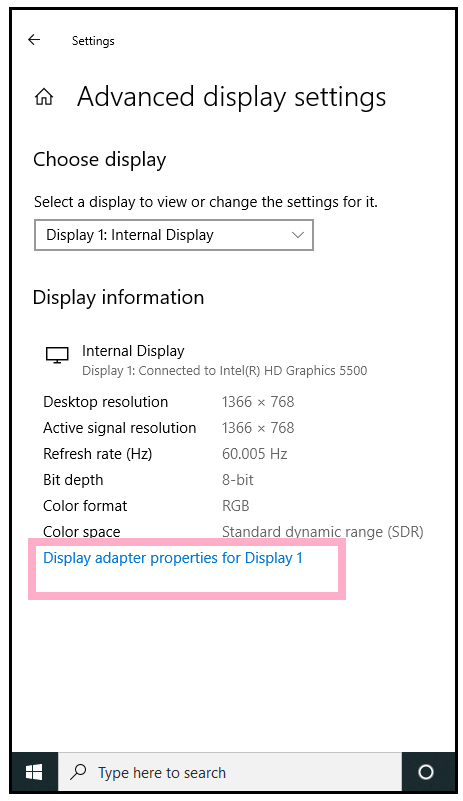
- The settings display window will pop up. So now, scroll down and click on advanced display settings.
- In the new window go down again and click on where it says display adapter properties.
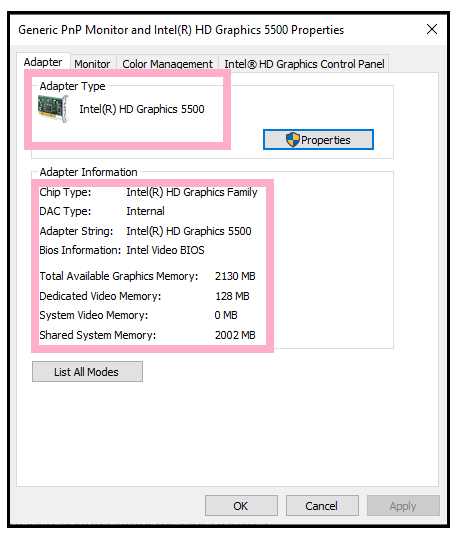
- The Generic PnP Monitor and Intel(R) HD Graphics 5500 Properties window will be displayed. Under the adapter tab, you will find your graphics card details. As in my case, you will notice my graphics card is the Intel(R) HD graphics 5500, and the chip type is Intel(R) HD Graphics Family.
METHOD 2: DEVICE MANAGER
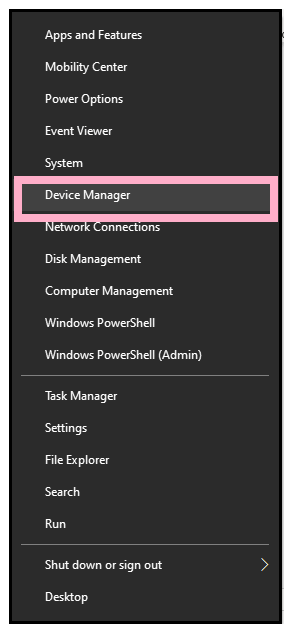
- Right-click the bottom left corner of the screen i.e., window start menu. A window will pop up. Click where it says, device manager.
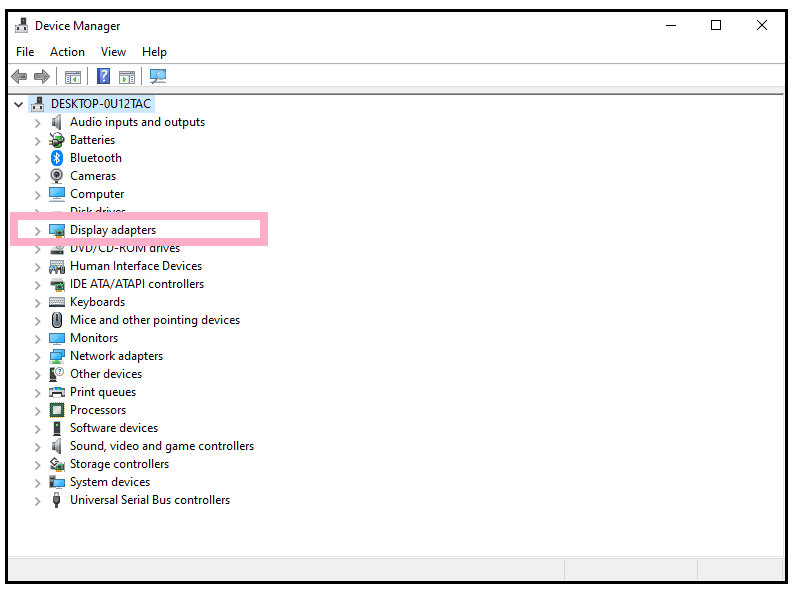
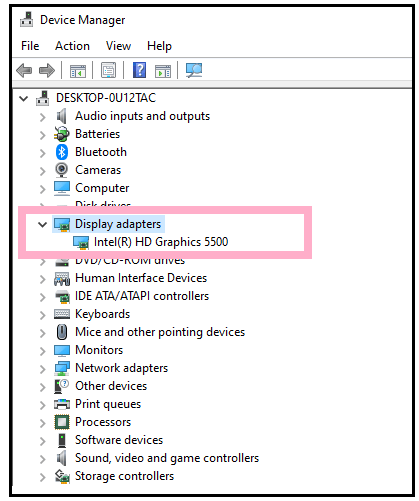
- You will see a list of devices within your Device Manager window. Scroll down and search for Display adapters option.
- Expand the area where it says ‘Display adapters’. Once you click on it you can see your graphic card detail.
How to check your Motherboard specs
Finding the motherboard model number, manufacturing, and version details is efficient. The most logical and easy method to know the motherboard specs is by typing one command in the command prompt window. Follow the below given below steps:
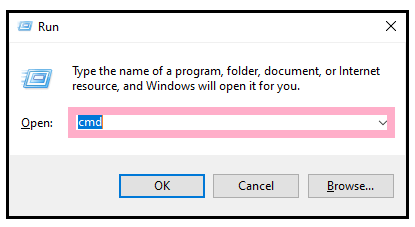
- Open the command prompt by directly pressing ‘Windows + R.’ In the dialog box type cmd and hit the enter button.
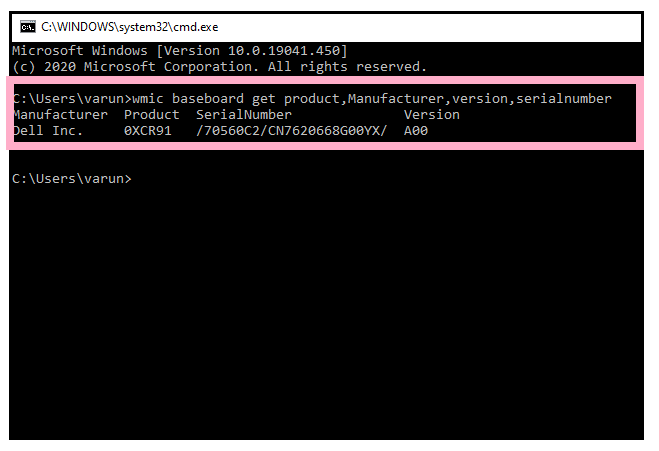
- The command prompt window will appear. Type the command ‘wmic baseboard get product,Manufacturer,version,serialnumber’ on the command prompt window and hit the enter button.
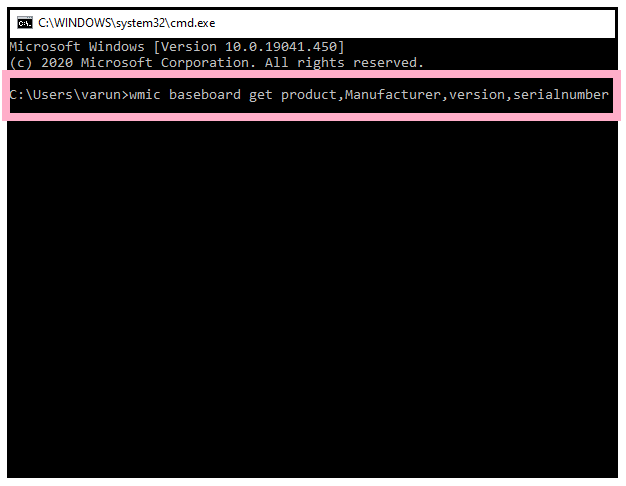
- You will notice, all the details corresponding to your motherboard will be displayed.