
×

Excel VBA : With End-with Constructs

With End-with Constructs

The With-End With construct enables the user to perform multiple operations on a single object. If you are going to perform several different actions on the same object and typing the same object over and over, use the With ....... End With. After an object is assigned to a variable, VBA can access it more quickly than it can a lengthy reference that has to be resolved.

For example, if you want to change multiple properties on a single object, place the property assignment statements inside the With...End With block, wherein the objectExpression will refer to the object only once instead of once for each property assignment.

Benefits of With End-with Constructs

If in your code, you need to access the same object in multiple statements, you can advance the following advantages by using the With end statement:

  • You don't need to assess a complicated expression or object numerous times or assign the result to a temporary variable to refer to its members various times.
  • You make your code more readable by eliminating repetitive qualifying expressions.
  • You can improve the speed of the code and can faster the processing time.

Syntax

With objectExpression
    Statement1
    Statement2
    ….
    StaementN
 End With 

Parameter With End-with Constructs

objectExpression (Required) – This parameter represents an expression that evaluates to an object. The expression is evaluated only once and can be arbitrarily complex. The expression can assess to any data type, including primary types.

statements (Optional) – This parameter represents one or more statements coded between With and End With that may refer to members of an object that's produced by the evaluation of objectExpression object.

End With (required) - Terminates the definition of the With block.

Nested With End

Nested With...End With statements may be a bit confusing if the objects that are being referred to aren't clear from the point of context. The programmer must provide a fully qualified reference to an object that's in an outer With block when the object is referenced from within an inner With block.

Example 1: Write a macro demonstrating the need of with end constructs.

Sub Without_with_End_option()
 'putting string value in the active cell
 ActiveCell.Value = "VBA is easy to learn."
 'enabling the text to be bold
 ActiveCell.Font.Bold = True
 'changing the font color to red
 ActiveCell.Font.Color = vbRed
 'changing the font
 ActiveCell.Font.Name = "Algerian"
 'altering the font size to 22
 ActiveCell.Font.Size = 22
 'enabling the Italic option for the activecell.
 ActiveCell.Font.Italic = True
 End Sub 

Output
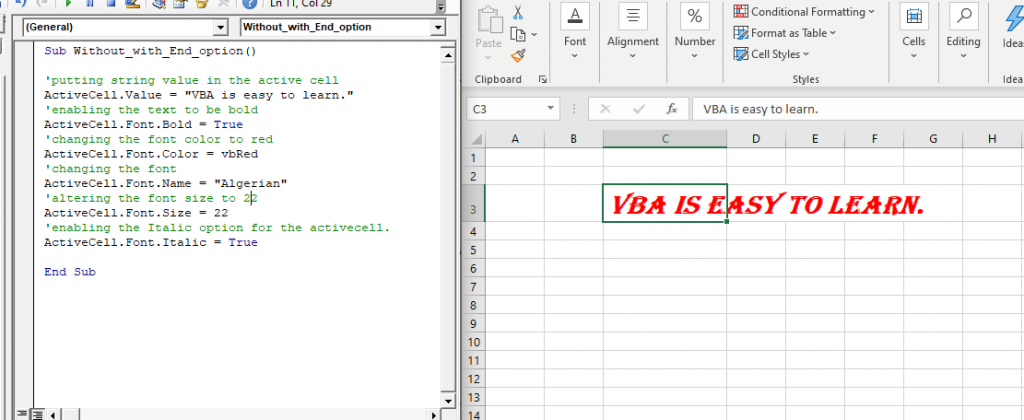
macro demonstrating the need of with end constructs

In the above code, you will notice that we have accessed the ‘ActiveCell’ object in multiple statements which can also be performed on a single object.  

Example 2

Sub With_End_Example()
 'putting string value in the active cell
 ActiveCell.Value = "VBA is easy to learn."
     With ActiveCell.Font
         'enabling the text to be bold
         .Bold = True
         'changing the font color to red
         .Color = vbRed
         'changing the font
         .Name = "Algerian"
         'altering the font size to 22
         .Size = 22
         'enabling the Italic option for the activecell.
         .Italic = True
     End With
 End Sub 

Output
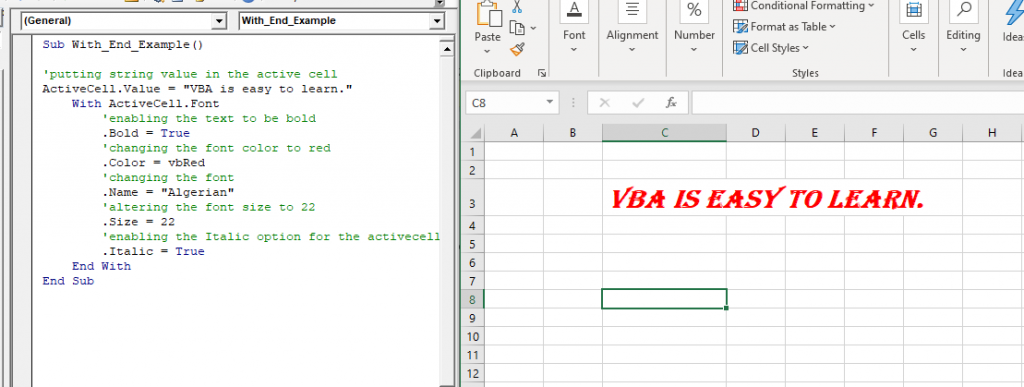
Nested With End

Nested With..End

Example 3

Option Explicit
 Public add As Integer
 Public Name As String
 Public x As Integer
 Public y As Integer
 'Declaring a class
 Sub sum()
 add = x + y
     'with end-with construct
     With ActiveCell
         .Value = "Hello " + Name
             'nested with
             With .Font
                 .Bold = True
                 .Color = vbRed
                 .Name = "Algerian"
             End With
         .Offset(1, 0) = "Sum = "
         .Offset(1, 1).Value = add
     End With
 End Sub 
 'Declaring a module
 Sub Math()
 Dim obj As New Class1
 Dim IB As String
 Dim MB As String
 'Declaring input box
 IB = InputBox("Enter your name")
 'Declaring message box
 MB = MsgBox("Do you want to add the numbers!", vbYesNo)
 'If user selects yes option
 If MB = vbYes Then
     'With End-with Constructs
     With obj 
         .Name = IB
         .x = 5
         .y = 6
         .sum
     End With
 End If
 'If user selects No option, program will terminate
 If MB = vbNo Then Exit Sub
 End Sub 

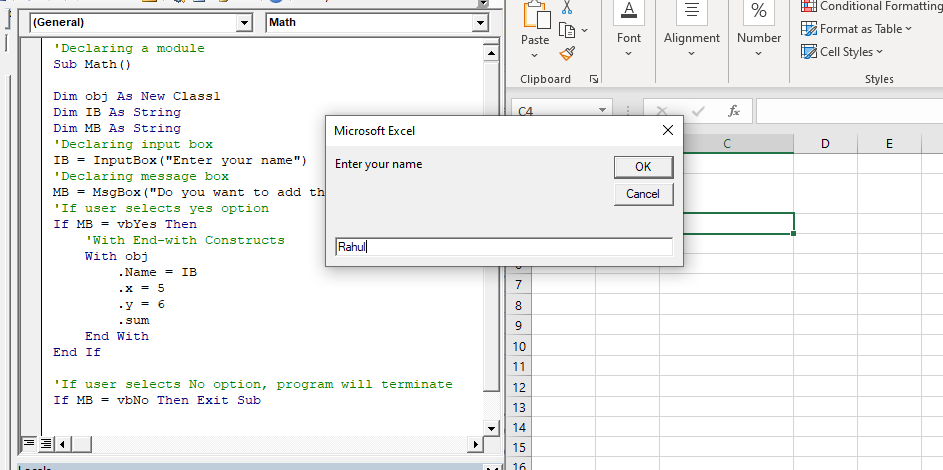
Output

Press F5 to run the VBA code. A prompt box will pop up. Type your name and click on OK.
Msgbox will pop up. If you want to add the number click on YES else on NO button. We have clicked on YES in the following code.
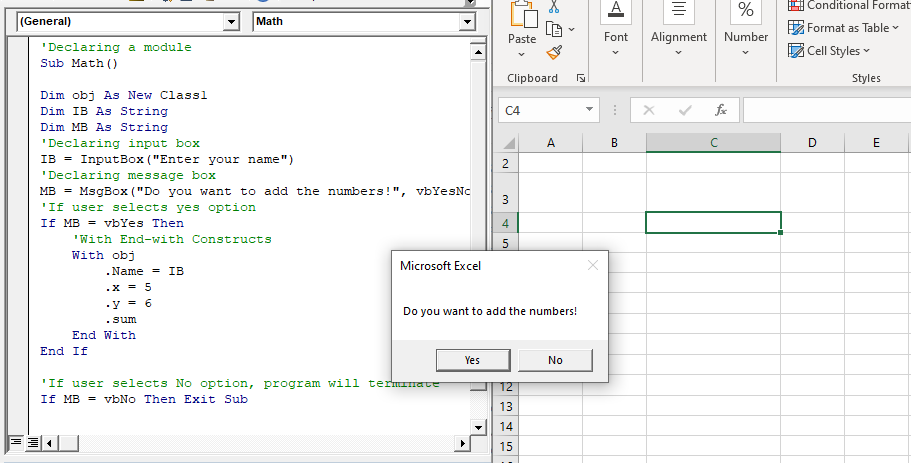
Msgbox will pop up

You will notice in the excel sheet in the active cell the changes have occurred (as shown below).
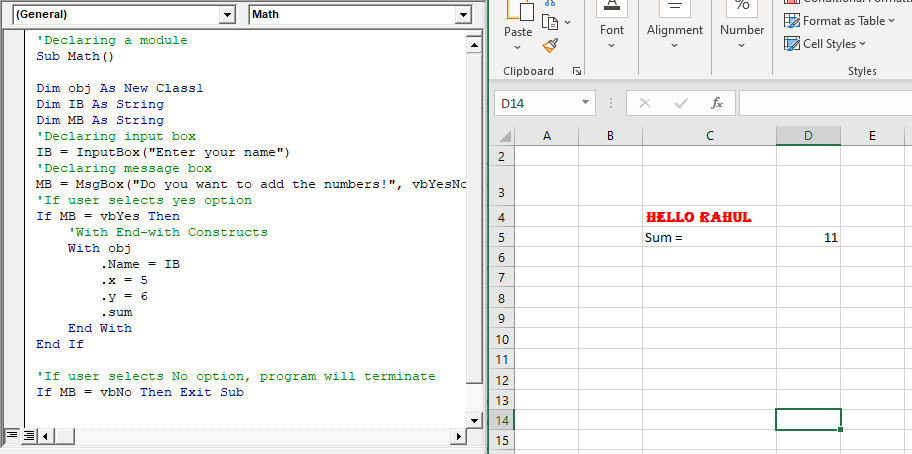
Hello Rahul

Related Topics

VBA VBScript Regex Methods Regex

VBA VBScript Regex Methods Regex The VBA Regex supports 3 methods which are as follows: ExecuteReplaceText Execute The execute method is used to extract a match from the given based on the defined matching...

3 minutes read.

Excel VBA LTrim Function

VBA LTrim Function: The LTrim function in VBA removes the leading spaces from a supplied text string. Syntax LTrim (String) Parameter String (required) - This parameter represents he text string that you want to remove...

1 minute read.

Excel VBA Right Function

VBA Right Function: The Right function in VBA returns a substring from the end of the given string. Syntax Right (Str, Length) Parameter Str (required) – This parameter represents the string from which you want to...

1 minute read.

Excel VBA GoTo Statement

GoTo Statement he GoTo statement branches unconditionally to a specified line in a procedure. It is used to transfer the program control to a new statement, which is headed by a label. It sends...

2 minutes read.

For Next loop in VBA

For Next Loop The ”For Next” loop is used for a fixed number of times. It works by implementing the loop for the specified number of times. In this, the user specifies how...

3 minutes read.

Excel VBA Join Function

Excel VBA Join Function: The Join function in VBA is used to join an array of substrings and return them all as a single string. Syntax Join (SourceArray, [Delimiter]) Parameter SourceArray (required) – This parameter...

1 minute read.

Excel VBA INT Function

VBA INT Function: The INT function in VBA rounds the given supplied number down and returns an integer value. The positive numbers are rounded to zero, and the negative numbers are rounded away from zero. Syntax Int...

1 minute read.

Excel VBA User-Defined Functions

User-Defined Functions One of the advantages of VBA is that you can create your own functions using macros. These functions can be called and used as other functions in excel and use them. You can...

3 minutes read.

Excel VBA FormatNumber Function

VBA FormatNumber Function: The FormatNumber function in VBA is used to apply a number format to a numeric expression, and it returns the result as a string. Syntax FormatNumber (Expression, [NumDigitsAfterDecimal], [IncludeLeadingDigit], [UseParensForNegativeNumbers], [GroupDigits]) Parameter Expression (required)...

2 minutes read.

ActiveX Controls

ActiveX Controls are one of the most used Excel Controls to automate applications with Excel VBA. It has the same controls, unlike Form Controls (Command Button, combo box, checkbox, etc.), but it...

3 minutes read.

Excel VBA Split Function

Excel VBA Split Function: The Split function in VBA is used to split a string into several substrings and return a one-dimensional array of substrings. Syntax Split (Expression, [Delimiter], [Limit], [Compare]) Parameter Expression (required) – This parameter...

2 minutes read.

Excel VBA Mid Function

VBA Mid Function: The Mid function in VBA returns a substring from within a supplied string. Syntax Mid (Str, Start, [Length]) Parameter Str (required) -This parameter represents a string from which you want to extract the substring. Start...

1 minute read.

VBA Subscript out of Range

What is Subscript out of Range? The VBA Subscript out of Range error (which is also called as Run-Time Error 9) mostly triggers when the user selects any cell, sheet, or workbook which does...

5 minutes read.

Excel VBA Val Function

VBA Val Function: The Val function in VBA converts the given string into a numeric value. This function ignores spaces and continues to read the characters after space(s). It stops...

1 minute read.

Excel VBA CByte Function

VBA CByte Function: The CByte function in VBA converts an expression into a Byte data type. Syntax CByte (Expression) Parameter Expression (required) - This parameter represents the expression that that you want to convert to...

1 minute read.

Excel VBA InputBox

Input Box The InputBox function in VBA is used to prompt the users to enter values. The user can click either the OK button or can choose the CANCEL button. If the user clicks...

3 minutes read.

Declaring a Variable in VBA

Declaring a Variable A variable is broadly described as a storage location combined with a name and representing a specific value. Declaring a variable is instructing the computer to reserve space...

2 minutes read.

Excel VBA IsObject Function

VBA IsObject Function: The IsObject function in VBA returns a Boolean value showing whether the specified variable represents an Object variable type or not. Syntax IsObject (Expression) Parameter Expression (required)- This parameter represents the...

1 minute read.

UserForm and its Properties Excel VBA

UserForm and its Properties Userform has certain properties that can be viewed as category wise (based on appearance, behavior, font) or in an alphabetic manner. The property window is used to set or...

11 minutes read.

Introduction to Visual Basic Editor Window

How to enable the Developer Ribbon Tab? In order to work with VBA, users need to make a small change in Excel to display a new tab (Developer) at the top of the...

5 minutes read.