
×

Excel VBA AutoFilter

One of the reasons for Excel VBA’s popularity is its capability to filter and analyze data from huge database with the help of a method known as AutoFilter. This method permits a user to filter the particular data according to a set criterion and aids its users to draw out precise reports and research work on data. AutoFilter method can filter data comprising values with text, numbers, Boolean, or date data types. Whenever the user applies the AutoFilters to its Excel sheet worksheet, black drop-down arrows (also called filter switches) pop up at the right of your column headings.

Although, we have a filter option available under the Data ribbon tab. But this option is only useful to deal with a minimal set of data. For bulk, it becomes complex to use this method. Hence, to resolve this problem, VBA AutoFilter was introduced. AutoFiltering technique is faster and more efficient. Before applying AutoFilter in VBA, the user should always keep in mind to turn off any current filters (if present) and remove them completely. The range object can also be used to declare AutoFilter in Excel VBA.

Syntax

AutoFilter (Field, Criteria1, Operator, Criteria2, SubField, VisibleDropDown)

Parameter

Field (optional) - This parameter represents an integer offset of the field on which bases you want to apply the filter. The leftmost field is considered as field one.

Criteria1 (optional) – It specifies the criteria. For e.g., to specify blank cells use “=”, for non-blank cells use “<>” and for no data “><” is used.

Operator (optional) – It Identifies the operator to use to associate two criteria applied by a filter. It can accept the following values:

  • xlAnd – Logical ‘AND’ will be applied criterion 1 and criteria 2.
  • xlBottom10Items- The lowest value displayed in Criteria1.
  • xlBottom10Percent- The lowest-valued percentage displayed in Criteria1.
  • xlFilterCellColor- The cell color
  • xlFilterDynamic – The dynamic filter
  • xlFilterFontColor – The font color
  • xlFilterIcon – filter icon
  • xlFilterValues – filter values
  • xlOr - Logical ‘OR’ will be applied criterion 1 and criteria 2.
  • xlTop10Items - The highest value displayed in Criteria1.
  • xlTop10Percent - The highest-values percentage displayed in Criteria1.

Criteria2 (optional) - It specifies the criteria. For e.g., to specify blank cells use “=”, for non-blank cells use “<>” and for no data “><” is used.

SubField (optional)- This parameter represents the field from a data type on which the user wishes to apply the criteria. If this parameter is not specified, by default, it targets the "Display Value".

VisibleDropDown (optional) – This parameter accepts a Boolean value. If it is set to Boolean True, it displays the drop-down window for filtering the field else for Boolean False it will hide the AutoFilter drop-down arrow. Bu default, it is set to Boolean True.

Example

We will use the use Excel Sheet data and with the help of AutoFilter method will put on a criterion to fetch only those rows where sales filed is greater than 35.
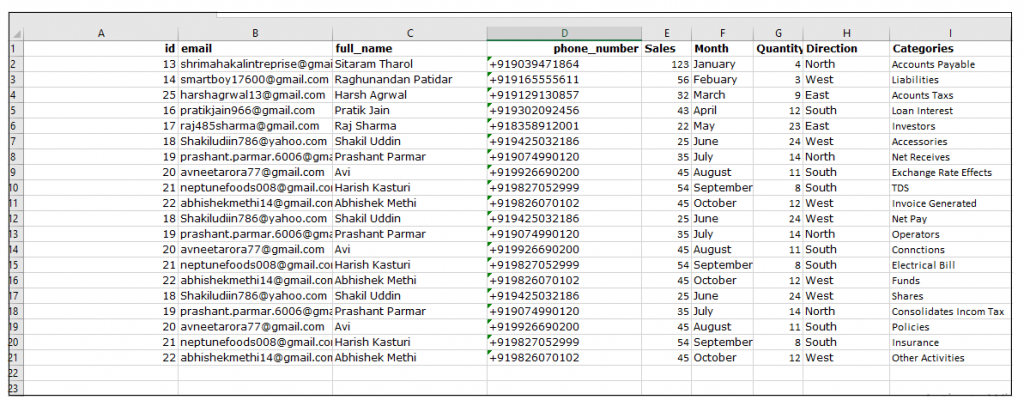
Excel VBA AutoFilter

Code:

Sub AutoFilter_Example()
 With ActiveSheet
     'FilterMode Property determines whether the AutoFilters are filtering data down
     'and FilterMode are in use
     .AutoFilterMode = False
     'specifying the AutoFilter range
     .Range("A2:I21").AutoFilter
     'setting the parameters and applying criteria
     'at filed 5, filtering sales data more than 35 
     .Range("A2:I21").AutoFilter Field:=5, Criteria1:=35
 End With
 End Sub 

Let’s work with the set-by-step code of lines:

Step 1: Open the VBA developer tab either by using the shortcut keywords Alt +F11 or click on developer window -> visual basic editor.

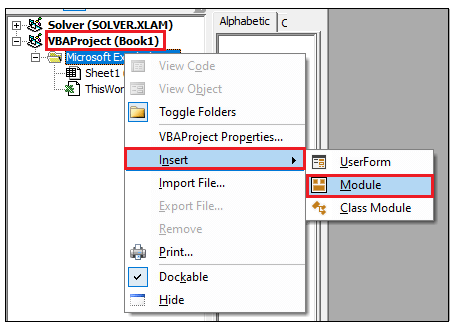
Step 2: Visual Basic Editor will open. Next step is to create a module. Right-clicking on the VBA Project-> Click on Insert-> Click on Module.
Excel VBA AutoFilter

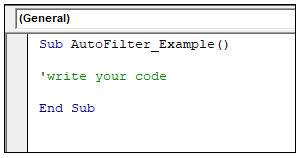
Step 3: In the VBA Module window, within the sub-block, introduce your macro name.
Excel VBA AutoFilter

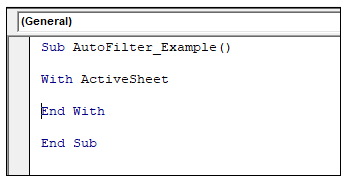
Step 4: Next, we will use the ‘With’ block we will define a series of ActiveSheet.
Excel VBA AutoFilter

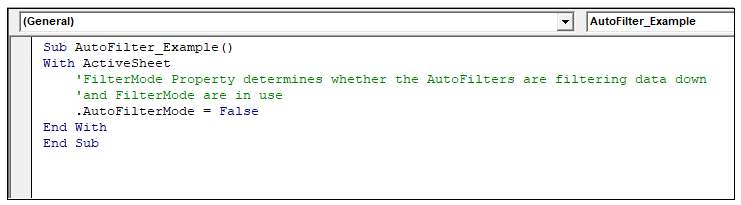
Step 5: Firstly, we will disable the AutoFilterMode to turn off any current filters (if present) and remove them completely. This property determines whether the AutoFilters are filtering data, or the AutoFilter arrows are visible or not. Although this is an optional method. Nut its always advisable to make sure that the previous filters are put off.
Excel VBA AutoFilter

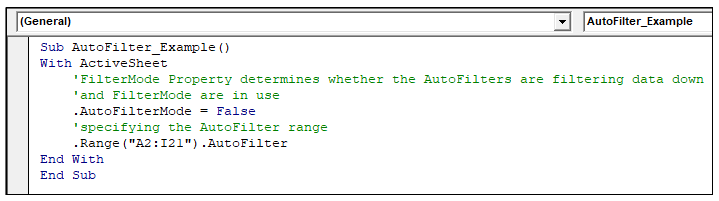
Step 6:  Now, with the help of Range object we will select the data from our Excel active sheet wherein we wish to apply the auto filter method.
Excel VBA AutoFilter

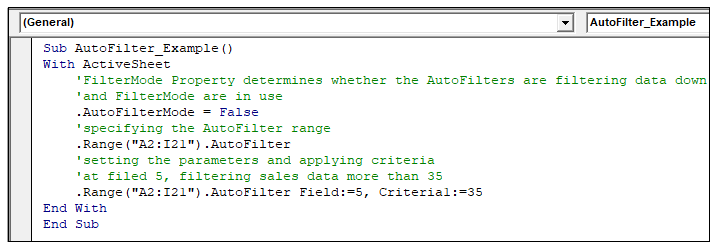
Step 7: We will us the parameters of the AutoFilter method and will define the filed number and criteria to put the filter. Unlike in the below example, we have put field=5 and the sales criteria should be greater than 35.
Excel VBA AutoFilter

Output

Step 8: Execute the above code either by pressing the F5 shortcut key or by clicking on the Run button.

Step 9: You will notice that your sheet has been filtered and only the row whole sales filed is greater than is displayed. Thus, hiding all the other values. You can copy these values and can paste it at another sheet for your future reference.

Excel VBA AutoFilter

Related Topics

Looping in VBA

Looping in VBA There are many situations where a programmer needs to execute a block of the repetitive code number of times. Writing the same statement will make the program tedious and monotonous....

3 minutes read.

Excel VBA Fix Function

VBA Fix Function: The Fix function in VBA truncates the given number to an integer and returns the rounded off integer number. This function both positive and negative numbers to zero. Syntax Fix...

1 minute read.

Excel VBA LCase Function

VBA LCase Function: The LCase function in VBA converts the given String into lower case text. Syntax LCase (String) Parameter String (required)- This parameter represents the text string that you want to convert to...

1 minute read.

VBA Option Explicit

VBA Option Explicit The Option Explicit in VBA is used to declare the variables at the top of your macro code. It is the most secure and easy option to maintain your variables....

5 minutes read.

Excel VBA FormatDateTime Function

VBA FormatDateTime Function: The FormatDateTime function in VBA returns the result as a string after applying a date and/or time format to the supplied expression. Syntax FormatDateTime (Expression, [NamedFormat]) Parameter Expression (specified) – This parameter...

2 minutes read.

Introduction to Visual Basic Editor Window

How to enable the Developer Ribbon Tab? In order to work with VBA, users need to make a small change in Excel to display a new tab (Developer) at the top of the...

5 minutes read.

Excel VBA Filter Function

VBA Filter Function: The Filter function in VBA returns a subset for the given string array, based on specified criteria. Syntax Filter (SourceArray, Match, [Include], [Compare]) Parameter SourceArray (required) – This parameter the array of Strings that you...

2 minutes read.

VBA Object Required

What is Object Required Error? VBA Object Required is a run time error which occurs when the user does not define a valid object qualifier, or the assigned object doesn’t exist in the...

6 minutes read.

VBA Cell

What is VBA cell? Cells is one of the elements (workbook, worksheet, range) in Excel VBA, which refers to cells of the Excel worksheet.  In VBA, the cell is also a property...

5 minutes read.

Excel VBA Chr Function

VBA Chr Function: The Chr function in VBA returns the character equivalent to a supplied character code between 0 and 255. Syntax Chr (CharCode) Parameter CharCode (required) – This parameter represents the character code for...

1 minute read.

Miscellaneous Exercise of conditional statements and Loop

We have the already worked with syntax and examples of conditional statements and loops in the previous tutorials. In this tutorial, we will learn how to work with both together.  We will explain...

3 minutes read.

Excel VBA DateAdd Function

The DateAdd function in VBA adds a time interval to a supplied date and/or time and returns the resultant date/time. Syntax Dateadd (Interval, Number, Date) Parameter Interval (required) – This parameter a string specifying the interval to be...

1 minute read.

Excel VBA IsArray Function

VBA IsArray Function: The IsArray function in VBA returns a Boolean, showing whether the given variable is an Array or not. Syntax IsArray (VarName) Parameter VarName (required)- This parameter represents the variable that you want...

1 minute read.

Excel VBA DatePart Function

The DatePart function in VBA returns a part (day, month, week, etc.) for the specified date and/or time. Syntax DatePart (Interval, Date, [FirstDayOfWeek], [FirstWeekOfYear]) Parameter Interval (required) – This parameter represents a string specifying the interval to be used. It can...

2 minutes read.

Excel VBA : With End-with Constructs

With End-with Constructs The With-End With construct enables the user to perform multiple operations on a single object. If you are going to perform several different actions on the same object and typing the same...

4 minutes read.

Excel Objects in VBA

What are Excel Objects? The Excel objects belong to the entities that make up an Excel Workbook, Worksheets, Columns, Rows, Cell Ranges, etc. Each object in Excel has loads of Properties that are...

6 minutes read.

Procedures in VBA

Procedures in VBA A procedure is a block of statements or units of computer code that performs some action. It is enclosed with a declaration statement, and its primary purpose is to carry out...

3 minutes read.

Excel VBA Month Function

The Mont function in VBA returns the month number for the specified date. Syntax Month (Date) Parameter Time (required) – This parameter represents the date. Return This function returns the month number for the specified date. Example 1 Sub MonthFunction_Example1() ...

1 minute read.

Excel VBA CDbl Function

VBA CDbl Function: The CDbl function in VBA converts an expression into a Double data type. Syntax CDbl (Expression) Parameter Expression (required) - This parameter represents the expression that that you want to convert to...

1 minute read.

VBA ListBox

What is a ListBox? ListBox refers to a permanently displayed control (usually box-shaped) which contains a list of objects (or attribute, or elements) from which the user can select single or multiple attributes....

8 minutes read.