Finding Last Row or Column in Excel VBA
Finding Last Row or Column in VBA
Finding the last used row, column, or cell is one very commonly used task when we write macros and VBA applications. Like other codes in Excel and VBA, there are many methods to achieve this.
Method 1
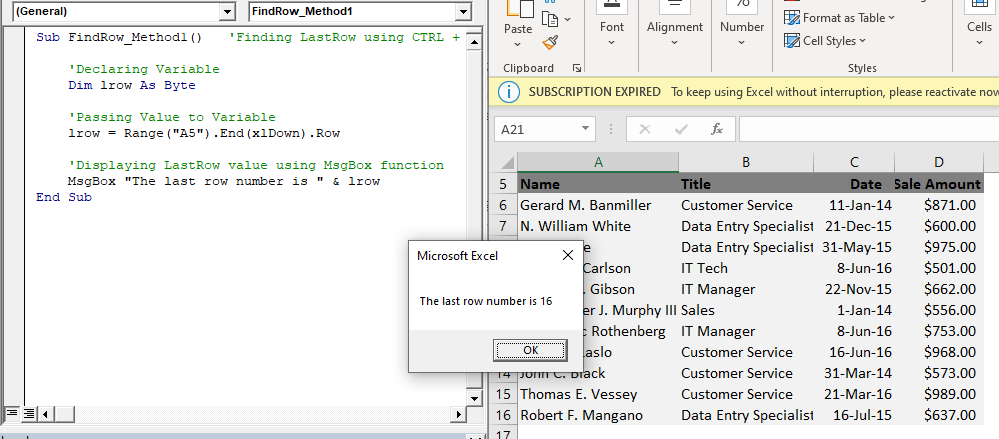
The following method to find the Last Row will return the same result, unlike using the shortcut key CTRL + Arrow. In this method, we first select the range and then find the last row or column by using ‘End (xlDown)’ for row and ‘End (xlToRight) for column and returns the last Row or column number.
Limitation
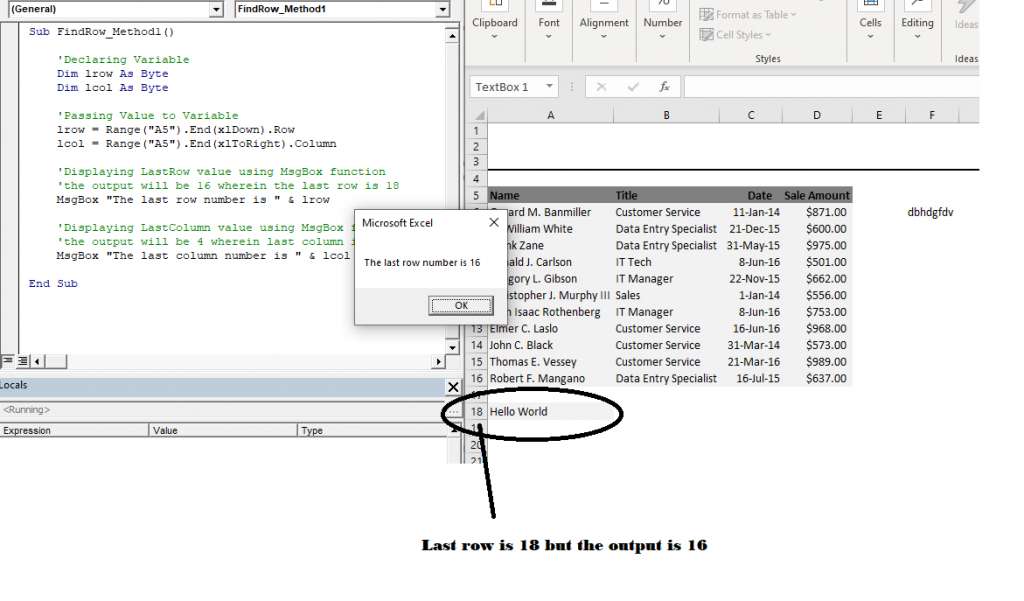
This method will only work if the given data is contiguous if there are some blank cells, and the text is being entered after the blank cells, the cell row is being not considered.
Program: Method 1 to find the last row
'Declaring Variable
 Dim lrow As Byte
 'Passing Value to Variable
 lrow = Range("A5").End (xlDown).Row
 'Displaying LastRow value using MsgBox function
 MsgBox "The last row number is " & lrow
 End Sub
Output
The last row number is 16.
Program 2: Method 1 to find the last column
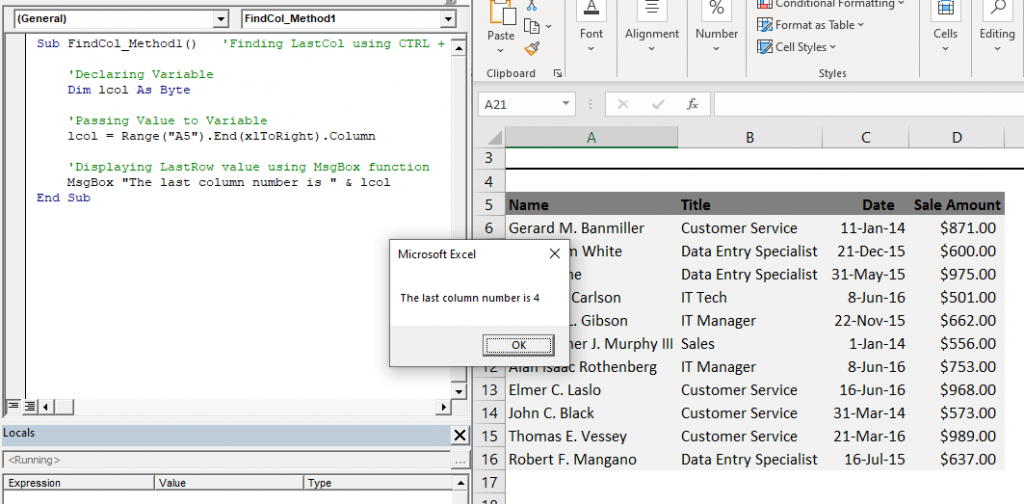
Sub FindCol_Method1()
 'Declaring Variable
  Dim lcol As Byte
  'Passing Value to Variable
  lcol = Range("A5").End(xlToRight).Column
 'Displaying LastColumn value using MsgBox function
 MsgBox "The last column number is " & lcol
 End Sub
Output
The last column number is 4
Program: The Limitation of Method 1
Sub FindRow_Method1()
     'Declaring Variable
     Dim lrow As Byte
     Dim lcol As Byte
     'Passing Value to Variable
     lrow = Range("A5").End(xlDown).Row
     lcol = Range("A5").End(xlToRight).Column
     'Displaying LastRow value using MsgBox function
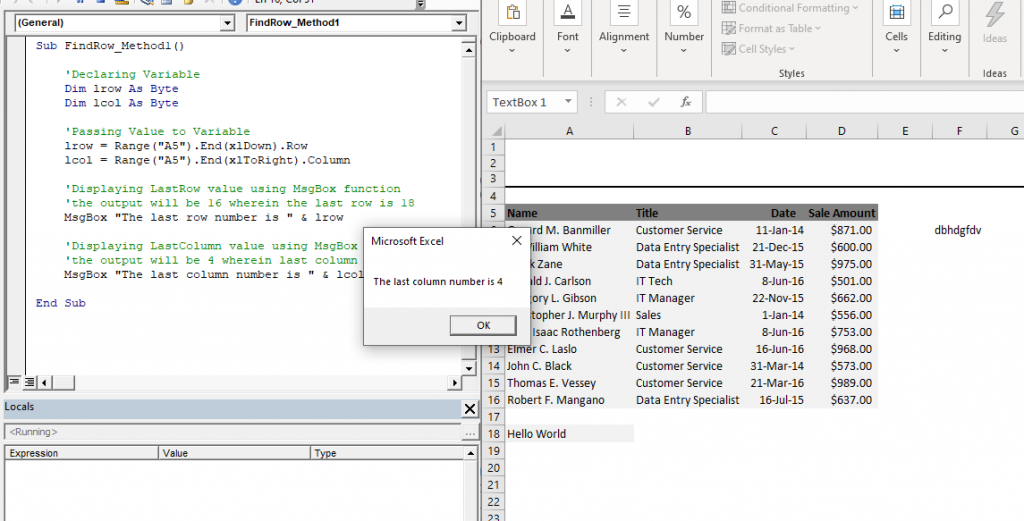
     'the output will be 16 wherein the last row is 18
     MsgBox "The last row number is " & lrow
     'Displaying LastColumn value using MsgBox function
     'the output will be 4 wherein last column is 6
     MsgBox "The last column number is " & lcol
 End Sub
Output
Method 2
This method is the solution of Method 1’s limitation. The steps of Method 2 are as follows:
- We select the Range i.e., set the columns and rows. We set the column to “A” and for rows we firstly move to the last row of the excel sheet (1048576) by “Rows.Count” feature which represents the last count of the row.
- From downwards we move up to the last entered cell with the help of End(xlUp) method.
- At last, calculating the row number.
Program: Method 2 to find the last row
Sub FindRow_Method2()
Dim lrow As Byte
lrow = Range("A" & Rows.Count).End(xlUp).Row
'Rows.count method will return the count of total number of rows
MsgBox "The last row number is " & lrow
End Sub
Output
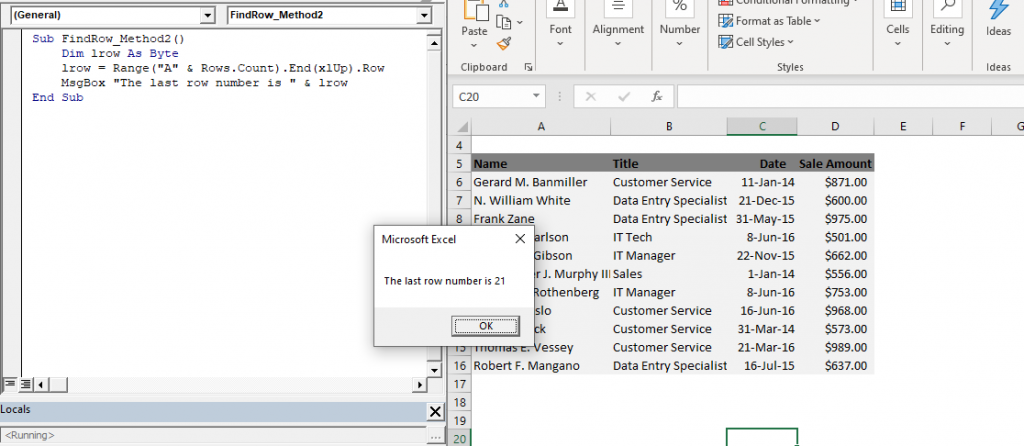
The last row number is 21
Method 3
Method 3 is the same, unlike Method 2 with the only difference of the range object. Here, we have used another range object i.e., cells (rows, columns). We set the row to the last row cell of the excel sheet and set the column to 1. And then, move up to and select last entered cell with the help of the End(xlUp) method.
For Column, we follow the same approach. We fix the row and position the cursor to the last column cell and select the first entered cell while moving to the left. And calculate the column’s count for that particular column.
Program: To find the last row with the help of Method 3
Sub FindRow_Method3()
Dim lrow As Byte
lrow = Cells(Rows.Count, 1).End(xlUp).Row
MsgBox "The last row number is " & lrow
End Sub
Output
The last row number is 21.
Program: Method 3 to find the last column in the Excel sheet
Sub FindCol_Method3()
Dim lcol As Byte
lcol = Cells(5, Columns.Count).End(xlToLeft).Column
MsgBox lcol
End Sub
Output
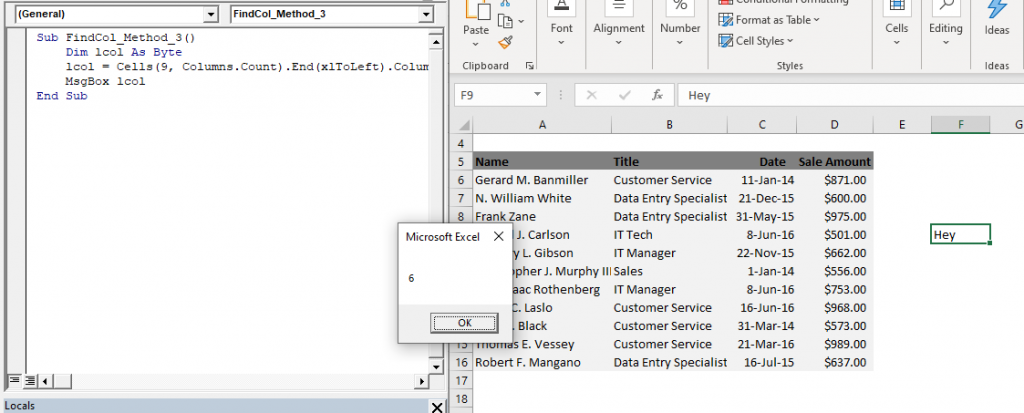
6
Method 4
Method 4 is one of simple methods to find the last row and column. In this, we have used the “SpecialCells” property to find the last row of the excel sheet. SpecialCells property is the same as GoTo Command in Excel.
Program
Sub FindRow_Method3()
'SpecialCells property is same as GoTo Command in Excel
lrow = Range("A5").SpecialCells(xlCellTypeLastCell).Row
MsgBox lrow
End Sub
Selection
Selection is one of the features available with VBA. This property refers to the currently selected range item or values that can be used to manipulate the data.
The keyword “select” is used to perform the Selection operation. Generally, the operations that one performs with the Range Objects can also be performed with Selection.
Simple Selection
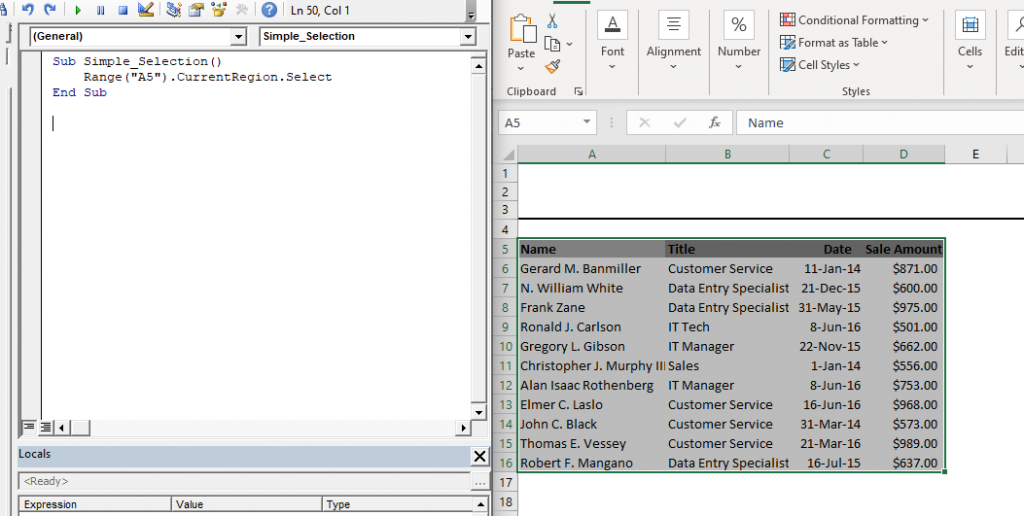
The simple selection, in Excel, would select only the current region of the sheet. The data should be contiguous without any break. Simple Selection is useful when we deal with continuous data. This selection method won’t select the other chunks of the data present in the sheet. This is the limitation of Simple Selection.
Program
Sub Simple_Selection()
Range("A5").CurrentRegion.Select
End Sub
Output
Dynamic Selection
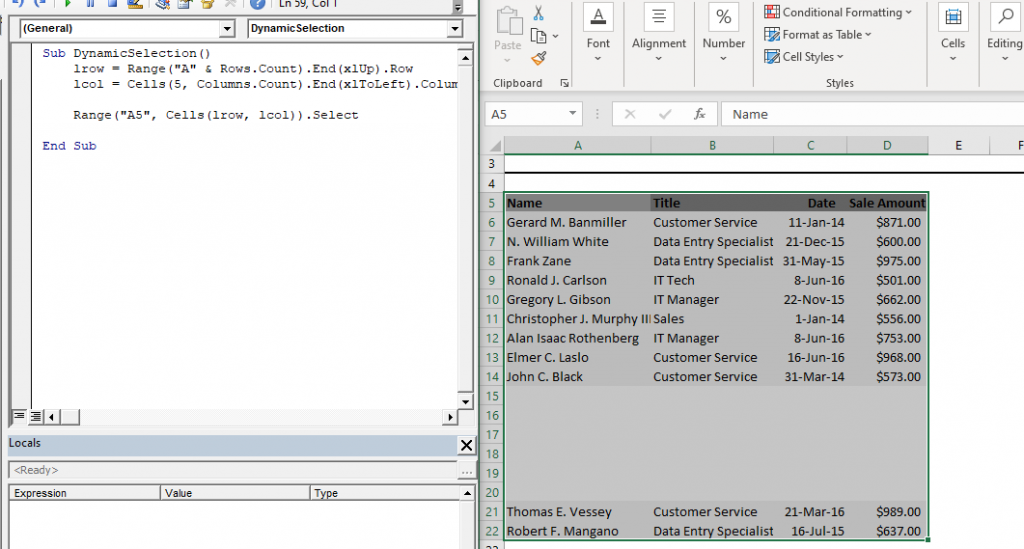
Dynamic Selection is used to select a range that includes every cell that contains data present on the excel spreadsheet. It is used to create a dynamic macro, formatting of each cell, search any value, and many other important operations are performed only after dynamic selection.
Logic of Dynamic Selection
- In the following program, firstly we have calculated the last row and last column of the excel spreadsheet (we have explained it in the above session).
- With the help of the “Cells” object, we find the cell containing the last column and last row.
- Using “Range,” select the cells containing any data. In the first position, allocate the address of the first cell with data, and in the second place, assign the last entered the cell. At last, with the help of select property, select the in-between region.
Program
Sub DynamicSelection()
Finding the last row
lrow = Range("A" & Rows.Count).End(xlUp).Row
‘Finding the last column
lcol = Cells(5, Columns.Count).End(xlToLeft).Column
Range("A5", Cells(lrow, lcol)).Select
End Sub
Output