
VBA Screen Updating
What is VBA Screen Updating property?
Screen Updating is a VBA property which is used to display the output generation while running the code. If this property is enabled, we could see the output (numbers, text, alphabets, or pattern) getting generated on the Excel sheet. Screen updating property can be turned ON/Off at any point in time. If it is set to Boolean true, it continues the screen updating else if set to Boolean False; it disables this property. By default, this property is set to Boolean True. The users usually turn it off to avoid the screen flickering, distractions and mostly to reduce the background processing time used to run or wait for the pointer. Thereby increasing the speed of the code and saving time.
Screen Updating is more bane than a boon. This property continues to update the screen until VBA finishes its assigned job. Imagine if you have VBA code with a massive set of code, it would be too difficult as the screen flickering and refreshing will continue till the end of the code. Thus, it leads to the slow down of the code or sometimes the hangs the system, which becomes frustrating while working with the large set if macro code, it is always advisable to set off the screen property at the beginning of the code and set back to Boolean TRUE at the end of the code.
Note: Always remember to Turn on the Screen updating property when you set it off else, the screen for the sheet will not get updated, and the result will not be displayed.
Syntax
Application. ScreenUpdating
Where the screen updating refers to Boolean data type and can be set to TRUE or FALSE
Examples: Steps to Turn Off the Screen Updating Property
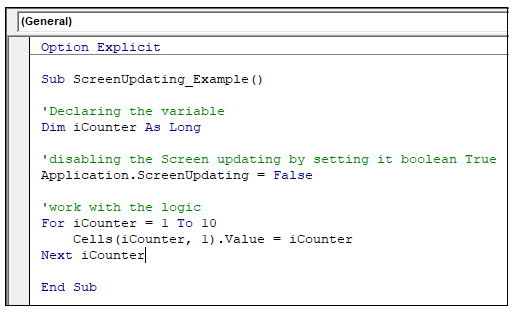
Code:
Option Explicit
Sub ScreenUpdating_Example()
'Declaring the variable
Dim iCounter As Long
'disabling the Screen updating by setting it boolean True
Application.ScreenUpdating = False
'work with the logic
For iCounter = 1 To 10
    Cells(iCounter, 1).Value = iCounter
Next iCounter
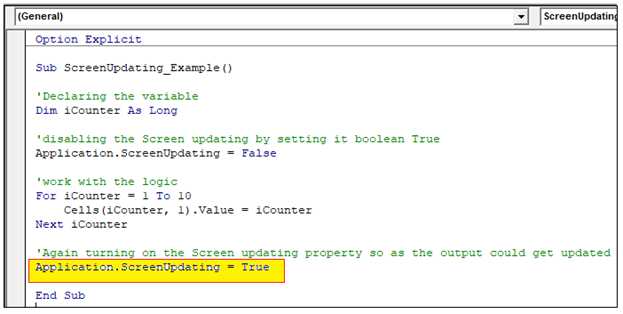
'Again turning on the Screen updating property so as the output could get updated
Application.ScreenUpdating = True
End Sub
Let’s work with the step by step analysis of the above code:
Step 1: Open the VBA developer tab either by using the shortcut keywords Alt +F11 or click on developer window -> visual basic editor.
Step 2: Visual Basic Editor will open. The next step is to create a module. Right-clicking on the VBA Project-> Click on Insert-> Click on Module.
'Declaring the variables
Dim timeStart As Double, timeStop As Double
Dim totalTime As Double
Dim i As Long
'setting the Screen updating property to Boolean False
Application.ScreenUpdating = False
'starting the time
timeStart = Timer
'enabling a for next loop to print the values 1 to 1000 in the excel sheet
For i = 1 To 1000
    Cells(i, 1).Value = i
Next i
'stoping the time
timeStop = Timer
'Calculating the Total time and rounding it off to 2 values.
totalTime = Round(timeStart - timeStop, 2)
'Displaying the total time to run the program.
MsgBox totalTime
'enabling the Screen updating property by setting it to Boolean True
Application.ScreenUpdating = True
End Sub
Step 3: Introduce the subcategory following with your macro name and declare your variable with the Integer Data type.
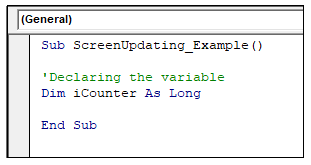
Step 4: To disable the screen updating property, firstly we need to access the application object. Next, we will click ctrl +space to access all its properties. Screen Updating is one of the Application object’s properties.
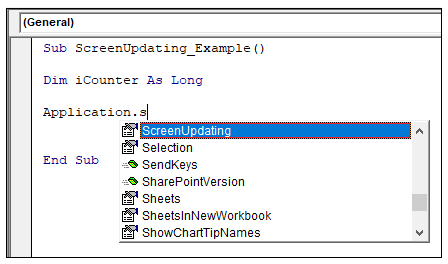
Step 5: Select the Screen updating property from the IntelliSense list and put an equal sign. You will notice that the Booleans True and False are displayed.
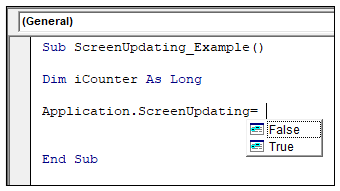
Step 6: Select the Boolean False. Thus, Screen Updating property has been disabled.
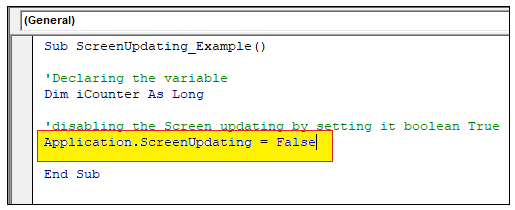
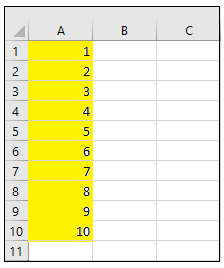
Step 7: Now, write the logic which you want to perform. Unlike, here we have written the logic to display a range of values numbering from 1 to 10.
Step 8: Before ending the sub-procedure always remember to turn on the Screen updating property so as the output could get updated on the sheet. Again, access the application object and select its screen updating property and set it to Boolean True.
Output
Step 9: Press the F5 key to run the output. You will notice in no time, VBB has displayed the output.
Example 2: Comparing Screen Updating on and Off Property
Let’s see the practical effects for turning off the screen updating property in our VBA code. Firstly, we will write the macro by enabling the screen updating note.
- By turning on screen updating
Follow the below steps:
- Introduce the subcategory following with your macro name and declare the five variables which are as follows:
- timeStart (Double data type): It is used to calculate the timer’s starting point
- timeStop (Double data type): It calculates the timer’s ending point
- totalTime (Double data type): It variable will find the total time to run the code. It subtracts the timeStop with the timeStart.
- i (Long data type): It will be used for looping and indexing purpose.
- Access the application object and select its screen updating property and set it to Boolean True.
- Call the timer method and store its value in the timeStart variable
- Using the For Next loop, print 1 to 1000-digit numbers in your Excel sheet.
- Again, call the timer method to pause the time count. Store the returned value in the timeStop variable.
- Next, we will calculate the total time for running the code. For this subtract the values of timeStop and timeStart variables.
- Display the totalTime with the help of MsgBox.
Code:
Sub ScreeUpdating_SetToTrue()
'Declaring the variables
Dim timeStart As Double, timeStop As Double
Dim totalTime As Double
Dim i As Long
'setting the Screen updating property to Boolean True
Application.ScreenUpdating = True
'starting the time
timeStart = Timer
'enabling a for next loop to print the values 1 to 1000 in the excel sheet
For i = 1 To 1000
    Cells(i, 1).Value = i
Next i
'stoping the time
timeStop = Timer
'Calculating the Total time and rounding it off to 2 values.
totalTime = Round(timeStart - timeStop, 2)
'Displaying the total time to run the program.
MsgBox totalTime
End Sub
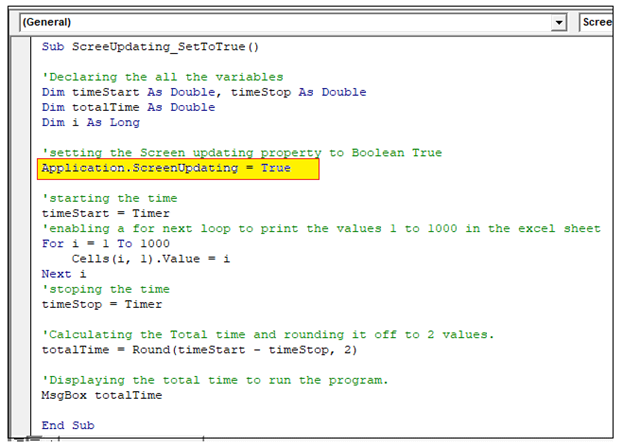
Output
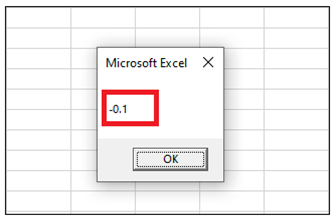
The time taken to run the code is -0.1s.
- When the Screen Update is set to False
Follow the below steps:
- Introduce the subcategory following with your macro name and declare the variables i.e., timeStart (to calculate the timer’s starting point), timeStop (to calculate the timer’s ending point), totalTime (subtracting timeStop with timeStart) with Double Data type and i (for looping and indexing) with long data type.
- Access the application object and select its screen updating property and set it to Boolean True.
- Call the timer method and store its value in the timeStart variable
- Using for-next loop, print 1 to 1000-digit numbers in your Excel sheet.
- Again, call the timer method to pause the time count. Store the returned value in the timeStop variable.
- Next, we will calculate the total time for running the code. For this subtract the values of timeStop and timeStart variables.
- Display the totalTime with the help of MsgBox.
- Before ending the sub procedure, again call the application object and set its screen updating property to Boolean so as the data in the Excel sheet should get updated.
Code:
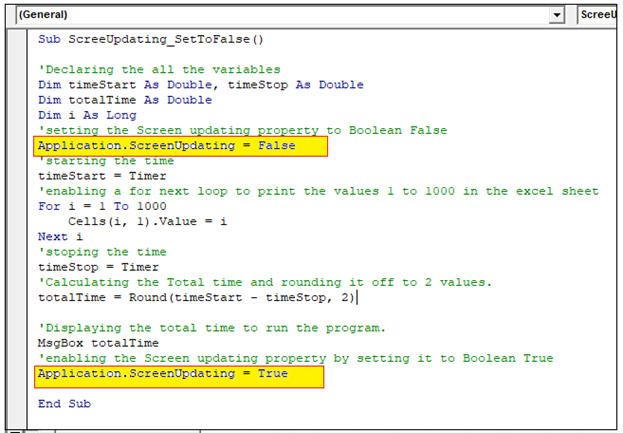
Sub ScreeUpdating_SetToFalse()
'Declaring the variables
Dim timeStart As Double, timeStop As Double
Dim totalTime As Double
Dim i As Long
'setting the Screen updating property to Boolean False
Application.ScreenUpdating = False
'starting the time
timeStart = Timer
'enabling a for next loop to print the values 1 to 1000 in the excel sheet
For i = 1 To 1000
    Cells(i, 1).Value = i
Next i
'stoping the time
timeStop = Timer
'Calculating the Total time and rounding it off to 2 values.
totalTime = Round(timeStart - timeStop, 2)
'Displaying the total time to run the program.
MsgBox totalTime
'enabling the Screen updating property by setting it to Boolean True
Application.ScreenUpdating = True
End Sub
Output
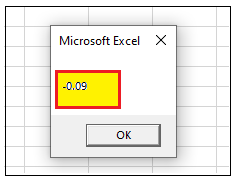
The time taken to run the code by disabling the screen updating is only -0.09 where while enabling the screen updating property the total time taken to run the similar code was -0.1.