
How to take a screenshot on the iPhone?

How to take a screenshot on the iPhone?

A screenshot is an excellent thing to quickly save your screen content, which is open on your screen. You can share your favorite videos, high scores of your games, conversions of social networks like Twitter, Facebook, and Instagram, bugs you want to report, and everything that you see on your screen. Here, we are going to learn how to take a screenshot on different versions of the iPhone, such as iPhone X, iPhone XS, iPhone XS Max, iPhone 11, iPhone 8, or earlier versions.

How to take screenshots on iPhone X or later versions?

An iPhone X or later versions use the same method to take the screenshots. An iPhone X or later version doesn't have a home button, so you have to use the side button and volume up button to take a screenshot. For doing this, you need to follow the following steps:

Step 1: Firstly, open the app or screen that you want to capture as a screenshot.

Step 2: Set the screen of the iPhone exactly that way, which you want to capture as a Screenshot.

Step 3: Press and hold the “Side button” and “Volume Up button” of the iPhone at the same time to take a screenshot. While capturing the screenshot, you will hear the camera shutter sound if your sound is enabled. After that, release both buttons of the iPhone.
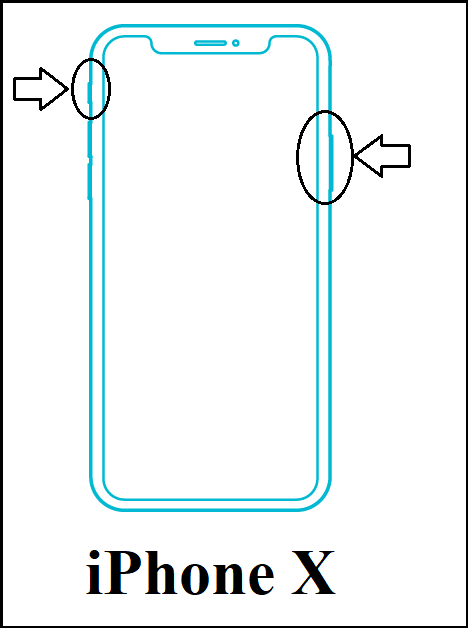
screenshot on the iPhone

Step 4: After taking a screenshot on the iPhone, a temporary thumbnail displays at the bottom left side of the screen. If you want to open the thumbnail, click on the thumbnail, and to dismiss the thumbnail, swipe it to the left side of the screen.

How to take a screenshot on iPhone 8 plus, iPhone 7, or iPhone 6?

iPhone 8, iPhone 8 Plus, iPhone 7, iPhone 6 all these use the same method to take the screenshots. These iPhones contain a home button with a side button that’s very useful to take a screenshot. If you want to take a screenshot on iPhone 8, 7, or 6, follow the following steps:

Step 1: Firstly, open the app or screen that you want to capture as a screenshot.

Step 2: Set the screen of the iPhone exactly that way, which you want to capture as a Screenshot.

Step 3: Press and hold the “Side button” and “Home button” of the iPhone at the same time to take a screenshot. When you capture a screenshot, you will hear the camera shutter sound if your sound is enabled. After that, release both buttons of the iPhone.
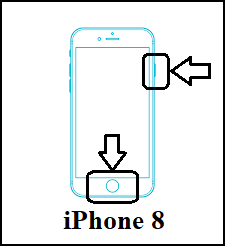
screenshot on the iPhone

Step 4: After taking a screenshot on the iPhone, a temporary thumbnail displays at the bottom left side of the screen. If you want to open the thumbnail, click on the thumbnail, and to dismiss the thumbnail, swipe it to the left side of the screen.

How to take a screenshot on iPhone SE, iPhone 5, or earlier versions?

iPhone SE, 5, or previous version all these use the same method to take a screenshot. These iPhones contain a top button with the home button that’s very useful to take a screenshot. If you want to take a screenshot on iPhone SE, 5, or earlier versions, follow the following steps:

Step 1: Firstly, open the app or screen that you want to capture as a screenshot.

Step 2: Set the screen of the iPhone exactly that way, which you want to capture as a Screenshot.

Step 3: Press and hold the “Home button” and “Top button” of the iPhone at the same time to take a screenshot. When you capture a screenshot, you will hear the camera shutter sound if your sound is enabled. After that, release both buttons of the iPhone.
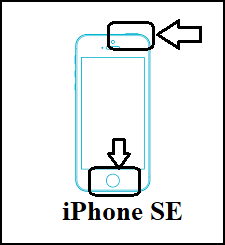
screenshot on the iPhone

Step 4: After taking a screenshot on the iPhone, a temporary thumbnail displays at the bottom left side of the screen. If you want to open the thumbnail, click on the thumbnail, and to dismiss the thumbnail, swipe it to the left side of the screen.

How to see and edit the screenshots on iPhone?

When you take the screenshots, it automatically saved in the photo’s app of the iPhone. If you want to see and edit the screenshots on iPhone, follow the following steps:

Step 1: Firstly, open the photos app on the iPhone.

Step 2: After you open the photo’s app, click on the “Albums” folder.

Step 3: In the Album, click on the “Screenshots” folder.

Step 4: After that, select the screenshot, which you want to view, edit, or share. Now, you can edit the screenshot according to your needs.

Note: By using the above steps, you can see and edit the screenshots on the iPhone.


Related Topics

How to add Signature to your Mail

How to add Signature to your Mail Gmail has formed an inevitable aura around the business world. Gmail was launched in the year 2004 as an email service provider with very...

7 minutes read.

How to take a screenshot on the iPhone?

How to take a screenshot on the iPhone? A screenshot is an excellent thing to quickly save your screen content, which is open on your screen. You can share your favorite videos, high scores...

4 minutes read.

How to snooze an email in Gmail

How to snooze an email in Gmail With the popularity of Gmail, today every deal is likely to be discussed in emails. And with so many things rushing in the Inbox,...

3 minutes read.

How To Connect Air pods To Computer?

How To Connect Air pods To Computer Apple has put light on a statement and said that it believes the future is wireless. This technology is pacing up with the time,...

5 minutes read.

How to Find Divisors of a Number?

A number that equally divides a larger integer is referred to as a divisor or factor. By simply listing all the possible methods to multiply two numbers together to obtain...

3 minutes read.

How to Create Folders in Gmail

How to Create Folders in Gmail Gmail is a leading email service provider and is used by 1.5 billion-plus active users worldwide. All Gmail professional users receive at least dozens of...

6 minutes read.

How to select all in Gmail

How to select all in Gmail Undoubtedly Gmail is one of the leading email service providers across the world. Teenagers, adults, old ages all rely upon Gmail because of its free...

3 minutes read.

How to defrag a computer?

How to defrag a computer Topics Covered What is Defragmentation?What is the need of defragmentation?Advantages of DefragmentationWhen to defrag your computerDefragmentation for your SSDDefrag your computer running on windows 10Defrag your computer...

8 minutes read.

How to Cancel Netflix

How to Cancel Netflix Netflix Netflix is a service that lets its members watch a variety of television shows, movies, documentaries, and web series who purchase its subscription. You can enjoy unlimited ad-free...

3 minutes read.

How to compress jpeg file to 100kb?

Nowadays, everyone loves to share cool snapshots on social media handles. Before putting the images on any site, editing is an integral part. File compression is one of method by...

3 minutes read.

How to convert epoch date to time?

How to convert epoch date to time? The concept of the epoch is vital for computation purposes. Epoch is nothing but the total milliseconds passed from 1st January 1970. This concept...

3 minutes read.

How to accelerate the speed of loading images on any website?

No website can be successful without attractive and relevant images or pictures. In the current time, the users want speedy information about their searches on the internet browser. The image...

3 minutes read.

How to Multiply Fractions?

What is a Fraction? A fraction is a number that divides a whole number into equal parts. A fraction tells us how many parts we have from the whole part. We...

2 minutes read.

How to mark all emails as read in Gmail?

How to mark all emails as read in Gmail Gmail is extensively used to exchange official documents, expressions, proposals around the world. In the business industry leaving unread mails is considered...

3 minutes read.

How to find Computer name on Windows?

How to find computer name on Windows The computer’s name is undoubtedly useful and needed at times to resolve technical issues or downloading any new software or pairing your system with...

4 minutes read.

How to take a Screenshot on computer?

How to take a Screenshot on computer The ScreenShot feature is widely used to procure the content of the screen as an image. This feature was introduced in the late ’90s,...

8 minutes read.

How to write a cheque?

How to write a cheque? In today's time, digital payments are consistently gaining more market share, but it's also important to know how to write a cheque. Many companies, employers, workers, and landlords still...

2 minutes read.

How to delete Instagram account?

What is Instagram? Instagram is used for sharing the images and videos on social networking websites through various platforms such as iOS, Android, Windows Phones, and Desktop. In 2010, Instagram was...

3 minutes read.

How to Find Element in Rotated Sorted Array?

In this article, we are going to find the element in a rotated sorted array using the programs in different computer languages like Java and C++. We are going to...

3 minutes read.

How to Make Money Online?

How to make money online? Earning money from the traditional way of working is a way harder and requires a lot of manpower and capital. With the increase in the use of the Internet...

9 minutes read.