VBA Creating, Displaying, Uploading UserForms
UserForm is a customized interface and acts as a VBA container and can add various controls as per the required functionality, each of which has certain usage and related properties. You can create your own dialog boxes with this feature. Your project can have n number of userforms wherein each userform has its own dialog own.
Creating a Userform
There are two ways to install a UserForm in VBA, which are as follows.
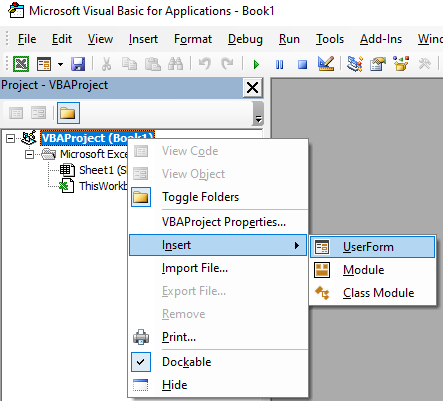
Process 1: Right Click on VBAProject ->Click on insert -> Click on Userform.
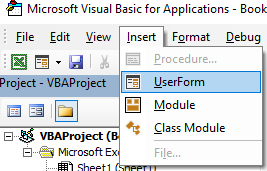
Process 2: Click on Insert from the ribbon bar-> Click on Userform.
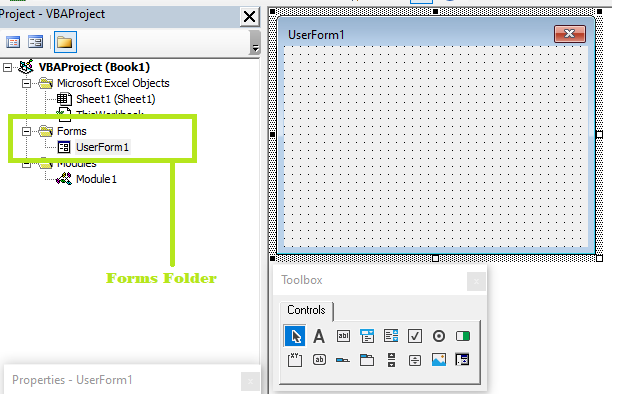
In both the process, you will notice a folder has been introduced with name Forms (inside which it consists the UserForm) in the VBA Project. Further clicking on the UserForm will straightway lead you to a window entitled UserForm1 (though the name can be changed from the properties) following with a “controls” toolbox.
Adding control to Userform
Controls are added to a UserForm to accept the inputs from the user and make it more user-friendly. The control box can be resized by stretching the adjustment handles and can be dragged to any position. You can even adjust the spacing and the alignment of the UserForm. There are two ways to add the controls to your useform:
- Select the required control and drag it to the Userform.
- The Second method is to left-click on the control available in the ToolBox, in the form left-click, and the control will be automatically added.
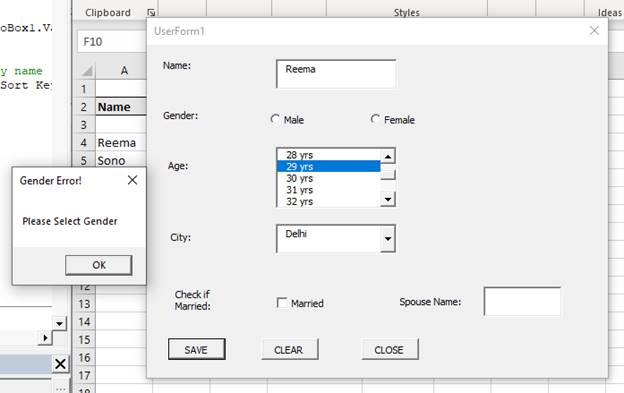
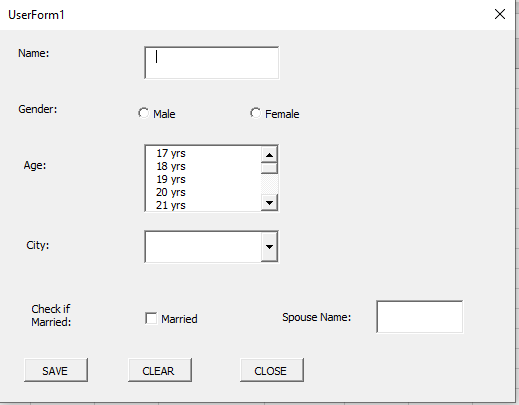
Example: Create a VBA userform, which takes the basic information from the user and update it on the excel sheet. Refer to the below image to get a glimpse of the form.
Private Sub UserForm_Initialize()
 'Setting the values for each form control. The UserForm gets loaded wherever the program is run.
 Dim i As Integer
 Dim myArray As Variant
 'in the list box setting the age values and categorizing them from 17 to 50.
 With Me.ListBox1
 For i = 17 To 50
 .AddItem i & " yrs"
 Next i
 End With
 'adding the cities into combo box
 myArray = Array("Mumbai", "Banglore", "Delhi", "Noida", "Gurugram", "Chennai", "Kolkata", "Patna", "Hyderabad", "Ahmedabaad")
 Me.ComboBox1.List = myArray
 ‘so as only one option could be selected
 OptionButton1.GroupName = "Gender"
 OptionButton2.GroupName = "Gender"
 ‘disabling the text field for the spouse so it can only work if the user has checked the married checkbox
 Me.spouse_name.Enabled = False
 End Sub
 ‘double click on the married checkbox the write the following code in the sub procedure
 Private Sub CheckBox1_Click()
 'user can only enter in spouse_name TextBox if the CheckBox is selected
 If CheckBox1.Value = True Then
     spouse_name.Enabled = True
 Else
     spouse_name.Enabled = False
 End If
 End Sub
 ‘double click on the clear button and write the following code in sub procedure
 Private Sub CommandButton2_Click()
   ‘clearing the value of name text box
 TextBox1.Value = ""
 spouse_name.Value = ""
 'clearing the value for OptionButton  "Male"
 OptionButton1.Value = False
 'clearing the value for OptionButton  "Female"
 OptionButton2.Value = False
 'clearing the ListBox value for Age selection
 ListBox1.ListIndex = -1
 'clearing the values in ComboBox for Country
 ComboBox1.Value = ""
 'CheckBox to select if Married
 CheckBox1.Value = False
 End Sub
 ‘double click on the save button and type the following code in the sub procedure
 Private Sub CommandButton1_Click()
 Dim totalRows As Long
 Dim str As String
 Dim endDate As String, startDate As String
 'error check - blank UserForm fields not permitted
 If TextBox1.Text = "" Then
 MsgBox "Name can’t be black", vbOKOnly, "Name Error!"
 Exit Sub
 ElseIf OptionButton1.Value = False And OptionButton2.Value = False Then
 MsgBox "Gender can’t be blank!", vbOKOnly, "Gender Error!"
 Exit Sub
 ElseIf ListBox1.ListIndex = -1 Then
 MsgBox "Age can’t be blank!", vbOKOnly, "Age Error!"
 Exit Sub
 ElseIf ComboBox1.Value = "" Then
 MsgBox "Country can’t be blank!", vbOKOnly, "Country Error!"
 Exit Sub
 ElseIf CheckBox1.Value = True And spouse_name.Text = "" Then
 MsgBox "Spouse Name can’t be blank", vbOKOnly, "Spouse Error!"
 Exit Sub
 End If
  ‘finding the last entered row
 totalRows = Sheet1.Cells(Rows.Count, "A").End(xlUp).Row
 If totalRows < 3 Then
 totalRows = 3
 Else
 totalRows = totalRows
 End If
 ‘copying the form values in the excel sheet:
 Sheet1.Cells(totalRows + 1, 1) = TextBox1.Text
 If OptionButton1.Value = True Then
 Sheet1.Cells(totalRows + 1, 2) = "Male"
 ElseIf OptionButton2.Value = True Then
 Sheet1.Cells(totalRows + 1, 2) = "Female"
 End If
 Sheet1.Cells(totalRows + 1, 3) = ListBox1.Value
 If spouse_name.Text <> "" Then
 Sheet1.Cells(totalRows + 1, 4) = spouse_name.Text
 Else
 Sheet1.Cells(totalRows + 1, 4) = "Unmarried"
 End If
 Sheet1.Cells(totalRows + 1, 5) = ComboBox1.Value
 'arranging and sorting all the data stored in excel sheet1, by name in alphabetic order
 Sheet1.Range("A4:H" & totalRows + 1).Sort Key1:=Sheet1.Range("A4"), Order1:=xlAscending
 'Clearing all the text
 TextBox1.Value = ""
 spouse_name.Value = ""
 OptionButton1.Value = False
 OptionButton2.Value = False
 ListBox1.ListIndex = -1
 ComboBox1.Value = ""
 CheckBox1.Value = False
 End Sub
Output
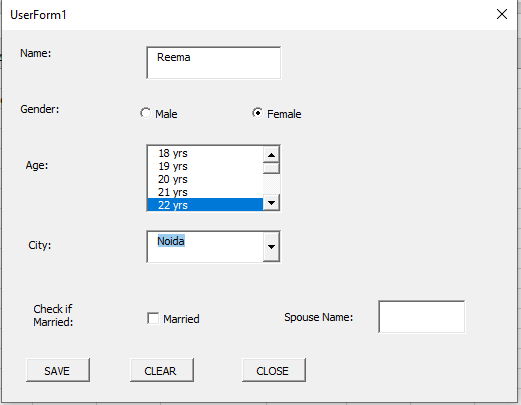
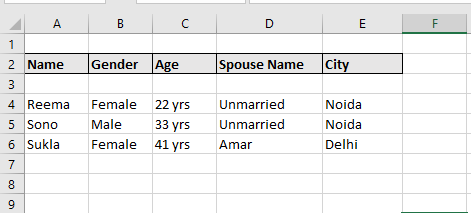
Case 1: Fill all the details and press the save button. The excel sheet will be update with the inserted values. Repeat it two three times and you notice the names are present in the sorted order.
Case 2: Keep any field unfilled, and you will notice and message error pops out notifying that blank field can’t be entertained.