VBA Find Function
VBA Find Function
The Excel VBA FIND function finds any information in your Excel. It can be used on a Range object on the worksheet. It works the same, unlike the Excel Find & Replace option, but the only difference is VBA automates the finding process. The VBA Find function uses the same parameters in the same way. Hence, only the first parameter (the item you are searching for) is required, and rest all are optional.
We press the shortcut keyword CTRL + F while using the Find feature in Excel Workbook, and type the search value to find. It highlights all the matches, if the first value is not required, we go for the next match. If a sheet has a lot of such undesired matches, it becomes a tedious task. To combat that problem VBA, find function was introduced. It does the tasks for us and gives us the exact match, and it takes three arguments, one is what to find, where to find, and where to look at.
The settings for the optional parameters (After, LookAt, SearchOrder, and MatchByte) are saved in the cookie each time you use this method. The next time, even if you don’t specify these optional parameter values, it will automatically use the previously saved values.
Properties of Find Function are as follows:
- It is a member of the Range object.
- It searches a range of cells containing a given value or format.
- It is exactly the same as using the Find Dialog on an Excel worksheet.
Syntax
expression.Find (What, After, LookIn, LookAt, SearchOrder, SearchDirection, MatchCase, MatchByte, SearchFormat)
where the expression represents the range object.
Parameters
What (required) – This parameter represents the data to be searched. It can hold any string, integer, or any data type supported by Microsoft Excel.
After (optional) – This parameter represents the cell after value from where the search will begin.
Lookln (optional) - Specifies the type of data to search. The user can select one of the four options i.e., 1. xlFormulas (formulas), 2. xlValues (values), 3. xlComments (comments), or 4. xlCommentsThreaded (comments threaded).
LookAt (optional) – This parameter enables the user to specify whether a match is made against the whole of the search text or any part of the search text. It has two options: 1. xlWhole or 2. xlPart. The default value is xlWhole.
SearchOrder (optional) – This parameter represents the order in which the range is to be searched. It accepts two values, i.e., 1. xlByColumns (searches down a column), 2. xlByRows (searches across a row).
SearchDirection (optional) – This parameter signifies the search direction. It can take two values, either 1. xlNext (searches the next matching value) or 2. xlPrevious (searches the previous matching value).
MatchCase (optional) – This parameter enables or disables the case property. The Boolean True is passed to make the search case sensitive. The default value is False.
MatchByte (optional) – This parameter is used to enables or disable the double byte language support. It True is specified, it matched double-byte characters only with double-byte characters. Else for Boolean False, it matches double-byte characters with their equivalent single-byte characters. The default value is False.
SearchFormat (optional) – This parameter represents the search format to be used.
Return
This function returns the Range object of the former cell (where it finds the occurrence of the search data) if the search data is found else it returns nothing if the match is not found.
Find Function Example 1
Here, we are going to use the following Excel data.
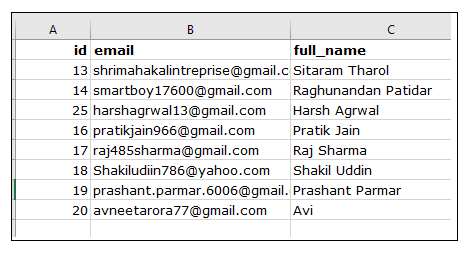
Let’s us analyze step-step the above VBA Find function code:
Step 1: Open the developer window by using the shortcut keywords Alt +F11.
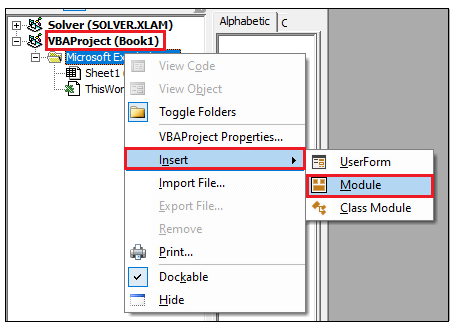
Step 2: Create a module by right-clicking on the VBA Project-> Click on Insert-> Click on Module.
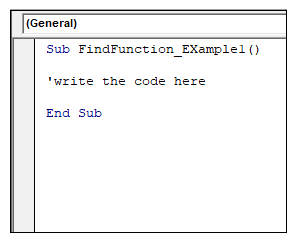
Step 3: In the Module window, introduce the sub-block, followed by your macro name.
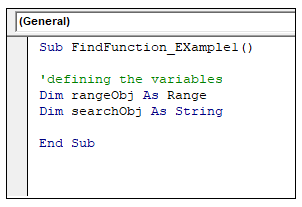
Step 4: The next step is to introduce the range and search variables.
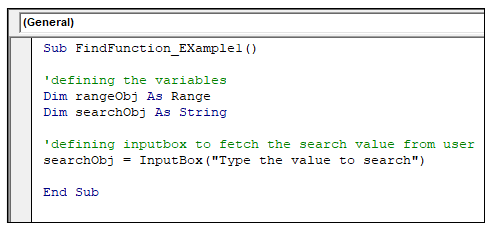
Step 5: With the help of an input box, we will seek the search value and will store that value in the search variable (searchObj).
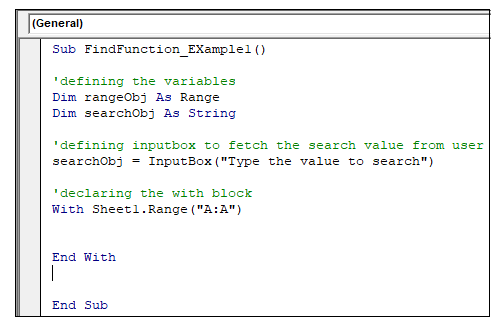
Step 6: By using the ‘With’ statement, we will use all the properties and methods of the Range object. So, now we will open a ‘with’ statement and will declare the range in the given sheet.
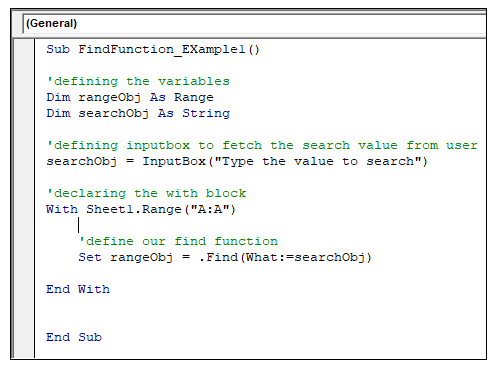
Step 7: We will define the find function and in the ‘What’ parameter will pass on the ‘searchObj’ variable and will store the return object in the ‘rangeObj’ variable.
Step 8: With the help of IF and Else block, we will enable the search found notification and will make it more user-friendly. If the match is found, it will return the range object else, it will pop a msgbox stating “Match not Found”.
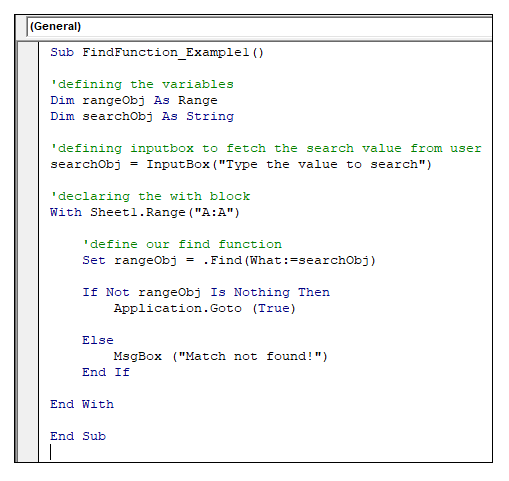
Code:
Sub FindFunction_Example1()
'defining the variables
Dim rangeObj As Range
Dim searchObj As String
'defining inputbox to fetch the search value from user
searchObj = InputBox("Type the value to search")
'declaring the with block
With Sheet1.Range("A1:C10")
    'define our find function
    Set rangeObj = .Find(What:=searchObj)
    If Not rangeObj Is Nothing Then
        Application.Goto rangeObj, True
    Else
        MsgBox ("Match not found!")
    End If
End With
End Sub
Output
Step 9: Execute the above code either by pressing the F5 shortcut key or by clicking on the Run button.
Step 10: A input box will pop up, asking for the search value. Type in the value you want to find in the excel sheet. Click on Ok.
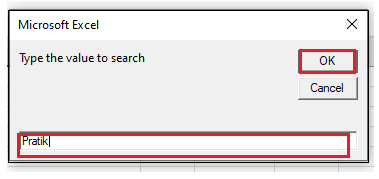
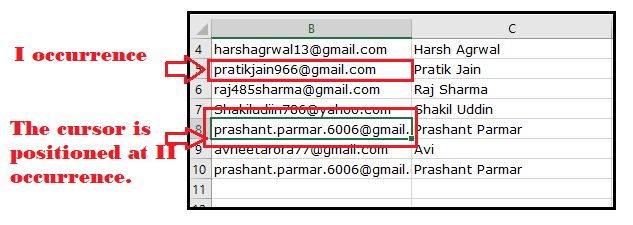
Step 11: It will redirect the cursor to the cell address of the first occurrence of the search value found in the Excel sheet.
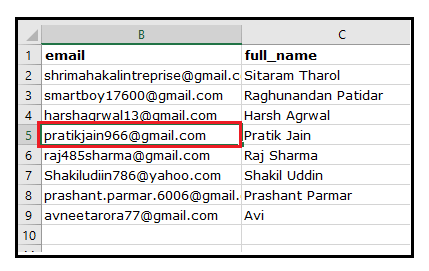
Step 12: Go to the VBA code, and again run the macro. In the input box type some random value that is present in the Excel sheet. Click on Ok.
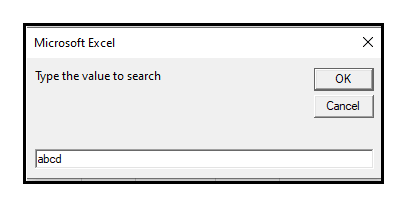
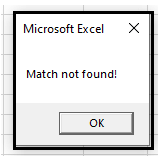
Step 13: If the value is not found, a message box will pop up stating, “The match not found”.
Find Function Example 2
In the above example, the information in the Excel Sheet was unique. If Excel has to find any particular value, it will find its first occurrence and will stop if the search value is matched. What if there were duplicate data or replication of data, unlike in the given Excel datasheet.
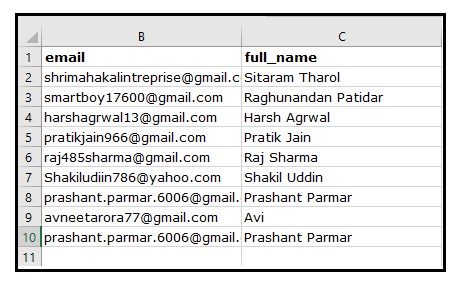
In the above datasheet, you will notice that the name Prasant has appeared more than once. To fetch the repeated value, the ‘After’ parameter comes into play. This parameter defines cell after which reference, we want to search the data.
Let’s us analyze step-step the above VBA Find function code:
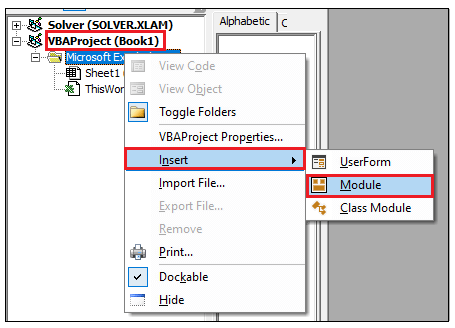
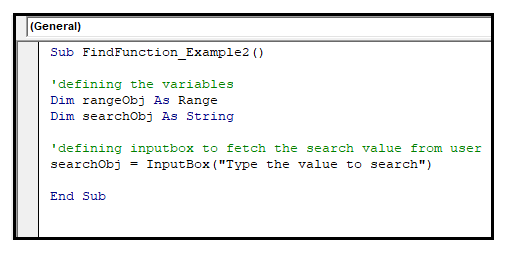
Step 1: Open the developer window by using the shortcut keywords Alt +F11. Create a module by right-clicking on the VBA Project-> Click on Insert-> Click on Module.
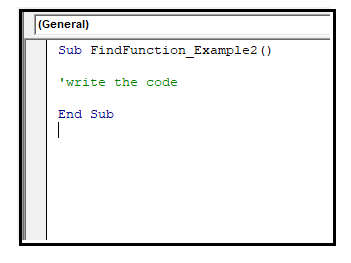
Step 2: In the Module window, introduce the sub-block, followed by your macro name.
Step 3: The next step is to introduce the range and search variables. With the help of an input box, we will seek the search value and will store that value in the search variable (searchObj).
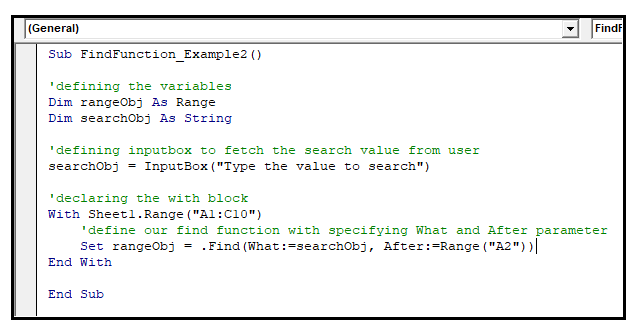
Step 4: By using the ‘With’ statement, we will use all the properties and methods of the Range object. Next, we will search for the value that has been entered by the user after the A2 cell, so we define our find function as below.
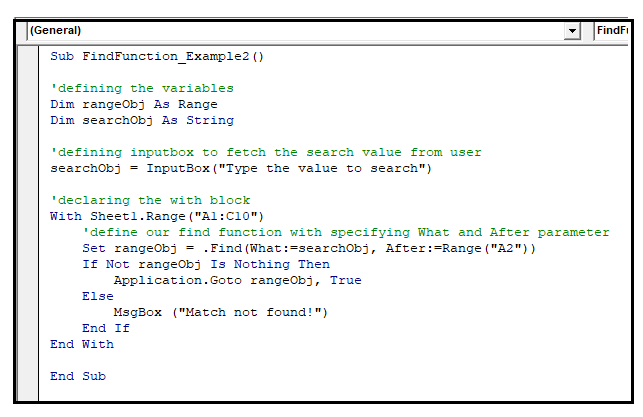
Step 5: With the help of IF and Else block, we will simply the program and will make it more user-friendly. If the match is found, it will return the range object else, it will pop a msgbox stating “Match not Found”.
Code:
Sub FindFunction_Example2()
'defining the variables
Dim rangeObj As Range
Dim searchObj As String
'defining inputbox to fetch the search value from user
searchObj = InputBox("Type the value to search")
'declaring the with block
With Sheet1.Range("A1:C10")
    'define our find function with specifying What and After parameter
    Set rangeObj = .Find(What:=searchObj, After:=Range("A2"))
    If Not rangeObj Is Nothing Then
        Application.Goto rangeObj, True
    Else
        MsgBox ("Match not found!")
    End If
End With
End Sub
Output
Step 9: Execute the above code either by pressing the F5 shortcut key or by clicking on the Run button.
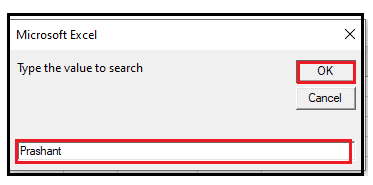
Step 10: A input box will pop up, asking for the search value. Type in the value you want to find in the excel sheet. Click on Ok.
Step 11: It will redirect the cursor to the cell address of the second occurrence of the search value found in the Excel sheet.