
VBA Global Variable
What is Global Variable?
The Global Variables in VBA refers to the variables declared before the start of any macro. They are defined outside the functions and are used by all the functions or the modules. Global Variables are usually declared by using the “Public” or the “Global” keyword. It can be used within your Classes, Sub Procedures, Modules, Declarations Section, and Functions.
With a local variable, you need to declare the same variable every time for each new module or different sub-procedure. Hence, every time a new space is allocated for the pre-defined variable. Also, it makes the maintenance task quite cumbersome. The Global variable was introduced to prevent these problems. All you need is to declare the variable only once outside the modules. It is useful for storing "constants" as it maintains the consistency of VBA code. For Example: If in your code, you are declaring multiple functions wherein every function needs some same data. In that case, you can use the Global variable to access the same data.
Once the Global Variable is initialized, and the code is run. The variable’s value is the same across and can be accessed to all the subprocedures and modules. It is always advisable to maintain a specific module to declare Global variables or all the variables in one place. Thus, it would make the debugging of your VBA code easier. You cannot reset the variable easily, but the only way we can reset the Global variable’s value is by pressing the stop button.
Advantages of Global Variable
The advantages of using the Global Variable are as follows:
- Globally accessible – The Global Variables are accessible to all the modules or functions in your VBA code.
- Declared only once- All you need is to declare the variable only once outside the modules and can use it anywhere in the VBA code.
- Reduces Complexity- It reduces the complexity of writing the large code and may confuse the use of different variables in different modules or subcategories.
- Consistent - It is good to use it for declaring the constant variables as it ensures the consistency of your VBA macro.
- Easy Maintenance – The Global variables allows easy maintenance for your code.
- Easy readability – It reduces the lines of code by declaring the variable once. Thus, making it more accessible for the programmer to read about constants.
Disadvantages of Global Variable
- The global variables are declared explicitly. Hence, it makes the debugging of your code harder.
- Any module or function in a program can be used to change the value of the global variable. If any changes are made to the Global variable, it will automatically get implemented at all the places wherein it has been used. Thus, degrading the functionality of your VBA code.
- The modules are using global variables, the variable is dependent upon the parent module, and if other modules are presented, you have to redesign each one all over each time.
Example 1: Demonstrating an example without using the Global variable.
Step 1: Open the VBA developer tab either by using the shortcut keywords Alt +F11 or click on developer window -> visual basic editor.
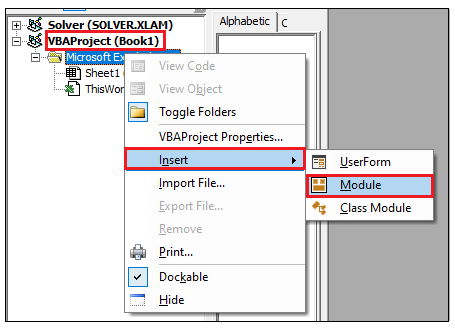
Step 2: Visual Basic Editor will open. The next step is to create a module. Right-clicking on the VBA Project-> Click on Insert-> Click on Module.
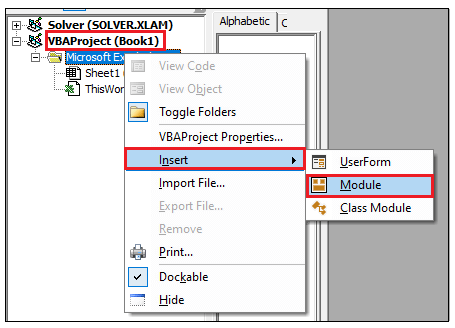
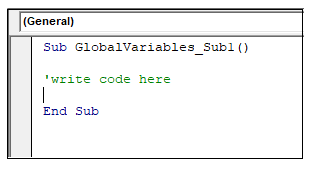
Step 3: In the VBA Module window, introduce the sub-block following with your macro name.
Code:
Sub GlobalVariables_Sub1()
‘write code here
End Sub
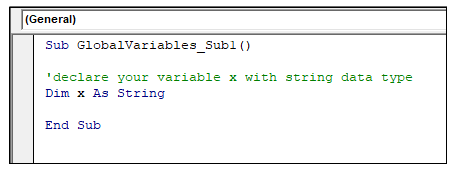
Step 4: The next step is to declare a variable within the sub-block with the help of the DIM keyword. Here, we have declared a variable x as String.
Code:
Sub GlobalVariables_Sub1 ()
‘declare your variable x with a string data type.
Dim x As String
End Sub
Step 5: Initialize the ‘x’ variable. Now, we will declare another sub-block in the same module and introduce another variable ‘y’ with String data type.
Code:
Sub GlobalVariables_Sub1()
'declare your variable x with string data type
Dim x As String
‘initializing x with 10
x=10
End Sub
Sub GlobalVariables_Sub2()
'declare your variable y with string data type
Dim y As String
End Sub
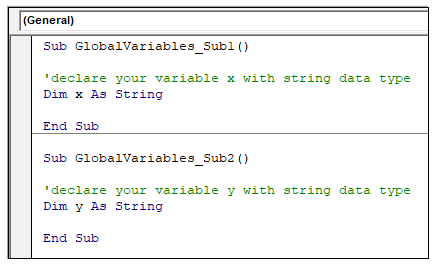
Step 6: Now, if we will access variable ‘x’ within the Sub GlobalVariables_Sub2() block, you will notice that the program will run without any error displaying ‘x’ as null. It is because in the Sub2() block another x variable is declared by default and has been allocated new storage space.
Note: As represented above, both variables x and y can only be used in their respective subcategories, and if it is defined in another sub-block, either it will throw an error, or the variable will be automatically declared. Thus, creating another space for the same variable. Hence, to make it work, the ‘Option Explicit’ was introduced. The variables declared under this can be used in different sub-blocks within the same module.
Option Explicit
Step 6: We will define the ‘Option Explicit’ keyword at the beginning of the module. And under that will declare another variable Z as String using Dim scope.
Code:
Option Explicit
'declaring variable z with String Data type.
Dim z As String
Sub GlobalVariables_Sub1()
'write your code
End Sub
Sub GlobalVariables_Sub2()
'write your code
End Sub
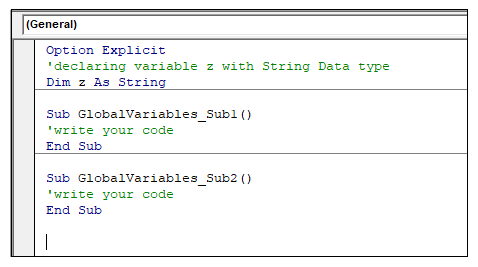
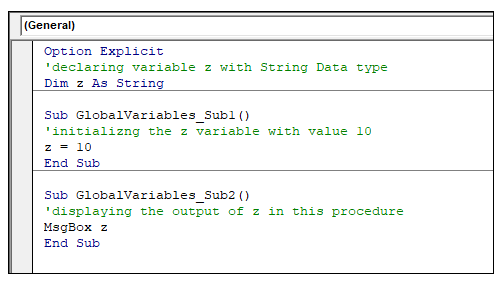
Step 7: You can call variable z within any subcategories. Here, we have initialized variables' value of z in both the sub-blocks and, with the help of MsgBox, have displayed the output.
Code:
Option Explicit
'declaring variable z with String Data type.
Dim z As String
Sub GlobalVariables_Sub1()
'initializng the z variable with value 10
z = 10
End Sub
Sub GlobalVariables_Sub2()
'displaying the output of z in this procedure
MsgBox z
End Sub
Output
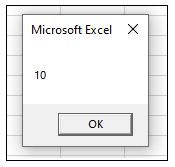
Step 8: Execute the above code either by pressing the F5 shortcut key or by clicking on the Run button. You must run the code twice for different subcategories. Firstly, run the code for Sub GlobalVariables_Sub1() block to initialize the Global Variable. Then again, run the code for the second sub procedure to display the output.
Example 2- Within different sub-blocks / Modules
- Sub Blocks
Code:
Option Explicit
'declaring the global variable z with as String
'with the help of Global keyword
Global glb As String
Sub GlobalVariables_Sub1()
'initializng the z variable with value 10
glb = 10
End Sub
Sub GlobalVariables_Sub2()
'now, the ‘z’ variable is public and can be used with different sub-blocks
'displaying the output of the z variable
MsgBox glb
End Sub
Step 1: Open the VBA developer tab either by using the shortcut keywords Alt +F11 or click on developer window -> visual basic editor.
Step 2: Visual Basic Editor will open. The next step is to create a module. Right-clicking on the VBA Project-> Click on Insert-> Click on Module.
Step 3: In the Declarations Section, under the ‘Option Explicit’ command, declare your global variable with Global (you can also use public) keyword.
Note: You can only declare the variable under the Option Explicit. But it cannot be used to initialize the variable else it will throw a compile error stating “Invalid Outside Procedure”.
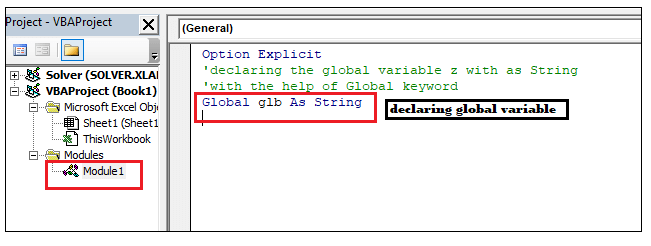
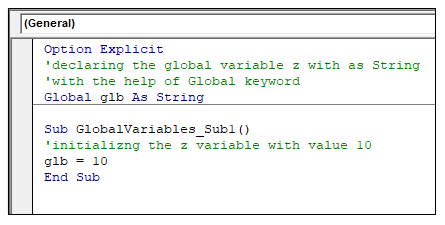
Step 4: Introduce a sub-block, and withing that block, we will initialize the global variable ‘glb’ with a value of 10.
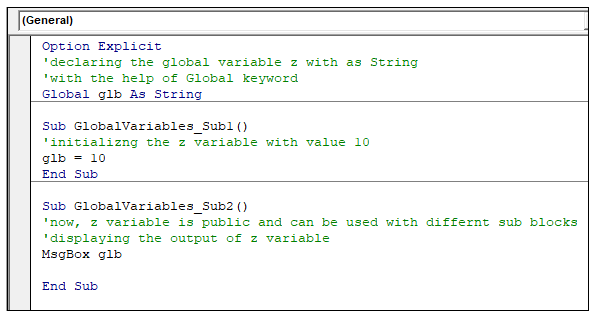
Step 5: Introduce another sub-block, within this block, we will display the value for the Global variable ‘glb’ with the help of MsgBox. The Global variable is accessible to all the subcategories. It can be initialized at any sub-block and can be used in another.
Output
Step 6: Execute the above code either by pressing the F5 shortcut key or by clicking on the Run button.
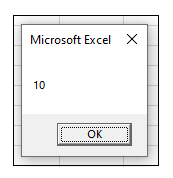
Step 7: Firstly, to the value in variable z, we will run the Sub GlobalVariable_Sub1(). After that, we will run the code for Sub GlobalVariable_Sub2() block. It will give the following output.
- Modules
Step 8: Within the same VBA Project, introduce another module.
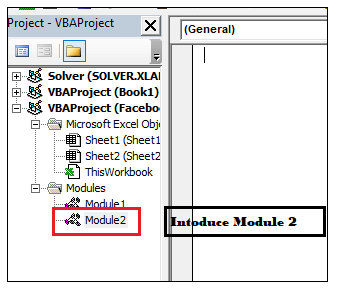
Step 9: In the VBA Module window, within the sub-block, introduce your macro name. And we will only fetch and display the global variable declared and initialized at Module 1.
Code:
Sub GlobalVariable_Module2()
'Fetching and displaying the global variable at Module 2
MsgBox glb
End Sub
Output
Step 10: Execute the above code either by pressing the F5 shortcut key or by clicking on the Run button.
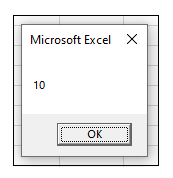
Hence, it proves that all the subprocedures and modules accept the Global variable with a VBA project editor.