
VBA Object Required
What is Object Required Error?
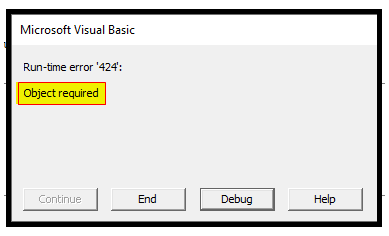
VBA Object Required is a run time error which occurs when the user does not define a valid object qualifier, or the assigned object doesn’t exist in the specified worksheet. It is also referred as to ERROR 424. In short, it means that the given object data type reference is invalid and needs to be accurate.
In VBA, an explicit object qualifier is often required to define different methods and properties. But if anything goes wrong with the specified object reference, VBA throws an error. It becomes tough for the beginners to debug the Object Required Errors because they cannot find the root cause for the error.
Below are some points explaining the real-time causes for this error:
- Object doesn’t exist - Variable and data types are an integral part of VBA programming language. Thus, Object is also one of the commonly used data types. If the user has declared an Object data type and the specified object doesn’t exist in your Excel sheet, VBA will through an Object Required error.
- Invalid Action- One of the major reasons this error occurs is when the user is performing an invalid action for the specified object. Even if you declare a valid object, VBA would be compelled to throw ‘Object Required’ error if you assign an unauthorized action. Thus, forcing the user to recheck the object’s documentation and then perform the action.
- Invalid Object Qualifier- If the user tries to assess an object’s property or method but has not defined a valid object qualifier.
- Misspelled Qualifier- Many times, this occurs if the user has declared an object qualifier, but the VBA compiler does not recognize it. It happens if the specified object qualifier is misspelled or referred to an invalid object or that object is not visible in the program.
- Error in Arguments - The specified object qualifier has arguments and it contains some an error within its arguments.
- Set Statement- This error occurs if the user has defined the non-object variable and later tries to assign a value to that variable using the Set statement. The vice-versa for this also throws an error, i.e., if the user assigns a value to the object reference directly without using the Set key.
How to handle the Object Required Error
In the coding world, even experienced developers commit mistakes. So, it is advisable to take preventive measures to check and prefix those errors rather than finding and latterly fixing as “Prevention is always better than cure”. A strong coding not only includes the right output but also triggers various segments which check and manage the code's flow if any error occurs. In the above part, we have briefly discussed the causes for Object Required Error, but there are numerous ways to handle any error. Below are some techniques through which we prevent the Object Required error:
- Most of the time, the Object Required error occurs because of misspelled object reference. To check all spell mistakes with variables, we can declare the Option Explicit statement at the top of the module. So, if there are any mistakes, it will pop up a message displaying and highlighting the variable.
- Always check twice if the referred object exists or not.
- Make sure that you have declared the correct object quantifier. The standard way is to explicitly declare the qualifier while referencing the property from a module.
- With Collection objects, make sure that you have used the occurrences of the Add method so as the syntax and spelling of all the variables are valid.
- Also, check the documentation for the specified object to ensure that the action involved with that object is valid.
Example 1:
Let us obtain a brief understanding by practically using a code where the Object Required error might occur, and it is when we have used the set keyword to assign a value for the non-object variable. Follow the below steps:
Step 1: Open the VBA developer tab either by using the shortcut keywords Alt +F11 or click on developer window -> visual basic editor.
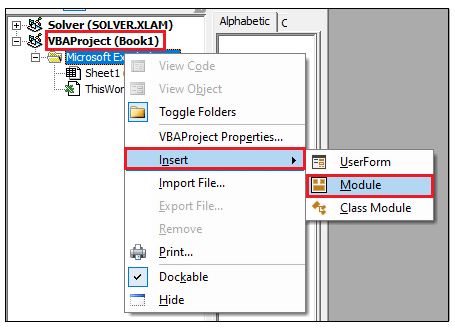
Step 2: Visual Basic Editor will open. The next step is to create a module. Right-clicking on the VBA Project-> Click on Insert-> Click on Module.
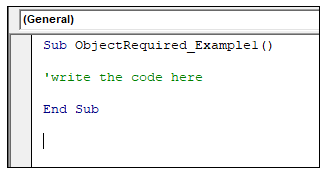
Step 3: In the VBA Module window, Introduce the subcategory following with your macro name.
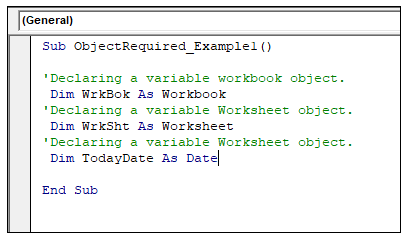
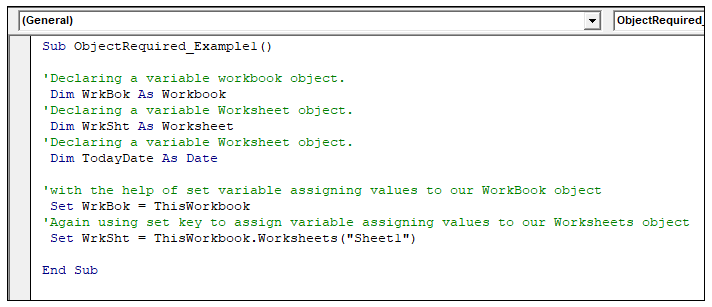
Step 4: Declare three variables one with WorkBook object data type, another with worksheet object data type, and the last ‘TodayDate’ with the date data type.
Step 5: Next, we will assign values to our object data types i.e., WorkSheet (WrkSht) and WorkBook (WrkBok), with the help of a set keyword.
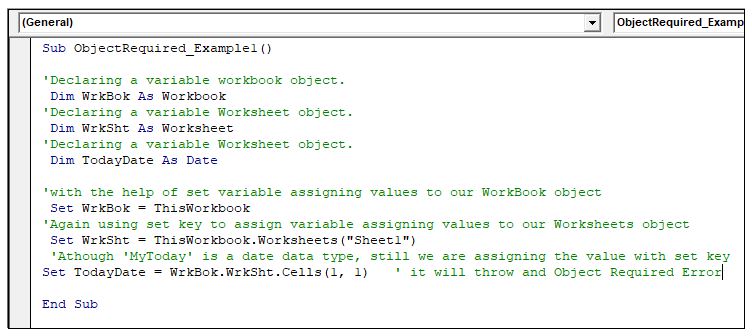
Step 6: Although ‘TodayDate’ is not an object data type still, we have used the set key to assign the value of the cell A1 value in this workbook (WrkBok) and the worksheet “Sheet1” (WrkSht).
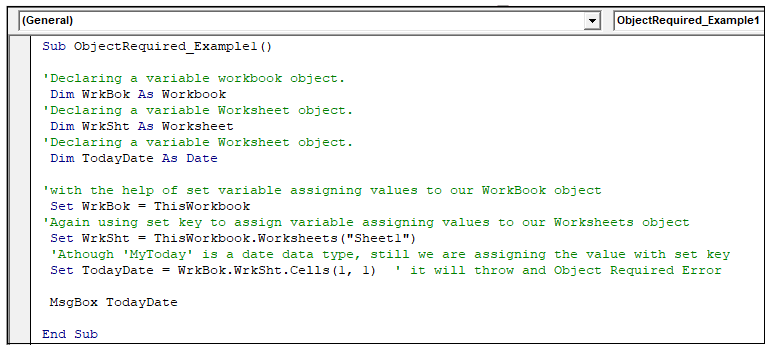
Step 7: At last, Display the value of the data variable with the help of a MsgBox.
Code:
Sub ObjectRequired_Example1()
 ‘Declaring a variable workbook object.
  Dim WrkBok As Workbook
 ‘Declaring a variable Worksheet object.
  Dim WrkSht As Worksheet
 ‘Declaring a variable Worksheet object.
  Dim TodayDate As Date
 ‘with the help of set variable assigning values to our WorkBook object
  Set WrkBok = ThisWorkbook
 ‘Again, using set key to assign variable assigning values to our Worksheets object
  Set WrkSht = ThisWorkbook.Worksheets("Sheet1")
  ‘Although ‘MyToday’ is a date data type, still we are assigning the value with set key
 Set TodayDate = WrkBok. WrkSht.Cells(1,  1) ‘ it will throw and Object Required Error
 ‘displaying the value for the variable TodayDate
 MsgBox TodayDate
 End Sub
Output
Step 8: Execute the above code either by pressing the F5 shortcut key or by clicking on the Run button.
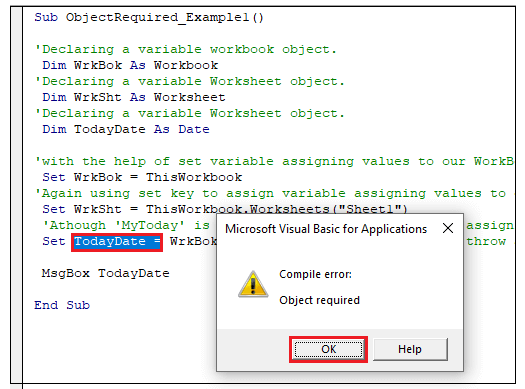
Step 9: You will notice that the message dialog box has pop up displaying the “Object Required” compile error and highlighting the ‘TodayDate’ variable.
Explanation:
The above error occurred because we have used the set keyword to assign a value to the variable which was not of “Object” data type. So, the moment the VBA compiler read the Set keyword, it searched for its object reference. The date data type is not of Object, so it threw the error immediately.
Example 2:
Let’s work with a second example where the Object Required error might occur, and it is when we have typed the wrong spelling for a worksheet object. Follow the below steps:
Step 1: On the VB Editor, create a module and introduce your sub-block following with your macro name.
Step 2: With the help of the Sum worksheet function, we will calculate the total for the range of cells in between A1 to A10.
Step 3: And will store the return sum value to cell address A11.
Code:
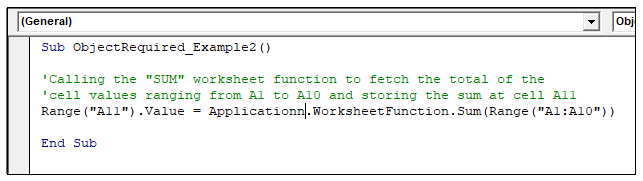
Sub ObjectRequired_Example2()
 ‘Calling the “SUM” worksheet function to fetch the total of the
 ‘cell values ranging from A1 to A10 and storing the sum at cell A11
 Range("A11").Value = Applicationn.WorksheetFunction.Sum(Range("A1:A10"))
 End Sub
Output
Step 8: Execute the above code either by pressing the F5 shortcut key or by clicking on the Run button.
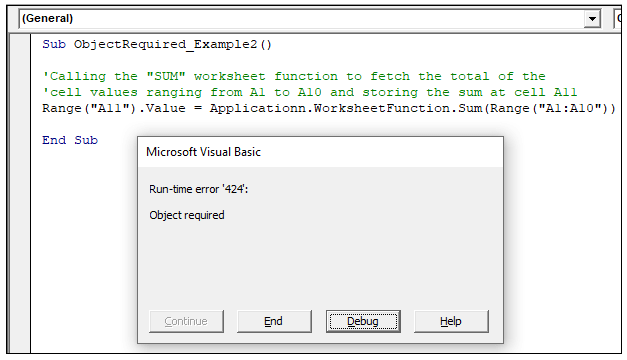
Step 9: You will notice that the message dialog box has pop up displaying the “Object Required” compile error.
Explanation
If you look meticulously, you will notice that in the above code, we have misspelled the Application object as “Applicationn”. Thus, the compiler could not recognize this word and will through the error.
Debug
Step 10: Either search for the mistake manually, or else the easiest method to declare the ‘Option Explicit’ keyword at the top as silly and typing mistakes are very common in coding.
Code:
'Declaring option Explicit to check typing error quickly.
 Option Explicit
 Sub ObjectRequired_Example2()
 'Calling the "SUM" worksheet function to fetch the total of the
 'cell values ranging from A1 to A10 and storing the sum at cell A11
 Range("A11").Value = Applicationn.WorksheetFunction.Sum(Range("A1:A10"))
 End Sub
Step 11: Run the code. VBA will throw an error highlighting the misspelled object.
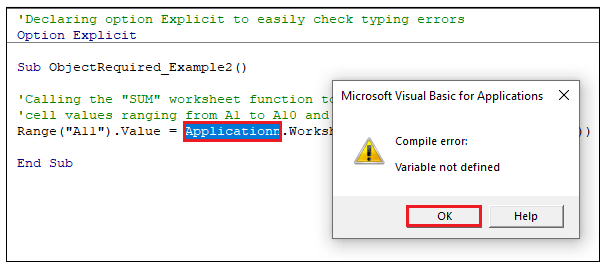
Step 12: Correct the spelling ad re-run the code again. The sum will be calculated and displayed on your Excel sheet.