
VBA runtime error 1004
What is 1004 error?
VBA 1004 Error, also known as object-defined or application-defined, is a runtime error in VBA, usually, if the specified range does not exist in the worksheet or if the Application or the object if not appropriately defined. Error 1004 can cause a severe problem and even can crash your VBA macro code, or in some cases, it freezes the system for a while. This error is encountered by all Ms Excel versions, unlike Excel 2007, 2010, 2013, 2016, and even 2019.
VBA 1004 Error is an error we encounter even if there is some corruption in the Mas Excel desktop icon or any conflict in the file concerning other programs while opening the VBA Excel file. Sometimes when you copy the filtered data and paste it to another worksheet of Ms Office Excel, the 1004 Error is thrown.
Why Error 1004 occurs?
Errors are part and parcel of any programming language. They are usually unintentional but creates loads of troubles. Runtime errors can occur anywhere in your code, even if you are a pro coder. In VBA, the Runtime Error 1004 encounters due to several reasons. Few of the common reason for the occurrence of Runtime Error 1004 are explained below:
- Run-time error ‘1004’: Method ‘Range’ of object ‘_ Global’ failed
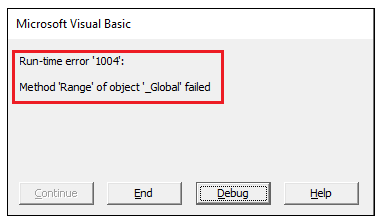
In Excel, we have a fixed number of rows and columns. This error occurs if the user refers to an invalid range that is out of the Excel’s list. Because it revolves around range or objects, so it displays the error message that the “Range” of object’ _ Global’ method has failed.
Example: Demonstrating the VBA code where the range variable does not exist in our worksheet.
Code:
Sub RunTimeError1004_Example()
  'We have used an invalid headings range
  Range("Headings").Select 'throw an Error 1004
End Sub
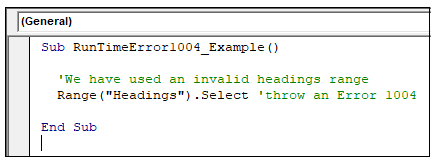
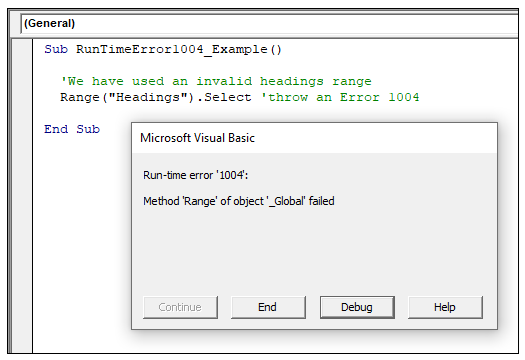
Press the F5 key to run the code. When you run the above code, you will get the following output.
Output
- Run-time error ‘1004’: That Name is already taken. Try a different One.
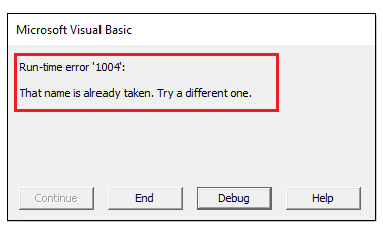
Many times in confusion, we use the same name, which is already given to another Excel sheet in the same workbook. When the compiler reads the code and tries to refer to the sheet, but the same name creates ambiguity. Thus, it throws a runtime Error 1004, stating that the name is already taken, try with a different name.
For example, in the below code in our Excel workbook, we have three worksheets named as ‘Sheet1’, ‘Sheet2’, and ‘Sheet3’. Now, if we try to rename our worksheet ‘Sheet1’ with ‘Sheet2’ and run the code, the VBA compiler will throw a run time error.
Example: Demonstrating the VBA code where we assign an existing name to our worksheet.
Code:
Sub RunTimeError1004_Example()
 'We have replaced the worksheet  Sheet1's name
 'So there now there will be two worksheets named with 'Sheet2'
 Worksheets("Sheet1").Name = "Sheet2" 'throw an Error 1004
End Sub
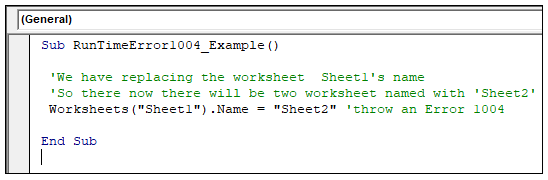
Press the F5 key to run the code. When you run the above code, you will get the following output.
Output
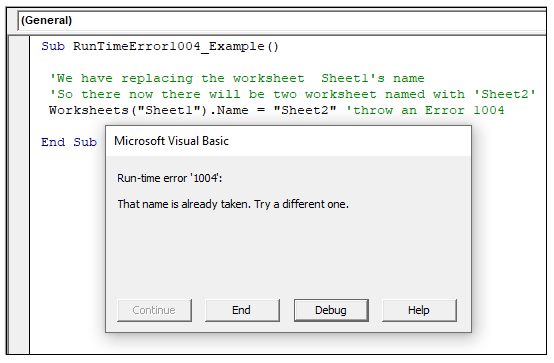
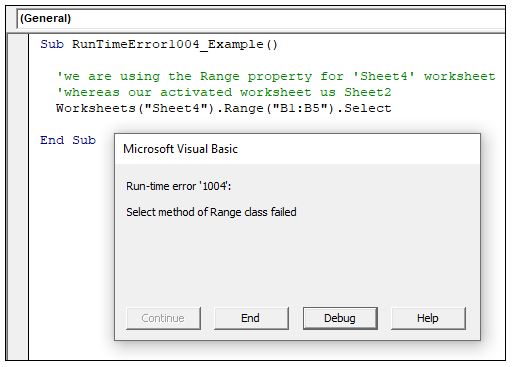
- Run-time error ‘1004’: Select method of Range class failed
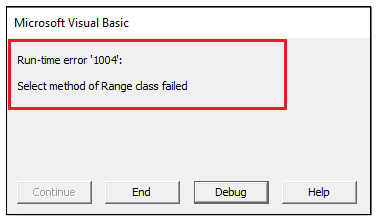
Sometimes this error occurs if we specify the range in some another worksheet. But we have not activated the same worksheet whose range we have selected. This error would directly mention that VBA could not access the chosen range property of Range class.
Example: Demonstrating the VBA code where the range variable does not exist in our worksheet.
Code:
Sub RunTimeError1004_Example()
  'we are using the Range property for 'Sheet4' worksheet
  'whereas our activated worksheet us Sheet2
  Worksheets("Sheet4").Range("B1:B5").Select
End Sub
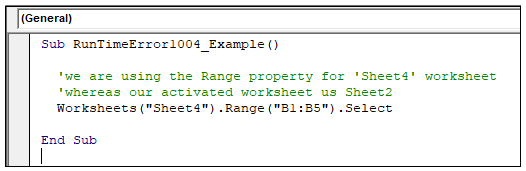
Press the F5 key to run the code. When you will run the above code, you will get the following output.
Output
- Run-time error ‘1004’- Method ‘Open’ of object ‘Workbooks’ failed or Microsoft Excel cannot access the file.
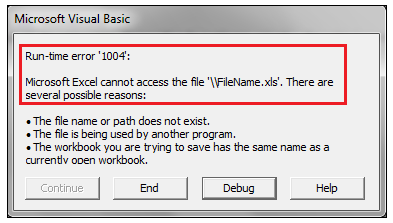
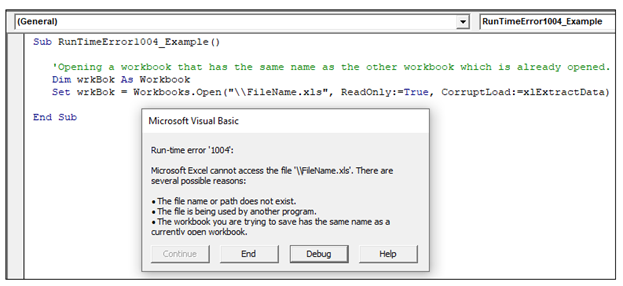
VBA code sometimes throws the Error ‘1004’ if we try to open a workbook that is already open, or another program is already using the same file which the user is referring to.
Example: Demonstrate the VBA code where the specified file is already opened or has the same name as the other workbook which has already been opened.
Code:
Sub RunTimeError1004_Example()
   Dim wrkBok As Workbook
   Set wrkBok = Workbooks.Open("\\FileName123.xls", ReadOnly:=False, CorruptLoad:=xlExtractData)
End Sub
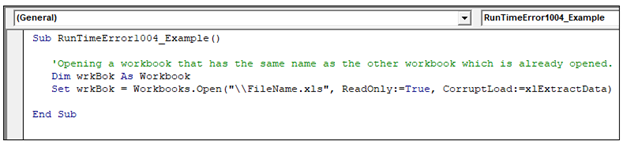
Press the F5 key to run the code. When you run the above code, you will get the following output.
Output
- Run-time error ‘1004’: Sorry, we couldn’t find file_name. Is it possible it was moved, renamed, or deleted?
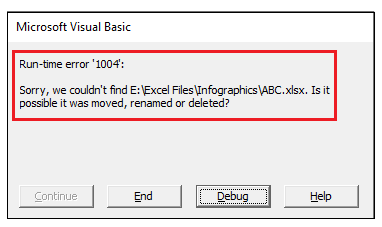
When the user tries to open an Excel worksheet or refer to a directory that does not exist because the file has been moved, deleted, or renamed from the specified path, in that case, VBA throws an Error 1004, stating that the compiler could not find the specified file. Sometimes, this error could also be displayed if you have misspelled the path or have typed an incorrect file name.
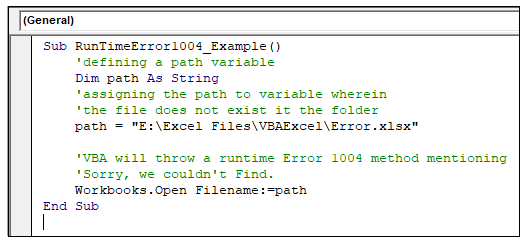
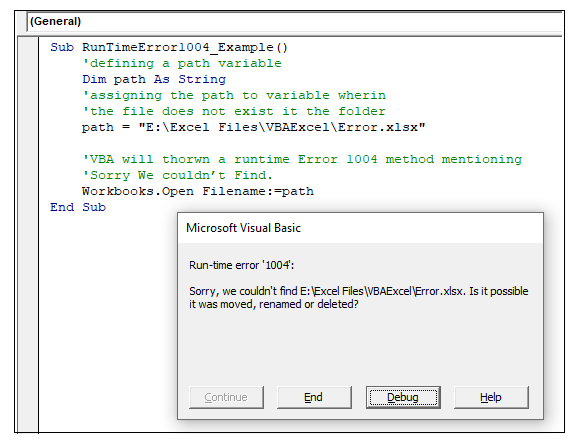
For example: In the below code, we have specified the file address in the path variable. But we know that the defined file path does not exist as there is some typing error.
Example: Demonstrating the VBA code where the specified path does not exist in our worksheet.
Code:
Sub RunTimeError1004_Example()
    'defining a path variable
    Dim path As String
    'assigning the path to variable wherein
    'the file does not exist it the folder
    path = "E:\Excel Files\VBAExcel\Error.xlsx"
    'VBA will throw a runtime Error 1004 method mentioning
    'Sorry, we couldn’t Find.
    Workbooks.Open Filename:= path
End Sub
Press the F5 key to run the code. When you run the above code, you will get the following output.
Output
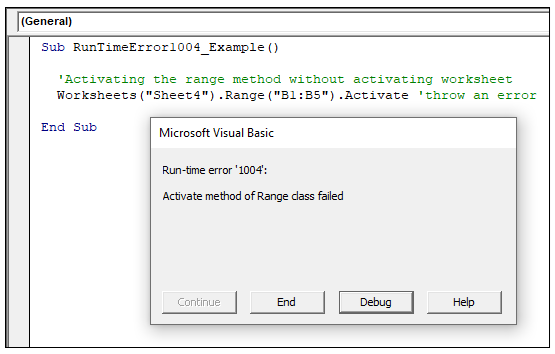
- Run-Time error ‘1004’: Activate method of Range class failed.
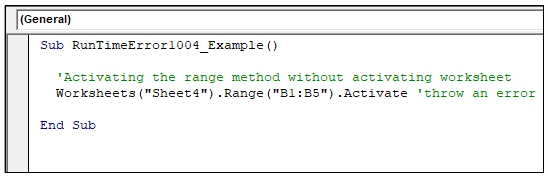
This error occurs when we activate the range cells without activating the Excel sheet. Thus, the activate method for range class fails as the compiler can not look for the worksheet.
For example, In the below code, we have activated the Range method. But it will throw an error as we have not specified the worksheet.
Example: Demonstrating the VBA code where the worksheet is not activated though we have accessed the Range activate method.
Code:
Sub RunTimeError1004_Example()
  'Activating the range method without activating a worksheet.
  Worksheets("Sheet4").Range("B1:B5").Activate 'throw an error
End Sub
Press the F5 key to run the code. When you run the above code, you will get the following output.
Output
How to Fix the Error 1004?
- The range object should be valid. The row and column counting should range from 1 to 104856, and columns range from A to XFD.
- Always have a note regarding your exiting Sheet name, and whenever you want to rename a worksheet, make sure it does not get repeated.
- Never type the path or file address directly. Always try to copy it and paste the source file.
- Before activating the range class, always measure that you have activated the Active worksheet prior.
- Sometimes there are some issues with you with the .xlsx file, or because of corrupted file also this error is thrown. In those cases, the professional recommendation solution is Ms Excel Repair Tool, which is extremely helpful to repair .xls and .xlsx file. It is a unique repairing tool which helps to fix multiple corrupted files. Ms Excel Repair Tool is capable enough to fix and repair charts, cell comments, workbook, worksheet features at once. One of the reasons for recommending this tool is its ease and supportive property, which can run both on Mac as well as Windows operation System.