×

ActiveX Controls

ActiveX Controls

ActiveX Controls are one of the most used Excel Controls to automate applications with Excel VBA. It has the same controls, unlike Form Controls (Command Button, combo box, checkbox, etc.), but it supports more features and usability to perform multiple operations in the Excel sheet. For the same macro, ActiveX control and Form control will result in different outputs. In ActiveX control, the flow of the program is managed in the VBA editor window (where you can easily debug and run the code with ALT + F11). The user can add multiple ActiveX controls as per his requirement, whereas in Form Control the usability is limited.  These controls show up as objects that the user can use in the VBA code and thus used in complex scripts. You can use these controls for setting the layout and orientation for your excel sheet, fetching out the commonly used data, customizing the data, etc.,

Advantages of ActiveX Control

  • It is customizable and can be easily created.
  • ActiveX Control allows flexible design and is used to advanced scripts.
  • You can easily write up the code in VBA Editor and assign that code to your ActiveX control.
  • It is loaded into the memory separately. Hence, the program will run smoothly.
  • The user can access the flow of the control programmatically.
  • In this, the user can activate multiple controls.
  • ActiveX controls are used in day to day business activities and save a lot of time.

Disadvantages of ActiveX Control

  • These controls only work for Windows, and it is not supported in MAC. Thus, many users avoid them to use.
  • They are not used for basic and simple scripts.
  • By default, many computers don’t trust ActiveX controls and disable them. In that case, the user needs to add the trust center manually.

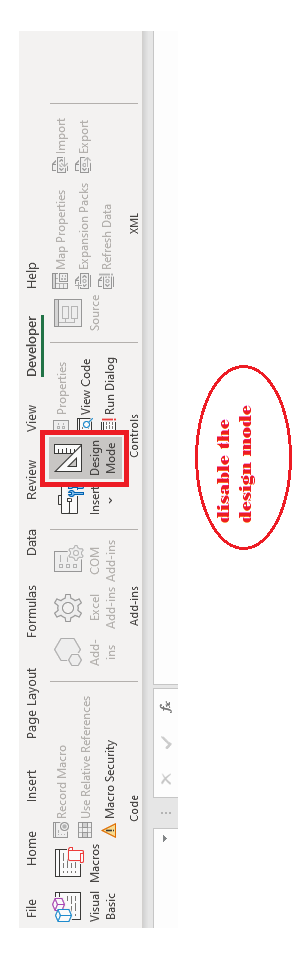
ActiveX controls are added in the Excel sheet while enabling the design mode. Once everything is set and, the programming is done, disable the design mode to activate the ActiveX control. The following steps are used to activate ActiveX Controls:

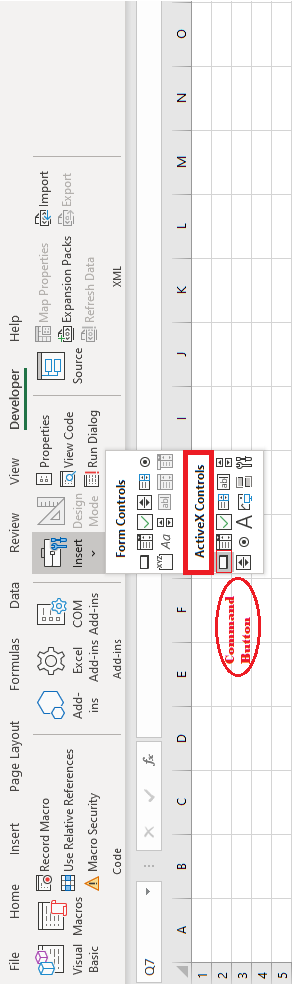
  1. Go to the Developer Tab. Click on insert under the Controls section.

ActiveX Controls
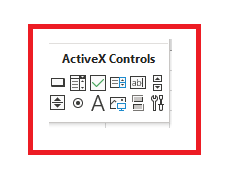
  • From the form control and ActiveX control, choose the required control. Unlike here, we have chosen the command button.
ActiveX Controls
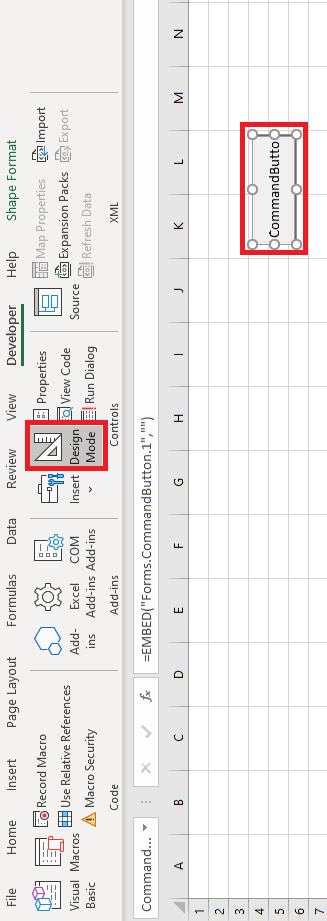
  • Make sure the design mode is enabled. Drag the control (command button) to the excel sheet and place is appropriately as per the excel layout.
ActiveX Controls
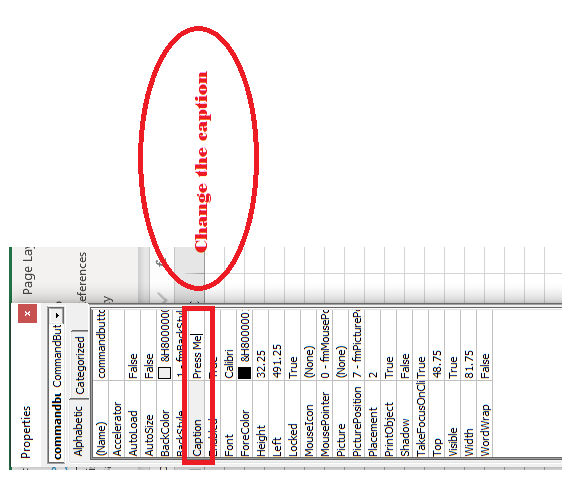
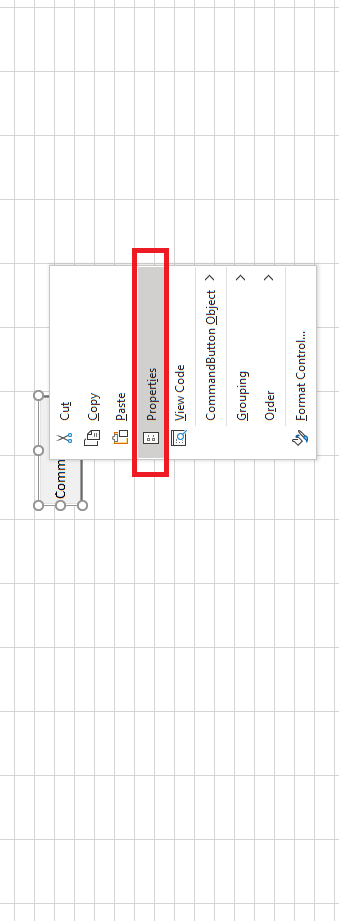
  • You can rename the ActiveX control by right-clicking on the control and selecting the properties option. The properties dialog box appears on the left side of the sheet. Under the caption option set the control name. You can even change or enable the other properties unlike, font, BackColor, ForeColor, locked, visible, etc., for the control.
ActiveX Controls
ActiveX Controls
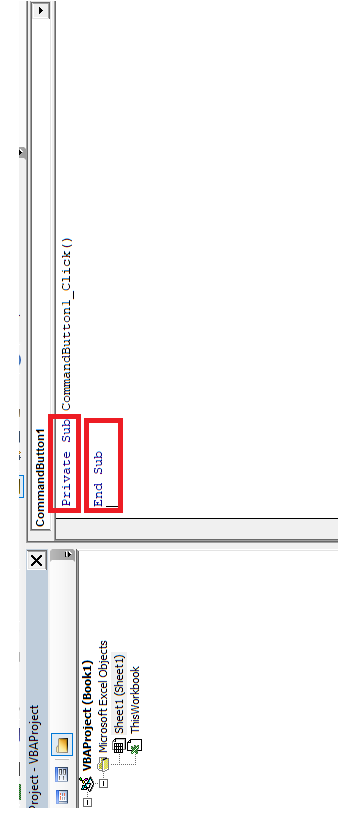
  • Double click on the control or right-click on the control and select the view code option. View code will direct you to the VBA Editor window where you can write the code to implement an action whenever the user clicks on the control. Write your code in between the sub and end sub procedure.
ActiveX Controls
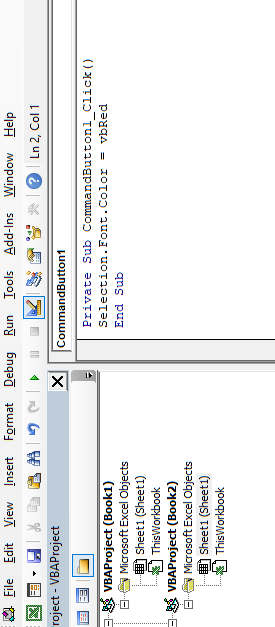
  • Below we have written a code to change the font color for the selected data to Red.

Private Sub CommandButton1_Click()

Selection.Font.Color = vbRed

End Sub
ActiveX Controls
  • Come back again to the excel sheet and disable the design mode such as the control can become clickable.
ActiveX Controls
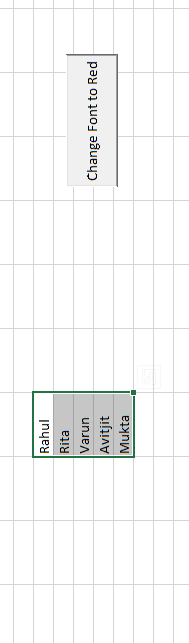
  • Select the text and click on the ActiveX Command Button.
ActiveX Controls
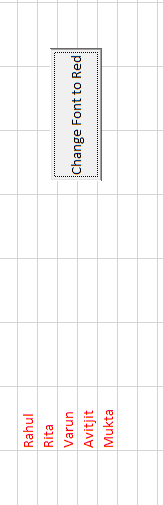
  • You will notice that the font color has changed from black to Red.
ActiveX Controls

Related Topics

VBA Subscript out of Range

What is Subscript out of Range? The VBA Subscript out of Range error (which is also called as Run-Time Error 9) mostly triggers when the user selects any cell, sheet, or workbook which does...

5 minutes read.

VBA VBScript Regex Methods Regex

VBA VBScript Regex Methods Regex The VBA Regex supports 3 methods which are as follows: ExecuteReplaceText Execute The execute method is used to extract a match from the given based on the defined matching...

3 minutes read.

Excel VBA- Pivot Table Fields

VBA- Pivot Table Fields: The Pivot Fields collection contains all the fields from the data source, including any calculated fields. The main aspect of adding a field is its Position...

4 minutes read.

Excel VBA InputBox

Input Box The InputBox function in VBA is used to prompt the users to enter values. The user can click either the OK button or can choose the CANCEL button. If the user clicks...

3 minutes read.

Looping in VBA

Looping in VBA There are many situations where a programmer needs to execute a block of the repetitive code number of times. Writing the same statement will make the program tedious and monotonous....

3 minutes read.

How to save Macro Workbook?

Saving Macro Workbook Default Excel File Extension The default excel file extension is “.xlsx”. But the standard file extension “.xlsx” cannot contains macros. So, the workbook contains macro when save din.xlsx file, all VBA...

1 minute read.

For Next loop in VBA

For Next Loop The ”For Next” loop is used for a fixed number of times. It works by implementing the loop for the specified number of times. In this, the user specifies how...

3 minutes read.

Excel VBA Format Function

VBA Format Function The format function in VBA applies a specified format to an expression and returns the result as a string. Syntax Format (Expression, [Format], [FirstDayOfWeek] , [FirstWeekOfYear] ) Parameter Expression (required)- This parameter represents the expression that you want to format. Format...

3 minutes read.

Excel VBA Str Function

VBA Str Function: The Str function in VBA converts the given number into a string representation of that number. Syntax Str (Number) Parameter Number (required) – This parameter represents the numeric value that you want...

1 minute read.

Excel VBA IsEmpty Function

VBA IsEmpty Function: The IsEmpty function in VBA returns a Boolean value showing whether the specified Expression is Empty (variant has not been declared) or not. Syntax IsEmpty (Expression) Parameter Expression (required)- This parameter...

1 minute read.

Excel VBA Second Function

Excel VBA Second Function: The Second function in VBA returns the second element for the specified time.  Syntax Second (Time) Parameter Time (required) – This parameter represents the time. Return This function returns the second...

1 minute read.

Excel VBA Space Function

VBA Space Function: The Space function in VBA creates a String consisting of a specified number of spaces. Syntax Space (Number) Parameter Number (required) - This parameter represents the number of spaces. Return This function returns a...

1 minute read.

Excel VBA FormatCurrency Function

VBA FormatCurrency Function: The FormatCurrency function in VBA is used to apply a currency format to a numeric expression and returns the result as a string. Syntax FormatCurrency (Expression, [NumDigitsAfterDecimal], [IncludeLeadingDigit], [UseParensForNegativeNumbers], [GroupDigits]) Parameter Expression (required)...

2 minutes read.

Excel VBA Array

Introduction to VBA Array An array is a type of variable that holds more than one piece of data. In VBA, you can refer to a specific variable (element) of an array by using...

5 minutes read.

Excel VBA MessageBox

Message Box The MsgBox in Excel VBA is a dialog box used to inform the users of your program by showing a custom message or get some necessary inputs such as Yes/No or...

4 minutes read.

Excel VBA Len Function

VBA Len Function: The Len function in VBA returns the number of characters in a supplied string or the number of bytes required to store a supplied variable. Syntax Len (Expression) Parameter Expression (required)-...

1 minute read.

Finding Last Row or Column in Excel VBA

Finding Last Row or Column in VBA Finding the last used row, column, or cell is one very commonly used task when we write macros and VBA applications.  Like other codes...

5 minutes read.

Excel VBA Hour Function

The hour function in VBA returns the hour element for the specified time. Syntax Hour (Time) Parameter Time (required) – This parameter represents the time. Return This function returns the hour element for the specified time. Example 1 Sub HourFunction_Example1() ...

1 minute read.

VBA Not Equal Operator

What is VBA Not Equal Operator? VBA Not Equal binary operator (“<>”) is a logical function that is used to check if the specified values are not equal or not. This...

5 minutes read.

Excel VBA Oct Function

VBA Oct Function: The Oct function in VBA converts the given number into octal notation and returns the result as a string. Syntax Oct (Number) Parameter Number (required) – This parameter represents the numeric value...

1 minute read.