VBA Option Explicit
VBA Option Explicit
The Option Explicit in VBA is used to declare the variables at the top of your macro code. It is the most secure and easy option to maintain your variables. While coding, chances are there that the coder may forget to define a variable or mistakenly re-write the same variable or may misspell a variable.
The code may not display any error, but you will surely the user won’t get the desired output every time. Assume in a multi-national company where you have multiple lines of codes. If any variable is mistakenly forgotten or misspelled, it would become a cumbersome job to examine the thousand lines of code over and over again and rectify the code.
VBA has introduced a solution known as Option Explicit Statement to avoid these kinds of situations and mistakes. It is mandatory to declare this statement on the top of the VBA code, so as it can highlight all the variable which is not defined.
Declaring Option Explicit statement allows you to declare all the variables in one place so as in the future if your code encounters an error, you can directly check at the top of your code module. You can also declare the global variables within the Option Explicit statement. If the Option Explicit statement is omitted, all undefined variables are declared with the Variant data type (the default type or Deftype statement). Thus, consuming more storage and effective the runtime. It is always recommendable to use the Option Explicit statement at the top of your module, as it prevents the mistyping of the variables and boosts the efficiency of your code.
Advantages of Option Explicit
- The Option Explicit statement is used to avoid the incorrect typing of exiting variables. For example: If you have declared the Option Explicit statement at the top of your module and you try to access an undefined variable, it would throw a runtime error.
- This command forces the explicit declaration of all your variables.
- This statement prevents the use of an undeclared variable that throws an error at compile time.
- If you have not declared the data type for your variable, the VBA compiler chooses the default underlying variant data type. Thus, it will consume time, and your macro will run slower. So, for such events, Option Explicit saves time.
- For the undefined variable, the compiler implicitly chooses the data type of your variable as a variant. In the list of data types, variant reserves the highest space of 16 bytes of data. Imagine every time you forget to mention the data type for your variable, and it will straightly consume 16 bytes memory. Thus, Option Explicit checks this issue as well and saves memory.
Example 1: Demonstrate an example of depicting the challenges faced without Option Explicit.
Step 1: Open the VBA developer tab either by using the shortcut keywords Alt +F11 or click on developer window -> visual basic editor.
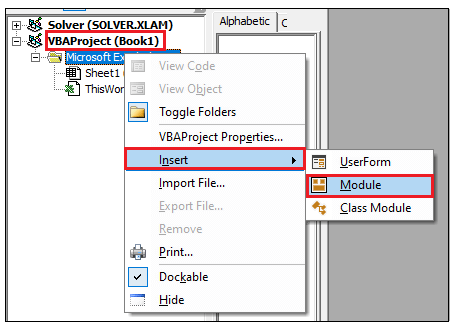
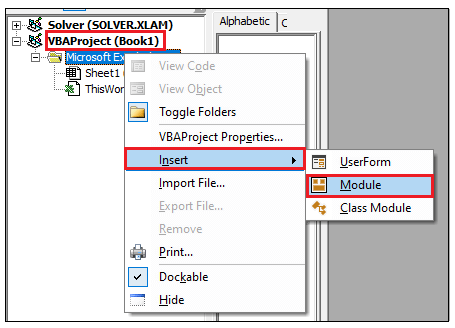
Step 2: Visual Basic Editor will open. The next step is to create a module. Right-clicking on the VBA Project-> Click on Insert-> Click on Module.
Step 3: In the VBA Module window, write the following code
- Introduce the subcategory following with your macro name
- Declare your variable with Integer Data type
- Initialize the variable with integer value 20
- Write the logic to add 5 to the variable. Make sure that you deliberately type the wrong name for the variable.
- Display the value of the variable with the help of a MsgBox
Code:
Sub OptionExplicit_Example1()
 'Defining the variable with Integer data type
 Dim iSum As Integer
 'initializing the variable with integer value 20
 iSum = 20
 'adding 5 with the variable’s value
 iSum = iSm + 5 'here variable ism is not declared
 'displaying the output of the variable after adding 5 to it
 MsgBox ("The value for the variable is " & iSum)
 End Sub
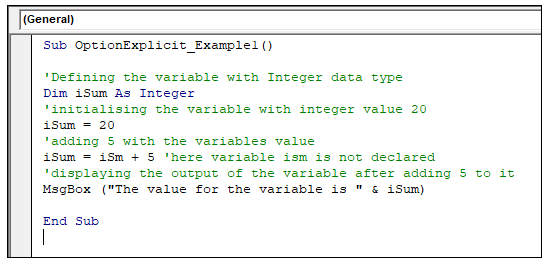
When you will run the above code, you will get the following output.
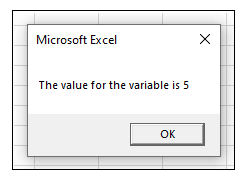
Output
Explanation:
You were expecting the output to be 25, but to your surprise, you get 5. This mismatch occurred because we have misspelled the variable in the code, and instead of ‘iSum’ we here mistakenly written ‘iSm’. Although it didn’t stop the program by displaying an error, it has definitely hampered the output’s quality. Now the programmer has to go back and look where the mistake has happened. Thus, it becomes quite a long and tedious task.
Example 2: Demonstrating the above example with Option Explicit.
Step 1: Open the VBA developer tab either by using the shortcut keywords Alt +F11 or click on developer window -> visual basic editor.
Step 2: Visual Basic Editor will open. The next step is to create a module. Right-clicking on the VBA Project-> Click on Insert-> Click on Module.
Step 3: In the VBA Module window, write the following code
- Declare the Option Explicit statement at the top of your module
- Introduce the subcategory following with your macro name
- Declare your variable with Integer Data type
- Initialize the variable with integer value 20
- Write the logic to add 5 to the variable. Make sure that you deliberately type the wrong name for the variable.
- Display the value of the variable with the help of a MsgBox
Code:
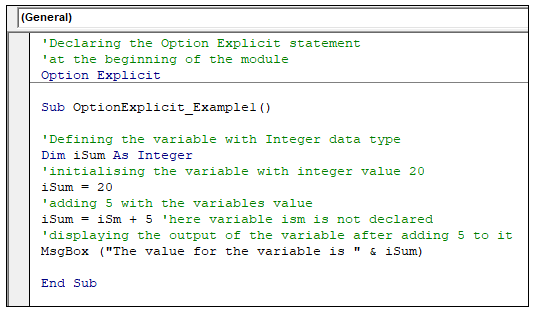
'Declaring the Option Explicit statement
 'at the beginning of the module
 Option Explicit
 Sub OptionExplicit_Example1()
 'Defining the variable with Integer data type
 Dim iSum As Integer
 'initializing the variable with integer value 20
 iSum = 20
 'adding 5 with the variable’s value
 iSum = iSm + 5 'here variable ism is not declared
 'displaying the output of the variable after adding 5 to it
 MsgBox ("The value for the variable is " & iSum)
 End Sub
Output
Explanation:
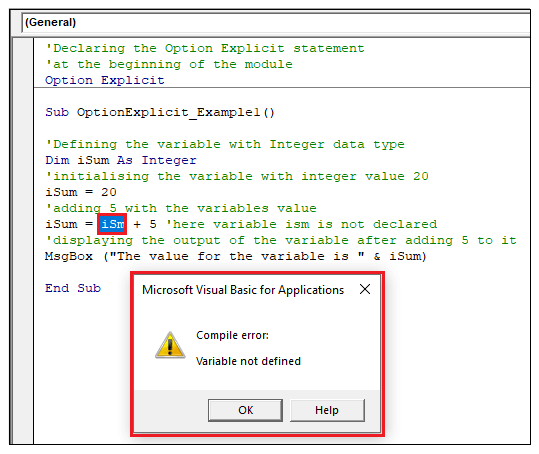
You will notice that the program will throw an error as you have used a variable that is not defined. It will automatically highlight the variable a well. Now, you can easily check whether it’s a typo error or variable is not defined.
Option Explicit Automatic Method
So far, we have learned regarding the Option Explicit option, its advantages, and how to implement it. It is advisable to use this command every time before the start of your code. So, VBA launched another method by which we don’t have to write the statement over and again on every page of our code. We have to modify a few instructions, and the VBA will automatically insert the Option Explicit statement at the top of all our modules
Follow the below points to enables this method:
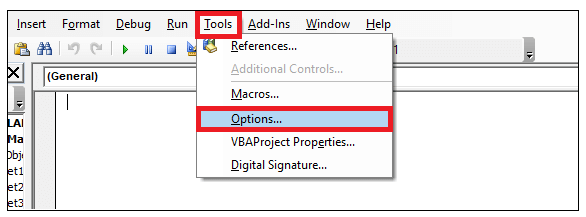
Step 1: Open the VBA Editor window and click on Tools tab from the headers of the VB Editor. The toolbox will appear from there select Options.
Step 2: The Options wizard box will pop up, as shown below.
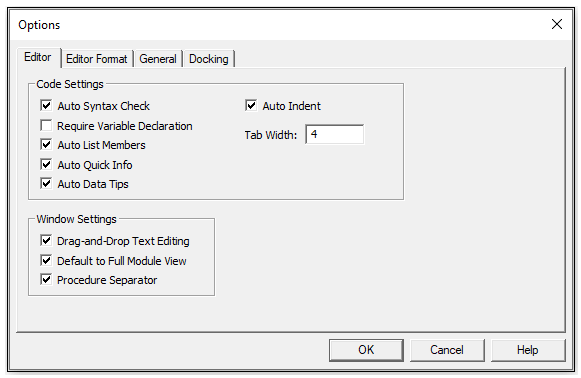
Step 3: In the Editor’s window, tick on the “Require Variable Declaration” checkbox option. Click on Ok.
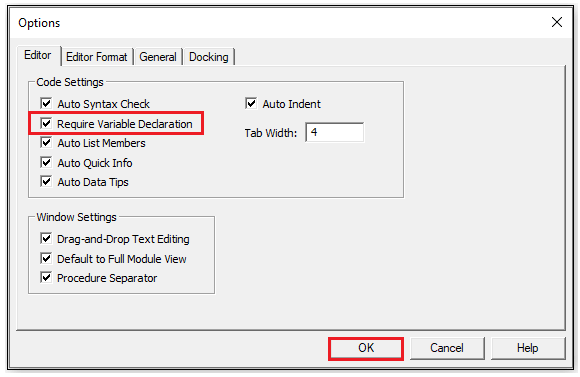
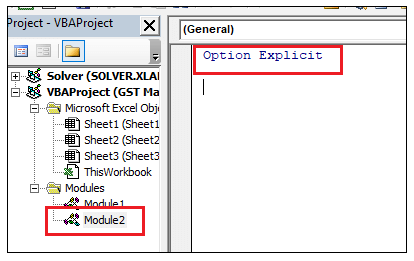
Create a module, or if you have an existing module, restart it. You will notice that every time you introduce a new module, the Option Explicit statement is implicitly implemented at the top of your code. In the below example, we have created another module named ‘Module 2’, and this command is automatically present at the top.