×

Steps to Create a Chart in VBA

Steps to Create a Chart

Charts are created either by directly working with the chart variable object that defines the chart data or by ChartObject method. In order to get to the object without an existing chart, you create a ChartObject on a given Worksheet and then get the Chart object from it.

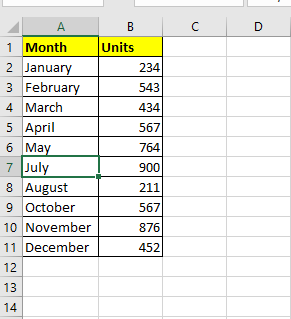
We should have an excel numeric data before creating any chart. Here, we have taken the sample data.
Steps to Create a Chart in VBA

The below procedure explains the step by step creation of a simple bar Chart VBA program. We have used a few chart properties and features in the below code. But the user can modify or use the style or any other chart properties as per his requirement.

  1. Declare the chart variable

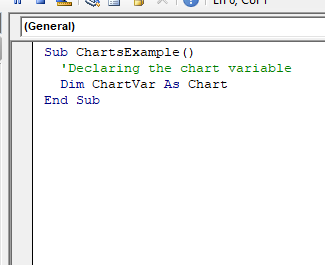
Create a new module and start the sub procedure. The next step is to declare the chart variable to return a single Chart object.

Program:

Sub ChartsExample()
  'Declaring the chart variable
  Dim ChartVar As Chart
End Sub
Steps to Create a Chart in VBA
  • Set the chart Variable

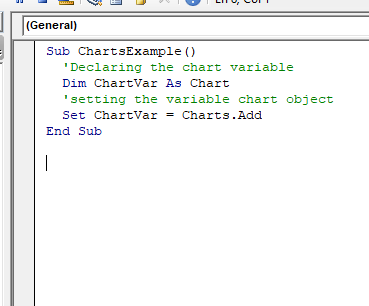
Now, as we have declared the chart object, we will set the chart object. The chart object is just a container that sets above all the ranges.  It floats above all the cells on the worksheets and holds the actual chart. To set the chart object we must use the word ‘set’ along with the variable chart object equal to Charts.Add (Set ChartVar = Charts.Add).

Program:

Sub ChartsExample()
  'Declaring the chart variable
  Dim ChartVar As Chart
  'setting the variable chart object
  Set ChartVar = Charts.Add
End Sub
Steps to Create a Chart in VBA
  • Setting layout for Chart by ‘With’ statement

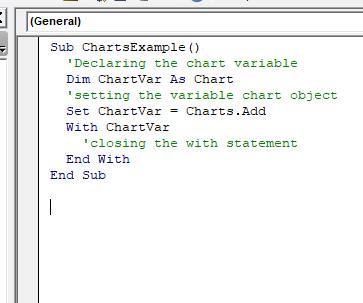
Using the ‘with’ statement to shorten the code length and defining as many properties within the with block. If you open a with statement you also have to end the with statement.

Program:

Sub ChartsExample()
  'Declaring the chart variable
  Dim ChartVar As Chart
  'setting the variable chart object
  Set ChartVar = Charts.Add
  With ChartVar
    'closing the with statement
  End With
End Sub
Steps to Create a Chart in VBA
  • Defining Source Data method

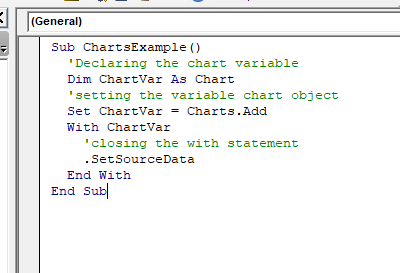
In the below program, we have used the set source data so as we can specify the data from the excel sheet to create the Chart.

Program:

Sub ChartsExample()
  'Declaring the chart variable
  Dim ChartVar As Chart
  'setting the variable chart object
  Set ChartVar = Charts.Add
  With ChartVar
    'closing the with statement
    .SetSourceData
  End With
End Sub
Steps to Create a Chart in VBA
  • Setting Data Source Range

Specifying the range of Excel source data

Program:

Sub ChartExample()
  Dim ChartVar As Chart
  Set ChartVar = Charts.Add
  With ChartVar
          . SetSourceData Sheets("Sheet1").Range("A1:B7")
  End With
End Sub
  • Selecting Chart Type property.

Now we have to create our chart. It is the visual representation of the data that we see unlike the pie chart, bar chart, line chart, etc. It lies inside of the chart variable.

Program:

Sub ChartExample()
  Dim ChartVar As Chart
  Set ChartVar = Charts.Add
  With ChartVar
          . SetSourceData Sheets("Sheet1").Range("A1:B7")
          .ChartType = xlColumnClustered
  End With
End Sub
  • Changing the Tittle

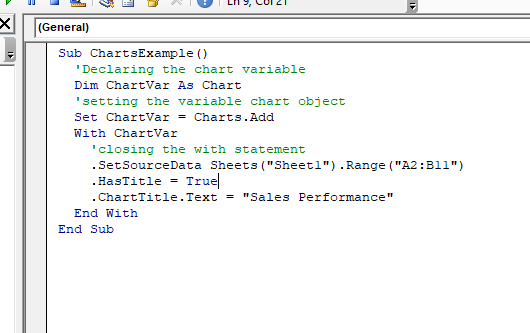
We will apply a title for our chart. Firstly, we will enable the HasTitle property to TRUE. 

Program:

Sub ChartsExample()
  'Declaring the chart variable
  Dim ChartVar As Chart
  'setting the variable chart object
  Set ChartVar = Charts.Add
  With ChartVar
    'closing the with statement
    .SetSourceData Sheets("Sheet1").Range("A2:B11")
    .HasTitle = True
    .ChartTitle.Text = "Sales Performance"
  End With
End Sub
Steps to Create a Chart in VBA
  • Running the output

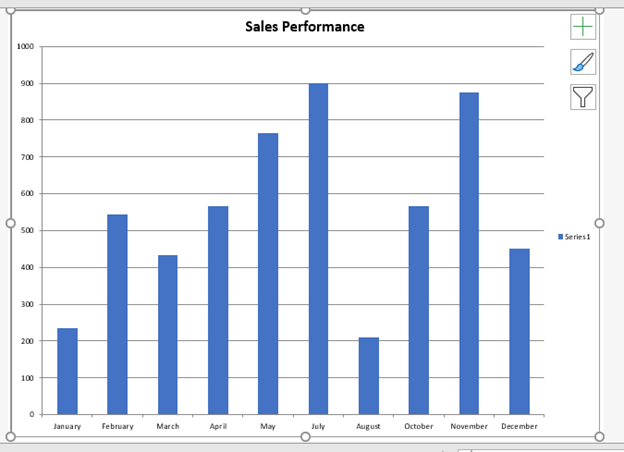
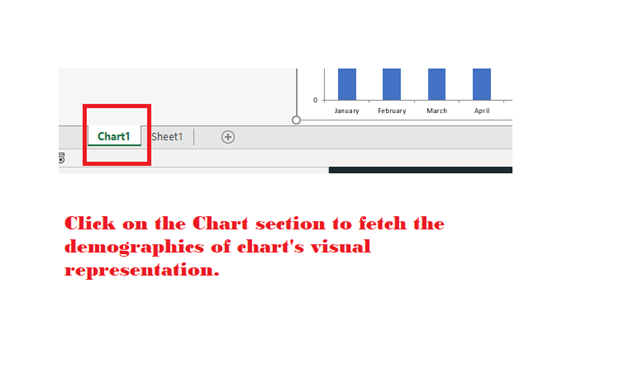
Once you are done with the code, press ALT + F5. You will notice in the footer of excel another sheet has been added with name Chart1 (default).
Steps to Create a Chart in VBA

Output

Steps to Create a Chart in VBA

Creating chart with chartObject

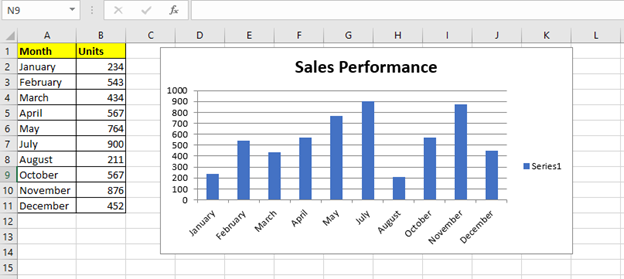
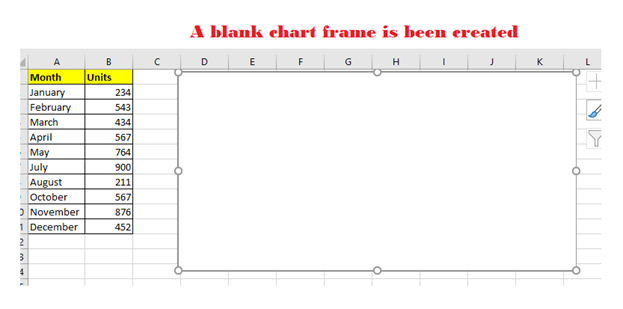
The below example is the alternative of the above program. We have used the chartobject method. Here, instead of opening another chart sheet window unlike, in the above example, it will be created within your excel sheet next to your data.  We have used the below code to set the dimensions of the chart window.

Set ChartVar = Wrksht.ChartObjects.Add(Left:=ActiveCell.Left, Width:=400, Top:=ActiveCell.Top, Height:=200)
Steps to Create a Chart in VBA

Even though you have specified the size, but you can still move the chart window manually once the chart is been created.

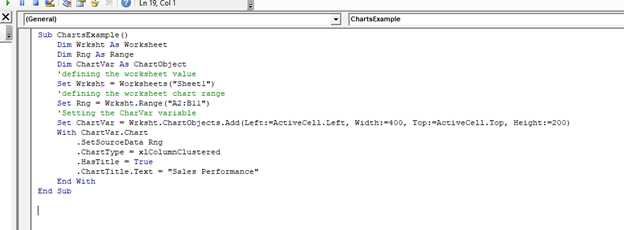
Program:

Sub ChartsExample()
    Dim Wrksht As Worksheet
    Dim Rng As Range
    Dim ChartVar As ChartObject
    'defining the worksheet value
    Set Wrksht = Worksheets("Sheet1")
    'defining the worksheet chart range
    Set Rng = Wrksht.Range("A2:B11")
    'Setting the CharVar variable and defining the chart frame dimensions.
    Set ChartVar = Wrksht.ChartObjects.Add(Left:=ActiveCell.Left, Width:=400, Top:=ActiveCell.Top, Height:=200)
    With ChartVar.Chart
        .SetSourceData Rng
        .ChartType = xlColumnClustered
        .HasTitle = True
        .ChartTitle.Text = "Sales Performance"
    End With
End Sub
Steps to Create a Chart in VBA

Output

Steps to Create a Chart in VBA

Related Topics

Steps to Create a Pivot Table

Steps to Create a Pivot Table: Pivot Tables can be easily automated through VBA coding. To create a Pivot Table in VBA, follow the below step by step procedure to...

4 minutes read.

UserForm and its Properties Excel VBA

UserForm and its Properties Userform has certain properties that can be viewed as category wise (based on appearance, behavior, font) or in an alphabetic manner. The property window is used to set or...

11 minutes read.

VBA Global Variable

What is Global Variable? The Global Variables in VBA refers to the variables declared before the start of any macro. They are defined outside the functions and are used by all the functions or...

6 minutes read.

Excel VBA While wend Loop

WHILE wend loop is used when the user is not sure how many times they want to execute the VBA code within the program. With a WHILE loop, the loop body may...

3 minutes read.

Excel VBA Oct Function

VBA Oct Function: The Oct function in VBA converts the given number into octal notation and returns the result as a string. Syntax Oct (Number) Parameter Number (required) – This parameter represents the numeric value...

1 minute read.

Excel VBA Sin Function

VBA Sin Function: The Sin function in VBA returns the sine value for a supplied angle. Syntax Sin (Number) Parameter Number (required) –This parameter represents the angle (in radians) to calculate the sine value. Return This function...

1 minute read.

Excel VBA CVErr Function

VBA CVErr Function: The CVErr function in VBA returns an Error data type, involving with a user-specified error code. Syntax CVErr (Expression) Parameter Expression (required)- This parameter represents the required error code. Return This function returns an...

1 minute read.

Excel VBA Str Function

VBA Str Function: The Str function in VBA converts the given number into a string representation of that number. Syntax Str (Number) Parameter Number (required) – This parameter represents the numeric value that you want...

1 minute read.

Excel VBA DateValue Function

The DateValue function in VBA returns a VBA Date from the given String representation of a date wherein the time information is ignored. It is unable to interpret dates that include the...

1 minute read.

Excel VBA Mid Function

VBA Mid Function: The Mid function in VBA returns a substring from within a supplied string. Syntax Mid (Str, Start, [Length]) Parameter Str (required) -This parameter represents a string from which you want to extract the substring. Start...

1 minute read.

Excel VBA: DO WHILE….Loop

DO WHILE….Loop The “Do While” Loop is the same, unlike the FOR statement, just that it will keep on looping till the specified condition is true. It is used when we want to...

3 minutes read.

VBA Pivot Table

What is a Pivot Table? One of the most powerful features of Excel VBA is the Pivot Table. A pivot table is a VBA tool that is used to create summary...

3 minutes read.

VBA Dim

What is Dim? DIM or Dimension or Declare in Memory is a keyword that is used in VBA to declare a variable with the different data types (Integer, String, variable, Boolean, Double, etc.)...

7 minutes read.

Excel VBA MonthName Function

Excel VBA MonthName Function: The MonthName function in VBA returns a string with the month name for the specified month number. Syntax MonthName (Month, [Abbreviate]) Parameter Month (required) – This parameter represents an integer between...

1 minute read.

How to save Macro Workbook?

Saving Macro Workbook Default Excel File Extension The default excel file extension is “.xlsx”. But the standard file extension “.xlsx” cannot contains macros. So, the workbook contains macro when save din.xlsx file, all VBA...

1 minute read.

VBA Option Explicit

VBA Option Explicit The Option Explicit in VBA is used to declare the variables at the top of your macro code. It is the most secure and easy option to maintain your variables....

5 minutes read.

Excel VBA UCase Function

The UCase function in VBA converts a String into upper case text. Syntax UCase (String) Parameter String (required) – This parameter represents the string that you want to convert to upper case. Return This function returns a string...

1 minute read.

VBA Regex

What is a Regex? Regex stands for Regular Expression is basically a pattern matching strings within another string. They are supported in many languages, including .net, C++, Python, etc. They are...

5 minutes read.

Excel VBA Val Function

VBA Val Function: The Val function in VBA converts the given string into a numeric value. This function ignores spaces and continues to read the characters after space(s). It stops...

1 minute read.

Excel VBA Time Function

Excel VBA Time Function: The Time function in VBA returns the current time. Syntax Time () Parameter NA Return This function returns the current time.  Example 1 Sub TimeFunction_Example1() ' returns the current time Dim time_val...

1 minute read.