VBA Not Equal Operator
What is VBA Not Equal Operator?
VBA Not Equal binary operator (“<>”) is a logical function that is used to check if the specified values are not equal or not. This operator compares the operand for a strict inequality, and the result type is Bool. If both the operands are unequal, it returns a Boolean value True (numeric value 1) else if both the operands are equal, it returns Boolean False (numeric value 0). It is also known as negation operator. It works in the opposite of Equal logical operator “=”. Equal operator a Boolean value True if the specified values are the same else for unequal values, it returns False. Thus, the vice-versa for “Equal” operator.
The Not Equal operator has lower precedence as compared to the other relational operators. This operator is useful in conducting the Inequality test.
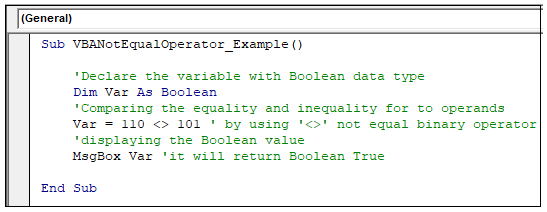
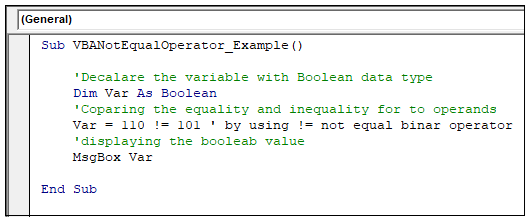
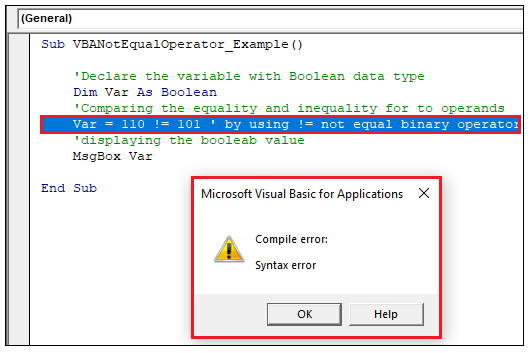
There are usually two ways to express the Not Equal operator comparison, which are “<>” and “!=”. Both the operators perform the Not Equal comparison and return the same result in different programming languages. But for VBA, only “<>” operator is valid to validate the Not Equal comparison. If the user tries to use “!=”, it will throw a syntax error. The reason is that the ‘<>’ operator works as per the ISO standards and abide all its rules, whereas the “!=” operator does not work with the ISO standards. Below is the VBA code along with the output to explain the functioning for both the operators:
- “<>”
Code:
Sub VBANotEqualOperator_Example()
    'Declare the variable with Boolean data type
    Dim Var As Boolean
    'Comparing the equality and inequality for to operands
    Var = 110 <> 101 ' by using '<>' not equal binary operator
    'displaying the Boolean value
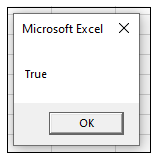
    MsgBox Var ‘it will return Boolean True
End Sub
Output
- !=
Code:
Sub VBANotEqualOperator_Example()
    'Declare the variable with Boolean data type
    Dim Var As Boolean
    'Comparing the equality and inequality for to operands
    Var = 110 != 101 ' by using != not equal binary operator
    'displaying the Boolean value
    MsgBox Var ‘
End Sub
Output
Syntax
Expression <> Expression
Where expression represents the operands.
Example 1: Write a VBA program to demonstrate a real-time example for the not equal operator.
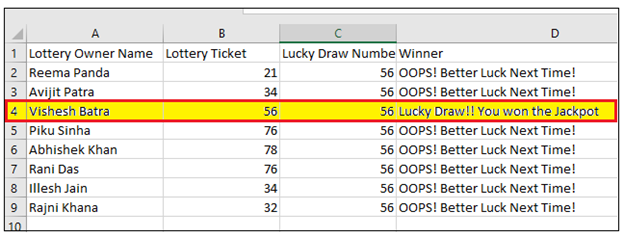
Below given is the Excel Sheet, where we have three columns Lottery owner’s name, lottery ticket number, and lucky draw number. In the fourth column, we will match both the values if they are unequal, then the message displayed should be “OOPS! Better Luck Next Time!" else for the same number display the victory message stating, “Lucky Draw!! You won the Jackpot.”
Let analyze the step by step process for solving the above program:
Step 1: Open the VBA developer tab either by using the shortcut keywords Alt +F11 or click on developer window -> visual basic editor.
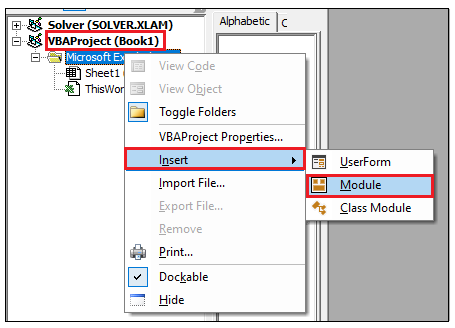
Step 2: Visual Basic Editor will open. The next step is to create a module. Right-clicking on the VBA Project-> Click on Insert-> Click on Module.
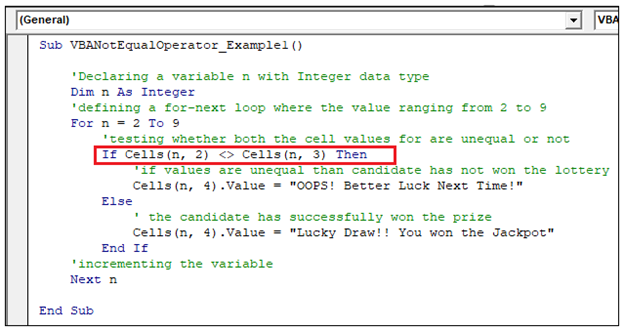
Step 3: In the VBA Module window, write the following code
- Introduce the subcategory following with your macro name unlike in the below code we have written “VBANotEqualOperator_Example1”
- Declare your variable with Integer Data type
- Define the for-next loop where looping will begin with n=2 and end at 9.
- Within the for loop, write the logic using if else condition to test where the values for column 2 and column 3 are unequal or not.
- If they are unequal, then in the fourth column, print the message that “OOPS! Better Luck Next Time!” else for equal values, the cell should display “Lucky Draw!! You won the Jackpot.”
- Display the value of the variable with the help of a MsgBox.
Code:
Sub VBANotEqualOperator_Example1()
    'Declaring a variable n with Integer data type
    Dim n As Integer
    'defining a for-next loop where the value ranging from 2 to 9
    For n = 2 To 9
        'testing whether both the cell values for are unequal or not
        If Cells(n, 2) <> Cells(n, 3) Then
            'if values are unequal than candidate has not won the lottery
            Cells(n, 4).Value = "OOPS! Better Luck Next Time!"
        Else
            ' the candidate has successfully won the prize
            Cells(n, 4).Value = "Lucky Draw!! You won the Jackpot"
        End If
    'incrementing the variable
    Next n
End Sub
Output
Hide Sheets Using Not Equal Operator
The hide and unhide property are used in many events. The Not equal operator makes this action bit easier. It will hide all the sheets present in the active workbook expect one.
Hide
Let analyze the step by step process for solving the above program:
Step 1: Open the VBA developer tab either by using the shortcut keywords Alt +F11 or click on developer window -> visual basic editor.
Step 2: Visual Basic Editor will open. The next step is to create a module. Right-clicking on the VBA Project-> Click on Insert-> Click on Module.
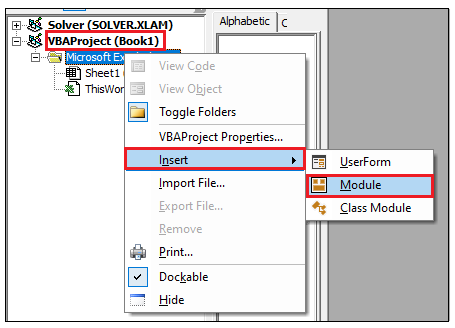
Step 3: In the VBA Module window, write the following code
- Introduce the subcategory following with your macro name unlike in the below code we have written “NotEquallOperator_HideExample”
- Declare your variable with worksheet object Data type
- Define the for-next loop where the looping range will begin from first worksheet and end till the last worksheet present in the active workbook.
- Within the ‘For Each Next’ loop block, we will use the If condition, stating if the worksheet name if not equal to Sheet2, the visibility of the sheet will be hidden. To enable this, we will use the xlSheetVeryHidden method.
Code:
Sub NotEquallOperator_HideExample()
    'Declaring the variable with Worksheet object data type.
    Dim WrkSht As Worksheet
    'for next loop running for all the worksheet present in the workbook
    For Each WrkSht In ActiveWorkbook.Worksheets
        'if the worksheet name is not equal to Sheet2
        If WrkSht.Name <> "Sheet2" Then
            'The sheets will get hidden with xlSheetVeryHidden method
            WrkSht.Visible = xlSheetVeryHidden
        End If
    'incrementing the worksheets
    Next WrkSht
End Sub
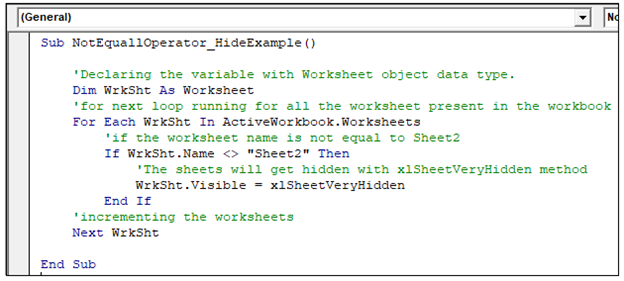
Output
Step 4: Execute the above code either by pressing the F5 shortcut key or by clicking on the Run button.
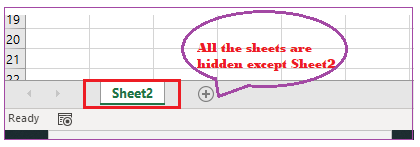
Step 5: You will notice that all the Sheets except sheet2 are hidden. Below is the output where we have displayed the before and after result.
Before hiding the code
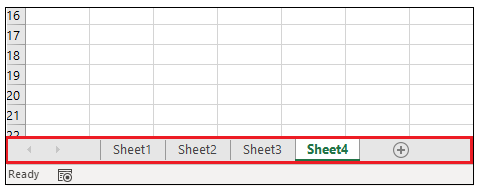
After hiding the
Unhide
In the VBA Module window, write the following code
- Introduce the subcategory following with your macro name unlike in the below code we have written “NotEquallOperator_HideExample”
- Declare your variable with worksheet object Data type
- Define the for-next loop where the looping range will begin from first worksheet and end till the last worksheet present in the active workbook.
- Within the ‘For Each Next’ loop block, we will use the If condition, stating if the worksheet name if not equal to Sheet2, the visibility of the sheet will be hidden. To enable this, we will use the xlSheetVeryHidden method.
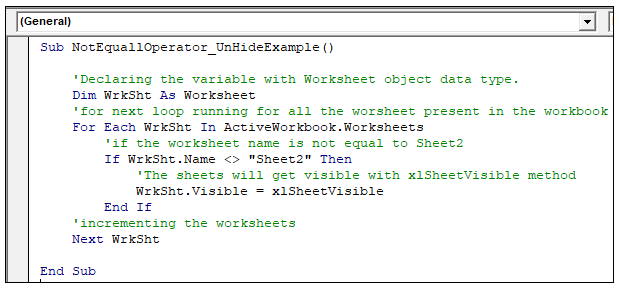
Code:
Sub NotEquallOperator_UnHideExample()
    'Declaring the variable with Worksheet object data type.
    Dim WrkSht As Worksheet
    'for next loop running for all the worsheet present in the workbook
    For Each WrkSht In ActiveWorkbook.Worksheets
        'if the worksheet name is not equal to Sheet2
        If WrkSht.Name <> "Sheet2" Then
            'The sheets will get visible with xlSheetVisible method
            WrkSht.Visible = xlSheetVisible
        End If
    'incrementing the worksheets
    Next WrkSht
End Sub
Output
Execute the above code either by pressing the F5 shortcut key or by clicking on the Run button.
You will notice that all the Sheets are visible once again.