VBA ActiveSheet
What is VBA Activesheet Property?
The active sheet means the current worksheet which you are working on and viewing. The ActiveSheet object signifies the worksheet tab that is selected before running the VBA code. If the user is working with multiple sheets, then the currently viewed files are considered as the active sheet. VBA facilitates many properties and methods that can be called using the ActiveSheet object.
By Default, Excel considered the only topmost worksheet as the ActiveSheet, and all the VBA coding is applicable only for the topmost worksheet. The user can mark or align any Excel worksheet as the Active sheet by calling the Activesheet object with the sheet name. One can also use the VBA Activate method to activate any Excel sheet.
People often confuse the Active worksheet with the selected sheet and use them interchangeably. But both have different functionalities. Let’s evaluate the difference below:
| Selected Worksheet | Active Worksheet |
| Selected Worksheet can select one or more Excel Worksheets within an Excel Window. | Active Worksheet only selects the current Worksheet to view and work upon. |
| Each Workbook can have multiple Selected Worksheets | At a time, only one active sheet can be selected. |
Importance of Using ActiveSheet Object
- This property is useful when a user wants to use another sheet (to run the VBA code and modify the objects apart from the topmost worksheet.
- Many times we automate an Excel task with the help of multiple worksheets. In this situation, we can use Activesheet property to set the Activesheet variable and practice it for future reference.
Syntax
expression.ActiveSheet
where the expression variable represents an application object.
Return
This property returns a sheet object representing the active sheet in the current Excel Workbook. It returns null if the worksheet has no active sheet.
Read Data from ActiveSheet
One of the basic tasks in VBA’s day to day life is to read data from Excel ActiveSheet. The worksheet’s range object can be used to read data from the ActiveSheet Object.
Although, if you are referring to the topmost sheet, then it’s not necessary to specify ActiveSheet function before Range object. In the below code Range (“B5”) can also read the data from ActiveSheet.
Code:
Sub ActiveSheet_ReadProperty()
 'reading the value of B5 cell in the ActiveSheet
 'with the help of Range object
 MsgBox ActiveSheet.Range("B5")
 'if ActiveCell object is not specified
 MsgBox Range("B5") 'it will return the same value as above
 End Sub
Let’s work with the set-by-step code of lines:
Step 1: Open the VBA developer tab either by using the shortcut keywords Alt +F11 or click on developer window -> visual basic editor.
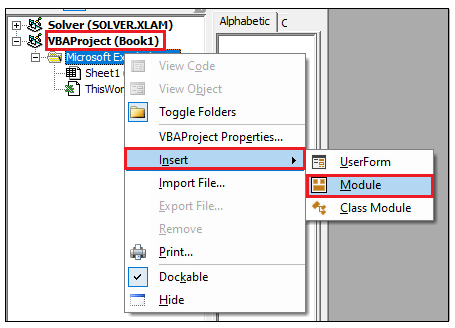
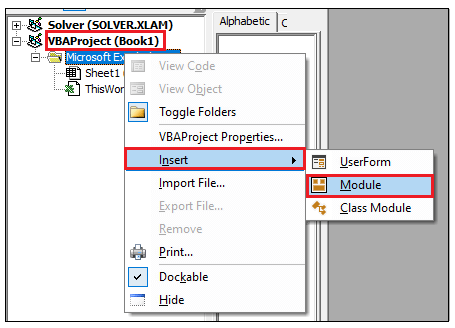
Step 2: Visual Basic Editor will open. Next step is to create a module. Right-clicking on the VBA Project-> Click on Insert-> Click on Module.
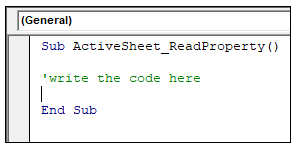
Step 3: In the Module window, introduce the sub-block, followed by your macro name.
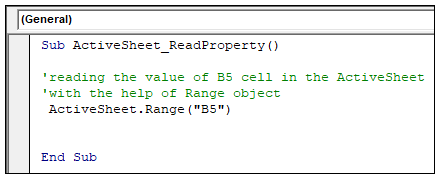
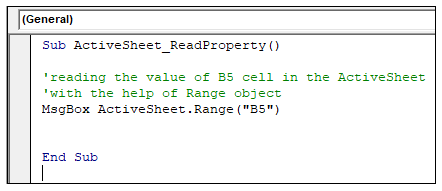
Step 4: We will call the ActiveSheet function and to read the data will specify the Range object (specifying the cell or range in it.
Step 5: With the help of ‘Msgbox’ will display the output.
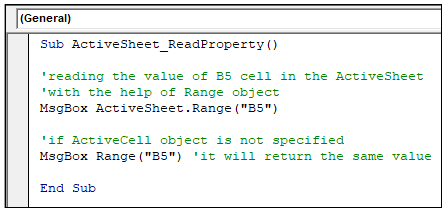
Step 6: We will repeat the above 2 steps, but this time will not specify the ActiveSheet object.
Output
Step 7: Execute the above code either by pressing the F5 shortcut key or by clicking on the Run button.
Step 8: You will notice that the output has been displayed in the message box.
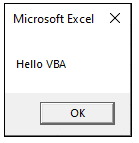
Step 9: Press OK. Again, the message box dialog will be displayed, and both the outputs will be the same.
ActiveSheet Name
The VBA ‘.Name ‘property of the ActiveSheet fetches the name of your sheet. With the help of the name, you can proceed with many applications.
Code:
Sub ActiveSheet_NameProperty()
 'fetching the name of the ActiveSheet with help of
 'ActiveSheet.Name property
 MsgBox "The name of ActiveSheet is" & ActiveSheet.Name
 End Sub
Let’s work with the set-by-step code of lines:
Step 1: Open the VBA developer tab either by using the shortcut keywords Alt +F11 or click on developer window -> visual basic editor.
Step 2: Visual Basic Editor will open. Next step is to create a module. Right-clicking on the VBA Project-> Click on Insert-> Click on Module.
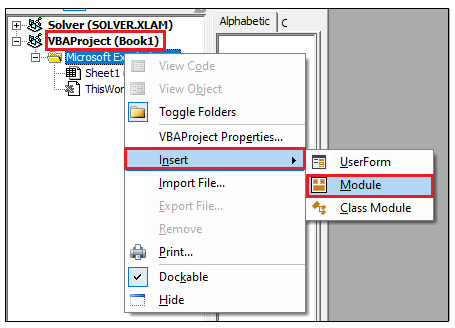
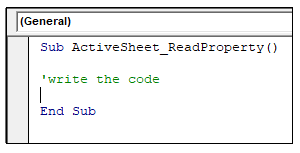
Step 3: In the Module window, introduce the sub-block, followed by your macro name.
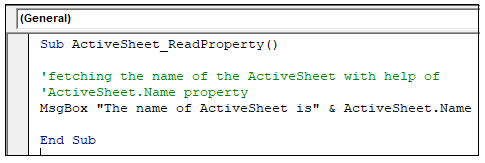
Step 4: With the help of MsgBox, we will display the name by using VBA ActiveSheet.Name property.
Output
Step 5: Execute the above code either by pressing the F5 shortcut key or by clicking on the Run button.
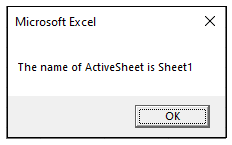
Step 6: You will notice that the name has been displayed in the MsgBox.
Password Protection in ActiveSheet
You can secure your ActiveSheet from unintended users and safeguard your data by using the VBA protect method. It will set a password in your current sheet. If needed, you can even remove it by using the VBA UnProtect method.
Syntax
- Protect Data
ActiveSheet.Protect ([Password], [DrawingObjects], …)
- UnProtectData
ActiveSheet.UnProtect “password”
Code:
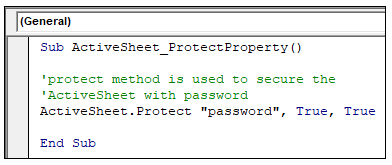
Sub ActiveSheet_ProtectProperty()
 'protect method is used to secure the
 'ActiveSheet with password
 ActiveSheet.Protect "password", True, True
 End Sub
Let’s work with the set-by-step code of lines:
Step 1: Open the VBA developer tab either by using the shortcut keywords Alt +F11 or click on developer window -> visual basic editor.
Step 2: Visual Basic Editor will open. Next step is to create a module. Right-clicking on the VBA Project-> Click on Insert-> Click on Module.
Step 3: Protect your Excel sheet with the help of ActiveSheet.Protect method.
Output
Step 4: Run the output by clicking the F5 function key.
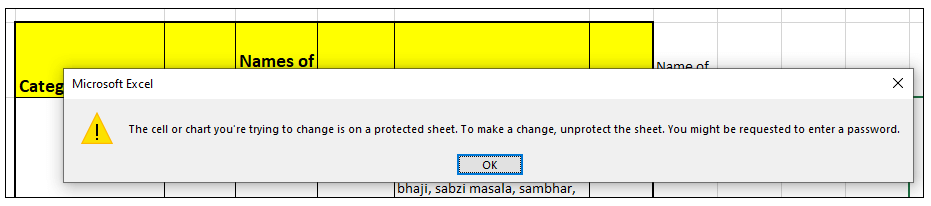
Step 5: you will notice you can no more write anything in the sheet. An alert dialogue box will pop up stating “The cell or chart you’re trying to change in on a protected sheet. To make a change, unprotect the sheet. You might be requested to enter a password”
To Unprotect the Sheet
To again access/ write or format the sheet you must unprotect the sheet. To unprotect the Excel sheet, use the ActiveSheet. Unprotect method.
Code:
Sub ActiveSheet_UnProtectProperty()
 'protect method is used to secure the
 'ActiveSheet with password
 ActiveSheet.Protect "password", True, True
 'unprotecting the sheet
 ActiveSheet.Unprotect "password"
 End Sub
Now your sheet has been unprotected.
ActiveSheet Clear Method
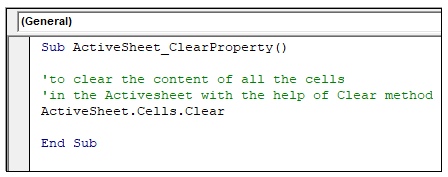
The ActiveSheet.Clear method is used to clear off all the content of the cells in the active cells.
Code:
Sub ActiveSheet_ClearProperty()
 'to clear the content of all the cells
 'in the Activesheet with the help of Clear method
 ActiveSheet.Cells.Clear
 End Sub
Output
Before the Clear method
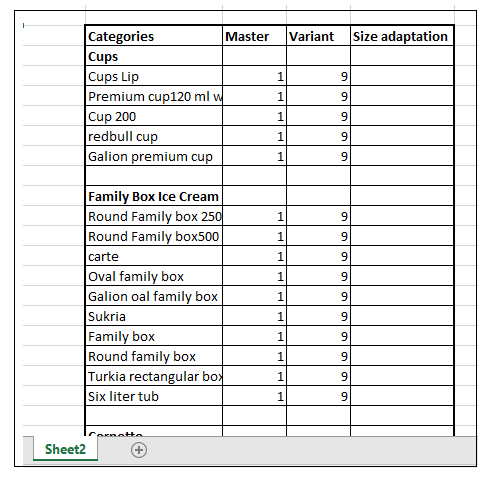
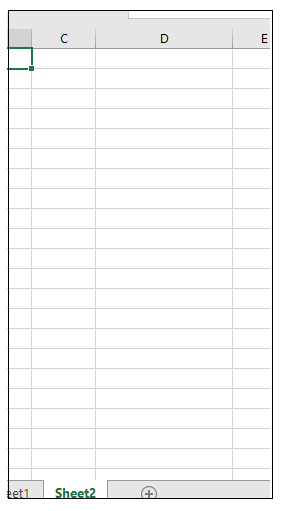
After the Clear method: All the content would be erased.
Activate another sheet as ActiveSheet
We can active any random sheet as an ActiveSheet. For this, the ‘.Activate’ method is used.
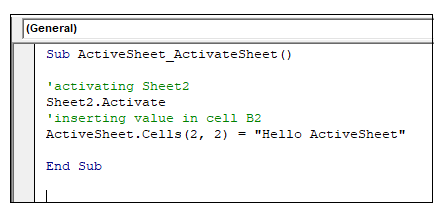
Code:
Sub ActiveSheet_ActivateSheet()
 'activating Sheet2
 Sheet2.Activate
 'inserting value in cell B2
 ActiveSheet.Cells(2, 2) = "Hello ActiveSheet"
 End Sub
Output
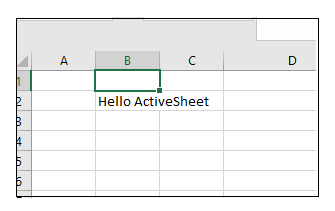
You will notice that in Sheet2, at cell address B2, “Hello ActiveSheet” value has been entered.