VBA Cell
What is VBA cell?
Cells is one of the elements (workbook, worksheet, range) in Excel VBA, which refers to cells of the Excel worksheet. In VBA, the cell is also a property of the range object, which is used to refer to the exact cells. The cell property can be used for a single cell, some selected cells, or all the cells present in the Excel worksheet. This property is used to boost the Excel’s analytics tasks to a whole new level. It returns a range object specifying all the cells present on the Excel worksheet.
The cells property helps us to perform the basic three tasks, which are as follows:
- To read or fetch any value from the cell
- To write or edit the content of the cell
- To Change or modify the formatting of the cell
Cells are the mostly used in loop because both the parameters are numeric here and thus, becomes extremely easy and helpful in loops. The Cells() syntax accepts two numeric parameters, i.e., 1. Row and 2. Column, wherein the first value represents the Row number, and the second parameter represents the column number. For Example: Cells(2,2)) now cells (1,1) will point the cell B2, as the cell B2 the former parameter specified row and the second parameter denotes the column reference.
Syntax
expression.Cells([rows], [columns])
where the expression represents a variable of application objects
Parameters
Rows (optional): This parameter accepts a numeric value that represents the row index. It is optional, and if the user does not allot any value to this parameter, the default value is 1.
Column Index (optional): This parameter accepts a numeric value that represents the column index. It is optional, and if the user does not allot any value to this parameter, the default value is 1.
Example 1: Basic Cells VBA code
Code:
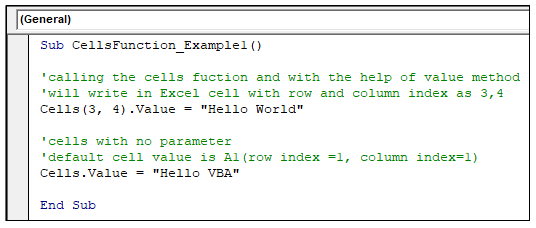
Sub CellsFunction_Example1()
 'calling the cells function and with the help of value method
 'will write in Excel cell with row and column index as 3,4
 Cells(3, 4).Value = "Hello World"
 'cells with no parameter
 'default cell value is A1(row index =1, column index=1)
 Cells.Value = "Hello VBA"
 End Sub
Let’s us analyze the step-by-step working of the above VBA code:
Step 1: Open the developer window by using the shortcut keywords Alt +F11.
Step 2: Create a module by right-clicking on the VBA Project-> Click on Insert-> Click on Module.
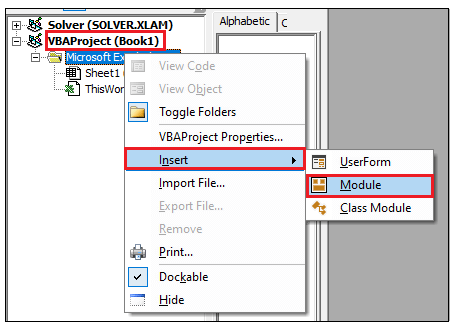
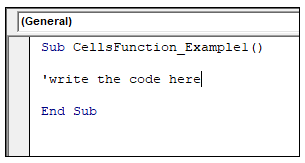
Step 3: In the Module window, introduce the sub-block, followed by your macro name.
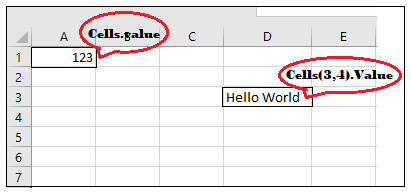
Step 4: We will use the Cells (3,4) syntax and with the help of value function will and will write a value (“Hello world”) in Excel D3 (row index= 3, column index=4) cell.
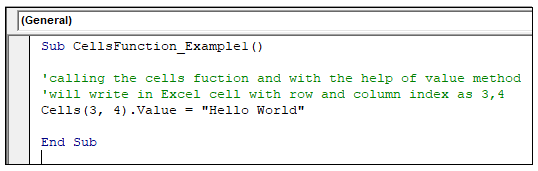
Step 5: Next, we have defined cell function without passing any parameters and have written “Hello World” in the default cell address (i.e., A1 where row index =1 and column index =1).
Output
Step 6: Execute the above code either by pressing the F5 shortcut key or by clicking on the Run button.
Step 7: You will notice that the following value has been embed in the Excel sheet.
Example 2: Looping
Code:
Sub Cells_Looping_Example()
 'Declaring the variable for row index
 Dim rowVal As Integer
 'Declaring the variable for column index
 Dim colVal As Integer
 'running a for loop from int value 1 to 5
 For rowVal = 1 To 5 ' it will traverse across rows
 'running the second loop
     For colVal = 1 To 5 ' it will traverse the loop across columns in a Row
     'calling the Cells function
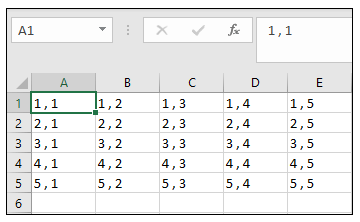
         Cells(rowVal, colVal).Value = rowVal & " , " & colVal
     Next
 Next
 End Sub
Let’s us analyze the step-by-step working of the above VBA code:
Step 1: Open the developer window by using the shortcut keywords Alt +F11.
Step 2: Create a module by right-clicking on the VBA Project-> Click on Insert-> Click on Module.
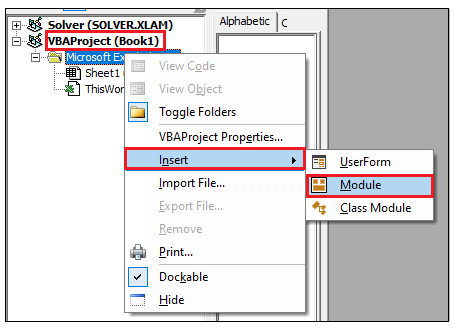
Step 3: In the Module window, introduce the sub-block, followed by your macro name.
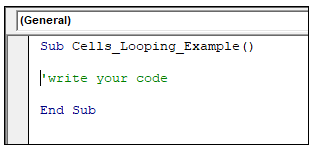
Step 4: Declare your row index and column index integer variables.
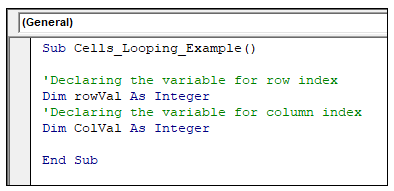
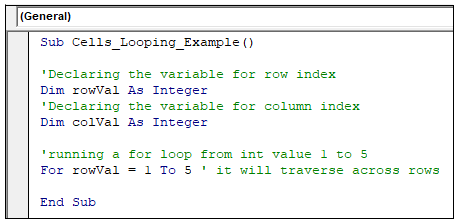
Step 5: With the help of the ‘For Next’ loop, we will pass on a value in the row index variable. It will run the loop through values 1 to 5. This loop will traverse only across the rows.
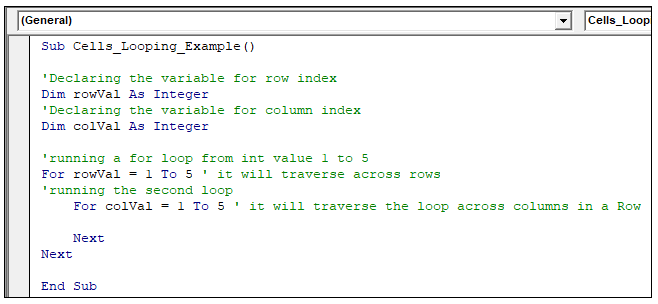
Step 6: Again, we embed a ‘For Next’ loop for the column index variable. It will traverse across the column in a row and run the loop through values 1 to 5, incrementing the ‘colVal’ everytime the loop is run once. Once the ‘colVal’ exceeds more than 5, the second loop will terminate. Thus, the flow of control again moves to the first loop. Increments the ‘rowVal’ value and again moves to the second loop. It continues until the ‘rowVal’ value reaches 5.
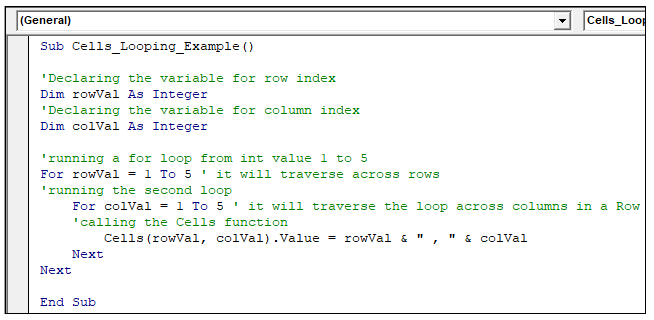
Step 7: At last, we will call the cells (rowVal, colVal) function and, with the help of the value method we will write the values in our Excel sheet.
Output
Step 8: Execute the above code either by pressing the F5 shortcut key or by clicking on the Run button.
Step 9: The excel cells will be filled values unlike shown in the below image.
Ranges & Cells
People often confuse with Range and Cell property, but both have different return values. When we use the range property to refer the cells, it is applied over the exact supplied range cells and will consider only that range. Whereas the cells property specifies a single cell or all cells on the worksheet, where it returns a single cell. Cells property is often used with range property as well.
Let’s check the difference between Range and Cells:
| Cells | Range |
| CELLS represent the property of a RANGE/ WorkSheet/ Application Objects | The range itself is an Object. |
| It returns a Range Object. | It also returns a Range Object. |
| The Cells() function is used to specify a single parameter at a time. | The range property accepts a group of cells at once. |
| The cells property works with or without any parameter. | The parameter accepts one or more parameters. |
| The cells property is used to loop through cells. | This property is used to read/write within multiple cells. |
Example
Code:
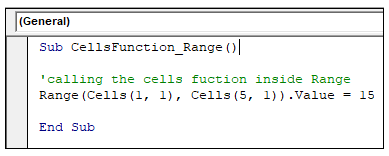
Sub CellsFunction_Range()
 'calling the cells function inside Range
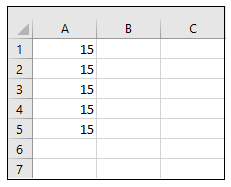
 ‘it will select all the cells in between the specified range
 Range(Cells(1, 1), Cells(5, 1)).Value = 15
 End Sub
Output
WorkSheet.Cells/ ActiveSheet.Cells
Cells is property of ActiveSheet Object as well. You can directly use the sheet name or can use the ActiveSheet object. It will return all the cells of your ActiveSheet.
Syntax
ActiveSheet.Cells([rows], [column])
- How to insert value in the Activesheet
Syntax
 ActiveSheet.Cells([rows],
 [column] )
Code:
Sub CellsFunction_ActivesheetValue()
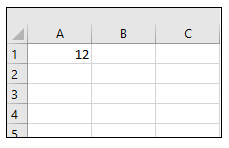
 'In the ActiveSheet, in A1 cells it will write the value 12
 ActiveSheet.Cells(1, 1).Value = 12
 End Sub
Output
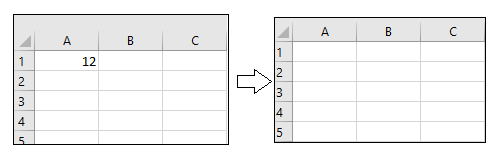
- To clear contents
Syntax
ActiveSheet.Cells([rows],
 [column] ).ClearContents
Code:
Sub CellsFunction_Activesheet_ClearContents()
 'In the ActiveSheet, it will clear all the content
 'as specified in the cell address
 ActiveSheet.Cells(1, 1).ClearContents
 End Sub
Output