VBA ActiveCell Property
What is the ActiveCell Property?
The active cell signifies the active selected cell in the current worksheet. The Active property acts as a reference point and is used to move the cell cursor from one location to another. It is also useful in changing the current cell or reference cell properties. The cell address of the Active cell will also be displayed in the name box (left corner of the excel sheet) For instance, and we have selected the B4 cell in sheet 1 means cell B4 is the active cell of this worksheet and we fetch range properties of cell B4 by using Active cell function. In the below example, you will notice in the name box B4 cell address has been displayed.
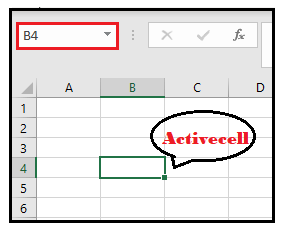
In VBA, the Active cell function is used in different circumstances where we need to alter the properties/values in the active cell or want to apply certain conditions to meet the requirements. This function is also used to assign values or to fetch the address details of an active cell. It returns the range property of the current of the active worksheet. The Active cell function can also be accessible with the help of active cell application.property method.
Many users confuse the active cell property with selection. But these terms are different and are related to each other. The selection contains one or more cells, whereas active cell can have only one cell. It could be there inside the selection range.
Many users confuse the active cell property with selection. But these terms are different and are related to each other. The selection contains one or more cells whereas active cell can have only one cell. It could be there inside the selection range.
Advantages of ActiveCell Property
- ActiveCell acts as a starting point and is often used to offset the cursor anywhere as per the requirement.
- With the help of this property, we can easily change all the features of the active cell or the referenced cells
- The Activecell property helps us to fetch the row, column, and cell address.
Syntax
- Basic Activecell
ActiveCell ([RowIndex], [ColumnIndex])
- Assign the value to Active cell
Activecell.Value= “”
- Row/Column/Value - Select Active cell’s value or property in the current workbook. The following syntax is also used to display row or column address of the active cell
Application.Activecell
- Font selection - The following syntax is used to change the text font of the active cell. This is done by using the font property.
Activecell.Font.(font_name) = True
ActiveCell Example
Code:
Sub ActiveCell_Example()
 'activating the current sheet with the help of the activate method
 Worksheets("Sheet1").Activate
 'passing value to our active cell
 ActiveCell.Value = "Hello World"
 End Sub
Let’s us analyze step-step the above VBA code:
Step 1: Open the developer window by using the shortcut keywords Alt +F11.
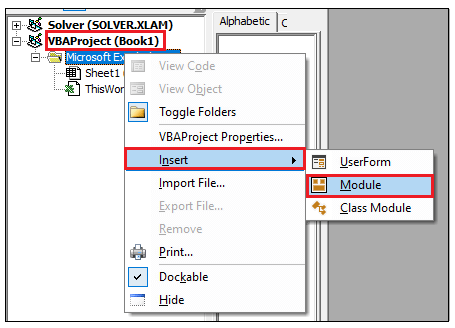
Step 2: Create a module by right-clicking on the VBA Project-> Click on Insert-> Click on Module.
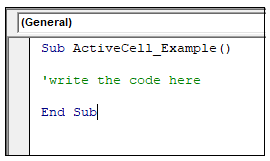
Step 3: In the Module window, introduce the sub-block, followed by your macro name.
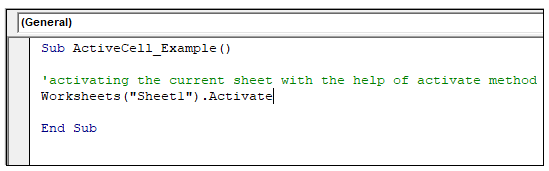
Step 4: We will specify the worksheet which you would like to activate. This is optional if you want to can skip this step. In the below example, we have specified Sheet1.
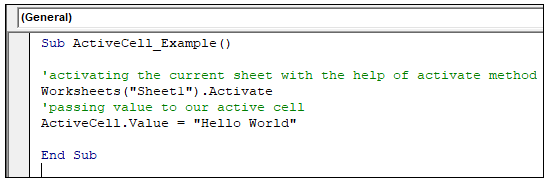
Step 5: Next, with the help of the ActiveCell function, we will set a value. This will display the same value in the current cell address.
Output
Step 6: Execute the above code either by pressing the F5 shortcut key or by clicking on the Run button.
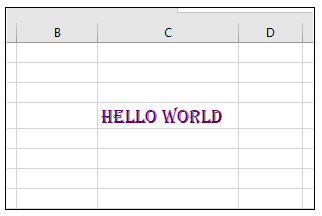
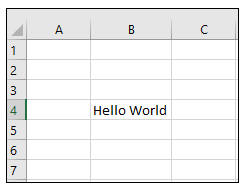
Step 7: You will notice that in the Excel active cell the value “Hello World” is written.
Active Cell Address, Value, Row, and Column Number
Active cell function helps us to fetch the address, row, and column number. All the information can be fetched through the ActiveCell method i.e., ActiveCell.Row, ActiveCell.Column, ActiceCell.Value, etc.,
Code:
Sub ActiveCell_RowColumnNumber()
 'declaring the variable
 Dim currentCell As Variant
 'Activating the worksheet sheet1
 Worksheets("Sheet1").Activate
 'string the range of active cell in variable currentCell
 Set currentCell = Application.ActiveCell
 'fetching the current row address of the active cell
 MsgBox ("Active cell row number = " & currentCell.Row)
 'fetching the current row address of the active cell
 MsgBox ("Active cell column number = " & currentCell.Column)
 End Sub
Let’s us analyze step-step the above VBA code:
Step 1: Open the developer window by using the shortcut keywords Alt +F11.
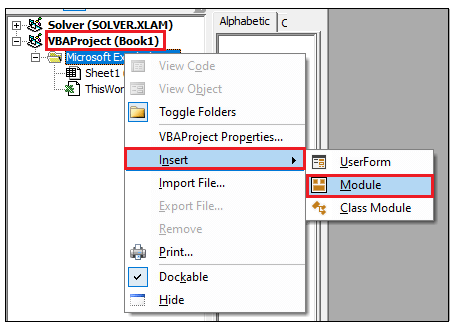
Step 2: Create a module by right-clicking on the VBA Project-> Click on Insert-> Click on Module.
Step 3: In the Module window, introduce the sub-block, followed by your macro name.
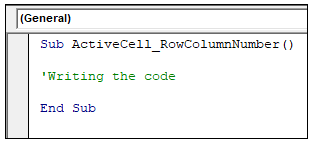
Step 4: Declare the variable so as further you can store the return range. Also, we will activate the worksheet.
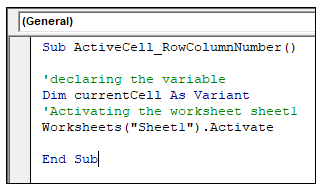
Step 5: Call the Application.ActiveCell function and store the returned value in the declared variable.
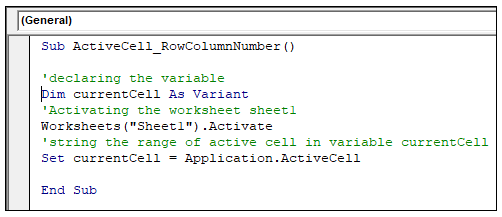
Step 6: With the help of the Row and column method, we will fetch the ActiveCell address.
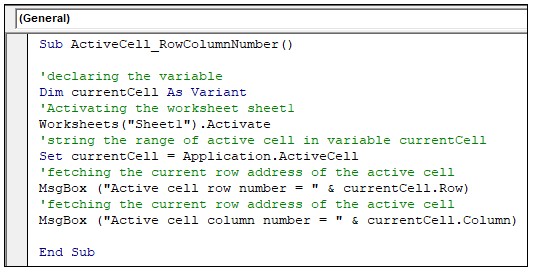
Output
Step 6: Execute the above code either by pressing the F5 shortcut key or by clicking on the Run button.
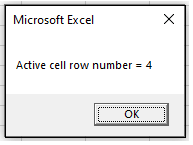
Step 7: The message box dialog box will appear displaying the row number. Click on OK.
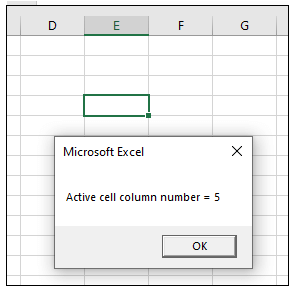
Step 8: The message box dialog box will again appear displaying the column number.
ActiveCell with Fonts
You can use all the Fonts properties to alter the ActiveCell look and feel and can make it more representable.
Code:
Sub ActiveCell_Fonts()
 'changing the font of the active cell with ActiveCell.Font method
 'Using With statement to perform a series of font properties
 With ActiveCell.Font
  .Bold = True
  .Italic = True
  .ColorIndex = 21
  .FontStyle = "Algerian"
  .Size = 14
 End With
 End Sub
Let’s us analyze step-step the above VBA code:
Step 1: Open the developer window by using the shortcut keywords Alt +F11.
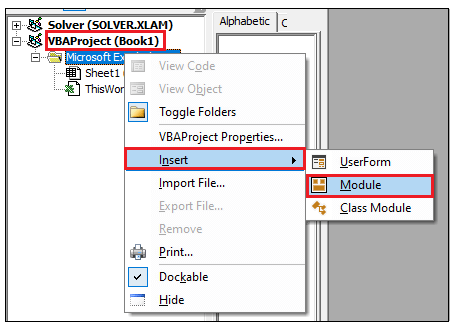
Step 2: Create a module by right-clicking on the VBA Project-> Click on Insert-> Click on Module.
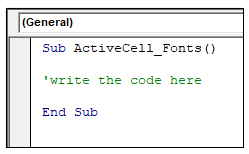
Step 3: In the Module window, introduce the sub-block, followed by your macro name.
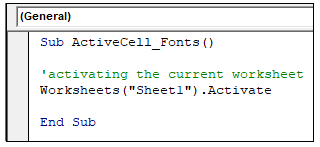
Step 4: Activating the worksheet (Sheet1) with the help of Worksheets.Activate method.
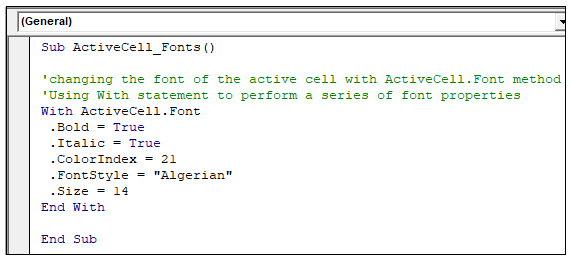
Step 5: Next, we will use all the fonts properties with the help of ActiveCell.Font method. In the below example, we have used ‘With’ statement to perform a series of fonts properties.
Output
Step 6: Execute the above code either by pressing the F5 shortcut key or by clicking on the Run button.
Step 7: You will notice that the active cell value has changed its fonts properties.