VBA Charts Basic Operations
VBA Charts- Basic Operations
The Chart Object in Excel VBA represents the collection of all the charts sheet present in a workbook. A chart can be either an embedded chart or a separate chart sheet. The Chart object excludes all embedded charts and is only represented by a Chart object. A Chart Sheet contains a single chart and covers the entire worksheet.
To create a chart, we need to have excel data. Here, we have taken a dummy based on the survey of student’s habits of various courses.
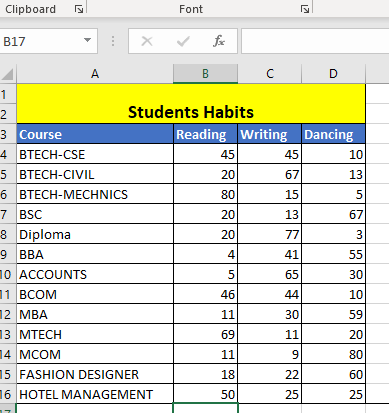
Based on this data, we will perform basic chart’s properties and methods that are useful in day to day Excel life.
- VBA to Delete All Charts

Many times, we encounter a situation where too many chart sheets have been created at our excel worksheet. In that case, we have to manually delete every chart sheet. Thus, this job becomes time-consuming and tedious. So instead of practicing the manual effort, we can do the same thing with VBA code and can get all the chart sheets deleted with a single click.
Program:
Sub Delete_All_Charts()
    'disabling the alert pop up
    Application.DisplayAlerts = False
    'will delete all the charts
    Charts.Delete
End Sub
The above program will throw a runtime error if it runs for the second time as it doesn’t have any charts to be deleted. So we will manage it with error handling. Here in the below program, we have used the basic error handling by using ‘On Error Resume Next’. If an error has occurred, it will resume the next line else it will happily run the code.
Program:
Sub Delete_All_Charts_Error_Handling()
    'disabling the alert pop up
    Application.DisplayAlerts = False
    On Error Resume Next
    'will delete all the charts
    Charts.Delete
End Sub
- Selecting a Block of Cells
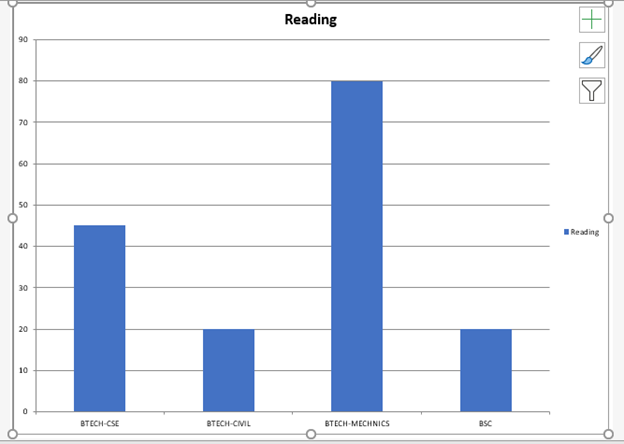
When you pick an only single cell in a list, but Excel uses the entire region of data to create the chart. But sometimes there is some specific requirement where you only want to pick some specific rows.
Program:
Sub Charts_Selecting_Block_Of_Cell()
    Dim wrksht As Worksheet
    Set wrksht = Worksheets("Sheet1")
    wrksht.Select
    'selecting only a block of code
    Range("A3:B7").Select
    'adding the chart
    Charts.Add
End Sub
Output
- Selecting Non-Contiguous Columns
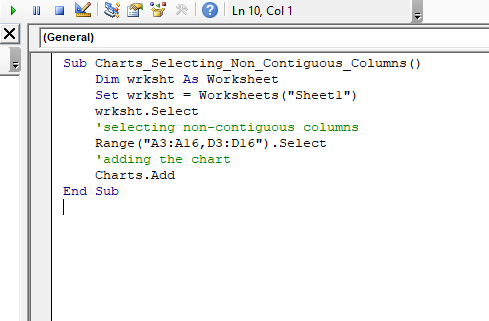
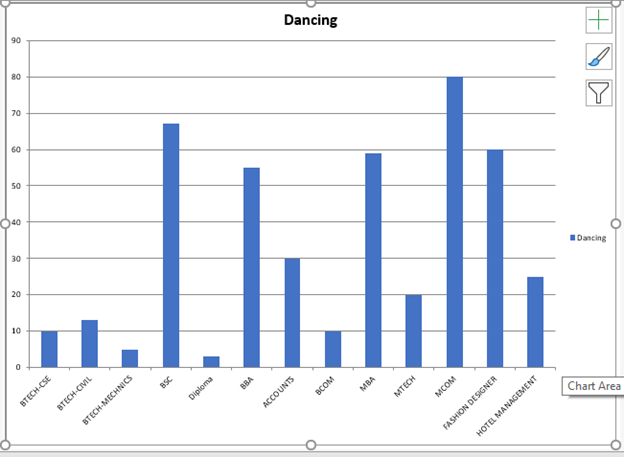
It is slightly more complicated than selecting the block of cells. Now let’s suppose you want to include the course and only the Dancing habit. But the challenge here is they are not contiguous. So, we have to select everything from A4:A16 and then D4:D16 in this particular worksheet.
Program:
Sub Charts_Selecting_Non_Contiguous_Columns()
    Dim wrksht As Worksheet
    Set wrksht = Worksheets("Sheet1")
    wrksht.Select
    'selecting non-contiguous columns
    Range("A3:A16,D3:D16").Select
    'adding the chart
    Charts.Add
End Sub
Output
- Selecting Non-Contiguous Rows
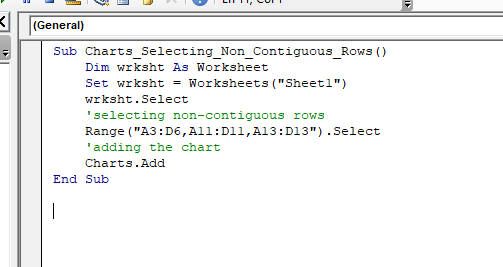
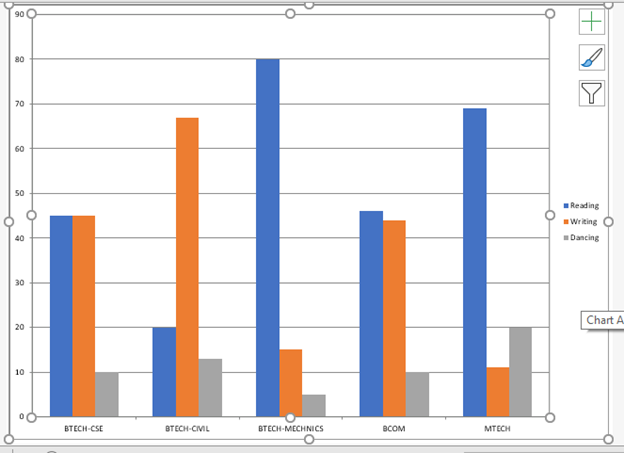
It is bit more time consuming to select individual rows, but it is easy to implement. For instance, we only want to fetch the habit record for BTECH, MTECH, and MBA students. We will choose the BTECH range all together i.e. ‘A4:D6’, for the MBA range we will select ‘A11:D11’, and for MTECH, the range would be ‘A13:D13’.
Program:
Sub Charts_Selecting_Non_Contiguous_Rows()
    Dim wrksht As Worksheet
    Set wrksht = Worksheets("Sheet1")
    wrksht.Select
    'selecting non-contiguous rows
    Range("A3:D6,A11:D11,A13:D13").Select
    'adding the chart
    Charts.Add
End Sub
Output
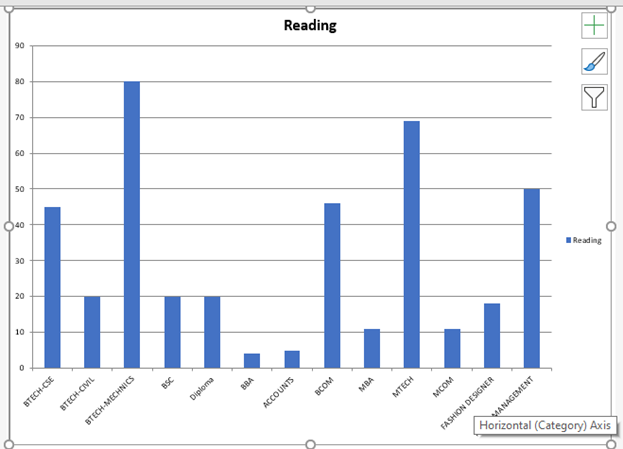
- Selecting Dynamically the End of the List
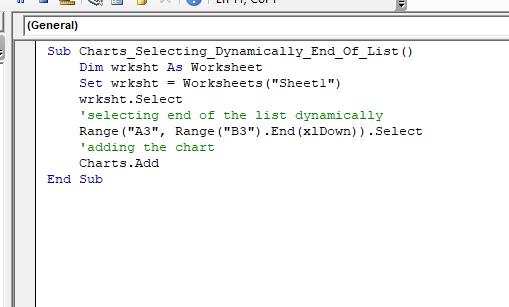
In a real-world scenario, dynamic computation and implementation is more preferred. When we deal with a bulk amount of data, we are usually not sure about the total number of rows present in the list. Suppose we have to create a first for first to the column, but we are possibly not aware of the number of rows. So, we can use some standard selection tricks, which we have also covered in the previous Excel tutorial.
Program:
Sub Charts_Selecting_Dynamically_End_Of_List()
    Dim wrksht As Worksheet
    Set wrksht = Worksheets("Sheet1")
    wrksht.Select
    'selecting end of the list dynamically
    Range("A3", Range("B3").End(xlDown)).Select
    'adding the chart
    Charts.Add
End Sub
Output
- Union Method
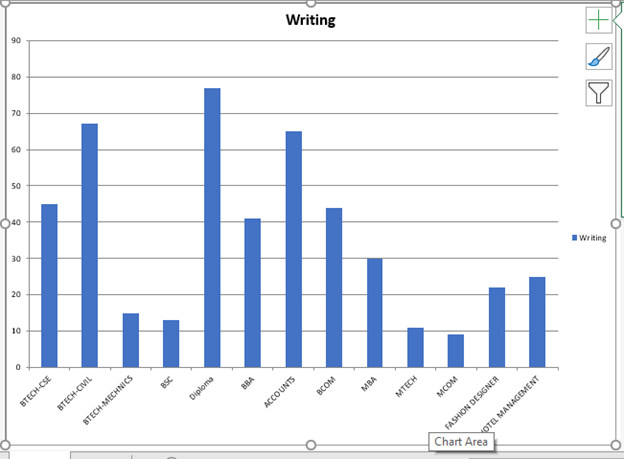
Many times we encounter a situation where we dynamically select the non-contiguous columns. Let us suppose we have to choose everything dynamically from column A and column D but not from Column B or Column C. Hence, it becomes bit complicated and tricky. But this problem can be done easily by using union method. In this method, we will effectively join a range of non-contiguous cells to form a single contiguous range. Through this method, you can specify up to 30 different ranges of cells.
Program:
Sub Charts_Unioin_Method()
    Dim wrksht As Worksheet
    Set wrksht = Worksheets("Sheet1")
    wrksht.Select
    'union method to dynamically selct the column range
    Union( _
    Range("A3", Range("A3").End(xlDown)), _
    Range("C3", Range("C3").End(xlDown))).Select
    'adding the chart
    Charts.Add
End Sub
Output
- Editing a chart using Chart Wizard
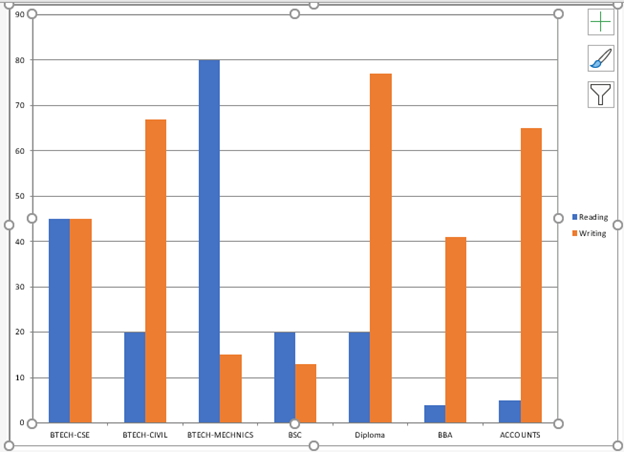
Once you got a reference to a chart, there is a range of methods and properties one can use to edit the charts in various different ways. If you are well versed with excel, you will recall that when you created a charts, there was step by step wizard dialog box followed in choosing the chart type, the range of data to be used, the titles and the axis labels, etc. Similarly, the chart wizard method in VBA allows us to do exactly the same thing. In the below program we will see how to set up the source data using the chart wizard method.
Program:
Sub Editing_Charts_With_Chart_Wizard_Method()
    Dim wrksht As Worksheet
    Dim chartVar As Chart
    Set wrksht = Worksheets("Sheet1")
    wrksht.Select
    'selcting only a block of code
    Range("A3:B7").Select
    'adding the chart
    Set chartVar = Charts.Add
    'editing the range through Chart wizard method
    'the new chart will be created based on the below range
    chartVar.ChartWizard Source:=wrksht.Range("A3:C10")
End Sub
Output
- Changing the chart type
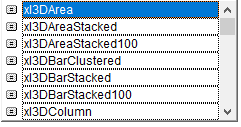
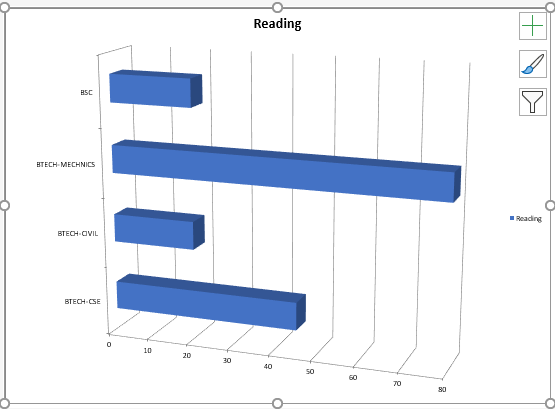
One of the important things about the chart is choosing the appropriate chart type. By default, Excel provides the standard clustered column chart. But one can change the chart type as per the data representation. VBA provides a wide range of chart types option to select.
Program:
Sub Changing_Charts_Type()
    Dim wrksht As Worksheet
    Dim chartVar As Chart
    Set wrksht = Worksheets("Sheet1")
    wrksht.Select
    'selcting only a block of code
    Range("A3:B7").Select
    'adding the chart
    Set chartVar = Charts.Add
    chartVar.ChartType = xl3DBarClustered
End Sub
Output
- Adding a Legend and a Title
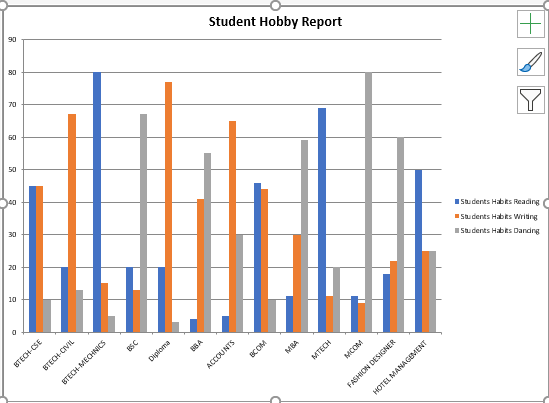
The title field represents the Heading for our chart. Firstly, you have to enable the hasTitle property and then in the ChartTitle.Text property specify your Cart’s title.
When we have more than one series of data, the legend will describe the color-coding key, which indicates each series of data values. The user only needs to specify the hasLegend method to TRUE. The VBA will automatically specify the legend fields.

Program:
Sub Charts_Legend_Title()
    Dim wrksht As Worksheet
    Dim chartVar As Chart
    Set wrksht = Worksheets("Sheet1")
    wrksht.Select
    'selecting only a block of code
    Range("A3").Select
    'adding the chart
    Set chartVar = Charts.Add
    chartVar.ChartType = xlColumnClustered
    chartVar.HasLegend = True
    'setting the hastitle property to TRUE
    chartVar.HasTitle = True
    'Giving an appropriate title to the chart
    chartVar.ChartTitle.Text = "Student Hobby Report"
End Sub
Output
- Add2 Method
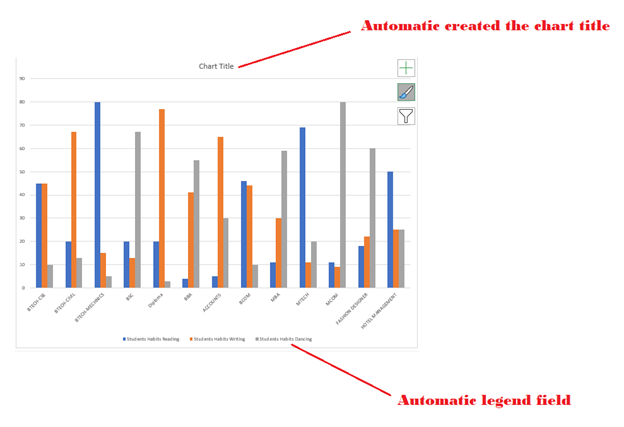
Add2 method adds another chart to the collection of charts, but it has got different parameters. If its parameter layout is set to true, it will use the new dynamic layout to add the elements of the charts. This method is slightly different than the Add method as in this, the chart title is automatically created, and it also includes the legend (only appear is it has more than one series) in a slightly different position.
Program:
Sub Charts_Add2_Method()
    Dim wrksht As Worksheet
    Dim chartVar As Chart
    Set wrksht = Worksheets("Sheet1")
    wrksht.Select
    'selecting only a block of code
    Range("A3").Select
    'adding the chart with Add2 method
    Set chartVar = Charts.Add2
    chartVar.ChartType = xlColumnClustered
End Sub
Output