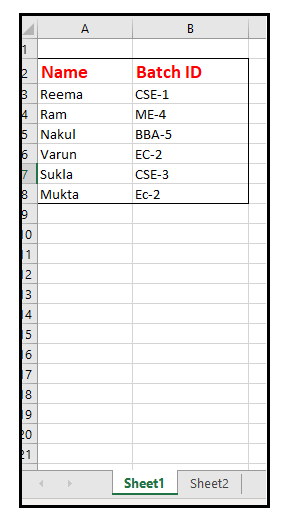
Four VBA Clear methods
Four VBA Clear methods
In Microsoft Excel, many times, a situation arises where the user wants to clear the data or any specific range of data. What if the user automates this task with just a click of a macro button. Excel VBA facilitates this functionality wherein, by using the VBA methods, you can instruct the Excel to clear off the data with values, or formats, or with both. Let’s discuss briefly regarding those four methods:
- Clear method
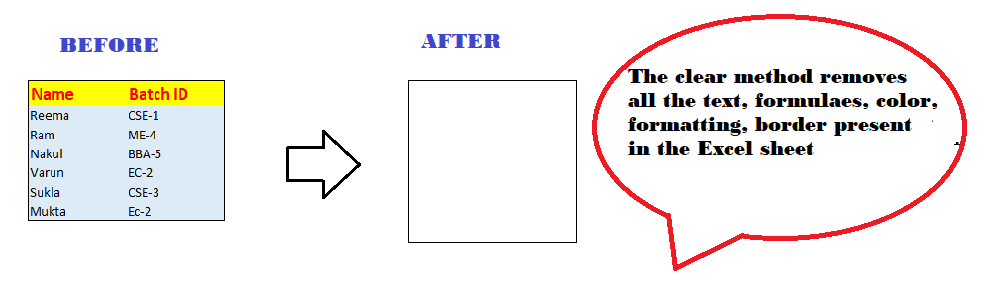
In Excel VBA, ‘Clear’ is the primary method used to clear off the data of your cells. The Range.Clear method clears all the cells that you specify in the Range object, including the cell values, formulas, and formatting.
VBA Formula
Range.Clear method
- The Range object is usually used with VBA constructs such as the Worksheet.Cells, Worksheet.Range, Range.Offset, Range.Resize or Application.ActiveCell properties, or Range.Offset.
Example: Demonstrating a macro example that will clear all the cells’ values, including the formatting ranging from A2 to B8 defined in the Range object ‘rangeVal’ in the active worksheet.
Sub ClearCells_Example()
     'the excel macro to illustrate the working of the clear method.
     'The Range.clear method clears all the cells that you specify in the Range object
     'including the cell values, formulas and formatting.
     'declare the range object variable which will hold the cells reference to clear
     Dim rangeVal As Range
     'identify cells to clear
     Set rangeVal = ThisWorkbook.Worksheets("Sheet1").Range("A2:B8")
     'defining the clear method
     rangeVal.Clear
 End Sub
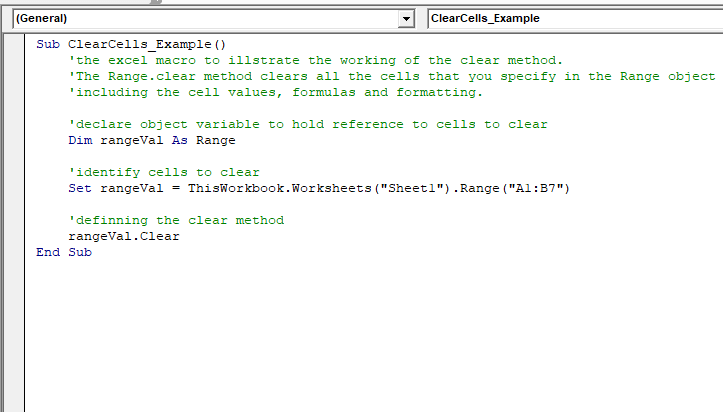
Output
Excel sheet Before applying the macro: In the below sheet, the Excel data the headers have been formatted with Bold and font color.
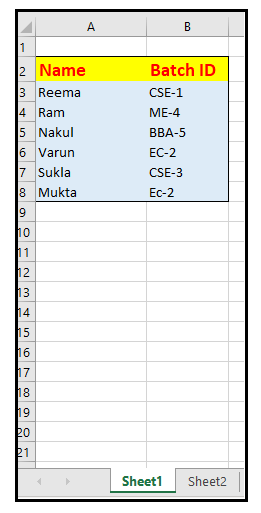
Excel sheet after executing the macro code: Run the program with keyword shortcut F5 (in some systems where function keys have been allotted other functionalities use Fn+F5).
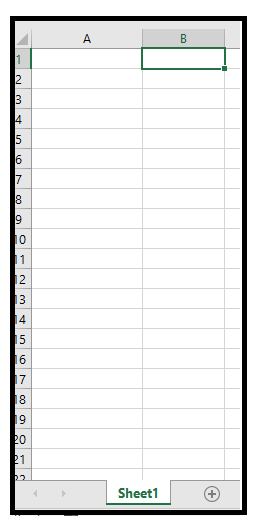
Drawback
The main drawback of the Clear method is that along with the Excel cell values is also clears the formats (unlike border, font colors, background cell, etc.), conditional formatting. Many a time, the programmers only want to delete the cell values and instead of them want to put new values within the same sheet with the same style and formats. In that case, this method fails to achieve the objective.
To combat the above problem, Microsoft Excel VBA has introduced the clearcontents method.
- Clearcontents Method

The ClearContent method in Excel VBA is used to clear only the values and formulas present in the specified range, or cells, or even the worksheet. This method clears only the data cells in the range without disturbing the formats, unlike font styles, border, background cell, and hence, the formatting will remain untouched in the Excel Sheet. It is used with the Range object signifying the data cells where the user only wants to clear off the values or formulas, leaving the formatting intact.
VBA Formula
Rangeobj.ClearContents method
The Range object is usually used with VBA constructs such as the Worksheet.Cells, Worksheet.Range, Range.Offset, Range.Resize or Application.ActiveCell properties, or Range.Offset.
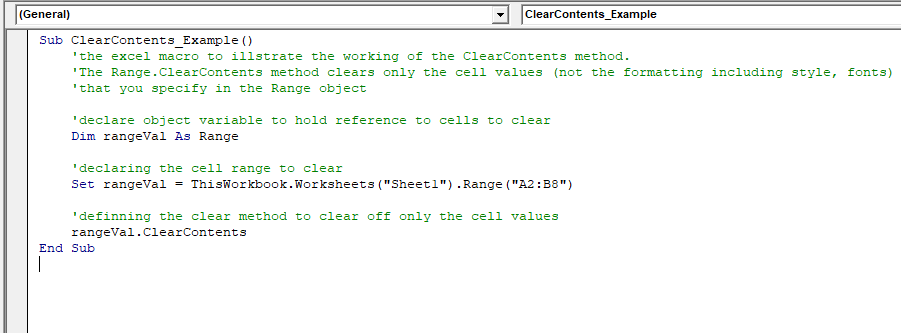
Example: The macro example demonstrating the use of clearcontents method that will clear only the cells value ranging from A2 toB7 defined in the Range object ‘rangeVal’ in the active worksheet.
Sub ClearContents_Example()
     'the excel macro to illustrate the working of the ClearContents method.
     'The Range.ClearContents method clears only the cell values (not the formatting including style, fonts)
     'that you specify in the Range object
     'declare the range object variable which will hold the cells reference to clear
     Dim rangeVal As Range
     'declaring the cell range to clear
     Set rangeVal = ThisWorkbook.Worksheets("Sheet1").Range("A2:B8")
     'defining the clear method to clear off only the cell values
     rangeVal.ClearContents
 End Sub
Output
Excel sheet Before applying the macro: In the below sheet, the Excel data the headers have been formatted with Bold and font color.
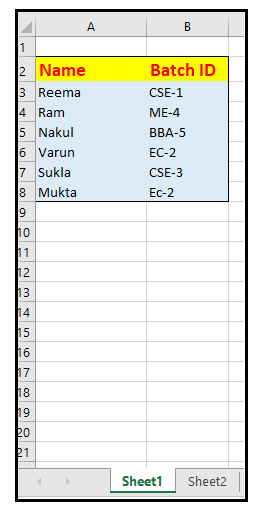
Excel sheet after executing the macro code: Run the program with keyword shortcut F5 (in some systems where function keys has been allotted other functionalities use Fn+F5). You will notice that in your excel sheet (also can refer to below image) only the data of your cells have been removed, the formatting of the sheet has been left intact.
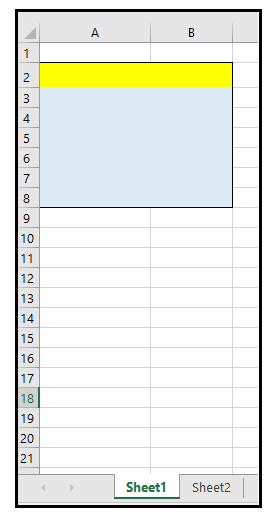
Advantages of ClearContents
- It is used in big corporates to prepare assignments where only the values are altered rest all the prototype of the sheet remains the same.
- When the user wants to create a new list but wants the headers with the same style, border, and formats.
- ClearFormats Method
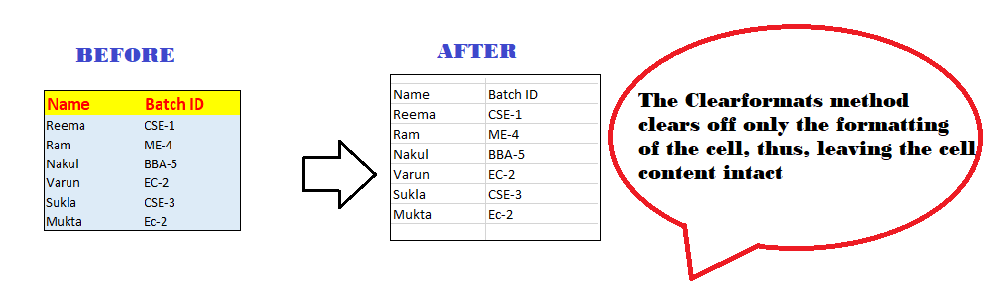
The ClearFormats method in Excel VBA is used to clear only the style and formatting present in the specified range, or cells or even the worksheet. It is the vice-versa of the Clearcontents method. This method clears only the font styles, border, background cell, and the formatting in the range without disturbing the content in the Excel Sheet. It is used with the Range object signifying the data cells where the user only wants to clear off the formatting the content intact.
VBA Formula
Range.ClearFormats method
The Range object is usually used with VBA constructs such as the Worksheet.Cells, Worksheet.Range, Range.Offset, Range.Resize or Application.ActiveCell properties, or Range.Offset.
Example: The macro example demonstrating the use of the ClearFormats method that will clear only the cell formatting ranging from A2 toB7 defined in the Range object ‘rangeVal’ in the active worksheet.
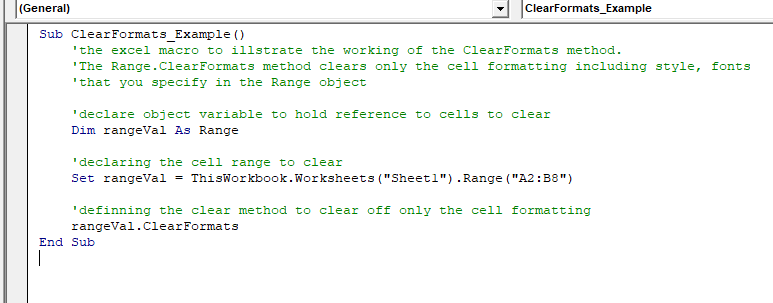
Sub ClearFormats_Example()
     'the excel macro to illustrate the working of the ClearFormats method.
     'The Range.ClearFormats method clears only the cell formatting including style, fonts
     'that you specify in the Range object
     'declare an object variable to hold a reference to cells to clear
     Dim rangeVal As Range
     'declaring the cell range to clear
     Set rangeVal = ThisWorkbook.Worksheets("Sheet1").Range("A2:B8")
     'defining the clear method to clear off only the cell formatting.
     rangeVal.ClearFormats
 End Sub
Output
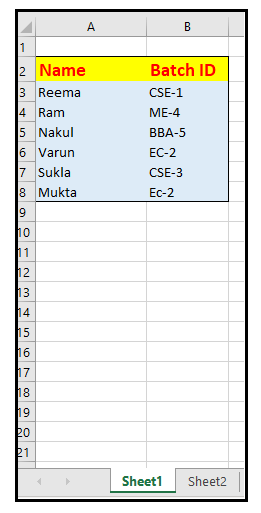
Excel sheet Before applying the macro: In the below sheet, the Excel data the headers have been formatted with Bold and font color.
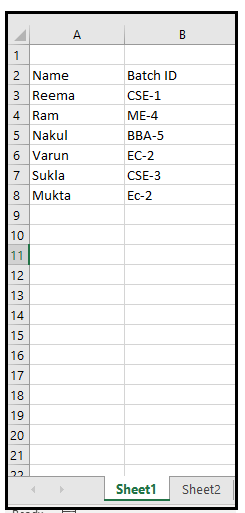
Excel sheet after executing the macro code: Run the program with keyword shortcut F5 (in some systems where function keys have been allotted other functionalities use Fn+F5). You will notice that in your excel sheet (also can refer to below image), only the cell formatting has been removed, the content of the sheet has been left intact.
- Clear Cell Color method
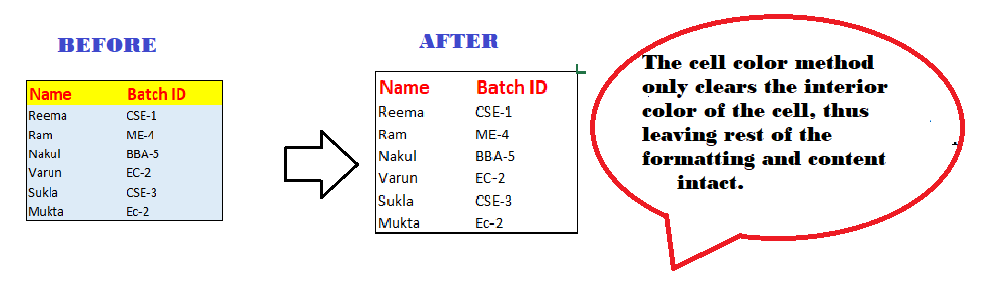
This method is used only to clear the interior color of the cell if specified by the user. Rest all the formatting, border, style, and even the content remains untouched.
VBA Formula
myRange.Interior.Color = xlColorIndexNone
- The Range object is usually used with VBA constructs such as the Worksheet.Cells, Worksheet.Range, Range.Offset, Range.Resize or Application.ActiveCell properties, or Range.Offset.
- The Range. Interior property returns an object denoting the cell range specified by the user.
- The Interior.Color property sets the primary color of the cell interior to the object by the returned by the Range.Interior object.
- The xlColorIndexNone property signifies that the color of the Interior object of the Cells is none.
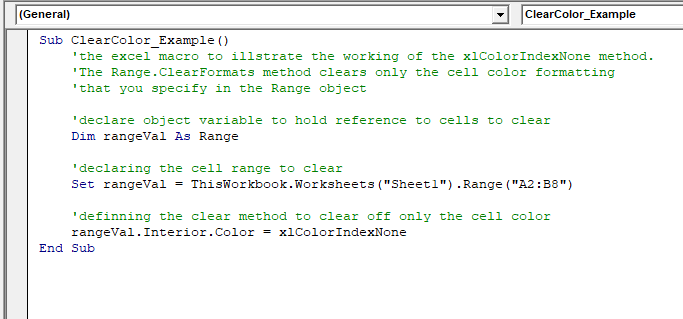
Example: The macro example demonstrating the use of xlColorIndexNone method that will clear only the color of the cell ranging from A2 toB7 defined in the Range object ‘rangeVal’ in the active worksheet.
Sub ClearColor_Example()
     'the excel macro to illustrate the working of the xlColorIndexNone method.
     'The Range.ClearFormats method clears only the cell color formatting
     'that you specify in the Range object
     'declare an object variable to hold a reference to cells to clear
     Dim rangeVal As Range
     'declaring the cell range to clear
     Set rangeVal = ThisWorkbook.Worksheets("Sheet1").Range("A2:B8")
     'defining the clear method to clear off only the cell color.
     rangeVal.Interior.Color = xlColorIndexNone
 End Sub
Output
Excel sheet Before applying the macro: In the below sheet, the Excel data the headers have been formatted with Bold and font color.
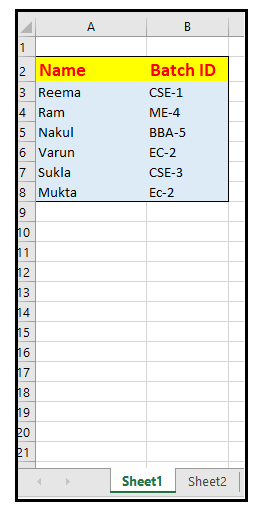
Excel sheet after executing the macro code: Run the program with keyword shortcut F5 (in some systems where function keys have been allotted other functionalities use Fn+F5). You will notice that in your excel sheet (also can refer to below image) only the cell color has been removed, the content and rest of the formatting of sheet has been left intact.