
Excel VBA Error Handling
What is Errors and Types of Error?
Errors are conditions that resist the flow of the program or enables a problem while running any programming. There are three types of errors in VBA programming, which are as follows:
- Compile Errors
- Runtime Errors
- Logical Errors.
Compile errors
Syntax or compile errors, also known as parsing errors, occurs when one of the statements has not been typed correctly or, like in the example below, any keyword (in the below code the keyword Worksheets is spelled as workshee) has been misspelled at the interpretation time for VBScript.
Program 1
Sub CompileError_Example1()
 'workshee is misspelled
 If Workshee("Sheet1").Cells(1, 1).Value = "India" Then
     Worksheets("Sheet1").Cells(1, 1) = "Delhi"
 End If
 'will return error
 End Sub
Output
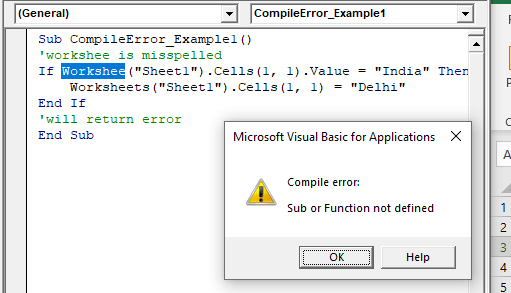
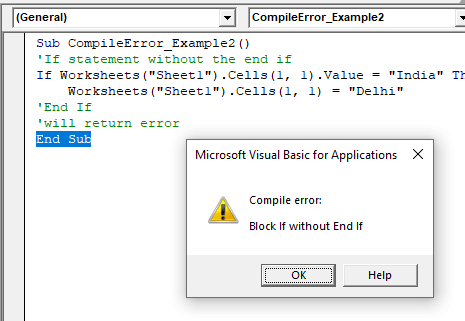
Program 2: The following example causes a compile time syntax error because in it the End sub procedure is missing and excel will throw a prompt as shown below –
Sub CompileError_Example2()
 'If statement without the end if
 If Worksheets("Sheet1").Cells(1, 1).Value = "India" Then
     Worksheets("Sheet1").Cells(1, 1) = "Delhi"
 'End If
 'will return error
 End Sub
Output
Runtime errors
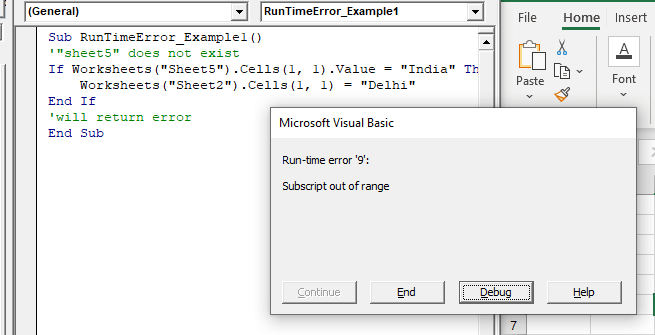
Runtime errors, also called exceptions, error occurs when the code is executed, and there may be a type mismatch during execution, after interpretation or like in the example below, the workbook did not have any ‘Sheet5’ but because we mentioned that in the code, it gave an out of range. This Excel will throw a message box as shown below –
Program
Sub RunTimeError_Example1()
 '"sheet5" does not exist
 If Worksheets("Sheet5").Cells(1, 1).Value = "India" Then
     Worksheets("Sheet2").Cells(1, 1) = "Delhi"
 End If
 'will return error
 End Sub
Output
Logical Errors
Logical errors are the most difficult types to track down as it often results in unexpected outputs. It occurs whenever any mistake is made in the logic of your script, and thus, leaving you with unexpected results. These errors are not the result of a runtime or syntax error and hence, excel will not throw any prompt error message for this type as it is related to the logic of the code. Logical errors cannot be examined easily as it depends on your application’s functionality and is based on the kind of logic you have implemented in your code.
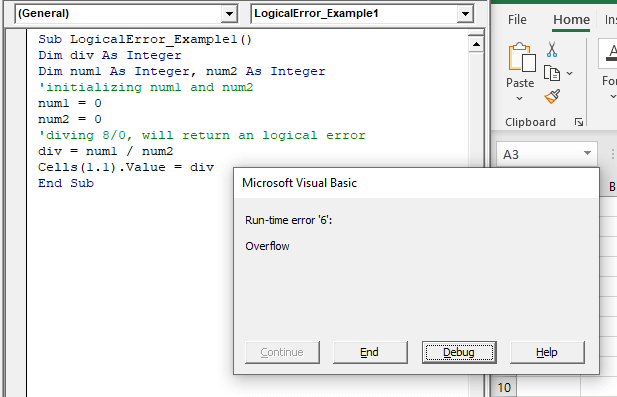
Program: In the following code, dividing a number by zero enters the program into an infinite loop. Thus, will throw a run-time error.
Sub LogicalError_Example1()
 Dim div As Integer
 Dim num1 As Integer, num2 As Integer
 ‘initializing num1 and num2
 num1 = 8
 num2 = 0
 ‘diving 8/0, will return a logical error
 div = num1 / num2
 Cells(1.1).Value = div
 End Sub
Output
What is Error Handling?
Standard and professional coding mechanism includes error handling for a smoother application running even if the program encounters any unexcepted errors. It makes sure that whenever any failures occur, the user is well informed, and either the program exits or flows back/forth gracefully. Basic error handling includes the hiding of the default behavior, halting the process, or exiting the program. The advanced error handling includes all sorts of details such as the cause of the error and the environment at the time of error encounter, it also attempts to address the problem, takes the user to another direction to resolve the problem or fetches the information for the user on what they need to do next.
You can add an ‘Error Handling’ functionality to your code wherein, if an error occurs, it will automatically skip the rest of the code and give you a notification or perform other steps. It is always beneficial to get a piece of information as you will be aware of an error in the code, but then it also depends upon what you intend to do.
Error Handling can be done with an ‘On Error statement’ wherein for any run-time or compile error and the flow of control moves to another line or the error code is resumed. The different ‘On Error’ statements are as follows:
- Go To line
It is used to enable the error-handling procedure that starts at the line specified in the given line argument. It transfers the program flow to the line specified in the same procedure if any compile time or run time error is encountered.
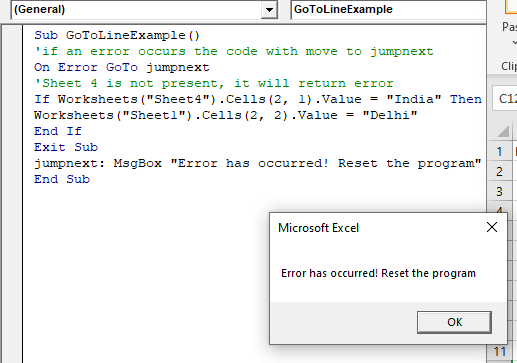
Program: In the following program, the workbook doesn’t have Sheet4 in it, VBA directly jumps to jumpnext: statement and then through message box displays the specified message.
Sub GoToLineExample()
 'if an error occurs the code with move to jumpnext
 On Error GoTo jumpnext
 'Sheet 4 is not present, it will return error
 If Worksheets("Sheet4").Cells(2, 1).Value = "India" Then
 Worksheets("Sheet1").Cells(2, 2).Value = "Delhi"
 End If
 Exit Sub
 jumpnext: MsgBox "Error has occurred! Reset the program"
 End Sub
Output
- Go To 0
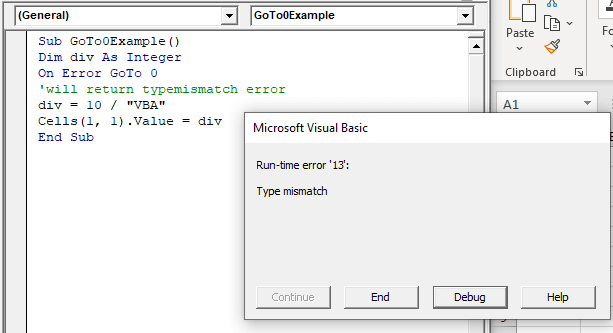
It is used to disable the enabled error handler on the required line in the current procedure, resets it to Nil and shows a message box that describes the error.
Program
Sub GoTo0Example()
 Dim div As Integer
 On Error GoTo 0
 'will return type mismatch error
 div = 10 / "VBA"
 Cells(1, 1).Value = div
 End Sub
Output
- Go to -1
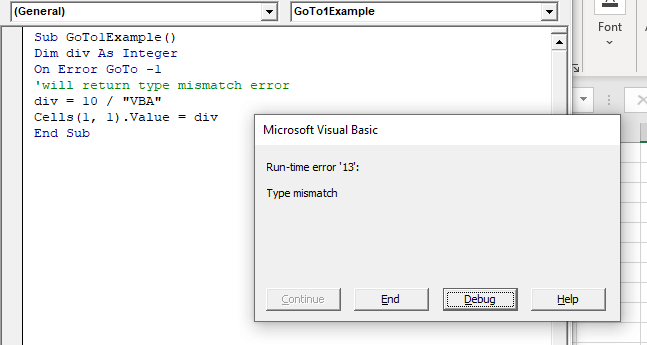
It disables the exiting exception in the procedure, clears the error and resets it to nothing, thus allowing the user to make another error trap.
Program
Sub GoTo1Example()
 Dim div As Integer
 On Error GoTo -1
 'will return type mismatch error
 div = 10 / "VBA"
 Cells(1, 1).Value = div
 End Sub
Output
- Resume Next
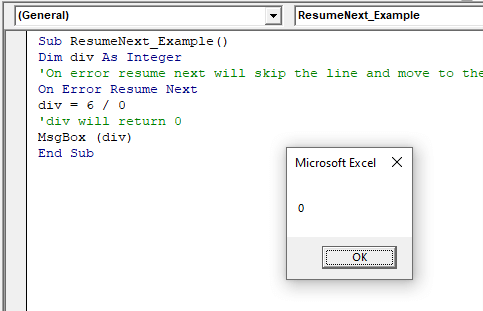
Whenever the program encounters a run-time error, the resume next will ignore the error, and the control will be switched to the statement following the statement where the error has occurred, and the execution moves on from that line of code.
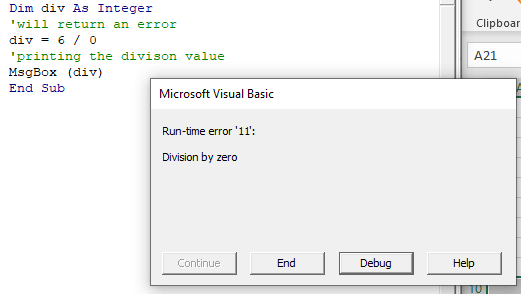
Program 1: The below program will return a logical error (dividing by 0).
Sub WithoutResumeNext_Example1()
 Dim div As Integer
 'will return an error
 div = 6 / 0
 'printing the division value
 MsgBox (div)
 End Sub
Output
Program 2
Sub ResumeNext_Example()
 Dim div As Integer
 'On error resume next will skip the line and move to the next line
 On Error Resume Next
 div = 6 / 0
 'div will return 0
 MsgBox (div)
 End Sub
Output
A VBA procedure starts with Sub and ends with End Sub and excel will run the statements between them. Still, when we add error handlers to the code, the code will run between Sub and Exit Sub, and if an error occurs, excel will jump all the statements and go straight to error handler, which is declared after Exit Sub.