JavaFX Button Styling
In the JavaFX application, we can apply CSS styling to buttons in various ways. We can change the size of the button as well as border colour, text colour can also be changed.
JavaFX Button with specified height and width:
Example:
import java.io.FileInputStream;
import javafx.application.Application;
import javafx.scene.Scene;
import javafx.scene.control.Button;
import javafx.scene.layout.StackPane;
import javafx.stage.Stage;
import javafx.event.ActionEvent;
import javafx.event.EventHandler;

public class ButtonUI extends Application
{

    @Override
    public void start(Stage primaryStage) throws Exception
    {


          StackPane pane = new StackPane();
          Button newbtn=new Button(" Submit ");
          newbtn.setMaxWidth(200);
          newbtn.setMaxHeight(100);
          newbtn.setOnAction(new EventHandler<ActionEvent>()
          {

              @Override
              public void handle(ActionEvent arg0) {
                  System.out.println(" Button with specified size is clicked");

              }
          } );

          Scene scene=new Scene(pane,400,400);
          pane.getChildren().add(newbtn);
          primaryStage.setScene(scene);


        primaryStage.setTitle(" JavaFX Button with specified max width and height ");
          primaryStage.show();

      }
      public static void main(String[] args) {
          launch(args);
      }


  }
Output:
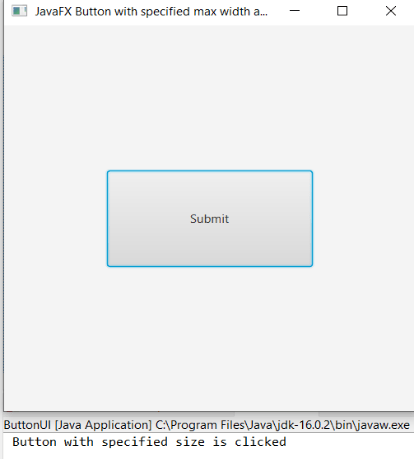
In order to create the Button with specified width and height in JavaFX and add action on it, we have to import all the required libraries such as the javafx.application.Application, javafx.scene.Scene, javafx.scene.control.Button, javafx.scene.layout.StackPane, javafx.stage.Stage, javafx.event.ActionEvent and javafx.event.EventHandler. Then we have created one class named ButtonUI extending the Application class. Also, we have to override the start method to provide implementation details. This method creates an object of Stage as primaryStage. For the container to hold a button with the image, a StackPane object is created which is then passed to the Scene class object. Then the Button class constructor is created with the name of the button passed to it, then the setMaxWidth() and setMaxHeight() method is called to specify the maximum width and height of the button. Then setOnAction() method is called on an instance of Button class and overridden handle method with the anonymous class object passed to it. Then button object is added to the StackPane container, the stage is prepared, the title is set, and the show() method is called to display output. In order to run the application, the launch(args) method is called in the main() method. In output Frame like container is displayed with the title, "JavaFX Button with specified max width and height”. Also, Submit button is displayed with a width 200 and a height 100.
JavaFX Button with specified CSS Styling:
We can apply CSS styles such as border, text color on the button in JavaFX.
Example:
import javafx.application.Application;
import javafx.scene.Scene;
import javafx.scene.control.Button;
import javafx.scene.layout.HBox;
import javafx.scene.layout.StackPane;
import javafx.stage.Stage;

public class ButtonUI extends Application
{

    @Override


    public void start(Stage primaryStage) throws Exception
    {


        Button newbn = new Button(" File ");
        Button newbn2 = new Button(" Edit ");
        Button newbn3 = new Button(" Help ");


        newbn.setStyle("-fx-border-color: #ff0000; -fx-border-width: 2px;");
        newbn2.setStyle("-fx-background-color: #89cff0");
        newbn3.setStyle("-fx-text-fill: #009000");


        HBox hbox = new HBox(newbn, newbn2, newbn3);


        Scene scene = new Scene(hbox, 400, 400);
        primaryStage.setTitle(" JavaFX button with CSS styling ");
        primaryStage.setScene(scene);
        primaryStage.show();
    }


    public static void main(String[] args)
  {
        Application.launch(args);
    }


}
Output:
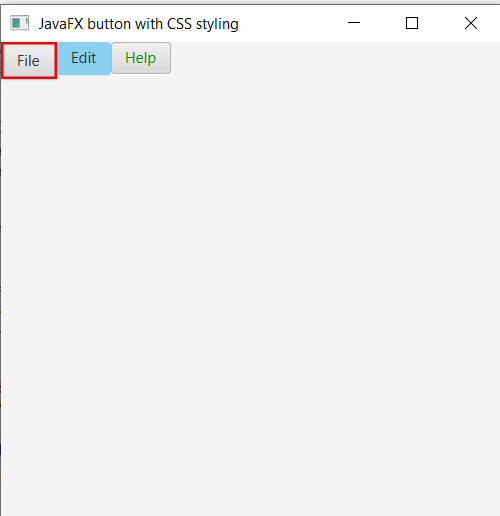
In order to create the Buttons with specified CSS styling in JavaFX, we have to import all the required libraries such as the javafx.application.Application, javafx.scene.Scene, javafx.scene.control.Button, javafx.scene.layout.StackPane, javafx.stage.Stage, javafx.scene.layout.HBox. Then we have created one class named ButtonUI extending the Application class. Also, we have to override the start method to provide implementation details. This method creates an object of Stage as primaryStage. Then 3 buttons are created using the constructor and name specified to them. Style is set to each button using setStyle() method. Various CSS styling such as border colour and width, background colour, text colour is added in the setStyle() method. Then HBox object is created with 3 buttons passed to it. Scene class object is created with HBox object passed to it. Then the title is set and the show() method is called to display output. In order to run application, Application.launch(args) method is called in main() method. In the output, Frame like container is displayed with 3 buttons. The first button is File. It is created with border color red and border width 2 px specified. The second button, Edit has a background color sky blue. The third button Help is created with the text color green.