JavaFX RadioButton
In the JavaFX application, to get the user information in the form of choice from the user, a form is created using radio buttons that allow the user to select one choice for specific fields. The user has a choice to either select or deselects the Radio Button. The Radio Buttons are often created in one group where users can select only one option among them. In JavaFX application, javafx.scene.control.RadioButton class is used to include a radio button in an application. Whenever a user checks or unchecks a Radio Button event is generate on it and is further handled by the Event Handler. Using the isSelected() method, we can check whether the radio button is clicked or not. This method is used to retrieve the choice entered by the user. We can provide the user choice to either select or deselect the option using Radio Button.
JavaFX Radio Button Constructors:
- RadioButton(): This constructor creates JavaFX Radio Button without any label.
- RadioButton(String text): This constructor creates Radio Button with a label passed as an argument to it.
JavaFX Radio Button Methods:
- isSelected(): This method is used to check whether Radio Button is selected or not.
- getText(): This method is used to get label associated with Radio Button.
- setSelected(Boolean value): This method is used to set the status of the Radio Button either selected or not selected based on the Boolean value passed to it.
- fire(): This method is used to change the state of the Radio Button. This method will only work if Radio Button is not previously selected.
JavaFX Radio Button:
Example:
import javafx.application.Application;
import javafx.scene.Scene;
import javafx.scene.control.Button;
import javafx.scene.control.Label;
import javafx.scene.control.RadioButton;
import javafx.scene.layout.HBox;
import javafx.stage.Stage;


public class RadioButtonUI extends Application
 {
static  String items = " ";


    @Override
    public void start( Stage primaryStage ) throws Exception
   {
    Label l = new Label ( " Choose your country : ");
    RadioButton  newc1 = new RadioButton (" India ");
    RadioButton  newc2 = new RadioButton (" UK ");
    RadioButton  newc3 = new RadioButton (" USA ");
    RadioButton  newc4 = new RadioButton (" Canada ");
        Button button= new Button( "Submit");
        button.setOnAction(e ->
        {

        if ( newc1.isSelected() )
        {
        items += " India \n ";
        }

        if ( newc2.isSelected() )
        {
        items += " UK \n ";
        }

        if ( newc3.isSelected() )
        {
        items += " USA \n ";
        }

        if ( newc4.isSelected() )
        {
        items += " Canada \n ";
        }
        System.out.println(" Country of Residence : "+items);


        }
        );

        HBox root = new HBox();
        root.getChildren().addAll( l, newc1, newc2, newc3, newc4, button );

        root.setSpacing(5);
        Scene scene = new Scene( root, 600, 400);
        primaryStage.setScene(scene);
        primaryStage.setTitle(" JavaFX RadioButton Example ");
        primaryStage.show();
        }
    public static void main(String[] args) {
        Application.launch(args);
    }
}
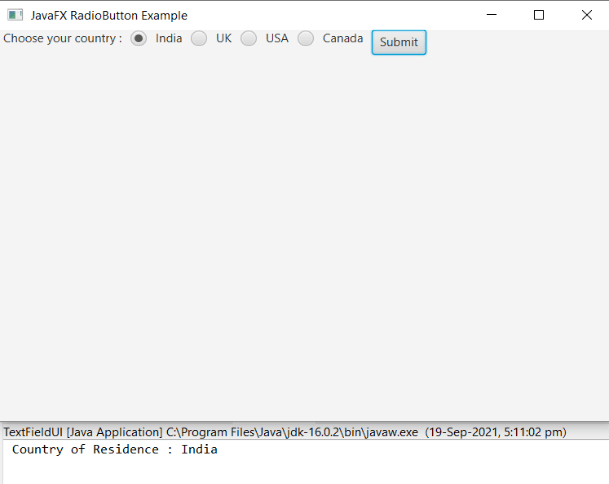
Output:
In order to create the radio button and action on it in JavaFX, we have to import all the required libraries such as javafx.application.Application, javafx.scene.Scene, javafx.stage.Stage, javafx.scene.control.RadioButton, javafx.scene.control.Label, javafx.scene.layout.HBox.
Then we have created one class named RadioButtonUI extending the Application class. Also, we have to override the start method to provide implementation details. This method creates an object of Stage as primaryStage. For the container to hold the button with Checkbox and Labels, an HBox object is created which is then passed to the Scene class object.
Label for entering the country of residence is created using the constructor with label text. Also, radio buttons are created for various countries which are then added to HBox. Radio buttons are created for each country like India, UK, USA, and Canada. User have to choose only one country out of choices available, so radio button are used. User can select the country of residence say India and then after clicking on submit button, it will display output as Country of Residence: India. The stage is prepared, the title is set and the show() method is called to display output. In order to run the application, the launch(args) method is called in the main() method. In output Frame like container is displayed with the title, "JavaFX RadioButton Example ”. Also, it displays radio buttons for various countries like India, UK, USA, and Canada. We can select any one of the country and after clicking on the submit button it will display the name of the country selected as the country of residence.