JavaFX File Chooser
In the JavaFX application, in order to open or save the file, FileChooser is used. It allows user to choose the file from system location and save it in a place wherever you want.
In order to use FileChooser in JavaFX, javafx.stage.FileChooser class is used.
The main two methods present in the FileChooser class are:
- showOpenDialog(): This method is used to open the FileChooser, so that the user can choose the file which is to be opened.
- showSaveDialog(): This method is used to open the save option in FileChooser, so that the user can save the file.
JavaFX Open FileChooser:
Example:
import javafx.application.Application;
import javafx.stage.FileChooser;
import javafx.stage.Stage;
import javafx.scene.Scene;
import javafx.scene.control.Button;
import javafx.scene.control.Label;
import javafx.scene.control.TextField;
import javafx.scene.layout.HBox;
import javafx.scene.layout.StackPane;


public class FileUI extends Application {


    @Override
    public void start(Stage primaryStage) throws Exception
    {
    Label newlabel = new Label(" Choose File: ");
           TextField newtf= new TextField();
           Button newbtn = new Button(" Browse ");
           newbtn.setOnAction(e->
           {
               FileChooser newfile = new FileChooser();
               newfile.setTitle(" Open File you want ");
               newfile.showOpenDialog(primaryStage);
           });
           HBox box = new HBox();

           box.setSpacing(20);
           box.getChildren().addAll(newlabel,newtf,newbtn);
           Scene scene = new Scene(box,400,200);
           primaryStage.setScene(scene);
           primaryStage.setTitle("JavaFX FileChooser Example");
           primaryStage.show();
        }
    public static void main(String[] args) {
        Application.launch(args);
    }
}
Output:
In order to create the FileChooser in JavaFX, we have to import all the required libraries such as javafx.application.Application, javafx.stage.FileChooser, javafx.stage.Stage, javafx.scene.Scene, javafx.scene.control.Button, javafx.scene.control.Label, javafx.scene.control.TextField, javafx.scene.layout.HBox, and javafx.scene.layout.StackPane.
Then we have created one class named FileUI extending the Application class. Also, we have to override the start method to provide implementation details. This method creates an object of Stage as primaryStage. For the container to hold the Label, Text field, and button, an HBox object is created which is then passed to the Scene class object.
The label is created to choose the file with one text field along with it. Also, one button is created with an action set on it to open FileChooser.
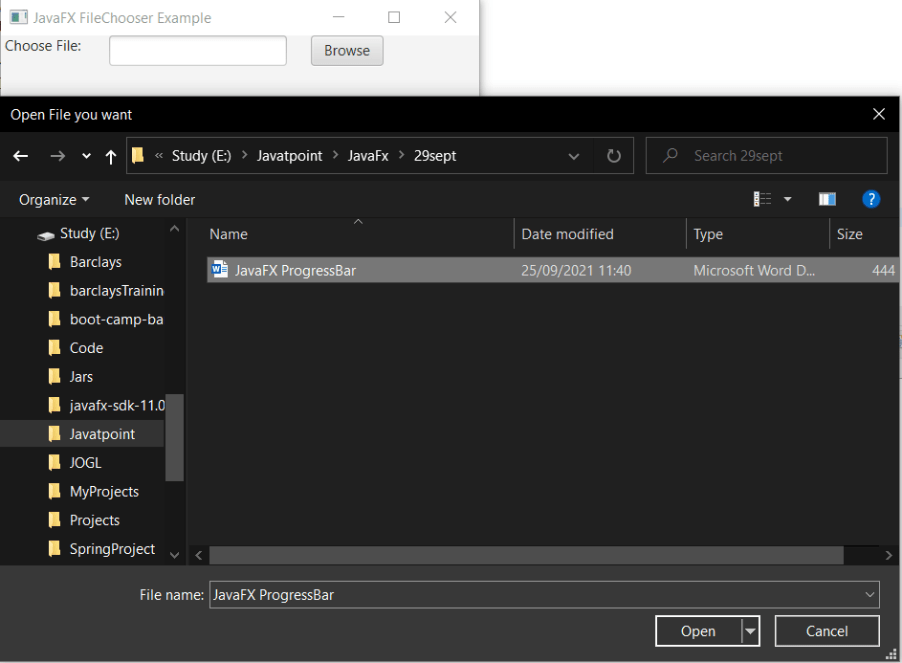
The stage is prepared, the title is set and the show() method is called to display output. In order to run the application, the launch(args) method is called in the main() method. In output Frame like container is displayed with the title, "JavaFX FileChooser Example”. Also, it displays one label to choose file along with text field and Browse button. On clicking on the Browse button it will allow us to choose the file from any location in the system. And it can be opened by clicking on the Open button.
JavaFX Saving File:
Example:
import java.io.File;
import javafx.application.Application;
import javafx.geometry.Pos;
import javafx.stage.FileChooser;
import javafx.stage.Stage;
import javafx.scene.Scene;
import javafx.scene.control.Button;
import javafx.scene.layout.HBox;
import javafx.scene.layout.StackPane;


public class FileUI extends Application {


    @Override
    public void start(Stage primaryStage) throws Exception
    {

           Button newbtn = new Button("SAVE");
           newbtn.setOnAction(e->
           {
               FileChooser newfile = new FileChooser();
               newfile.setTitle(" Save File ");
               File file1 = newfile.showSaveDialog(primaryStage);
               System.out.println(file1);
           });
           HBox box = new HBox();

           box.setSpacing(20);
           box.getChildren().addAll(newbtn);
           Scene scene = new Scene(box,400,200);
           primaryStage.setScene(scene);
           primaryStage.setTitle("JavaFX Saving File Example");
           primaryStage.show();
        }
    public static void main(String[] args) {
        Application.launch(args);
    }
}
Output:
In order to create the FileChooser to save file in JavaFX, we have to import all the required libraries such as javafx.application.Application, javafx.stage.FileChooser, javafx.stage.Stage, javafx.scene.Scene, javafx.scene.control.Button, java.io.File, javafx.scene.layout.HBox, and javafx.scene.layout.StackPane.
Then we have created one class named FileUI extending the Application class. Also, we have to override the start method to provide implementation details. This method creates an object of Stage as primaryStage. For the container to hold the Save button, an HBox object is created which is then passed to the Scene class object.
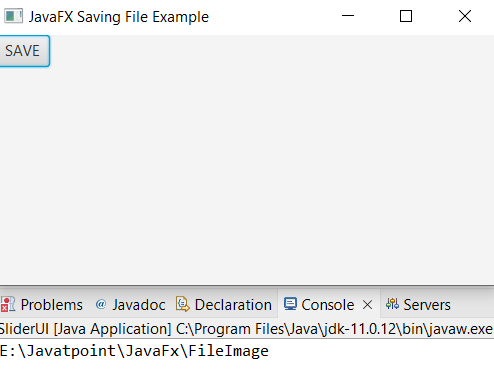
The save button is created with an action set on it to save the file and print the location of the file in the console.
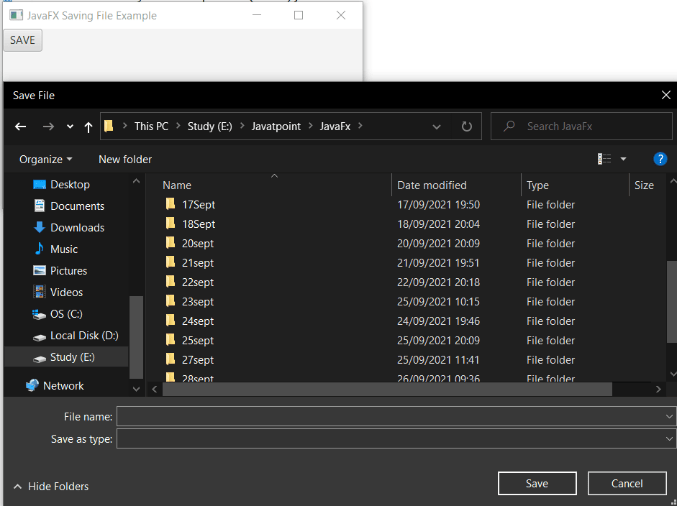
The stage is prepared, the title is set and the show() method is called to display output. The launch(args) method is called. In output Frame like container is displayed with the title, "JavaFX Saving File Example”. Also, it displays one save button by clicking on which it allows us to save the image. After clicking on the save button it will show the path of the file in the system on the console.