
×

JavaFX Label

The UI Control Label in a JavaFX is used to display the simple text. To use Label in JavaFX application javafx.scene.control.The label class is used. We can place Labels on a container to display text on the screen. It is mainly used to give instruction or information to the user. Various constructors in javafx.scene.control package for Label are:

  1. Label(): This constructor is used to create label without any text.
  2. Label(String newtext): This constructor is used to create a label with the text entered by the user.
  3. Label(String newtext, Node graphic): This constructor is used to create a Label with user text and graphics.

Example:

import javafx.application.Application;
import javafx.scene.Scene;
import javafx.scene.control.Label;
import javafx.scene.layout.StackPane;
import javafx.stage.Stage;  


public class SimpleLabel extends Application
{  
@Override  
public void start(Stage primaryStage) throws Exception
{  
    Label newlb = new Label(" Label in JavaFX ");  
    StackPane pane = new StackPane();
    Scene scene = new Scene(pane,500,400);  
    pane.getChildren().addAll(newlb);  
    primaryStage.setScene(scene);  
    primaryStage.setTitle("Label Example in JavaFX ");  
    primaryStage.show();  
}  


public static void main(String[] args) 
{  
    launch(args);  
      
}  
}

Output:

The java file is created which extends the Application class. Also start method is overridden with a primarystage object as an argument in it. In the start method label is created with text specified in it. Then StackPane container is created. An object of StackPane is passed to Scene constructor as an argument.. Then addAll() method is then added to the container. Using show() method on primaryStage is called to display container. Then in main method launch(args) method is called to launch the application.

Right click on the java file, to run the application. Then select Run As, and choose Java application. It will show one container with the title “Label Example in JavaFX” and Label in the center as “Label in JavaFX”.
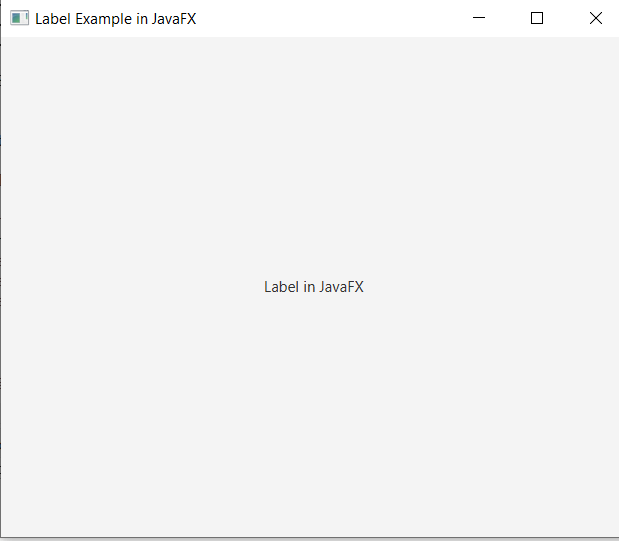
JavaFX UI Control - Label

Displaying Graphics with Label:

We can also display the image in Label. In JavaFX, we are allowed to display graphics next to the label. Using constructor, we can specify graphics with the label.

Example:

import java.io.FileInputStream;  
import javafx.application.Application;  
import javafx.scene.Scene;  
import javafx.scene.control.Label;  
import javafx.scene.image.Image;  
import javafx.scene.image.ImageView;  
import javafx.scene.layout.StackPane;  
import javafx.stage.Stage;  
  
public class GraphicsText extends Application 
{  


    @Override  
    public void start(Stage primaryStage) throws Exception
   {   
          
        StackPane pane = new StackPane();   
        FileInputStream file = new FileInputStream ("home.jpg");  
        Image newimage = new Image(file);  
        ImageView imagev1 = new ImageView(newimage);  
        Label my_label  = new Label(" Visit Homepage ",imagev1);  
        Scene scene = new Scene(pane,600,400);  
        pane.getChildren().add(my_label);  
        primaryStage.setScene(scene);  
        primaryStage.setTitle("Label Class Example with home graphics icon ");  
        primaryStage.show();  
          
    }  
    public static void main(String[] args) 
   {  
        launch(args);  
    } 
 
}

Output:

The java file is created which extends the Application class. Also start method is overridden with a primarystage object as an argument in it. The StackPane object is created in start(). Also, the FileInputStream object is created using a constructor and specifying the file path. Image object is created and then it is passed in the ImageView constructor. The label constructor is created by passing text and image arguments to it. The scene object is created then the stage is prepared. The title is set to the primary stage and then using the show() method it is displayed. In main method launch(args) method is called to run the application.

Right click on the java file, to run the application. Select Run As, and choose Java application. It will show one container with the title "Label class Example with home graphics icon” and Label in the center as “ Visit homepage” with a home icon.
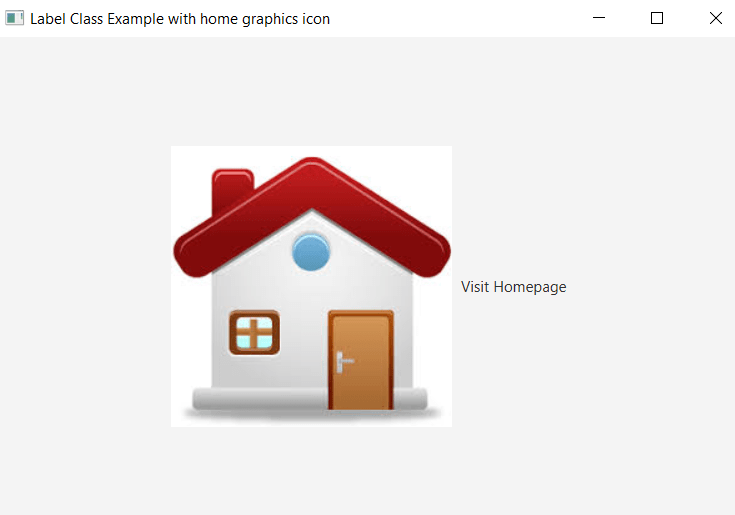
JavaFX UI Control - Label

Related Topics

JavaFX TilePane

In the JavaFX application, in order to set TilePane as a layout, the TilePane class is used. The TilePane layout allows us to arrange the components in the same sized...

4 minutes read.

JavaFX Scatter Chart

In the JavaFX application, in order to create Scatter Chart, the ScatterChart class is used. The Scatter Chart allows us to plot data along the x and y axis of...

4 minutes read.

JavaFX Line

In the JavaFX application, in order to draw a line, the Line class is used. The line allows us to join any two points with x and y coordinates in...

3 minutes read.

JavaFX Fill Transition

In the JavaFX application, in order to generate the fill transition, we have to apply fill transition on any particular shape. It has the ability to fill the given shape...

4 minutes read.

JavaFX Menu

In the JavaFX application, in order to create a menu, menu items, and menu bar, Menu, MenuItem, and MenuBar class is used. The menu allows us to choose options among...

4 minutes read.

JavaFX Stroke Transition

In the JavaFX application, in order to generate the stroke transition, we have to apply stroke transition on any particular shape. It has the ability to give different color strokes...

4 minutes read.

JavaFX Light Point

In the JavaFX application, in order to apply various LightPoint effect from a single source, we use this class. It has the ability to apply light from a single source...

4 minutes read.

JavaFX Polygon

In the JavaFX application, in order to draw a polygon, the Polygon class is used. The Polygon allows us to join any number of points in the space. All methods...

4 minutes read.

JavaFX Layouts

Layouts in the JavaFX application are treated as a container for different UI elements such as Button, Label, TextArea, etc. Layouts are used as parent container. The layout is used...

3 minutes read.

JavaFX Button

The button is one of the UI control present in the JavaFX. The javafx.scene.control.Button class is used for creating a button in javafx example. It is also possible to create...

5 minutes read.

JavaFX File Chooser

In the JavaFX application, in order to open or save the file, FileChooser is used. It allows user to choose the file from system location and save it in a...

4 minutes read.

JavaFX Glow

In the JavaFX application, in order to apply various glow effect, we use Glow class. It has the ability to glow the colors of the shape. All methods needed for...

4 minutes read.

JavaFX Scale Transition

In the JavaFX application, in order to generate the scale transition, we have to apply scale transition on any particular shape. It has the ability to scale the shape along...

4 minutes read.

JavaFX Fade Transition

In the JavaFX application, in order to generate the fade transition, we have to apply fade transition on any particular shape. It has the ability to show the fading colors...

4 minutes read.

JavaFX Color

In the JavaFX application, in order to draw any shape, we are using classes present in the javafx.scene.shape package. We can fill the colors in these shapes using the setFill()...

6 minutes read.

JavaFX ScrollBar

In the JavaFX application, in order to scroll over a range of values, ScrollBar is used. It is used to view long page contents. In order to use ScrollBar in...

4 minutes read.

JavaFX Convenience Methods

The JavaFX allows us to use various convenience methods to handle events on various nodes in JavaFX applications. The convenience methods provides us easy and effective way to add any...

4 minutes read.

JavaFX Parallel Transition

In the JavaFX application, in order to generate the parallel transition, we have to apply parallel transition on any particular shape. It has the ability to execute multiple transactions parallelly....

4 minutes read.

JavaFX RadioButton

In the JavaFX application, to get the user information in the form of choice from the user, a form is created using radio buttons that allow the user to select...

3 minutes read.

JavaFX Pause Transition

In the JavaFX application, in order to generate the pause transition, we have to apply pause transition on any particular shape. It has the ability to take a particular pause...

4 minutes read.