JavaFX Color
In the JavaFX application, in order to draw any shape, we are using classes present in the javafx.scene.shape package. We can fill the colors in these shapes using the setFill() method. The setFill() method have a color class argument passed in it and it is called using JavaFX Shape Argument.
Filling the color by specifying the color name in JavaFX:
Example:
import javafx.application.Application;
import javafx.stage.Stage;
import javafx.scene.Group;
import javafx.scene.Scene;
import javafx.scene.paint.Color;
import javafx.scene.shape.Rectangle;


public class ColorUI extends Application {


    @Override
    public void start(Stage primaryStage) throws Exception
    {
    Rectangle newrect = new Rectangle();
    newrect.setX(80);
    newrect.setY(80);
    newrect.setWidth(200);
    newrect.setHeight(200);
    newrect.setFill(Color.BROWN);


         Group box = new Group();
         box.getChildren().addAll(newrect);


         box.getChildren().addAll();
         Scene scene = new Scene(box,600,400);

           primaryStage.setScene(scene);
           primaryStage.setTitle(" JavaFX 2D shapes - Setting color by color name example ");
           primaryStage.show();
        }


    public static void main(String[] args) {


        Application.launch(args);
    }
}
Output:
In order to create the Rectangle shape and fill color in it in JavaFX, we have to import all the required libraries such as javafx.application.Application, javafx.stage.Stage, javafx.scene.Scene, javafx.scene.Group, javafx.scene.paint.Color, javafx.scene.shape.Rectangle.
Then we have created one class named ColorUI extending the Application class. Also, we have to override the start method to provide implementation details. This method creates an object of Stage as primaryStage. For the container to hold a Colored Rectangle, a Group object is created which is then passed to the Scene class object.
The rectangle is created with the help of an empty constructor and X, Y, Width, and Height is set using setters and the setFill() method is used to set the color of the Rectangle. The color argument is passed in the setFill() method and the color is set in the JavaFX by specifying the color name.
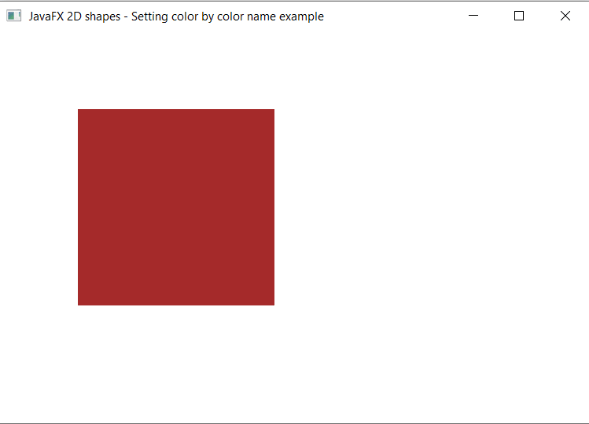
The stage is prepared, the title is set and the show() method is called to display output. In order to run the application, the launch(args) method is called in the main() method. In output Frame like container is displayed with the title, " JavaFX 2D shapes - Setting color by color name example”. Also, it displays a rectangle with defined x, y coordinates, and width, height with Brown color filled in it.
Filling the color by specifying RGB color values in JavaFX:
RGB stands for red, green, and blue. It is the most commonly used color in the graphics system. Every component has a value ranging from 0 to 255. The (0, 0, 0) indicates black color and (255, 255, 255) denotes white color.
Example:
import javafx.application.Application;
import javafx.stage.Stage;
import javafx.scene.Group;
import javafx.scene.Scene;
import javafx.scene.paint.Color;
import javafx.scene.shape.Rectangle;


public class ColorUI extends Application {


    @Override
    public void start(Stage primaryStage) throws Exception
    {
    Rectangle newrect = new Rectangle();
    newrect.setX(80);
    newrect.setY(80);
    newrect.setWidth(200);
    newrect.setHeight(200);
    int red = 65;
    int green = 100;
    int blue = 150;
    newrect.setFill(Color.rgb(red, green, blue));


         Group box = new Group();
         box.getChildren().addAll(newrect);


         box.getChildren().addAll();
         Scene scene = new Scene(box,600,400);

           primaryStage.setScene(scene);
           primaryStage.setTitle(" JavaFX 2D shapes - Setting color by RGB values ");
           primaryStage.show();
        }


    public static void main(String[] args)
{


        Application.launch(args);
    }
Output:
In order to create the Rectangle shape and fill it in using RGB values in it in JavaFX, we have to import all the required libraries such as javafx.application.Application, javafx.stage.Stage, javafx.scene.Scene, javafx.scene.Group, javafx.scene.paint.Color, javafx.scene.shape.Rectangle.
Then we have created one class named ColorUI extending the Application class. Also, we have to override the start method to provide implementation details. This method creates an object of Stage as primaryStage. For the container to hold Rectangle filled using RGB values, a Group object is created which is then passed to the Scene class object.
The rectangle is created with the help of an empty constructor and X, Y, Width, and Height is set using setters and the setFill() method is used to set the color of the Rectangle. Static method rgb() belonging to Color class is passed in setFill() method with red, green, blue values mentioned in it.
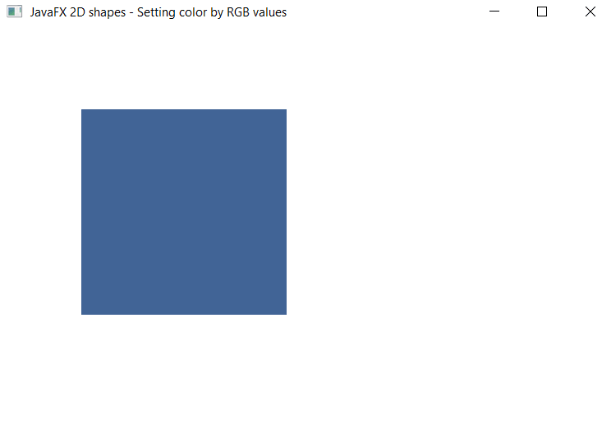
The stage is prepared, the title is set and the show() method is called to display output. In order to run the application, the launch(args) method is called in the main() method. In output Frame like container is displayed with the title, " JavaFX 2D shapes - Setting color by RGB values ”. Also, it displays a rectangle with defined x, y coordinates, and width, height with specified RGB value color filled in it.
Filling the color by specifying the HSB values in JavaFX:
Example:
import javafx.application.Application;
import javafx.stage.Stage;
import javafx.scene.Group;
import javafx.scene.Scene;
import javafx.scene.paint.Color;
import javafx.scene.shape.Rectangle;


public class ColorUI extends Application {


    @Override
    public void start(Stage primaryStage) throws Exception
    {
    Rectangle newrect = new Rectangle();
    newrect.setX(80);
    newrect.setY(80);
    newrect.setWidth(200);
    newrect.setHeight(200);
    int Hue = 150;
    int Saturation = 1;
    int Brightness = 1;
    newrect.setFill(Color.hsb(Hue, Saturation, Brightness));


         Group box = new Group();
         box.getChildren().addAll(newrect);


         box.getChildren().addAll();
         Scene scene = new Scene(box,600,400);

           primaryStage.setScene(scene);
           primaryStage.setTitle(" JavaFX 2D shapes - Setting color by HSB values ");
           primaryStage.show();
        }
    public static void main(String[] args) {
        Application.launch(args);
    }
}
Output:
In order to create the Rectangle shape and fill it using HSB values in JavaFX, we have to import all the required libraries such as javafx.application.Application, javafx.stage.Stage, javafx.scene.Scene, javafx.scene.Group, javafx.scene.paint.Color, javafx.scene.shape.Rectangle.
Then we have created one class named ColorUI extending the Application class. Also, we have to override the start method to provide implementation details. This method creates an object of Stage as primaryStage. For the container to hold a Colored Rectangle specified using HSB values, a Group object is created which is then passed to the Scene class object.
The rectangle is created with the help of an empty constructor and X, Y, Width, and Height is set using setters and the setFill() method is used to set the color of the Rectangle. Hue, Saturation, Brightness values are set and passed in the hsb() method of Color class which is then passed in the setFill() method.
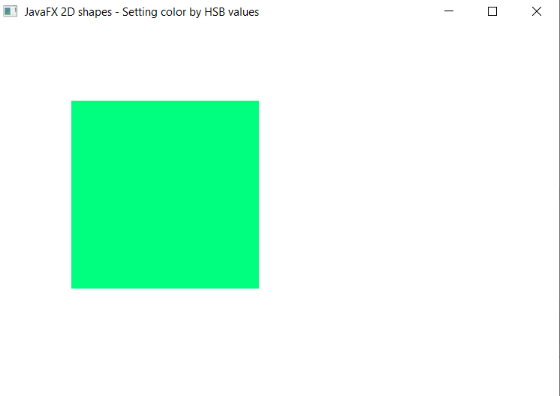
The stage is prepared, the title is set and the show() method is called to display output. In order to run the application, the launch(args) method is called in the main() method. In output Frame like container is displayed with the title, " JavaFX 2D shapes - Setting color by HSB values ”. Also, it displays a rectangle with defined x, y coordinates, and width, height with HSB values color filled in it.
Filling the color by specifying Web color in JavaFX:
Example:
import javafx.application.Application;
import javafx.stage.Stage;
import javafx.scene.Group;
import javafx.scene.Scene;
import javafx.scene.paint.Color;
import javafx.scene.shape.Rectangle;


public class ColorUI extends Application {


    @Override
    public void start(Stage primaryStage) throws Exception
    {
    Rectangle newrect = new Rectangle();
    newrect.setX(80);
    newrect.setY(80);
    newrect.setWidth(200);
    newrect.setHeight(200);

    newrect.setFill(Color.web("#FF0000"));


         Group box = new Group();
         box.getChildren().addAll(newrect);


         box.getChildren().addAll();
         Scene scene = new Scene(box,600,400);

           primaryStage.setScene(scene);
           primaryStage.setTitle(" JavaFX 2D shapes - Setting color by using web color values ");
           primaryStage.show();
        }
    public static void main(String[] args) {
        Application.launch(args);
    }
}
Output:
In order to create the Rectangle shape and fill it in using web color in it in JavaFX, we have to import all the required libraries such as javafx.application.Application, javafx.stage.Stage, javafx.scene.Scene, javafx.scene.Group, javafx.scene.paint.Color, javafx.scene.shape.Rectangle.
Then we have created one class named ColorUI extending the Application class. Also, we have to override the start method to provide implementation details. This method creates an object of Stage as primaryStage. For the container to hold Rectangle filled using web color, a Group object is created which is then passed to the Scene class object.
The rectangle is created with the help of an empty constructor and X, Y, Width, and Height is set using setters and the setFill() method is used to set the color of the Rectangle. The web() method of a color class is called with color values passed in it which are again passed in the setFill() method.
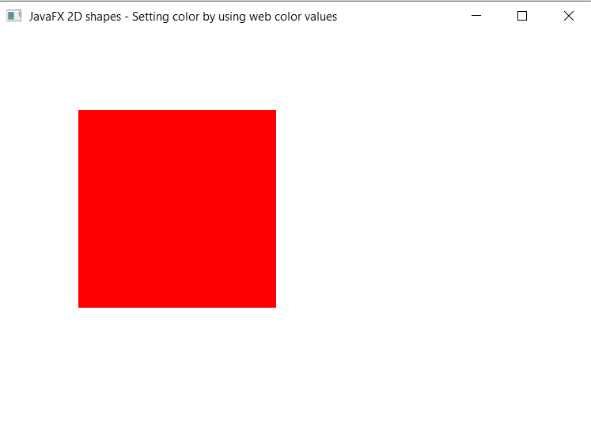
The stage is prepared, the title is set and the show() method is called to display output. In order to run the application, the launch(args) method is called in the main() method. In output Frame like container is displayed with the title, " JavaFX 2D shapes - Setting color by using web color values ”. Also, it displays a rectangle with defined x, y coordinates, and width, height with specified web color filled in it.