JavaFX Ellipse
In the JavaFX application, in order to draw an Ellipse, the Ellipse class is used. The Ellipse allows us to join any points in the space to draw the unique shape. All methods needed for this purpose are present in the javafx.scene.shape.Ellipse class. Each time Ellipse is drawn using 2 points called the focus. Any random point on Eclipse has the same sum of the distance to the focus point.
Each Ellipse has,
1. Center:
This is the middle point of the segment joining two points on the Ellipse. The major and minor axis intersects at this point of the Ellipse.
2. Major axis:
In the Ellipse, the major axis is the longest diameter of that Ellipse.
3. Minor axis:
In the Ellipse, the minor axis is the shortest diameter of that Ellipse.
Constructors of Ellipse class:
Ellipse():
This constructor is used to create an empty constructor.
Ellipse(double x, double y):
This constructor is used to create Ellipse with a given x and y radius.
Ellipse(double x, double y, double radiusX, double radiusY):
This constructor is used to create Ellipse with given x and y co-ordinates for center and radius width and height.
Methods of Ellipse class:
| getCenterX() | This method of Ellipse is used to get the X coordinate of the center of the ellipse. |
| getCenterY() | This method of Ellipse is used to get the Y coordinate of the center of the ellipse. |
| getRadiusX() | This method of Ellipse is used to get the width of the radius of the ellipse. |
| getRadiusY() | This method of Ellipse is used to get the height of the radius of the ellipse. |
| setCenterX(double x) | This method of Ellipse is used to set the X coordinate of the center of the ellipse. |
| setCenterY(double y) | This method of Ellipse is used to set the Y coordinate of the center of the ellipse. |
| setRadiusX(double x) | This method of Ellipse is used to set the width of the radius of the ellipse. |
| setRadiusY(double y) | This method of Ellipse is used to set the height of the radius of the ellipse. |
| setFill(Color newcolor) | This method of Ellipse is used to set the color to be filled in the ellipse. |
Properties and corresponding methods to create Ellipse:
1. centerX
This property of the Ellipse class allows us to define the center point of Ellipse which is X co-ordinate and the setCenterX() method helps to set it.
2. centerY
This property of the Ellipse class allows us to define the center point of Ellipse which is Y co-ordinate and the setCenterY() method helps to set it.
3. radiusX
This property of the Ellipse class allows us to define the width of the Ellipse and the setRadiusX() method helps to set it.
4. radiusY
This property of the Ellipse class allows us to define the height of the Ellipse and the setRadiusY() method helps to set it.
Steps to draw Ellipse in JavaFX:
1. Import all the required Libraries:
In order to create Ellipse in JavaFX application, we have to import all the required libraries such as, javafx.application.Application, javafx.stage.Stage, javafx.scene.Scene, javafx.scene.Group, javafx.scene.paint.Color, javafx.scene.shape.Ellipse.
2. Create one class extending the Application class:
We have to create one class with any name extending the Application class. Also, we have to override the start method to provide implementation details. This method is used to instantiate an object of Stage as primaryStage.
3. Create Ellipse Empty constructor:
Then in the start() method in order to create Ellipse, we have to create an empty constructor as,
Ellipse newEllipse=new Ellipse();
4. Set various properties of Ellipse:
After creating empty Ellipse constructor, we can set centerX, centerY, radiusX and radiusY properties of Ellipse using setCenterX(), setCenterY(), setRadiusX() and setRadiusY() methods.
5. Create Group Object:
For creating a container to hold an Ellipse, a Group object is created which is then passed to the Scene class object.
6. Create Scene Object:
Scene class object is created and the size of container with elements to include are passed in the constructor.
7. Prepare the stage:
Scene class object is passed in setScene() method called with primaryStage object. The tile of the stage is set using the setTitle(“ Title ”) method and the show() method is called to display output.
8. Launch the application:
In order to run the application, the launch( args ) method is called in the main() method which will launch an application and execute logic inside the start() method.
JavaFX 2D Shape -Ellipse using setters
Example:
import javafx.application.Application;
import javafx.stage.Stage;
import javafx.scene.Group;
import javafx.scene.Scene;
import javafx.scene.paint.Color;
import javafx.scene.shape.Ellipse;


public class EllipseUI extends Application {


    @Override
    public void start(Stage primaryStage) throws Exception
    {
    Ellipse newellipse = new Ellipse();

    newellipse.setCenterX(180);
    newellipse.setCenterY(150);
      newellipse.setRadiusX(120);
    newellipse.setRadiusY(100);

         Group box = new Group();
         box.getChildren().addAll(newellipse);


         box.getChildren().addAll();
         Scene scene = new Scene(box,600,400);

           primaryStage.setScene(scene);
           primaryStage.setTitle("JavaFX 2D shapes - Ellipse Example");
           primaryStage.show();
        }
    public static void main(String[] args) {
        Application.launch(args);
    }
}
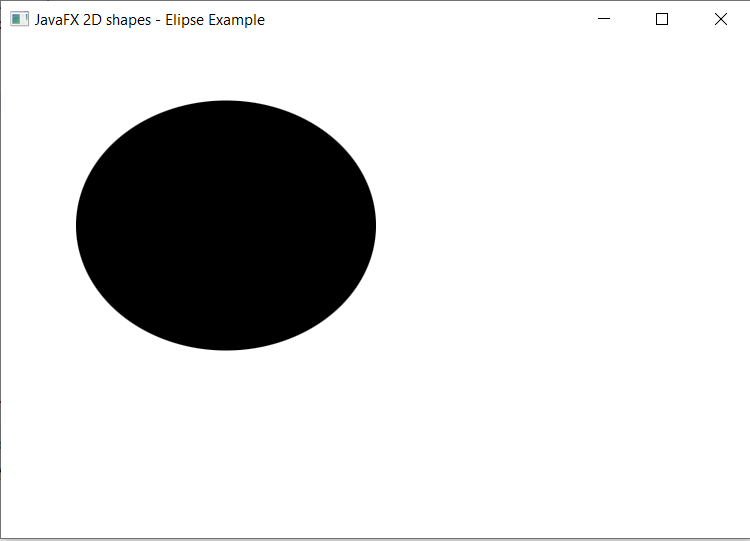
Output:
In order to create the Ellipse in JavaFX, we have to import all the required libraries such as javafx.application.Application, javafx.stage.Stage, javafx.scene.Scene, javafx.scene.Group, javafx.scene.paint.Color, javafx.scene.shape.Ellipse.
Then we have created one class named EllipseUI extending the Application class. Also, we have to override the start method to provide implementation details. This method creates an object of Stage as primaryStage. For the container to hold an Ellipse, a Group object is created which is then passed to the Scene class object.
Ellipse is created with the help of empty constructor and X, Y, Width and Height is set using setters such as setCenterX(), setCenterY(), setRadiusX() and setRadiusY().
The stage is prepared, the title is set and the show() method is called to display output. In order to run the application, the launch(args) method is called in the main() method. In output Frame like container is displayed with the title, " JavaFX 2D shapes - Ellipse Example”. Also, it displays Ellipse with defined x, y coordinates, and width, height.
JavaFX 2D Shape -Ellipse with Constructor
Example:
import javafx.application.Application;
import javafx.stage.Stage;
import javafx.scene.Group;
import javafx.scene.Scene;
import javafx.scene.paint.Color;
import javafx.scene.shape.Ellipse;


public class EllipseUI extends Application {


    @Override
    public void start(Stage primaryStage) throws Exception
    {
        Ellipse newellipse = new Ellipse(240, 160, 120, 120);


         Group box = new Group();
         box.getChildren().addAll(newellipse);


         box.getChildren().addAll();
         Scene scene = new Scene(box,600,400);

           primaryStage.setScene(scene);
           primaryStage.setTitle("JavaFX 2D shapes - Ellipse Example");
           primaryStage.show();
        }
    public static void main(String[] args) {
        Application.launch(args);
    }
}
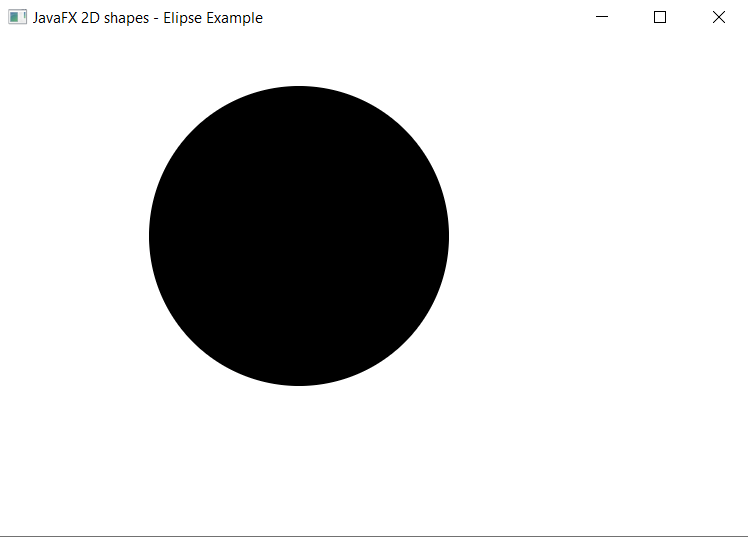
Output:
In order to create the Ellipse with values in constructor in JavaFX, we have to import all the required libraries such as javafx.application.Application, javafx.stage.Stage, javafx.scene.Scene, javafx.scene.Group, javafx.scene.paint.Color, javafx.scene.shape.Ellipse.
Then we have created one class named EllipseUI extending the Application class. Also, we have to override the start method to provide implementation details. This method creates an object of Stage as primaryStage. For the container to hold an Ellipse with a constructor, a Group object is created which is then passed to the Scene class object.
Ellipse is created with the help of the constructor having centerX, centerY, radiusX, and radiusY passed as an argument.
The stage is prepared, the title is set and the show() method is called to display output. In order to run the application, the launch(args) method is invoked. In output Frame like container is displayed with the title, " JavaFX 2D shapes - Ellipse Example”. Also, it displays Ellipse as mentioned by the user in the constructor.
JavaFX 2D Shape -Ellipse with setFill() method
Example:
import javafx.application.Application;
import javafx.stage.Stage;
import javafx.scene.Group;
import javafx.scene.Scene;
import javafx.scene.paint.Color;
import javafx.scene.shape.Ellipse;


public class SliderUI extends Application {


    @Override
    public void start(Stage primaryStage) throws Exception
    {
    Ellipse newellipse = new Ellipse();

    newellipse.setCenterX(180);
    newellipse.setCenterY(150);
      newellipse.setRadiusX(120);
    newellipse.setRadiusY(100);
    newellipse.setFill(Color.RED);

         Group box = new Group();
         box.getChildren().addAll(newellipse);
         box.getChildren().addAll();
         Scene scene = new Scene(box,600,400);
         primaryStage.setScene(scene);
           primaryStage.setTitle("JavaFX 2D shapes - Ellipse Example");
           primaryStage.show();
        }
    public static void main(String[] args) {
        Application.launch(args);
    }
}
Output:
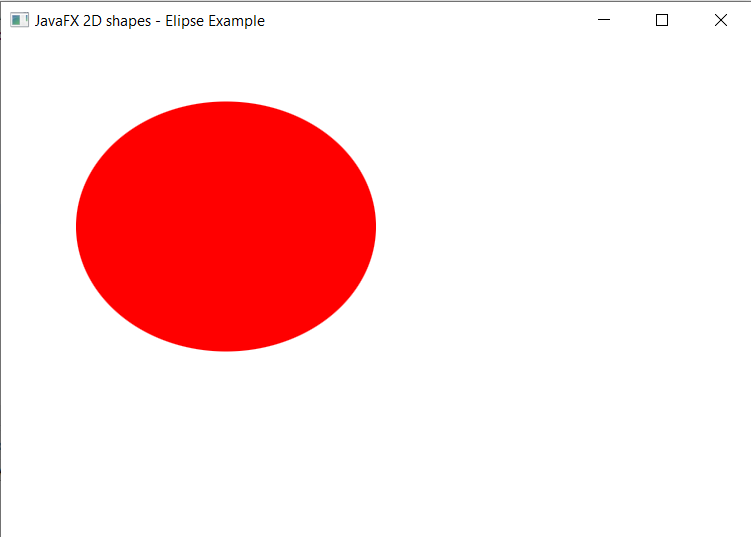
In order to create the Ellipse with specified color in JavaFX, we have to import all the required libraries such as javafx.application.Application, javafx.stage.Stage, javafx.scene.Scene, javafx.scene.Group, javafx.scene.paint.Color, javafx.scene.shape.Ellipse.
Then we have created one class named EllipseUI extending the Application class. Also, we have to override the start method to provide implementation details. This method creates an object of Stage as primaryStage. For the container to hold an Ellipse with the specified color, a Group object is created which is then passed to the Scene class object.
Ellipse is created with the help of empty constructor and X, Y, Width and Height is set using setters such as setCenterX(), setCenterY(), setRadiusX() and setRadiusY(). Color of the Ellipse is set using setColor() method.
The stage is prepared, the title is set and the show() method is called to display output. In order to run the application, the launch(args) method is invoked. In output Frame like container is displayed with the title, " JavaFX 2D shapes - Ellipse Example”. Also, it displays Ellipse having red color filled in it.