
JavaFX Translation
In the JavaFX application, in order to apply various Translate effect, we use this class. It has the ability to Translate the given object according to the specified parameter. All methods needed for this purpose are present in the javafx.scene.transform.Translate class.
Properties and corresponding methods to create Translate Transformation :
1. X
This is a double type of property. It is used to represent the x distance by which the object is to be translated and the setX( Double value ) method is used to set it.
2. Y
This is double type property. It is used to represent the y distance by which the object is to be translated and the setY( Double value ) method is used to set it.
3. Z
This is double type property. It is used to represent the z distance by which the object is to be translated and the setZ( Double value ) method is used to set it.
JavaFX Transformation – Translate Transformation
Example:
import javafx.application.Application;
import javafx.scene.Group;
import javafx.scene.Scene;
import javafx.scene.paint.Color;
import javafx.scene.text.Font;
import javafx.scene.text.FontPosture;
import javafx.scene.text.FontWeight;
import javafx.scene.text.Text;
import javafx.scene.transform.Translate;
import javafx.stage.Stage;


public class TransformUI extends Application{
@Override
public void start(Stage primaryStage) throws Exception {

Text text = new Text();
     text.setText(" Text Without Translate Effect ");
     text.setX(40);
     text.setY(40);
     text.setFont(Font.font("Times New Roman",FontWeight.BLACK,FontPosture.ITALIC,30));
     text.setFill(Color.RED);
     text.setStroke(Color.BROWN);
     text.setUnderline(true);

     Text text2 = new Text();
     text2.setText(" Text With Translate Effect ");
     text2.setX(20);
     text2.setY(20);
     text2.setFont(Font.font("Times New Roman",FontWeight.BLACK,FontPosture.ITALIC,30));
     text2.setFill(Color.RED);
     text2.setStroke(Color.BROWN);
     text2.setUnderline(true);

    Translate translate = new Translate();

    translate.setX(140);
    translate.setY(200);
    translate.setZ(200);

    text2.getTransforms().addAll(translate);

    Group root = new Group();
    root.getChildren().addAll(text,text2);
    Scene scene = new Scene(root,600,400);
    primaryStage.setScene(scene);
    primaryStage.setTitle("JavaFX Translation Example");
    primaryStage.show();
}


public static void main(String[] args) {
    launch(args);
}
}
Output:
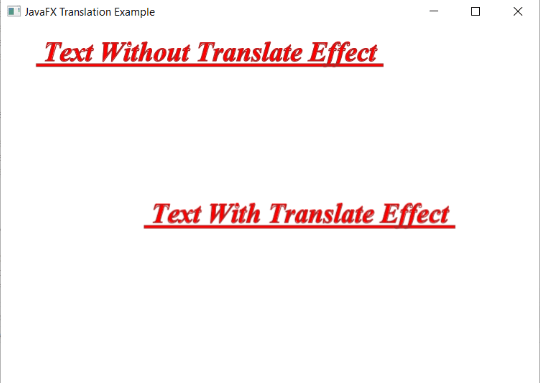
Explanation:
In order to create translate transformation in JavaFX, we have to import all the required libraries such as javafx.application.Application, javafx.scene.Group, javafx.scene.Scene, javafx.scene.transform.Translate, javafx.scene.paint.Color, javafx.scene.text.Font, javafx.scene.text.FontPosture, javafx.scene.text.FontWeight, javafx.scene.text.Text, javafx.stage.Stage.
Then we have created one class named TransformUI extending the Application class. Also, we have to override the start method to provide implementation details. This method creates an object of Stage as primaryStage. For the container to hold text with and without the translate transformation, a Group object is created which is then passed to the Scene class object.
The text is created using the constructor and various properties are set using setters. The translate transformation constructor is created and then using the setters various properties are set.
The stage is prepared, the title is set and the show() method is called to display output. In order to run the application, the launch(args) method is called in the main() method. In output Frame like container is displayed with the title, " JavaFX Translation example”. Also, it displays the text with and without the translate transformation.
JavaFX Transformation – Translate Transformation on Rectangle:
Example:
import javafx.application.Application;
import javafx.scene.Group;
import javafx.scene.Scene;
import javafx.scene.paint.Color;
import javafx.scene.shape.Rectangle;
import javafx.scene.transform.Translate;
import javafx.stage.Stage;


public class TransformUI extends Application{
@Override
public void start(Stage primaryStage) throws Exception {

    Rectangle rect1 = new Rectangle(40,40,220,180);
    Rectangle rect2 = new Rectangle(40,40,220,180);

    rect1.setFill(Color.RED);
    rect1.setStroke(Color.BLACK);
    rect1.setStrokeWidth(5);
    rect2.setFill(Color.BLUE);
    rect2.setStroke(Color.BLACK);
    rect2.setStrokeWidth(5);

    Translate translate = new Translate();

    translate.setX(240);


    rect2.getTransforms().addAll(translate);

    Group root = new Group();
    root.getChildren().addAll(rect1,rect2);
    Scene scene = new Scene(root,600,400);
    primaryStage.setScene(scene);
    primaryStage.setTitle("JavaFX Translation Example");
    primaryStage.show();
}


public static void main(String[] args) {
    launch(args);
}
}
Output:
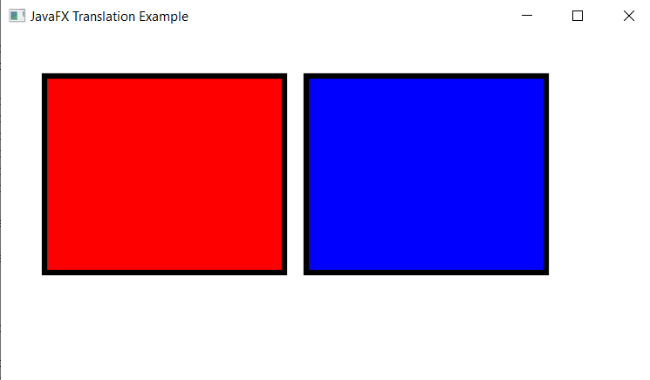
Explanation:
In order to create translate transformation in JavaFX, we have to import all the required libraries such as javafx.application.Application, javafx.scene.Group, javafx.scene.Scene, javafx.scene.paint.Color, javafx.scene.shape.Rectangle, javafx.scene.transform.Translate, javafx.stage.Stage.
Then we have created one class named TransformUI extending the Application class. Also, we have to override the start method to provide implementation details. This method creates an object of Stage as primaryStage. For the container to hold a rectangle with and without the translate transformation, a Group object is created which is then passed to the Scene class object.
The rectangle is created using the constructor and various properties are set using setters. The translate transformation constructor is created and then using the setters various properties are set.
The stage is prepared, the title is set and the show() method is called to display output. In order to run the application, the launch(args) method is called in the main() method. In output Frame like container is displayed with the title, " JavaFX Translation example”. Also, it displays the rectangle with and without the translate transformation.