JavaFX Menu
In the JavaFX application, in order to create a menu, menu items, and menu bar, Menu, MenuItem, and MenuBar class is used. The menu allows us to choose options among available choices in the application. All methods needed for this purpose are present in the javafx.scene.control.Menu class.
JavaFX Menu:
Example:
import javafx.application.Application;
import javafx.event.ActionEvent;
import javafx.event.EventHandler;
import javafx.stage.Stage;
import javafx.scene.Scene;
import javafx.scene.control.Label;
import javafx.scene.control.Menu;
import javafx.scene.control.MenuBar;
import javafx.scene.control.MenuItem;
import javafx.scene.layout.VBox;


public class MenuUI extends Application {


    @Override
    public void start(Stage primaryStage) throws Exception
    {
      Menu newmenu = new Menu("File");
      Menu newmenu2 = new Menu("Edit");


          MenuItem m1 = new MenuItem("Open");
          MenuItem m2 = new MenuItem("Save");
          MenuItem m3 = new MenuItem("Exit");
          MenuItem m4 = new MenuItem("Cut");
          MenuItem m5 = new MenuItem("Copy");
          MenuItem m6 = new MenuItem("Paste");

          newmenu.getItems().add(m1);
          newmenu.getItems().add(m2);
          newmenu.getItems().add(m3);
          newmenu2.getItems().add(m4);
          newmenu2.getItems().add(m5);
          newmenu2.getItems().add(m6);

          MenuBar newmb = new MenuBar();

          newmb.getMenus().add(newmenu);
          newmb.getMenus().add(newmenu2);


          VBox box = new VBox(newmb);

           Scene scene = new Scene(box,400,200);
           primaryStage.setScene(scene);
           primaryStage.setTitle("JavaFX Menu Example");
           primaryStage.show();
        }
    public static void main(String[] args) {
        Application.launch(args);
    }
}
Output:
In order to create the Menu in JavaFX, we have to import all the required libraries such as javafx.application.Application, javafx.stage.Stage, javafx.scene.Scene, javafx.scene.control.Menu, javafx.scene.control.MenuBar, javafx.scene.control.MenuItem, javafx.scene.layout.VBox.
Then we have created one class named MenuUI extending the Application class. Also, we have to override the start method to provide implementation details. This method creates an object of Stage as primaryStage. For the container to hold a menu with menu items on the menu bar, a VBox object is created which is then passed to the Scene class object.
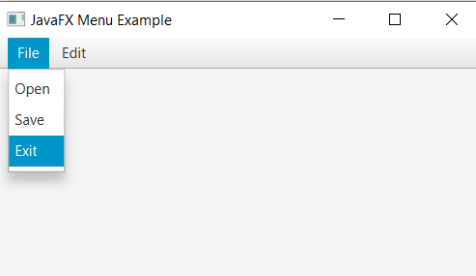
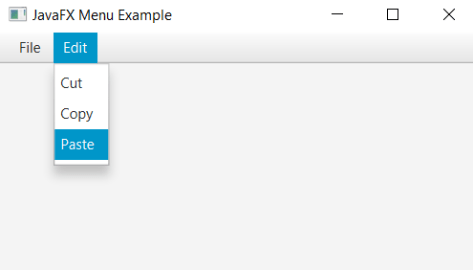
Two main menus are created namely File and Edit with menu items like Open, Save, Exit, and Cut, Copy, Paste respectively. Then menus are added to the menu bar.
The stage is prepared, the title is set and the show() method is called to display output. In order to run the application, the launch(args) method is called in the main() method. In output Frame like container is displayed with the title, "JavaFX Menu Example”. Also, it displays two menus File and Edit with menu items like Open, Save, Exit, and Cut, Copy, Paste respectively.
JavaFX Action Handling on Menu:
Example:
import javafx.application.Application;
import javafx.event.ActionEvent;
import javafx.event.EventHandler;
import javafx.stage.Stage;
import javafx.scene.Scene;
import javafx.scene.control.Label;
import javafx.scene.control.Menu;
import javafx.scene.control.MenuBar;
import javafx.scene.control.MenuItem;
import javafx.scene.layout.VBox;


public class SliderUI extends Application {


    @Override
    public void start(Stage primaryStage) throws Exception
    {
      Menu newmenu = new Menu("File");
      Menu newmenu2 = new Menu("Edit");


          MenuItem m1 = new MenuItem("Open");
          MenuItem m2 = new MenuItem("Save");
          MenuItem m3 = new MenuItem("Exit");
          MenuItem m4 = new MenuItem("Cut");
          MenuItem m5 = new MenuItem("Copy");
          MenuItem m6 = new MenuItem("Paste");

          newmenu.getItems().add(m1);
          newmenu.getItems().add(m2);
          newmenu.getItems().add(m3);
          newmenu2.getItems().add(m4);
          newmenu2.getItems().add(m5);
          newmenu2.getItems().add(m6);

          MenuBar newmb = new MenuBar();

          newmb.getMenus().add(newmenu);
          newmb.getMenus().add(newmenu2);


          Label l = new Label("\t\t\t\t\t\t"
                  + "You have selected no menu items");
          EventHandler<ActionEvent> event = new EventHandler<ActionEvent>() {
  public void handle(ActionEvent e)
  {
      l.setText("\t\t\t\t\t\t" + ((MenuItem)e.getSource()).getText() +
                                                     " menu item selected");
  }
};


m1.setOnAction(event);
m2.setOnAction(event);
m3.setOnAction(event);
m4.setOnAction(event);
m5.setOnAction(event);
m6.setOnAction(event);

          VBox box = new VBox(newmb,l);

           Scene scene = new Scene(box,400,200);
           primaryStage.setScene(scene);
           primaryStage.setTitle("JavaFX Menu Example");
           primaryStage.show();
        }
    public static void main(String[] args) {
        Application.launch(args);
    }
}
Output:
In order to create the Menu and action on it in JavaFX, we have to import all the required libraries such as javafx.application.Application, javafx.stage.Stage, javafx.scene.Scene, javafx.scene.control.Menu, javafx.scene.control.MenuBar, javafx.scene.control.MenuItem, javafx.scene.layout.VBox, javafx.event.ActionEvent, javafx.event.EventHandler;
Then we have created one class named MenuUI extending the Application class. Also, we have to override the start method to provide implementation details. This method creates an object of Stage as primaryStage. For the container to hold a menu with menu items on the menu bar with an action specified on it, a VBox object is created which is then passed to the Scene class object.
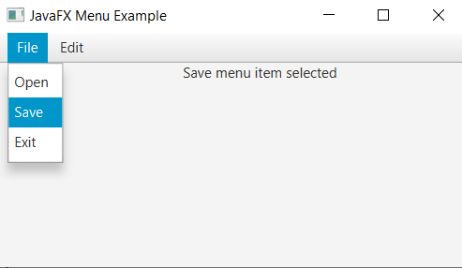
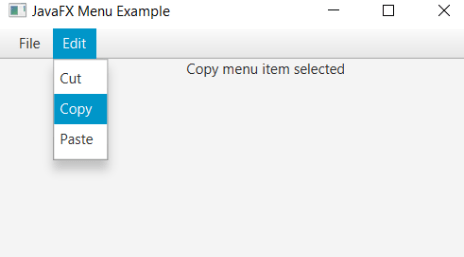
Two main menus are created namely File and Edit with menu items like Open, Save, Exit, and Cut, Copy, Paste respectively. Then menus are added to the menu bar. When we click on any menu item, it will show the message that the menu item is selected.
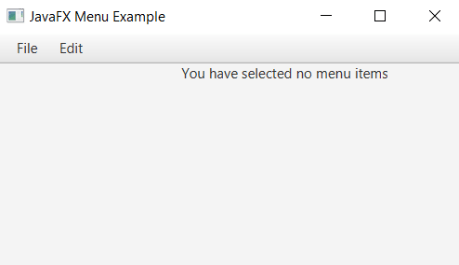
The stage is prepared, the title is set and the show() method is called to display output. In order to run the application, the launch(args) method is called in the main() method. In output Frame like container is displayed with the title, "JavaFX Menu Example". Also, it displays two menus File and Edit with menu items like Open, Save, Exit, and Cut, Copy, Paste respectively. When we click on the Save menu item, it will display the Save menu item selected. Similarly, When the user clicked on the Copy menu item, it displayed the Copy menu item selected.