
JavaFX Event Handling
JavaFX gives way to handle various events in web application, desktop applications and graphical applications. In the JavaFX application, in order to allow user to interact with application various events are created. Event occurs when user interacts with an application. User can generate event by pressing keyboard button or by pressing mouse key or scrolling.
Events are classified into mainly two types:
1. Foreground events:
These are the events which occurs due to direct interaction of user with the application. Foregrounds events are clicking the button, pressing the mouse key and scrolling the page.
2. Background events:
These event doesn’t need the interaction from the user in the application. Background events are operating system interrupts, operation completion, and failures, etc.
In order to handle various events in javafx, we have to follow below steps:
1. Route Construction:
The default route of event is determined by creating the event dispatch chain. The node on which the event is generated is determined from stage using the event dispatch chain.
2. Event Capturing:
The nodes are traversed from top to bottom after the event dispatch chain is created to find the node of the event. If it founds event filter registered it will execute it. If event filter is not registered, the event is directly transferred to target. In this case event is procesed by the target node.
3. Event Bubbling:
When we reach to the target node again the event is traversed from bottom to top to find if any node is registered with event filter. If it is then particular event is executed else process is completed.
4. Event Handlers and Filters:
The main application logic for execution on any event is contained in event handlers and filters. All the event handlers and filters must implement javafx.event.EventHandler. One node can be assigned more than one event filters.
Properties associated with Event:
- Event Type: This is the instance of EventType class. It describes the type of event to be generated various events are registered with the event type class for example, we have KEY_PRESSED, KEY_TYPED, KEY_RELEASED to handle the key event.
- Source: This property is used to describe the event source. It is generally used to show origin which generates the event.
- Target: This describes the node on which the event is defined. It is the instance of the class which implements EventTarget interface.
JavaFX Event handling: Mouse Event
Example:
import javafx.application.Application;
import javafx.scene.Group;
import javafx.scene.Scene;
import javafx.scene.layout.GridPane;
import javafx.scene.paint.Color;
import javafx.scene.shape.Circle;
import javafx.scene.text.Font;
import javafx.scene.text.FontWeight;
import javafx.scene.text.Text;
import javafx.stage.Stage;
import javafx.event.EventHandler;
import javafx.scene.input.MouseEvent;


public class EventUI extends Application {

@Override
public void start(Stage stage) throws Exception {

Circle newcircle = new Circle();

newcircle.setCenterX(300.0f);
newcircle.setCenterY(135.0f);

newcircle.setRadius(75.0f);

newcircle.setFill(Color.RED);

newcircle.setStrokeWidth(20);

     Text text = new Text("Please click on the circle to change it's color");

     text.setFont(Font.font(null, FontWeight.BOLD, 20));

     text.setFill(Color.BLUE);

     text.setX(150);
     text.setY(50);

     EventHandler<MouseEvent> eventHandler = new EventHandler<MouseEvent>() {
        @Override
        public void handle(MouseEvent e) {
           newcircle.setFill(Color.DARKSLATEBLUE);
        }
     };
     newcircle.addEventFilter(MouseEvent.MOUSE_CLICKED, eventHandler);

     Group root = new Group(newcircle, text);

     Scene scene = new Scene(root, 600, 400);

     scene.setFill(Color.LAVENDER);

     stage.setTitle("Event Handling Example");

     stage.setScene(scene);

     stage.show();
  }
  public static void main(String args[]){
     launch(args);
  }
}
Output:
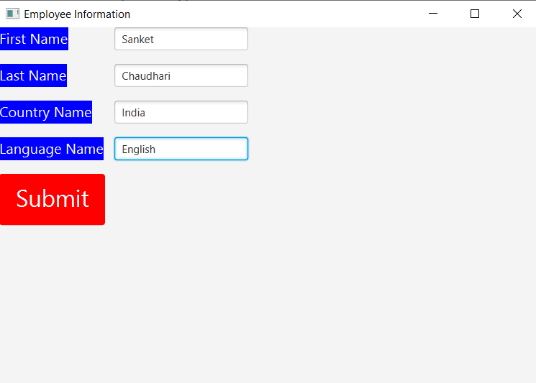
Explanation:
In order to create the mouse press event on given components in JavaFX using event handling, we have to import all the required libraries. Then we have created one class named EventUI extending the Application class. Also, we have to override the start method to provide implementation details. This method creates an object of Stage as primaryStage. For the container to hold various components with the event handling, a Group object is created which is then passed to the Scene class object.
The label is created using the constructor and various properties are set using setters. Also, button is created using the constructor and various properties are set. The CSS effect on the label is applied by using the setStyle() method in java file.
The stage is prepared, the title is set and the show() method is called to display output. In order to run the application, the launch(args) method is called in the main() method. In output Frame like container is displayed with title “ Employee Information ”. Also, it displays the label for First name, Last name, Country name, and Language name with submit button.