JavaFX TextField
In the JavaFX application, to get the user information as input from the user, a form is created using textfields which allows the user to enter input for specific fields. In JavaFX application, javafx.scene.control.TextField class is used to include TextField. We can use the TextField by creating the instance of TextField class also various methods are available.
JavaFX TextField:
Example:
import javafx.application.Application;
import javafx.scene.Scene;
import javafx.scene.control.Button;
import javafx.scene.control.Label;
import javafx.scene.control.TextField;
import javafx.scene.layout.GridPane;
import javafx.stage.Stage;

public class TextFieldUI extends Application {

    @Override
    public void start(Stage primaryStage) throws Exception {
    Label lbl=new Label(" Enter the student information ");


    Label Fname=new Label(" First Name ");
        Label lname = new Label(" Last Name ");
        TextField newtf1=new TextField();
        TextField newtf2=new TextField();
        Button newbtn = new Button("Submit");
        GridPane root = new GridPane();
        root.addRow(0, lbl);
        root.addRow(1, Fname, newtf1);
        root.addRow(2, lname, newtf2);
        root.addRow(3, newbtn);
        Scene scene=new Scene(root,600,400);
        primaryStage.setScene(scene);
        primaryStage.setTitle(" JavaFX Text Field Example");
        primaryStage.show();
    }
    public static void main(String[] args) {
        Application.launch(args);
    }
}
Output:
In order to create the TextField in JavaFX, we have to import all the required libraries such as javafx.application.Application, javafx.scene.Scene, javafx.scene.control.Button, javafx.stage.Stage, javafx.scene.control.TextField, and javafx.scene.layout.GridPane.
Then we have created one class named TextFieldUI extending the Application class. Also, we have to override the start method to provide implementation details. This method creates an object of Stage as primaryStage. For the container to hold a button with TextField and Labels, a GirdPane object is created which is then passed to the Scene class object.
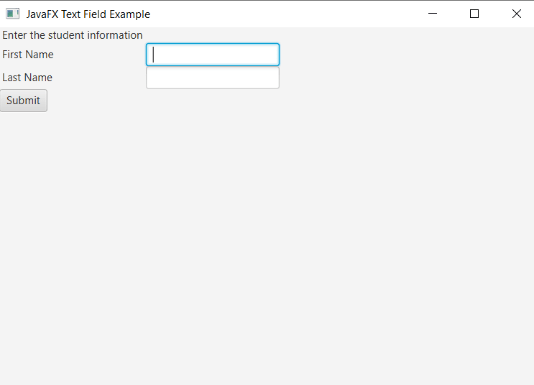
Label for firstname and lastname is created using the constructor with label text passed to it. Then two TextField are created to get input of firstname and lastname from the user. Submit button is created using the button constructor. Then using the addRow() method respective labels and textfield are added in a row. This GridPane object is given to a scene class constructor with specified width and height. The stage is prepared, the title is set and the show() method is called to display output. In order to run the application, the launch(args) method is called in the main() method. In output Frame like container is displayed with the title, "JavaFX Text Field Example”. Then the label is displayed saying Enter student information. For getting the input from the user labels with textfield are created with one submit button at the end.
Retrieving the data in the TextField:
In the JavaFX application, all the data entered in the TextField can be retrieved using the getText() method. This method returns a string that can be later printed or saved in the database. It will help to get the data entered by the user in the form.
Example:
import javafx.application.Application;
import javafx.scene.Scene;
import javafx.scene.control.Button;
import javafx.scene.control.Label;
import javafx.scene.control.TextField;
import javafx.scene.layout.GridPane;
import javafx.stage.Stage;
import javafx.event.ActionEvent;
import javafx.event.EventHandler;

public class TextFieldUI extends Application {

    @Override
    public void start(Stage primaryStage) throws Exception {
    Label firstname = new Label(" First Name");
        Label lastname = new Label(" Last Name");
        TextField newtf1=new TextField();
        TextField newtf2=new TextField();
        Button b1 = new Button(" Submit");
        b1.setOnAction(e->System.out.println("You entered: First Name: "+newtf1.getText()+""+"Last Name: "+newtf2.getText()));
        GridPane root = new GridPane();
        root.addRow(0, firstname, newtf1);
        root.addRow(1, lastname, newtf2);
        root.addRow(2, b1);
        Scene scene=new Scene(root,500,300);
        primaryStage.setScene(scene);
        primaryStage.setTitle("Text Field Example");
        primaryStage.show();
    }
    public static void main(String[] args) {
        Application.launch(args);
    }
}
Output:
In order to create the TextField and Action on it in JavaFX, we have to import all the required libraries such as javafx.application.Application, javafx.scene.Scene, javafx.scene.control.Button, javafx.stage.Stage, javafx.scene.control.TextField, javafx.scene.layout.GridPane, javafx.event.ActionEvent, and javafx.event.EventHandler.
Then we have created one class named TextFieldUI extending the Application class. Also, we have to override the start method to provide implementation details. This method creates an object of Stage as primaryStage. For the container to hold a button with TextField and Labels, a GirdPane object is created which is then passed to the Scene class object.
Label for firstname and lastname is created using the constructor with label text passed to it. Then two TextField are created to get input of firstname and lastname from the user. Submit button is created using the button constructor. The action is added on the button using the setOnAction() method which will use the getText() method to retrieve the value entered in the TextField.
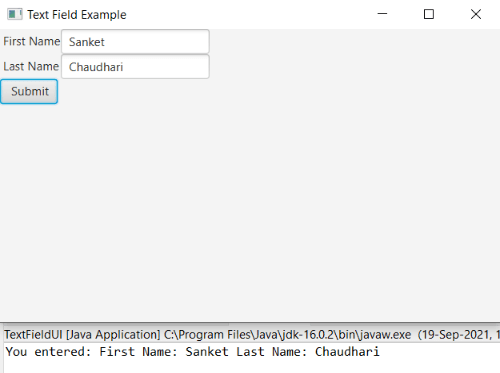
Then using the addRow() method respective labels and textfield are added in a row. This GridPane object is given to a scene class constructor with specified width and height. The stage is prepared, the title is set and the show() method is called to display output. In order to run the application, the launch(args) method is called in the main() method. In output Frame like container is displayed with the title, "Text Field Example”. The user enters first name and last name in the TextField and when the user clicks on the submit button, it will show, You entered: First Name: Sanket Last Name: Chaudhari.