JavaFX Layouts
Layouts in the JavaFX application are treated as a container for different UI elements such as Button, Label, TextArea, etc. Layouts are used as parent container. The layout is used to specify how components are arranged and aligned. All the classes for setting the layout are present in the javafx.scene.layout package.
Different Layouts in JavaFX applications:
1. BorderPane:
The BorderPane layout in the JavaFX application is used to place the nodes in the left, right, top, bottom, and center of the screen.
2. FlowPane:
The FlowPane is used to arrange the nodes according to the horizontal spaces available. If the horizontal space is less than node width. It goes to the next line.
3. GridPane:
The GridPane is used to arrange the components in the form of rows and columns.
4. StackPane:
In the JavaFX application, nodes in the stack pane are arranged in the form of a stack.
5. HBox:
The HBox is used to arrange nodes in one row.
6. VBox:
The VBox is used to arrange nodes in one column.
7. AnchorPane:
This layout is used to set nodes at a specified distance.
8. TilePane:
Tile pane is used to arrange all the nodes in the form of tiles in the container.
9. Pane:
All the layout classes have the base class, pane in the JavaFX application.
Creating Layout in JavaFX:
In order to create a layout we have to follow below steps:
- Create a node that is to be placed in the container.
- Instantiate the Layout class.
- Set required properties of the layout using different methods.
- Add the nodes in the layout.
Create a node that is to be placed in the container.
We have to first create the required nodes by using various controls in JavaFX classes.
Example- If you want One label to enter your name and one button submitted with the textfield to enter the name in the container, you will have to instantiate respective classes using JavaFX packages.
//Create the Label in JavaFX
Label lbl = new Label(“ Enter Your Name ”);


//Create the text field in JavaFX
TextField textField = new TextField();


//Create the button in JavaFX
Button btn = new Button(“ Submit ”);
Instantiate the Layout class.
Once all the nodes are created using JavaFX application classes, We have to Instantiate the required Layout class using respective packages.
Example- If we want VBox in your application, we can instantiate by using the below statement,
HBox box = new HBox();
Set required properties of the layout using different methods.
Using various methods we can specify various properties of the layout. We can use setter methods for the same.
Example- We can set the spacing property of VBox by calling the setSpacing() method on the layout object.
box.setSpacing(30);
Add the nodes in the layout.
We need to add all objects of the shape to a specified group by passing it as the parameter to the constructor as written below.
Group root = new Group(label);
Example:
import javafx.application.Application;
import javafx.scene.Scene;
import javafx.scene.control.Label;
import javafx.scene.layout.StackPane;
import javafx.stage.Stage;


public class SimpleLayout extends Application
{
@Override
public void start(Stage primaryStage) throws Exception
{
    Label newlb = new Label(" Label in JavaFX ");
    StackPane pane = new StackPane();
    Scene scene = new Scene( pane, 500, 400 );
    pane.getChildren().addAll(newlb);
    primaryStage.setScene(scene);
    primaryStage.setTitle(" Label Example in JavaFX ");
    primaryStage.show();
}


public static void main(String[] args)
{
    launch(args);

}
}
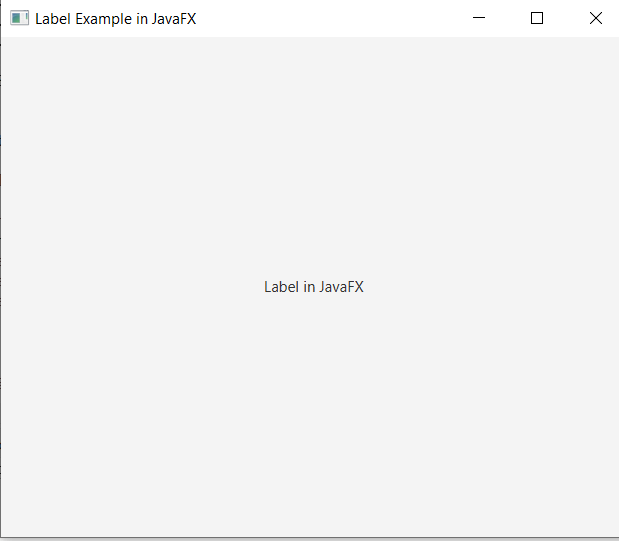
Output:
In order to create layout and place component in it, we have to import all the required libraries such as javafx.application.Application, javafx.scene.Scene, javafx.scene.control.Label, javafx.stage.Stage, and javafx.scene.layout.StackPane.
The java class is created which extends the Application class. Also start method is overridden with a primarystage object as an argument in it. In the start method label is created with text specified in it. Then StackPane container is created. An object of StackPane is passed to the Scene constructor as an argument. Then addAll() method is then added to the container. Using show() method on primaryStage is called to display container. Then in the main method launch(args) method is called.
Right-click on the java file, to run the application. Then select Run As, and choose Java application. It will show one container with the title "Label Example in JavaFX" and the Label in the center.