
×

JavaFX HBox

In the JavaFX application, in order to set HBox as a layout, the HBox class is used. The HBox layout allows us to arrange the components in one row. All methods needed for this purpose are present in the javafx.scene.layout.HBox class.

The constructor of HBox layout:

1. HBox():

It is used to create an empty HBox with zero spacing.

2. HBox(Double sp):

It is used to create HBox with specified spacing.

Methods to set HBox as a layout:

1. setAlignment(Double v)

This property of the HBox class allows us to set the alignment of the layout.

2. setFillHeight(Double v)

This property of HBox class is used to set height of the node as height of the HBox.

3. setSpacing(Double v)

This property of the HBox class is used to set space between two nodes in the HBox.

Layouts in JavaFX applications- Simple HBox

Example:

import javafx.application.Application;
import javafx.geometry.Pos;
import javafx.scene.Scene;
import javafx.scene.control.Button;
import javafx.scene.layout.HBox;
import javafx.stage.Stage;


public class HBoxUI extends Application {  


    @Override  
    public void start(Stage primaryStage) throws Exception 
    {  
      Button button1 = new Button(" Submit  ");
          Button button2 = new Button(" Clear ");
         
        HBox box=new HBox();


    Scene scene = new Scene(box,600,400);  
    box.getChildren().addAll(button1,button2);
         
           primaryStage.setScene(scene);  
           primaryStage.setTitle(" JavaFX Layout - HBox Example");  
           primaryStage.show();  
        }
    public static void main(String[] args) {
        Application.launch(args);
    }
}

Output:

In order to create the HBox in JavaFX, we have to import all the required libraries such as javafx.application.Application, javafx.stage.Stage, javafx.scene.Scene, javafx.scene.control.Button,  javafx.scene.layout.HBox.

Then we have created one class named HBoxUI extending the Application class. Also, we have to override the start method to provide implementation details. This method creates an object of Stage as primaryStage. For the container to hold HBox, a HBox object is created which is then passed to the Scene class object.

HBox is created with the help of its constructor and components are added using addAll() method.

The stage is prepared, the title is set and the show() method is called to display output. In order to run the application, the launch(args) method is invoked. In output Frame like container is displayed with the title, " JavaFX Layout – HBox Example”. Also, it displays HBox with two buttons Submit and Clear.
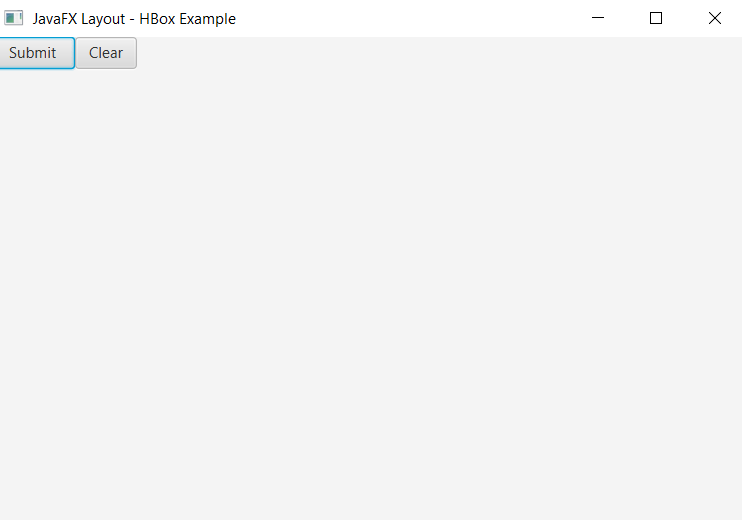
Layouts in JavaFX applications- HBox

Layouts in JavaFX applications- HBox using spacing:

Example:

import javafx.application.Application;
import javafx.geometry.Pos;
import javafx.scene.Scene;
import javafx.scene.control.Button;
import javafx.scene.layout.HBox;
import javafx.stage.Stage;


public class SliderUI extends Application {  


    @Override  
    public void start(Stage primaryStage) throws Exception 
    {  
      Button button1 = new Button(" Submit  ");
          Button button2 = new Button(" Clear ");
         
        HBox box=new HBox();


    Scene scene = new Scene(box,600,400);  
    box.getChildren().addAll(button1,button2);
         box.setSpacing(50);;
         
           primaryStage.setScene(scene);  
           primaryStage.setTitle(" JavaFX Layout - HBox Example");  
           primaryStage.show();  
        }
    public static void main(String[] args) {
        Application.launch(args);
    }
}

Output:

In order to create the HBox with spacing in JavaFX, we have to import all the required libraries such as javafx.application.Application, javafx.stage.Stage, javafx.scene.Scene, javafx.scene.control.Button,  javafx.scene.layout.HBox.

Then we have created one class named HBoxUI extending the Application class. Also, we have to override the start method to provide implementation details. This method creates an object of Stage as primaryStage. For the container to hold HBox with space between nodes, a HBox object is created which is then passed to the Scene class object.

HBox is created with the help of its constructor and components are added using addAll() method and space is mentioned using setSpacing() method on HBox object.

The stage is prepared, the title is set and the show() method is called to display output. In order to run the application, the launch(args) method is invoked. In output Frame like container is displayed with the title, " JavaFX Layout – HBox Example”. Also, it displays HBox with two buttons Submit and Clear with mentioned space in it.
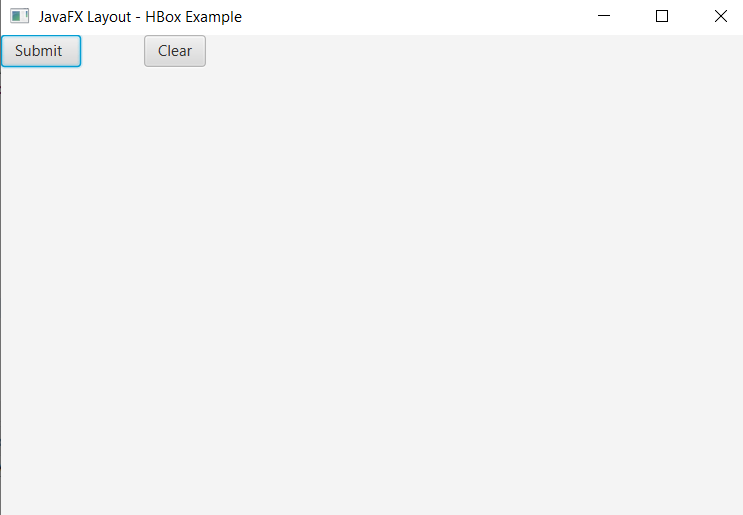
Layouts in JavaFX applications- HBox

Related Topics

JavaFX Area Chart

In the JavaFX application, in order to create Area Chart, the AreaChart class is used. The Area Chart allows us to plot data along the XY plane. All methods needed...

3 minutes read.

JavaFX Circle

In the JavaFX application, in order to draw a circle, the Circle class is used. The Circle allows us to join any points in the space. All methods needed for...

4 minutes read.

JavaFX Menu

In the JavaFX application, in order to create a menu, menu items, and menu bar, Menu, MenuItem, and MenuBar class is used. The menu allows us to choose options among...

4 minutes read.

JavaFX Image Input

In the JavaFX application, in order to apply various image input effect, we use the ImageInput class. It has the ability to fill the specified shape with a given image...

4 minutes read.

JavaFX - Basic Structure of Application

Every JavaFX application is mainly divided into three main components namely Scene, Stage, and nodes. For using these components we need to import javafx.application.Application class in every javafx application. Life...

4 minutes read.

JavaFX Shear

In the JavaFX application, in order to apply various shear effect, we use this class. It has the ability to shear the given object along the x or y axis....

3 minutes read.

JavaFX Polygon

In the JavaFX application, in order to draw a polygon, the Polygon class is used. The Polygon allows us to join any number of points in the space. All methods...

4 minutes read.

JavaFX ProgressBar

In the JavaFX application, in order to show the progress of work ProgressBar is used. It shows how much work is done. In order to use ProgressBar in JavaFX, javafx.scene.control.ProgressBar...

4 minutes read.

JavaFX HyperLink

In the JavaFX application, in order to access and use webpages, hyperlinks are used. In HTML anchor tags are used in the same way in JavaFX hyperlinks are used. To...

4 minutes read.

JavaFX Translation

In the JavaFX application, in order to apply various Translate effect, we use this class. It has the ability to Translate the given object according to the specified parameter. All...

4 minutes read.

JavaFX Reflection

In the JavaFX application, in order to apply various reflection effect, we use this class. It has the ability to create the reflection of the given object. This effect adds...

4 minutes read.

JavaFX Rotate Transition

In the JavaFX application, in order to generate the rotate transition, we have to apply rotation transition on any particular shape. It has the ability to rotate the shape along...

4 minutes read.

JavaFX Blend

In the JavaFX application, in order to apply various blend effect, we use Blend class. It has the ability to blend the colors of the shape. All methods needed for...

4 minutes read.

JavaFX Architecture

JavaFX architecture consists of many built-in components such as JavaFX public API, Scene Graph, Quantum Toolkit, Prism, Glass windowing toolkit, web view, media engines. These components help to develop rich...

3 minutes read.

JavaFX BorderPane

In the JavaFX application, in order to set Border Pane as a layout, the BorderPane class is used. The BorderPane layout allows us to arrange the components in the left,...

4 minutes read.

JavaFX Light Spot

In the JavaFX application, in order to apply various Light Spot effect from a single source, we use this class. It has the ability to apply light from all the...

4 minutes read.

JavaFX Color Input

In the JavaFX application, in order to apply various color input effect, we use the ColorInput class. It has the ability to fill the specified shape with a given color...

4 minutes read.

JavaFX Scatter Chart

In the JavaFX application, in order to create Scatter Chart, the ScatterChart class is used. The Scatter Chart allows us to plot data along the x and y axis of...

4 minutes read.

JavaFX Installation

In order to run JavaFX applications, we need to have eclipse and java installed on our machine. Prerequisite: Operating systemAny Operating system (Windows, Linux, Mac)Memory requirementNo minimum requirementDisk SpaceNo minimum requirementJDK versionJDK...

3 minutes read.

JavaFX Box

In the JavaFX application, in order to draw a Box, the Box class is used. The Box allows us to form 3D shape having rectangular faces. All methods needed for...

4 minutes read.