JavaFX Slider
In the JavaFX application, in order to slide over a range of data having values, Slider is used. It provides a pane with a Slider to move over a range of values. In order to use Slider in JavaFX, javafx.scene.control.Slider class is used. The slider can be a vertical or horizontal bar depending upon user requirements. The slider has tick marks on it. It has min, max, value variable showing different marks on the slider. These values are numbers.
JavaFX Slider:
Example:
import javafx.application.Application;
import javafx.scene.Group;
import javafx.scene.Scene;
import javafx.scene.control.Slider;
import javafx.stage.Stage;


public class SliderUI extends Application {


    @Override
    public void start(Stage primaryStage) throws Exception
    {
    Group root = new Group();

        Slider slider = new Slider();

        Scene scene = new Scene(root, 600, 400);
        root.getChildren().add(slider);
        primaryStage.setScene(scene);
        primaryStage.setTitle("JavaFx Slider Example");
        primaryStage.show();
        }
    public static void main(String[] args) {
        Application.launch(args);
    }
}
Output:
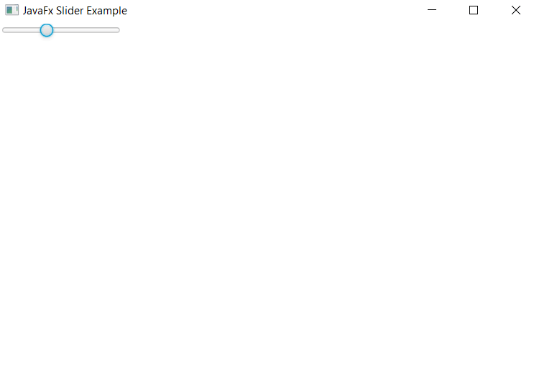
In order to create the Slider in JavaFX, we have to import all the required libraries such as javafx.application.Application, javafx.scene.Scene, javafx.stage.Stage, javafx.scene.control.Slider, javafx.scene.Group.
Then we have created one class named SliderUI extending the Application class. Also, we have to override the start method to provide implementation details. This method creates an object of Stage as primaryStage. For the container to hold the slider, Group is created which is then passed to the Scene class object.
The Slider is created with its constructor.
The stage is prepared, the title is set and the show() method is called to display output. In order to run the application, the launch(args) method is called in the main() method. In output Frame like container is displayed with the title, “ JavaFX Slider Example ". Also, it displays a Simple Slider.
JavaFX Slider with Tick Marks:
Example:
import javafx.application.Application;
import javafx.scene.Group;
import javafx.scene.Scene;
import javafx.scene.control.Slider;
import javafx.stage.Stage;


public class SliderUI extends Application {


    @Override
    public void start(Stage primaryStage) throws Exception
    {
    Group pane = new Group();

    Slider newslider = new Slider(0, 2, 1.5);

    newslider.setShowTickMarks(true);

    newslider.setShowTickLabels(true);

    newslider.setMajorTickUnit(0.50f);


    newslider.setBlockIncrement(0.1f);
        Scene scn = new Scene(pane, 600, 400);
        pane.getChildren().add(newslider);
        primaryStage.setScene(scn);
        primaryStage.setTitle("JavaFx Slider Example");
        primaryStage.show();
        }
    public static void main(String[] args) {
        Application.launch(args);
    }
}
Output:
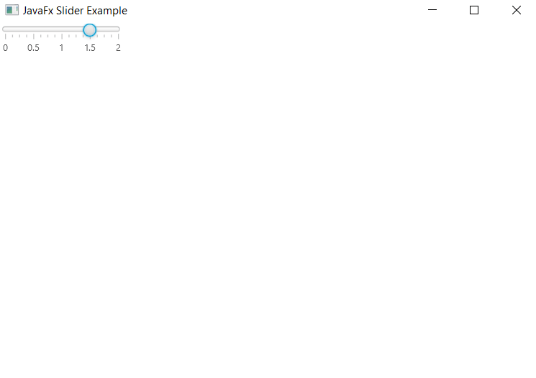
In order to create the Slider with tick marks in JavaFX, we have to import all the required libraries such as javafx.application.Application, javafx.scene.Scene, javafx.stage.Stage, javafx.scene.control.Slider, javafx.scene.Group.
Then we have created one class named SliderUI extending the Application class. Also, we have to override the start method to provide implementation details. This method creates an object of Stage as primaryStage. For the container to hold a slider with tick marks, Group is created which is then passed to the Scene class object.
The Slider is created with its constructor having min value, max value, and current value passed into it. setShowTickMarks() method is used to set values for tick marks. setShowTickLabels() method is used to set labels for values in Slider. setMajorTickUnit() is used to set the values of major ticks. setBlockIncrement() method is used to set interval for blocks for increment.
The stage is prepared, the title is set and the show() method is called to display output. In order to run the application, the launch(args) method is called in the main() method. In output Frame like container is displayed with the title, “ JavaFx Slider Example ”. Also, it displays Slider with 0.5 intervals and shows the current value at 1.5 with min and max value set to 0 and 2 respectively.
JavaFX Vertical Slider:
Example:
import javafx.application.Application;
import javafx.geometry.Orientation;
import javafx.scene.Group;
import javafx.scene.Scene;
import javafx.scene.control.Label;
import javafx.scene.control.Slider;
import javafx.scene.layout.VBox;
import javafx.scene.paint.Color;
import javafx.stage.Stage;


public class SliderUI extends Application {


    @Override
    public void start(Stage primaryStage) throws Exception
    {
    Label newlabel = new Label("Choose level you want");

        Slider newslider = new Slider();


        newslider.setMin(0);
        newslider.setMax(60);
        newslider.setValue(40);
        newslider.setBlockIncrement(10);


        newslider.setShowTickLabels(true);
        newslider.setShowTickMarks(true);
        newslider.setOrientation(Orientation.VERTICAL);


        VBox root = new VBox();

        root.setSpacing(10);
        root.getChildren().addAll(newlabel, newslider);
        Scene scn = new Scene(root, 400, 200);
        primaryStage.setScene(scn);
        primaryStage.setTitle(" JavaFx Slider with tick marks Example ");
        primaryStage.show();
        }
    public static void main(String[] args) {
        Application.launch(args);
    }
}
Output:
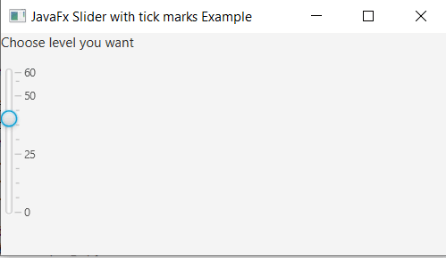
In order to create the Vertical Slider with tick marks in JavaFX, we have to import all the required libraries such as javafx.application.Application, javafx.scene.Scene, javafx.stage.Stage, javafx.scene.control.Slider, javafx.scene.Group, javafx.scene.control.Label, javafx.scene.layout.VBox, and javafx.scene.paint.Color.
Then we have created one class named SliderUI extending the Application class. Also, we have to override the start method to provide implementation details. This method creates an object of Stage as primaryStage. For the container to hold a vertical slider with tick marks, Group is created which is then passed to the Scene class object.
The Slider is created with its constructor. The setMin(), setMax(), and setValue() method is used to set min, max, and current value. setShowTickMarks() method is used to set values for tick marks. setShowTickLabels() method is used to set labels for values in Slider. setOrientation(Orientation.VERTICAL) is used to display vertical slider. setBlockIncrement() method is used to set interval for blocks for increment.
The stage is prepared, the title is set and the show() method is called to display output. In order to run the application, the launch(args) method is called in the main() method. In output Frame like container is displayed with a title, “ JavaFx Slider with tick marks Example ". Also, it displays Slider and shows the current value at 40 with min and max value set to 0 and 60 respectively.