JavaFX Rotate Transition
In the JavaFX application, in order to generate the rotate transition, we have to apply rotation transition on any particular shape. It has the ability to rotate the shape along all three axes. All methods needed for this purpose are present in the javafx.animation.RotateTransition class.
Properties and corresponding methods to create Rotate Transition:
1. axis
This property is of the Point3D object type. It is used to represent rotate transition axis and the setAxis() method is used to set it.
2. byAngle
This is double type property that is used to represent the angle at which the object is rotated. setByAngle() method is used to set it.
3. fromAngle
This property is used to represent rotate transition start Angle. setFromAngle() method is used to set it.
4. toAngle
This property is used to represent rotate transition stop Angle and the setToAngle() method helps to set it.
5. duration
It is used to represent the duration of the rotate transition. setDuration() method is used to set it.
6. node
This object type property is used to demonstrate the node for which rotate transition is to be applied.
JavaFX Animation -Rotate Transition
Example:
import javafx.animation.RotateTransition;
import javafx.application.Application;
import javafx.scene.Group;
import javafx.scene.Scene;
import javafx.scene.paint.Color;
import javafx.scene.shape.Rectangle;
import javafx.scene.transform.Rotate;
import javafx.stage.Stage;
import javafx.util.Duration;


public class AnimationUI extends Application {


    @Override
    public void start(Stage primaryStage) throws Exception
    {
    Rectangle newrect = new Rectangle(150,70,150,150);
    newrect.setFill(Color.BLUE);
    newrect.setStroke(Color.RED);
    newrect.setStrokeWidth(3);

    RotateTransition rotation = new RotateTransition();

    rotation.setAxis(Rotate.Z_AXIS);
    rotation.setByAngle(360);

    rotation.setCycleCount(500);

    rotation.setDuration(Duration.millis(700));

    rotation.setAutoReverse(true);

    rotation.setNode(newrect);

    rotation.play();

    Group root = new Group();
    root.getChildren().add(newrect);
    Scene scene = new Scene(root,600,400);
    primaryStage.setScene(scene);
    primaryStage.setTitle("JavaFX Rotation Transition example");
    primaryStage.show();

}

    public static void main(String[] args) {
        launch(args);
    }
}
Output:
In order to create the Rotate Transition in JavaFX, we have to import all the required libraries such as javafx.animation.RotateTransition, javafx.application.Application, javafx.scene.Group, javafx.scene.Scene, javafx.scene.paint.Color, javafx.scene.shape.Rectangle, javafx.scene.transform.Rotate, javafx.stage.Stage, javafx.util.Duration.
Then we have created one class named AnimationUI extending the Application class. Also, we have to override the start method to provide implementation details. This method creates an object of Stage as primaryStage. For the container to hold a roating Rectangle, a Group object is created which is then passed to the Scene class object.
The rectangle is created with the help of the constructor and X, Y, Width, and Height are passed to it. Then the object of RotateTransition is created and the axis is set to z and start angle to 360 and the duration millis to 700. This will show a rotating rectangle.
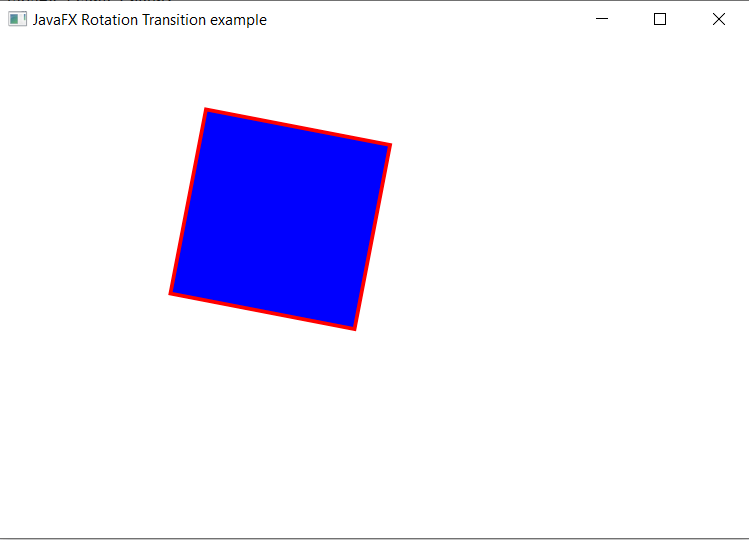
The stage is prepared, the title is set and the show() method is called to display output. In order to run the application, the launch(args) method is called in the main() method. In output Frame like container is displayed with the title, " JavaFX Rotation Transition example”. Also, it displays a rectangle filled with blue color rotating in a given plane.
JavaFX Animation -Rotate Transition on Hexagon
Example:
import javafx.animation.RotateTransition;
import javafx.application.Application;
import javafx.scene.Group;
import javafx.scene.Scene;
import javafx.scene.paint.Color;
import javafx.scene.shape.Polygon;
import javafx.stage.Stage;
import javafx.util.Duration;


public class AnimationUI extends Application {


    @Override
    public void start(Stage primaryStage) throws Exception
    {
    Polygon newhexagon = new Polygon();

    newhexagon.getPoints().addAll(new Double[]{
           200.0, 50.0,
           300.0, 50.0,
           450.0, 150.0,
           300.0, 250.0,
           200.0, 250.0,
           150.0, 150.0,
        });
    newhexagon.setFill(Color.RED);

        RotateTransition rotation = new RotateTransition();

        rotation.setDuration(Duration.millis(1000));

        rotation.setNode(newhexagon);

        rotation.setByAngle(360);

        rotation.setCycleCount(50);

        rotation.setAutoReverse(false);

        rotation.play();

        Group root = new Group(newhexagon);

        Scene scene = new Scene(root, 600, 400);
    primaryStage.setScene(scene);
    primaryStage.setTitle("JavaFX Rotation Transition example");
    primaryStage.show();

}

    public static void main(String[] args) {
        launch(args);
    }
}
Output:
In order to create the Rotate Transition on polygon in JavaFX, we have to import all the required libraries such as javafx.animation.RotateTransition, javafx.application.Application, javafx.scene.Group, javafx.scene.Scene, javafx.scene.paint.Color, javafx.scene.shape.Rectangle, javafx.scene.transform.Rotate, javafx.stage.Stage, javafx.util.Duration.
Then we have created one class named AnimationUI extending the Application class. Also, we have to override the start method to provide implementation details. This method creates an object of Stage as primaryStage. For the container to hold a roating hexagon, a Group object is created which is then passed to the Scene class object.
The Hexagon is created with the help of the polygon constructor and array of points passed with its object. Then the object of RotateTransition is created and the axis is set to z and start angle to 360 and the duration millis to 1000. This will show a rotating hexagon.
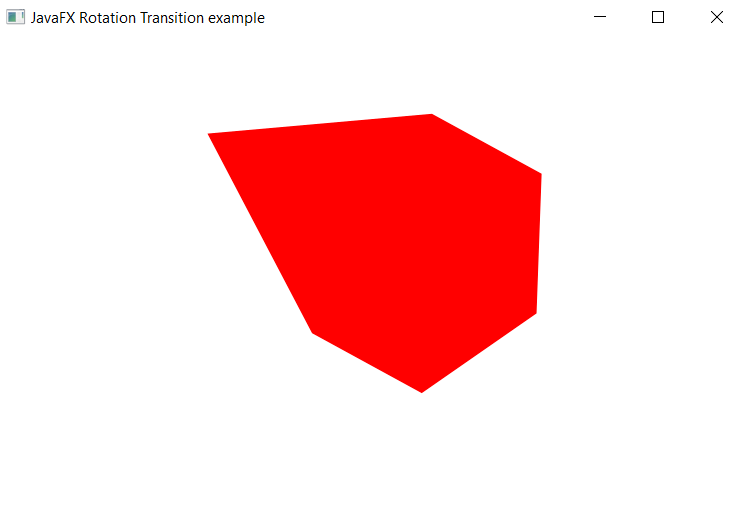
The stage is prepared, the title is set and the show() method is called to display output. In order to run the application, the launch(args) method is called in the main() method. In output Frame like container is displayed with the title, " JavaFX Rotation Transition example”. Also, it displays a hexagon filled with red color rotating in a given plane.