JavaFX TilePane
In the JavaFX application, in order to set TilePane as a layout, the TilePane class is used. The TilePane layout allows us to arrange the components in the same sized tiles according to specified boundries. All methods needed for this purpose are present in the javafx.scene.layout.TilePane class.
The constructor of TilePane layout:
1. TilePane():
It is used to create an empty tile pane layout with uniformly sized tiles.
2. TilePane( Orientation o ):
It is used to create an empty tile pane layout with uniform-sized tiles and specified orientation.
Methods to set TilePane as a layout:
1. setAlignment(pos v)
This property of the TilePane class allows us to set the alignment of the layout.
2. setOrientation(Orientation v)
This property of TilePane class is used to set the orientation of the TilePane.
3. setVgap(Double v)
This property of the TilePane class is used to set vertical space between two nodes in the TilePane.
4. setHgap(Double v)
This property of the TilePane class is used to set horizontal space between two nodes in the TilePane.
Layouts in JavaFX applications- Simple Tile Pane
Example:
import javafx.application.Application;
import javafx.collections.ObservableList;
import javafx.geometry.Orientation;
import javafx.geometry.Pos;
import javafx.scene.Scene;
import javafx.scene.control.Button;
import javafx.scene.layout.TilePane;
import javafx.stage.Stage;


public class TilePaneUI extends Application
{


    @Override
    public void start (Stage primaryStage) throws Exception
    {
    Button[] buttons = new Button[] {
             new Button (" New "),
             new Button ("  Open "),
             new Button (" Save "),
             new Button (" Cut "),
             new Button (" Copy "),
             new Button (" Paste "),
             new Button (" Exit ")
          };
          TilePane Pane = new TilePane();

          Pane.setOrientation(Orientation.HORIZONTAL);

          Pane.setTileAlignment(Pos.CENTER_LEFT);


          ObservableList list = Pane.getChildren();

          list.addAll(buttons);

          Scene scene = new Scene(Pane,600,400);

           primaryStage.setScene(scene);
           primaryStage.setTitle(" JavaFX Layout - Tile Pane Example");
           primaryStage.show();
        }
    public static void main(String[] args) {
        Application.launch(args);
    }
}
Output:
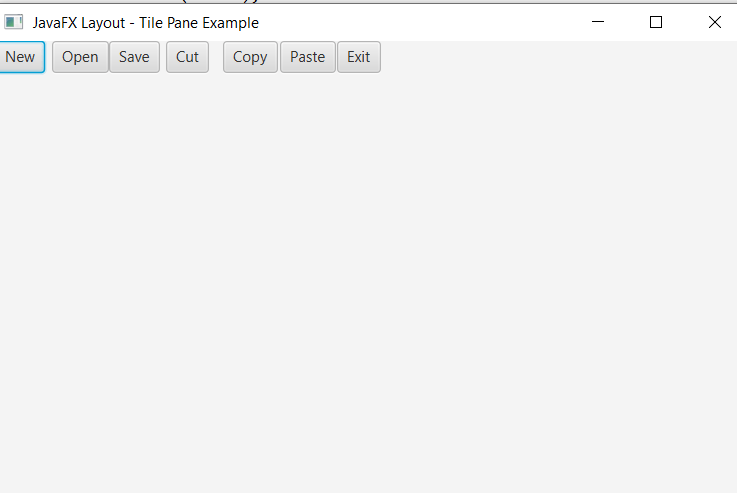
In order to create the TilePane with the uniformed size tiles in JavaFX, we have to import all the required libraries such as javafx.application.Application, javafx.stage.Stage, javafx.scene.Scene, javafx.scene.control.Button, javafx.scene.layout.TilePane, javafx.collections.ObservableList, javafx.geometry.Orientation, javafx.geometry.Pos.
Then we have created one class named TilePaneUI extending the Application class. Also, we have to override the start method to provide implementation details. This method creates an object of Stage as primaryStage. For the container to hold TilePane with different tiles, a TilePane object is created which is then passed to the Scene class object.
TilePane is created with the help of its constructor. Then using ObservableList all the components are added to the list which is then set as Tiles.
The stage is prepared, the title is set and the show() method is called to display output. In order to run the application, the launch(args) method is invoked. In output Frame like container is displayed with the title, " JavaFX Layout – Tile Pane Example”. Also, it displays TilePane with a new, open, save, cut, copy, paste, exit uniform-sized tiles placed in horizontal tile pane.
Layouts in JavaFX applications- Tile Pane with specified vgap and hgap
Example:
import javafx.application.Application;
import javafx.collections.ObservableList;
import javafx.geometry.Orientation;
import javafx.geometry.Pos;
import javafx.scene.Scene;
import javafx.scene.control.Button;
import javafx.scene.layout.TilePane;
import javafx.stage.Stage;


public class TilePaneUI extends Application {


    @Override
    public void start(Stage primaryStage) throws Exception
    {
    Button[] buttons = new Button[] {
             new Button("New"),
             new Button("Open"),
             new Button("Save"),
             new Button("Cut"),
             new Button("Copy"),
             new Button("Paste"),
             new Button("Exit")
          };
          TilePane Pane = new TilePane();

          Pane.setOrientation(Orientation.HORIZONTAL);

          Pane.setTileAlignment(Pos.CENTER_LEFT);

          Pane.setHgap(40);
          Pane.setVgap(20);

          ObservableList list = Pane.getChildren();

          list.addAll(buttons);

          Scene scene = new Scene(Pane);

           primaryStage.setScene(scene);
           primaryStage.setTitle(" JavaFX Layout - Tile Pane Example");
           primaryStage.show();
        }
    public static void main(String[] args) {
        Application.launch(args);
    }
}
Output:
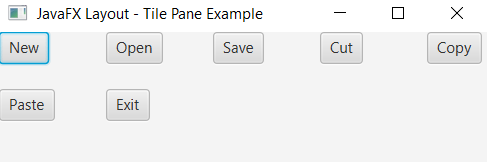
In order to create the TilePane with defined spacing between tiles in JavaFX, we have to import all the required libraries such as javafx.application.Application, javafx.stage.Stage, javafx.scene.Scene, javafx.scene.control.Button, javafx.scene.layout.TilePane, javafx.collections.ObservableList, javafx.geometry.Orientation, javafx.geometry.Pos.
Then we have created one class named TilePaneUI extending the Application class. Also, we have to override the start method to provide implementation details. This method creates an object of Stage as primaryStage. For the container to hold TilePane with specified vgap and hgap between tiles, a TilePane object is created which is then passed to the Scene class object.
TilePane is created with the help of its constructor. Then using ObservableList all the components are added in the list which is then set as Tiles. The vgap and hgap is specified using setters.
The stage is prepared, the title is set and the show() method is called to display output. In order to run the application, the launch(args) method is invoked. In output Frame like container is displayed with the title, " JavaFX Layout – Tile Pane Example”. Also, it displays TilePane with a new, open, save, cut, copy, paste, exit tiles with specified vgap and hgap.